Creating Custom Labels for Tasks, Claims and Appointments
Last updated: August 18, 2025
Custom labels help organize tasks, claims, and appointments in Canvas Medical. Clinics can categorize and prioritize items by urgency, workflow stages, or specialty needs. Canvas includes three default labels—Emergent, Urgent, and Routine—which cannot be removed to ensure critical prioritization. Additional custom labels can be created to streamline operations and improve workflow efficiency.
User's Guide
Understanding Label Types
Canvas provides three immutable system labels that serve as the foundation for task, claim and appointment prioritization:
Emergent: For time-critical items requiring immediate attention
Urgent: For high-priority items needing prompt action
Routine: For standard priority items following normal workflow
Additional labels can be created and tailored to the clinic's specific needs, such as specialty workflows (Primary Care, Referral), departmental organization, or custom priority levels.
Label Assignment Methods
Labels can be applied to tasks, claims and appointments through two primary methods:
Manual Assignment: Users can select appropriate labels when creating or editing tasks, claims and appointments directly in the interface.
Automated Assignment: Task Association rules enable labels to be automatically applied based on preset workflows, ensuring consistent categorization as new items are generated.
Label Visibility and Display
Labels appear consistently across relevant interfaces to provide clear visual organization. For claims specifically, labels must be configured within individual revenue queues to ensure proper display in those workflows.
Configuration & Set Up
Creating New Labels
Navigate to Practice: Task Labels in Settings
Click Add Task Label +
Configure the following fields:
Name: The display text for the label (e.g., "Primary Care", "Referral", "Follow-up")
Color: The display color for the label (defaults to gray)
Position: Determines display order in selection lists
Task Association: The label will automatically be added when based on applied Chosen Task Association
Active: When checked, the label is able to be assigned to its designated module(s).
Modules: Labels will appear as selectable options in the dropdown menu for the corresponding module.
Labels can be associated with a single module, multiple modules or all modules, depending on the requirements.
If modules are not chosen, the label will automatically apply to all modules.
Click Save to create the new label
Revenue Queue Configuration
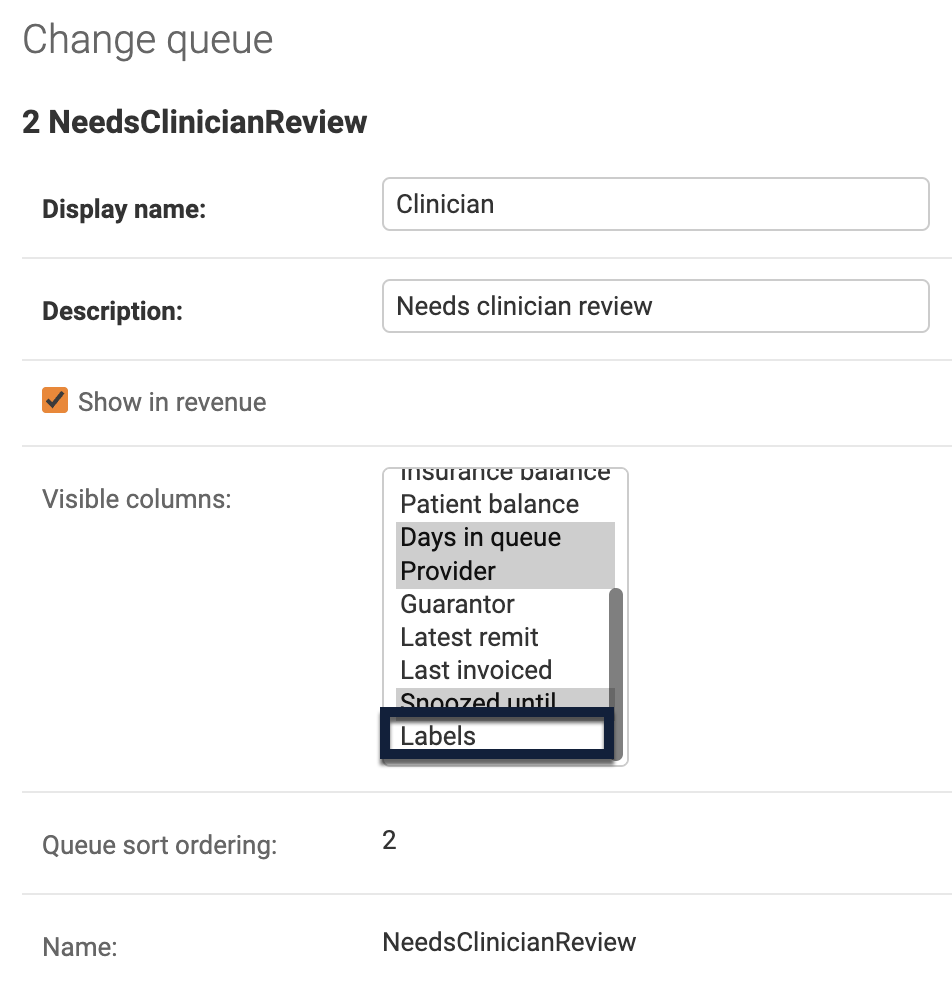
Claim labels must be configured within individual revenue queues to ensure proper display in those workflows.
Navigate to Quality & Revenue: Queues in Settings
Select the appropriate queue
Hold
Cmd(Mac) orCtrl(Windows) to select Labels under the Visible Columns section. This will prevent current selections from being removed.Save changes
Editing and Deactivating Labels
Editing Labels
Navigate to the Practice: Task Labels setting
Select the label that needs to be modified
Make the necessary updates to its fields
Save the changes
Deactivating Labels
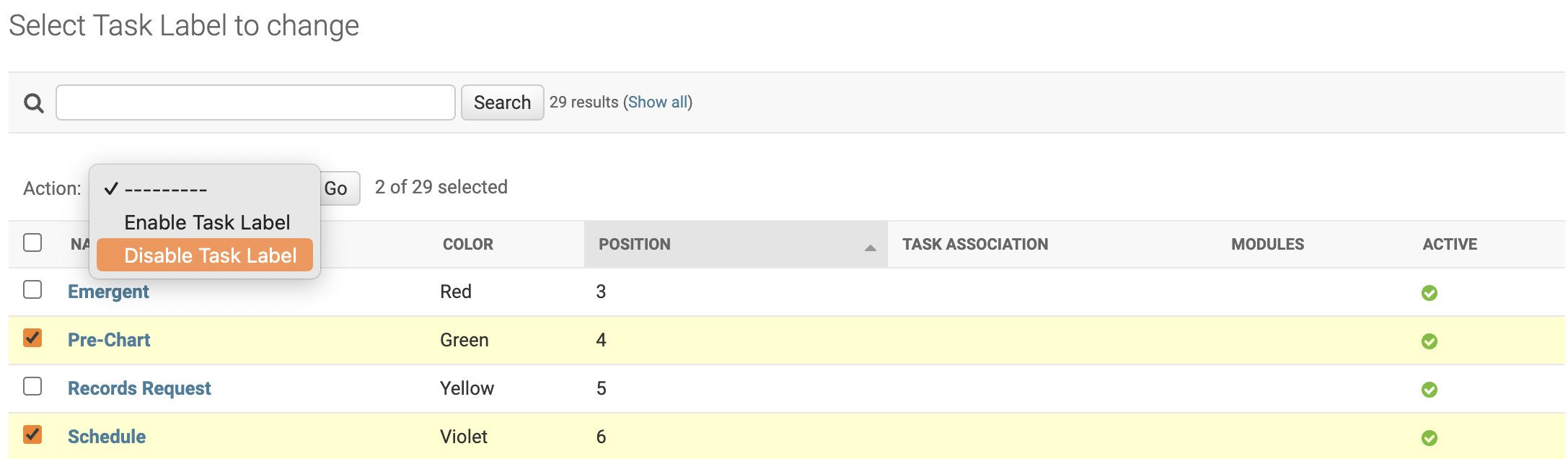
Navigate to the Practice: Task Labels setting
Select the checkbox next to the label(s) being deactivated
Choose Disable Task Label from the Action dropdown menu
Click Go to apply
Labels that have been deactivated cannot be assigned to new modules; however, they will remain available as a filter option.
FAQ & Troubleshooting
Q: Why can't I delete the Emergent, Urgent, and Routine labels?
A: These are system-required labels that ensure critical prioritization capabilities remain available. They cannot be removed or modified to maintain operational stability.
Q: I created a label but it's not showing up in my claims revenue queue. What's wrong?
A: Labels must be individually configured for each revenue queue. Navigate to Quality & Revenue: Queues, select your queue, add Labels to the Visible Columns section, and save.
Q: Can I change the order that labels appear in dropdown lists?
A: Yes, use the Position field when creating or editing labels. Lower numbers appear first in the selection list.
Q: How do I edit an existing label?
A: Select the label from the Task Labels list, make your desired changes to Name, Color, or Position fields, and save the updates.
Q: What happens if I disable a label that's already assigned to tasks, claims or appointments?
A. The disabled label will still be available as a filter option and will remain associated with any items it was assigned to before being disabled.
Related Resources
Keywords: labels, tasks, claims, appointments, organization, workflow, priority, revenue queues, task association
Categories: Task Management, Claims Processing, Workflow Configuration, Settings