Fee Schedule
Last updated: March 4, 2026
Introduction
Managing your Fee Schedule is essential for ensuring proper reimbursement of the services provided by your practice. The Fee Schedule allows you to define procedure codes, set charge amounts, and manage payor-specific pricing to optimize your revenue cycle. This article explains how to create, manage, and configure fee schedules and payor-specific charges within Canvas Medical.
User's Guide
Understanding Fee Schedule Components
Each procedure code in your fee schedule includes several key components:
CPT code: The procedure code (CPT, HCPCS, or custom codes are supported)
Name: Used in the Perform command, on the billing footer, and on claims
Short name: Used for patient bills
Charge amount: The standard fee for the procedure
Effective date: Codes that are not effective in relation to the note date of service (DOS) will not be available for use
End date: Optional expiration date that prevents future use of the code
Code system: CPT or Internal (HCPCS codes are categorized as CPT)
NDC code: Used for vaccines and medications dispensed
Adding New Procedure Codes
To add a new procedure code to your fee schedule navigate to admin > Quality & Revenue > Fee Schedule:
Click Add fee schedule + in the top right corner
Complete the procedure code form with all required fields
Ensure the effective date covers any past services if needed
Save your changes
Managing Existing Procedure Codes
Editing Single Codes:
Click into an existing procedure code
Make changes as needed
Save your updates
Bulk Updates:
Export your current fee schedule
Make changes in the exported file
Import the updated file following the import instructions
Removing Codes:
Add an expiration date to make the code inactive
The code will no longer be available for future use
Working with Payor-Specific Charges
Payor-specific charges allow you to set different rates for specific insurance providers or transactors. These charges override the standard fee schedule amount for designated payors.
Important Requirements:
You cannot add a payor-specific charge with an effective date prior to the fee schedule effective date
You cannot add a payor-specific charge with an end date after the fee schedule end date
Capitated charges are typically set to $0.01 for reporting purposes. If you prefer to use $0.00 charges, we can collaborate with Claim.MD to enable this setting.
Configuration & Set Up
Importing Fee Schedules
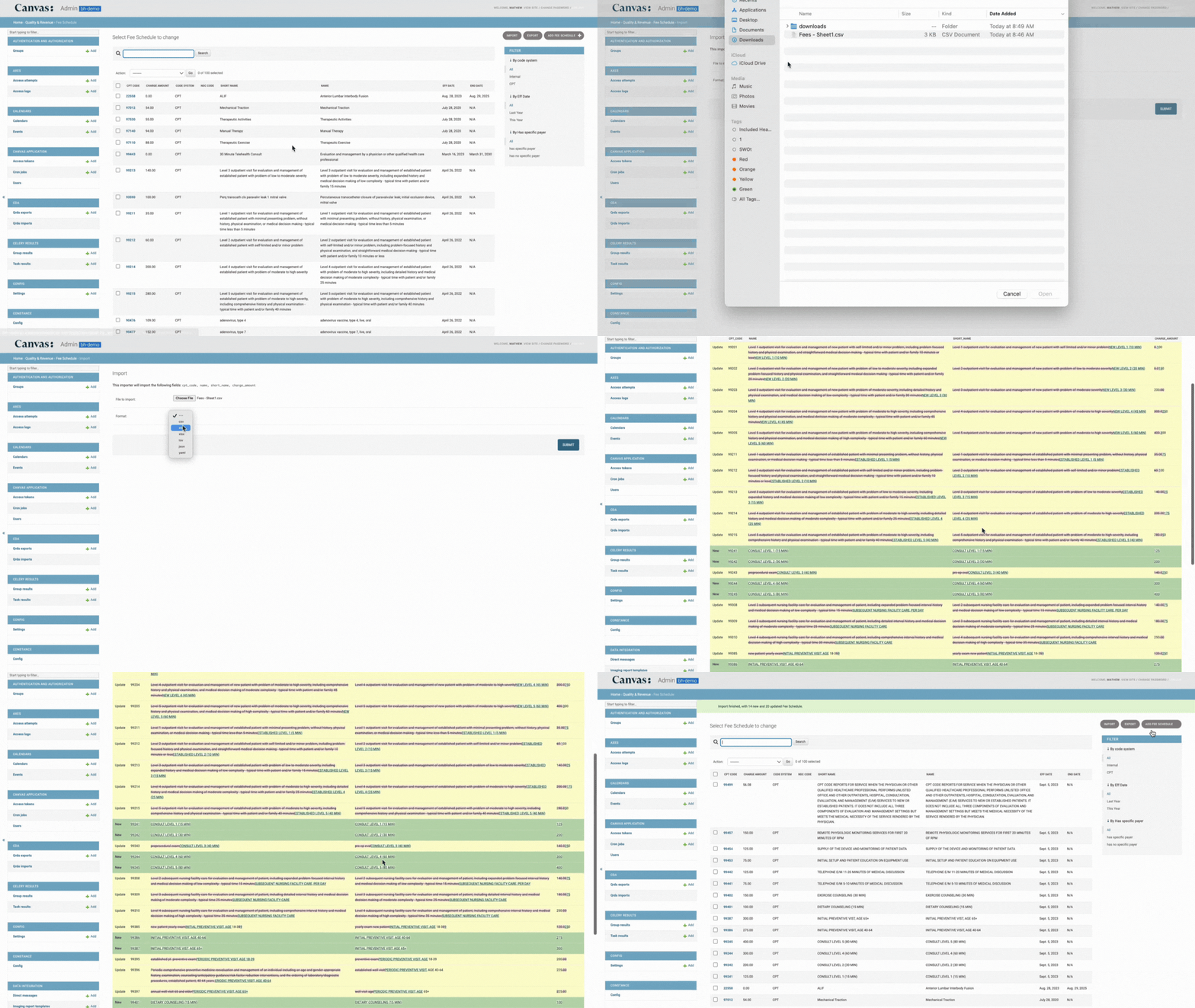
You can bulk upload your fee schedule using the import tool:
Prepare a CSV file with 4 columns that match the exact formatting
cpt_codenameshort_namecharge_amounteff_dateend_date
The dates need to be in the format
YYYY-MM-DD( e.g 2024-04-23)Note that the effective date will default to the day the file is loaded if it is left empty in the row
Existing codes will be updated to reflect the imported data
Preview changes before completing the import
Any existing codes will be updated to match the imported file
Setting Up Payor-Specific Charges
Adding Payor-Specific Charges:
Begin in admin and navigate to Payor specific charges
Select + Add another Payor specific charge button under the Payor Specific charges section
Click into the transactor field to select from the populated menu
Enter the charge amount for that specific transactor OR select the checkbox for "part of the capitated set" if appropriate
Enter an effective date
Enter an end date (optional)
Select Save
FAQ & Troubleshooting
Q: Why can't I use a procedure code for a past date of service?
A: The code's effective date must be on or before the date of service. Make sure to backdate the effective date if you need to cover services provided in the past.
Q: What's the difference between "Name" and "Short name" fields?
A: The "Name" field appears in the Perform command, billing footer, and claims, while the "Short name" is used specifically for patient bills.
Q: Can I set different charges for different insurance companies?
A: Yes, you can set payor-specific charges that override the standard fee schedule amount for specific transactors or insurance providers.
Q: What does "part of the capitated set" mean?
A: Selecting this checkbox sets the charge to $0.00 and indicates the payor-specific charge is used for reporting purposes only, typically in capitated payment arrangements.
Q: How do I handle expired procedure codes?
A: Add an end date to make the code inactive. This prevents the code from being used going forward while preserving historical data.
Related Resources
Keywords: fee schedule, procedure codes, CPT codes, HCPCS, payor-specific charges, billing, revenue cycle, claims, insurance, transactors, capitated payments
Categories: Revenue Management, Billing, Fee Schedules, Insurance