Task Management
Last updated: June 8, 2026
Task management in Canvas Medical is essential for ensuring all patient care and administrative duties are executed efficiently. This article covers how to create, manage, assign, and organize tasks within Canvas while maintaining clear accountability and streamlined workflows.
User's Guide
Task management provides flexible options for creating, organizing, and tracking work across your practice. Here's what you need to know to effectively use this feature.
Creating Tasks in Patient Charts
Tasks created within patient charts are automatically linked to that specific patient's record, making them ideal for patient-specific follow-ups and care coordination.
To create a task in a patient chart:
Add the Task command to a new or existing note
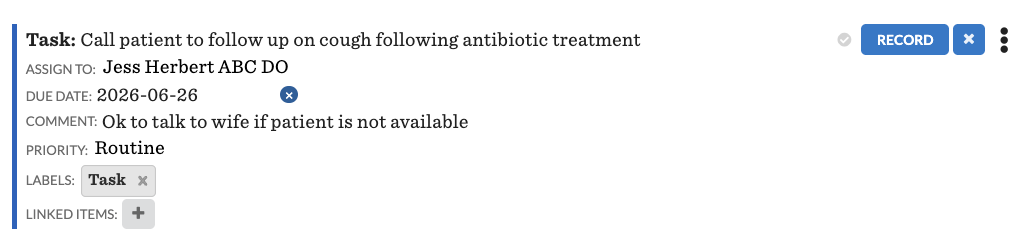
Complete task command fields
Task: Enter the details of the task, specifying what needs to be done
Assign to: Choose who will be responsible for the task - can be a specific team, individual, or care team
Due Date: Select the date by which the task should be completed to ensure timely action
Comment: Add any additional notes or instructions relevant to the task - these comments will be visible in the task list and task card within the patient chart
Priority: Choose an optional desired priority of the Task (Routine, Urgent, Stat)
Label: Apply any relevant labels to categorize the task, aiding in organization and prioritization
Linked Items: Attach components of the patient's chart to the task for reference
Click RECORD to finalize the task
Creating Tasks from Task List
While in the global task list, users can create a structured task without having to navigate away from the task list.
To create a task from the task list:
Select New Task in the upper right
Complete appropriate fields
Description: Enter the details of the task, specifying what needs to be done
Assign to: Choose who will be responsible for the task - can be a specific team, individual, or care team team
Due Date: Select the date by which the task should be completed to ensure timely action
Priority: Choose an optional desired priority of the Task (Routine, Urgent, Stat)
Label: Apply any relevant labels to categorize the task, aiding in organization and prioritization
Internal comments can only be created within the task command. For all other methods, please update comments after the task has been created.
Select Create Task
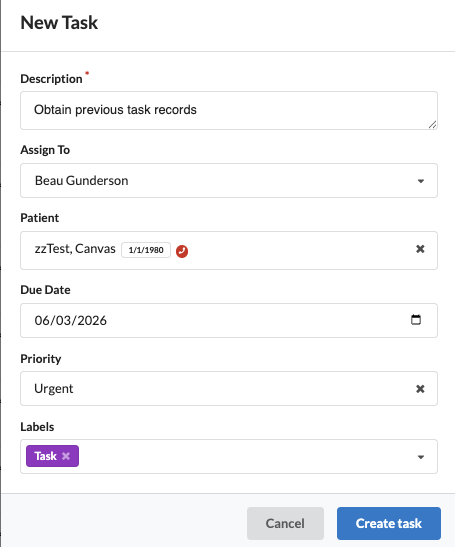
Note: linked items are not available to add to the task at creation, they must be added after the task has been created
Creating Tasks via Canvas Chat
Canvas Chat provides quick task creation outside of patient charts, perfect for administrative tasks or when working in conversation flows.
To create a task via Canvas Chat:
Access Canvas Chat at the bottom right of your screen
Type /task to bring up the task creation prompt
Use the format:
/task [assignee] [what] [when due]Use @ for assignees and # for patient names when linking to a task
Press Enter to generate the task
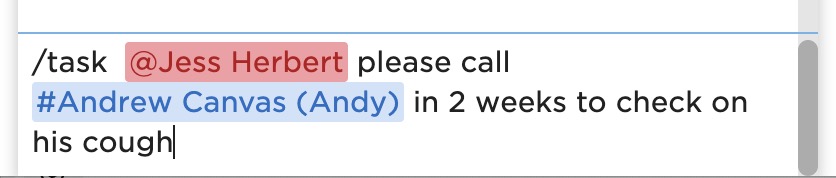
Tasks created from the task list or via Canvas chat do not create a task command in a patient's chart. If associated to a patient they will display only on the task list.
Managing Tasks in Patient Charts
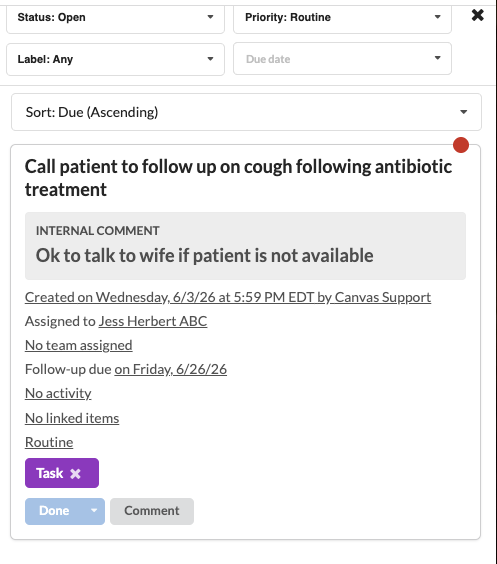
When working within patient charts, the task panel provides focused task management for that specific patient.
Key features include:
Filter tasks by status (open, completed, closed), label, priority (Routine, Urgent, STAT), or due date
View and modify assignee, team, due date, comments, priority, and labels directly from task cards
Complete tasks using Done for completed work or Closed for tasks no longer relevant
Link additional chart components as needed
Using the Task List
The Task List acts as a centralized hub for managing all tasks. You can access it via the panel filters located in the upper-right corner outside the patient chart.
Task List Columns
Priority: Displays the task's priority (No priority, Routine, Urgent, STAT)
Task: Displays the task name and any internal comments.
Patient: Shows the patient's name and links to their chart. Clicking the name opens the patient chart in the same tab.
Follow-Up Due: Indicates the task's due date.
Activity: Shows the date and a preview of the most recent comment. Click the comment count to view all comments or add new ones.
Created: Indicates when and by whom the task was created.
Assignee: Lists the individual assigned to the task.
Team: Shows the team assigned to the task.
Linked Items: Provides references and links to associated items. Hover over an item tile for more details or to open it in a new tab.
Labels: Displays labels associated with the task.
Task Sorting Capabilities
Click column headers for ascending/descending order
Sort by routine, task, patient, due date, activity, creation date, assignee, or team
Use filters for label-based organization. Sorting is unavailable for labels
Task Filtering
Effective task management relies on smart filtering and organization strategies. Filtering options include:
Assignee: Individual user or team assigned to tasks. One or multiple assignees can be selected from the dropdown.
Me: Tasks assigned only to you, the current user.
Me or my team unassigned: This is the default filter. Shows tasks assigned to you individually or tasks assigned to your teams without an individual assignee
Me or my teams: Shows all tasks assigned to you personally or assigned to any of your team members, even if they are individually assigned to someone else.
Other staff: Tasks assigned to users that are not you or a member of your team(s).
Unassigned: Lists all tasks that do not have an individual user and/or team assigned to them.
Specific team: Allows you to filter tasks assigned specifically to a selected team.
Specific user: Lets you view tasks assigned to a specific individual.
Status: Open, completed, closed (multi-select available)
Priority: None, Routine, Urgent, STAT (multi-select available)
Creator: Track task origins
Labels: Categorical organization
Due date ranges: Including overdue and unscheduled tasks
Task Assignment and Collaboration
Canvas supports both individual and team-based task management with clear ownership protocols.
Assignment principles:
Teams may be assigned for better visibility and improved collaboration.
Team members have the ability to manage tasks, add comments, and provide updates.
Only users assigned to a task individually can mark it as done or closed.
Tasks assigned only to teams (without an individual assignee) cannot be completed until reassigned to a specific team member.
Group tasks must be reassigned to an individual team member before they can be completed.
Linking Resources and Adding Context to Tasks
Tasks become more valuable when properly linked to relevant resources and enhanced with contextual information.
Linking Resources to a Task
Link up to five chart-specific resources per task
Notes
Documents
Claims
Commands
Other tasks
Hover over Resources for additional details
Click Resource headings to open in new tabs (highlighted with green arrows)
Add or remove resources before committing tasks
Deleted resources appear as unknown resource with explanatory hover text
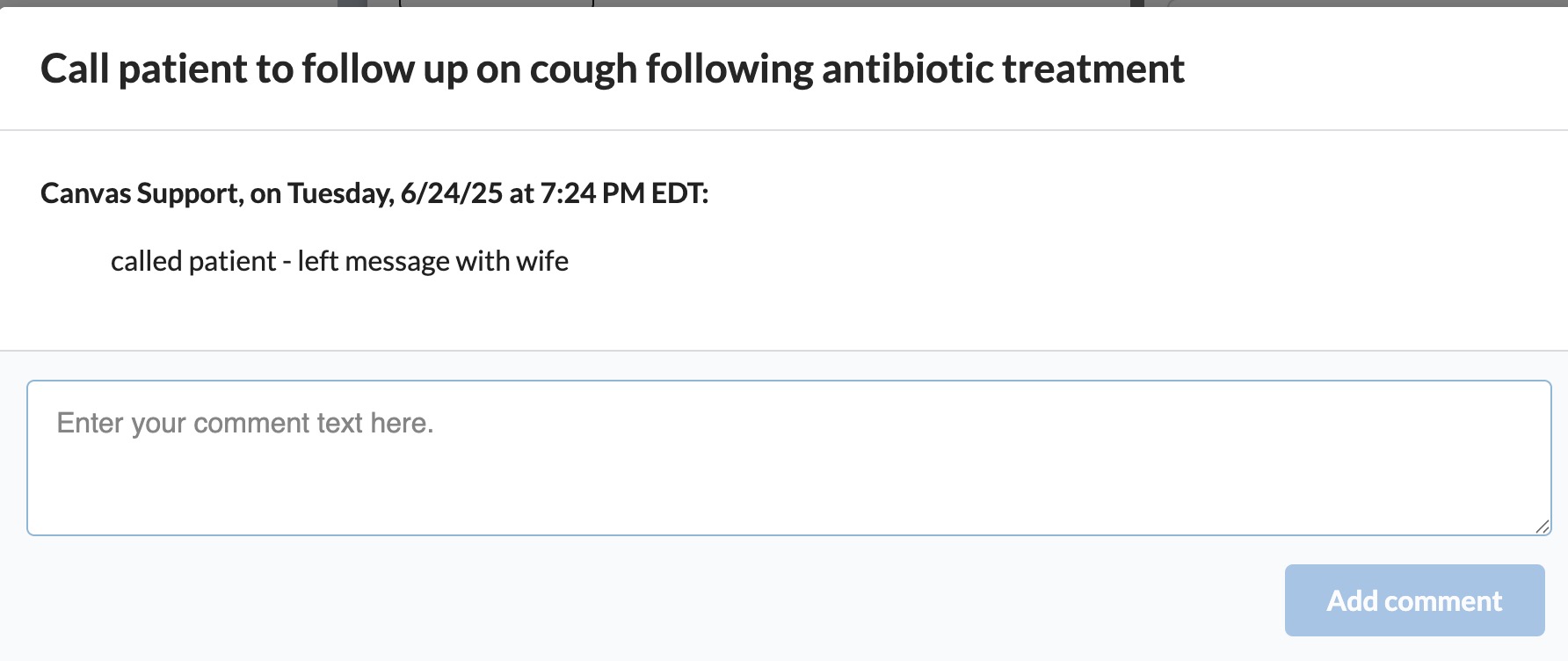
Task Commenting and Communication
Click underlined text in the Activity column to add comments
Comments enhance team communication about task progress
All comments remain visible in task history
Configuration & Set Up
Task management in Canvas requires minimal initial configuration, but proper setup ensures optimal workflow efficiency.
Basic Task Setup
Initial configuration steps:
Verify user permissions for task creation and management
Set up team structures for appropriate task assignment
Configure default labels for task categorization
Label Management
Labels are managed in settings. Users have the option to choose a title and color for labels. For detailed instructions on label management, review this article.
Automated Task Management
Canvas automatically generates tasks based on specific triggers or actions and associates them with team responsibilities. These tasks include, but are not limited to:
Referral Command Workflow: Automatically creates a task when a referral command is delegated.
Image and Lab Reviews: Generate tasks upon signing off these reports.
Administrative Actions: Tasks can be triggered by actions like population health outreach, creating Chart PDFs, or managing incomplete coverages.
API & SDK: Canvas developer tools can automate task generation based on custom logic.
FAQ & Troubleshooting
Q: How do I make a team-assigned task visible to all team members?
A: Remove any individual assignee from the task. Tasks assigned to both individuals and teams won't appear in other team members' default "Me or my team unassigned" filter.
Q: Why can't I mark a task as "Done" or "Closed" even though it appears in my task list?
A: Done indicates the task was successfully completed. Closed means the task is no longer relevant or cannot be completed. Both remove the task from active workflows while preserving historical records.
Q: Why does a linked resource show as "unknown resource"?
A: This appears when a previously linked resource has been deleted from the patient chart. Hovering over it will confirm the resource has been removed.
Q: Can I create tasks that aren't linked to specific patients?
A: Yes, tasks created from the task list or via Canvas chat without using the "#" patient linking format are not patient-specific. These tasks only appear in the Task List, not in patient charts.
Q: What's the difference between the "Me or my teams" and "Me or my team unassigned" filters?
A: Me or my team unassigned (the default) shows tasks assigned to you OR tasks assigned to your teams that don't have an individual assignee. Me or my teams shows all tasks assigned to you OR to any of your teams, even if assigned to a different individual.
Related Resources
📄 Task SDK
Keywords & Metadata
Keywords: task management, Canvas Medical, patient tasks, workflow automation, task assignment, team collaboration, Canvas Chat, task filtering, healthcare workflow, patient care coordination, administrative tasks, task labels, due dates, task completion
Categories: Workflow Management, Patient Care, Team Collaboration, Administrative Tools, Canvas Chat, Task Organization