Revenue Queues
Last updated: August 31, 2026
The Revenue module in Canvas Medical uses queues to organize and manage claims throughout the billing process. Each queue represents a stage in the revenue cycle, from appointment creation to final adjudication. This article explains the structure and function of each queue, how to manually manage claims, and how to configure and customize the queues to suit organizational workflows.
User's Guide
This section is designed to help users understand and utilize Revenue Queues by providing a mix of conceptual overviews and actionable guidance.
Overview of Revenue Queues
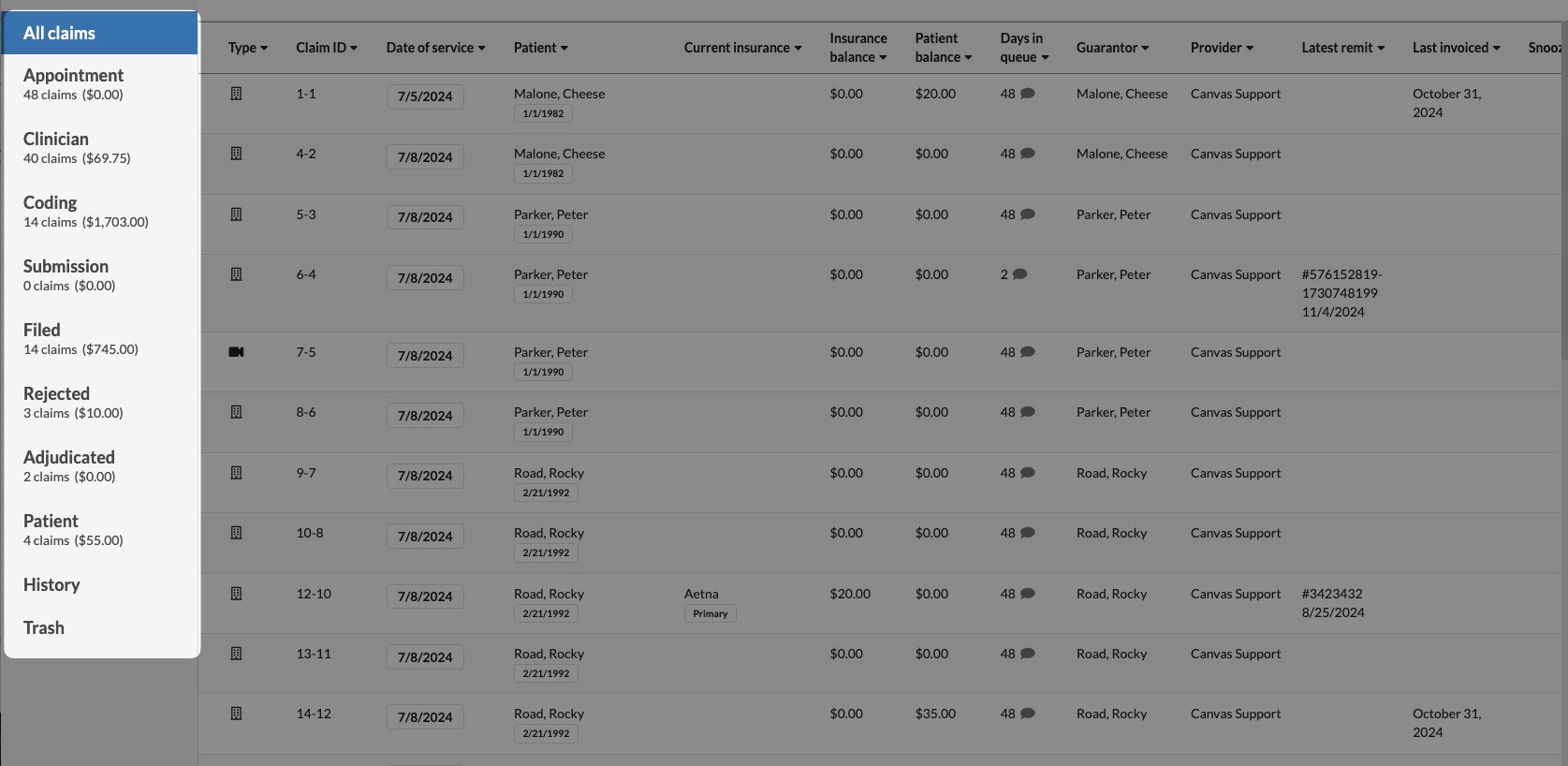
Canvas organizes claims into queues that correspond to stages of the revenue cycle:
All Claims: A comprehensive view of all created claims.
Appointment Queue: Any claims that are associated to an appointment that has not been checked in. This could include claims with a date of service in the past if the note was never checked in.
Clinician Queue: Claims are automatically moved to this queue once an appointment is checked in and stay until the clinician locks the note for the first time.
Coding Queue: Once a note is locked for the first time, the claim will move from the clinician queue to the coding queue. This queue is used for claims pending code review by the billers.
Submission Queue: After claims have completed the code review, they are manually moved to the submission queue indicating they are ready to be sent to the clearinghouse. The process of submission to the clearinghouse will depend on the customer’s billing vendor.
Filed Queue: Claims that have successfully submitted to the clearinghouse.
Rejected Queue: Claims returned by the clearinghouse or insurers with errors. These claims require correction and resubmission.
Adjudicated Queue: Claims processed by insurers. This queue is automatically bypassed for successful automated ERA claims. However, if an error occurs, the claim will appear in this queue with details in the activity log.
Patient Queue: Claims with outstanding patient balances.
History Queue: Fully processed claims with zero balance.
Trash Queue: Deleted or removed claims.
Queue Columns & Functionality
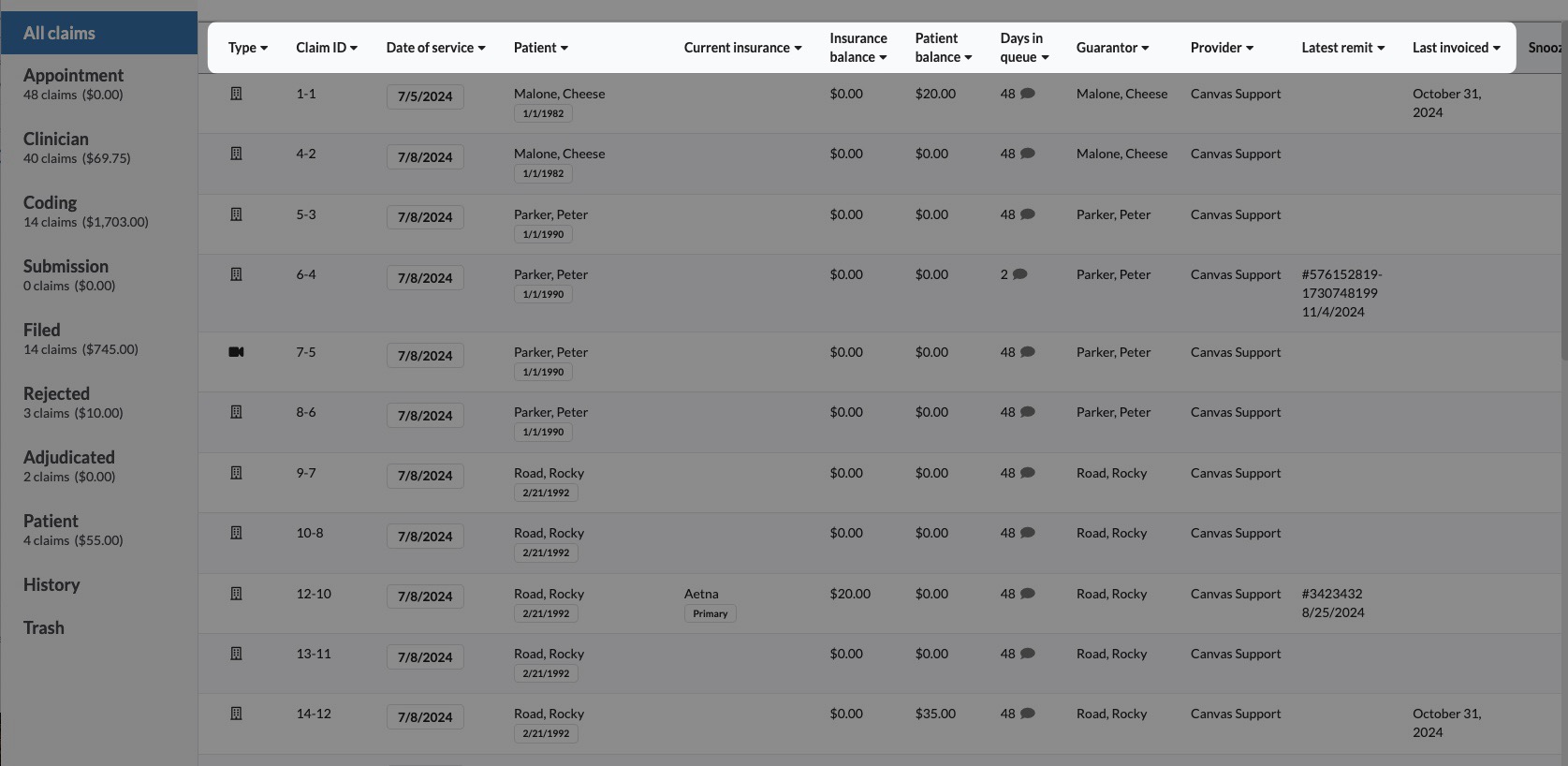
Each queue is divided into columns with key data. Users can filter and sort claims to quickly find information. Filtering and sorting capabilities include:
Type
The icon related to the note type associated to the claim
Type can be filtered by a specific note types and sort alphabetically
Claim ID
The unique claim ID related to the claim. This claim ID is passed to the Claim.MD clearinghouse and utilized for matching the returning ERA.
Claim IDs can be filtered to a specific claim or set of claims and sort numerically in ascending or descending order
Date of Service
The date of services rendered. This date is inherited from the associated note.
Users can filter results by a specific Date of Service (DOS) or within a defined timeframe. Additionally, claims can be sorted to display either the most recent DOS first or the oldest DOS first.
Patient Name
The patient's full name including preferred name if populated
Users can filter results to view a specific patient or a group of patients. Additionally, claims can be sorted alphabetically by the patient’s last name, either from A to Z or Z to A.
Current Insurance
The coverage which is marked as current on the claim and the rank of the insurance. If the claim is in the middle of processing, coverages besides the primary may be displayed.
This column can be sorted by a specific insurance or a group of insurances. Additionally, the entries can be sorted alphabetically in ascending (A-Z) or descending (Z-A) order.
Insurance Balance
The current balance allocated to insurance for this claim
Users can arrange claims in order of highest to lowest insurance balance or reverse the order.
Patient Balance
The current balance allocated to the patient for this claim
Claims can be organized in ascending or descending order based on patient balances.
Days in Queue
The number of days a claim has remained in the current queue. When a claim transitions to a different queue, the counter resets to zero.
If a speech bubble icon is visible, hover over it to view the most recent comment within the activity log.
Users have the ability to filter the number of days in the queue based on a specific date range and organize them by either the shortest or longest durations.
Guarantor
The guarantor associated to the claim.
Users can filter results to view one or more guarantors. Additionally, users may organize the list by sorting guarantor last names in alphabetical order, either A-Z or Z-A.
Provider
The rendering provider of the claim
Users can filter claims by selecting a specific provider or multiple providers. Additionally, claims can be sorted alphabetically in ascending (A-Z) or descending (Z-A) order.
Note: The provider dropdown displays a maximum of 50 providers. For organizations with more than 50 providers, search for the provider by name in the filter field. Once selected through search, the provider will remain in your filter selection even after clearing the search term.
Latest Remit
The date and associated remit ID for the most recently applied remittance
Last remittance transactions can be filtered by selecting a specific remittance or a group of remittances. Additionally, the remittance can be sorted in ascending or descending order for better organization.
Last Invoiced
The most recent date a statement was generated for the patient
Users have the option to sort entries either chronologically, starting from the oldest to the newest, or in reverse order, from the newest to the oldest.
Snoozed Until
The date a snoozed event will expire
Users can filter claims based on their snooze status (snoozed or non-snoozed) and organize them by chronological order, ranging from the closest to the furthest expiration date.
Labels
Either the pre-configured or custom labels associated to the claim
This column can be filtered to a specific label or a set of labels
Manually Moving Claims to a New Revenue Queue
Users can transfer claims between queues manually when necessary
Manually Moving a Single Claim
Navigate to the claim that needs to transfer queues
In the upper right of the claim heading, you will see the claims current queue
Click the queue name to open the dropdown of all revenue queues
Select the queue the claim needs to move to which will complete the transfer
If the claim is not in the coding queue:
Updating only the note body (for example, adding a plan command) will keep the claim in the current queue — you’ll need to move it back to coding manually.
Adding or changing a diagnosis or CPT code that will modify the billing footer will automatically return the claim to the coding queue.
Manually Moving Multiple Claims
Navigate to the revenue queue the claims will be moving from.
Apply any necessary filters to target specific claims. The batch action applies to every claim that matches your current filters, not only the rows currently visible in the table.
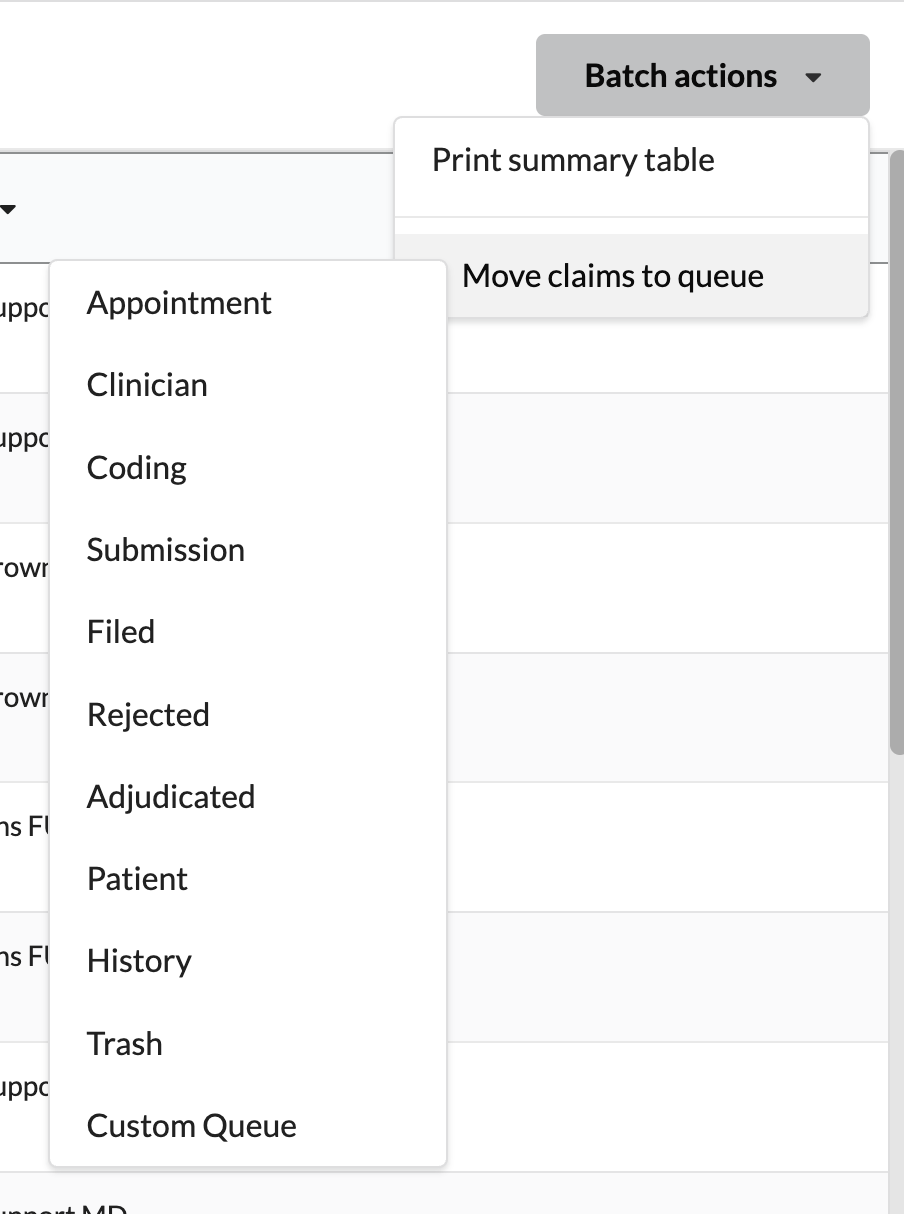
In the upper right, click Batch Actions to open the dropdown.
Click Move claims to queue.
Select the queue the claims need to move to.
Review the confirmation dialog, then confirm the move.
Canvas displays a dialog while it counts and moves the claims. The dialog shows how many claims match your current filters. If no claims match, Canvas will let you know there is nothing to move.
A progress spinner appears while claims are counted and again while they are moved. The dialog cannot be dismissed while the move is in progress.
When the move is complete, Canvas reports the outcome in the dialog and refreshes the claim table when you close it.
By default, one batch move can move up to 2,000 claims. If more claims match your filters, the result will tell you how many claims are left. Repeat the batch action to continue moving the remaining claims. Admins can configure this limit using the MAX_BATCH_CLAIM_QUEUE_MOVE setting in Constance.
Configuration & Set Up
Managing Revenue Queues
Each queue is able to be controlled by administrators with appropriate permissions to enable or disable columns within each queue.
If an administrator does not have access to the Queues setting, please contact Canvas Support to update the admins permissions.
Modifying Queues
Canvas provides customers with a set of queues. However. Admins have the ability to modify these queues to best support their organization
Navigate Quality & Revenue: Queues under Settings. Select the queue that needs modification and update any of the following fields:
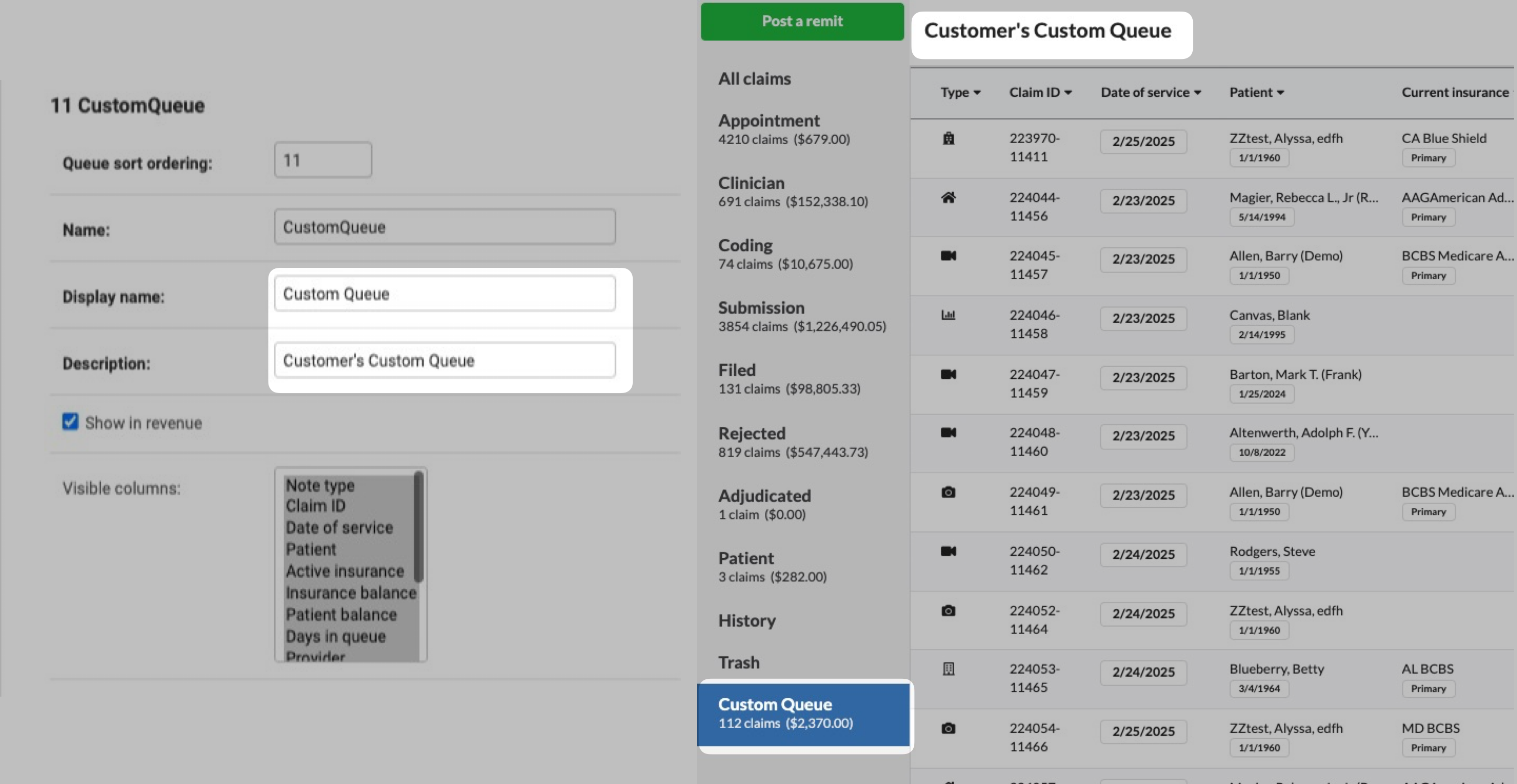
Queue Sort Ordering: The order position the queue will be listed in the panel of the Revenue page
Name: Name that will represent the queue in the database
Display Name: Name that will display in the left Revenue panel
Description: What the queue will be used for and this will also be the heading of the queue once it is selected on the Revenue page in Canvas.
Show in Revenue: Queue will be accessible on Canvas' Revenue page
If Show in Revenue is not selected, the queue will only be accessible via API, SDK and in the database.
Visible Columns: Columns that will display in the revenue queue when the queue is selected.
Click Save once all updates have been made
Creating Custom Queues
Users can create custom queues that are accessible for manual batch actions within the UI. Custom queues do not support automated actions but offer flexibility for managing claims manually.
Go to the Quality & Revenue: Queues setting
Click Add Queue +
Complete the necessary fields
Queue Sort Ordering: Specifies the position in which the queue will appear in the Revenue page's panel.
Name: Represents the name of the queue in the database.
Display Name: This is the name that will appear on the left panel of the Revenue page.
Description: Describes the queue's purpose. This will also serve as the heading of the queue when selected on the Revenue page in Canvas.
Show in Revenue: Includes the queue in Canvas' Revenue page.
If Show in Revenue is not selected, the queue will only be accessible using the API, SDK, or through the database.
Visible Columns: Identifies the columns displayed in the revenue queue when the queue is selected.
Save the new queue and verify it is displaying on the Revenue page, if applicable.
FAQ & Troubleshooting
Q: Can I undo a queue transfer?
A: No. Claims must be moved again to the correct queue.
Q: Why can’t I access queue settings?
A: Admin permissions may be restricted. Contact Canvas Support if you are an administrator that should have access to the Queues setting
Q: Are custom queues included in automated workflows?
A: No. Custom queues are for manual claim processing only.
Q: What happens if a claim is snoozed?
A: It will be hidden until the snooze date expires, after which it becomes visible again.
Keywords & Metadata
Keywords: claims, revenue cycle, queues, billing, insurance, Canvas Medical, Claim.MD, ERA, remittance, coding
Categories: Revenue, Billing, Configuration, Workflow