Questionnaire Scoring Dashboard
Last updated: June 29, 2026
This article explains how to use the Questionnaire Scoring Dashboard plugin to review scored questionnaire trends for a single patient over time and insert a visual trend into a chart note.
Overview
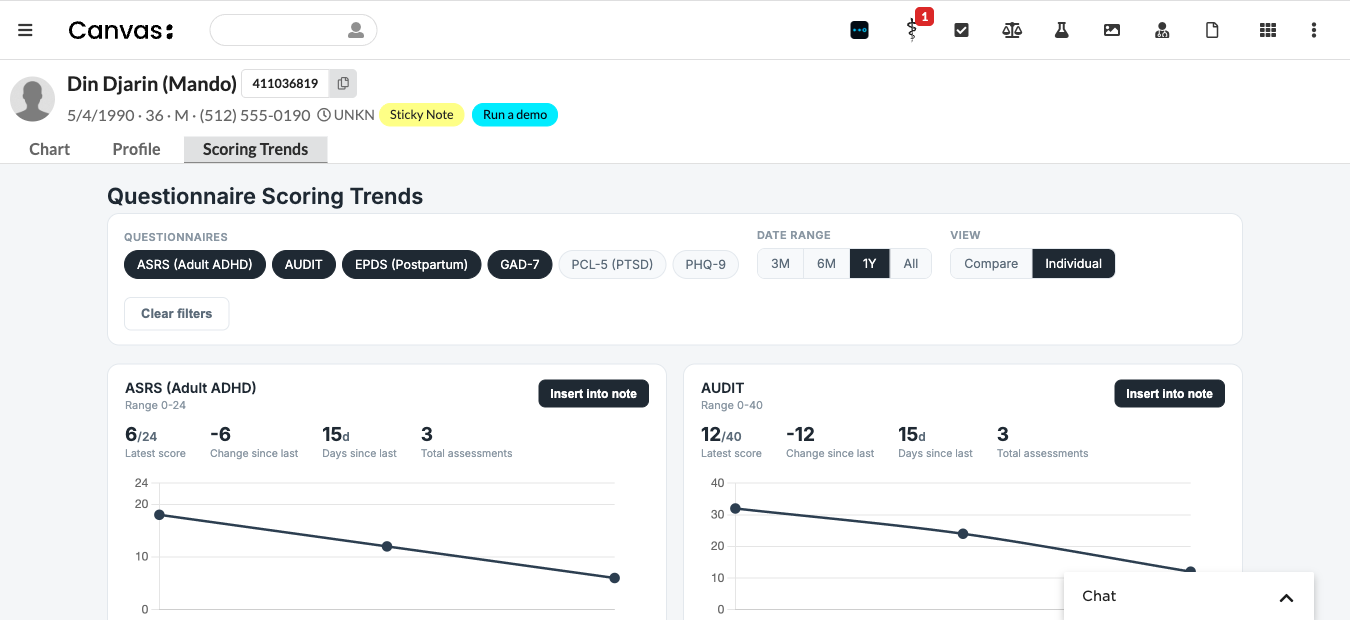
The Questionnaire Scoring Dashboard adds a Scoring Trends view in the patient chart. It brings scored questionnaire history onto one screen so clinicians can quickly review how a patient’s scores have changed over time.
For each questionnaire, the dashboard shows:
Latest score
Change since the prior assessment
Days since the last assessment
Total number of assessments
A trend line over time
This is useful for measurement-based care workflows such as tracking PHQ-9, GAD-7, and similar scored screeners across visits.
Before you begin
Install the
questionnaire_scoring_dashboardplugin in your Canvas instance.Open a patient chart.
The patient must have at least one scored questionnaire result recorded as a survey-category score observation.
No additional configuration, secrets, or settings are required.
How it works
The plugin reads scored questionnaire results already present on the patient chart and displays the full available history for supported instruments.
The dashboard recognizes scored questionnaires based on plugin configuration and can surface scores written by Canvas’s native scored questionnaires or by other plugins that write scored survey observations.
When questionnaire versions change over time, the dashboard groups trend history by stable questionnaire code when available so the same instrument continues to appear as a single trend.
The dashboard always shows the full available history. There is no date-range filter.
Use the Scoring Trends dashboard
Open the patient’s chart.
Select the Scoring Trends tab.
Choose one or more questionnaires to review.
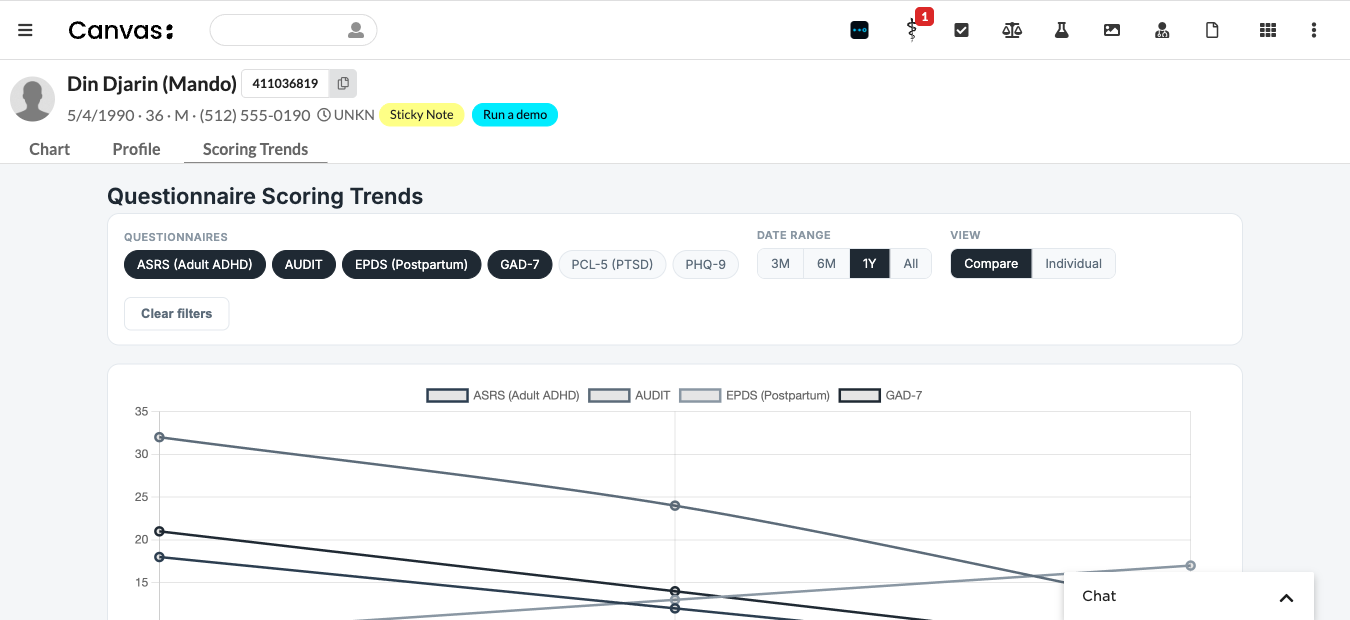
Switch between Individual and Compare views as needed.
Review the score summary and trend visualization for each selected questionnaire.
Insert a trend into a note
Open the patient chart and go to Scoring Trends.
Select the questionnaire trend you want to add to documentation.
Use the insert action to add the trend to an editable note.
The plugin inserts a read-only Scoring Trend command into the note.
Configuration
This plugin has no end-user settings.
Recognized questionnaire codes, display names, and score ranges are defined in the plugin configuration. If your organization needs support for an additional scored instrument, update the plugin configuration in config.py.
Examples
Track PHQ-9 scores across behavioral health follow-up visits.
Compare GAD-7 scores over time during medication titration or therapy.
Add a scoring trend image to the current note to support assessment documentation.
Troubleshooting
The Scoring Trends tab is empty: Confirm the patient has at least one scored questionnaire result stored as a survey-category score observation.
A questionnaire is missing: The instrument may not yet be included in the plugin’s recognized questionnaire configuration.
Expected versions appear under one trend: This is expected behavior when multiple versions share the same questionnaire code.
Unrelated questionnaires should not merge: The plugin includes safeguards to avoid combining different instruments that happen to share a generic score code.
Related information
This plugin adds a full-chart application called Scoring Trends and a read-only command called Scoring Trend for note insertion.
See the code at https://github.com/Medical-Software-Foundation/canvas/tree/main/extensions/questionnaire_scoring_dashboard/questionnaire_scoring_dashboard