Command Audit History
Last updated: July 24, 2026
Every command in Canvas keeps a complete audit trail. The Audit History logs each action taken on a command — who did it, what changed, and when — so you can review the full lifecycle of any piece of clinical documentation for accountability, compliance, and troubleshooting.
User's Guide
What the Audit History captures
The Audit History displays the complete audit trail for a command, including:
Every modification made to the command's fields
State changes (e.g., created, edited, committed, reviewed, entered in error)
The user responsible for each action
A timestamp for each action
Opening the Audit History
Locate the command within the note.
Click the triple-dot menu (⋯) to the right of the command.
Select Audit History to open the audit modal.
The Audit History is available per command — open it on whichever command you want to review.
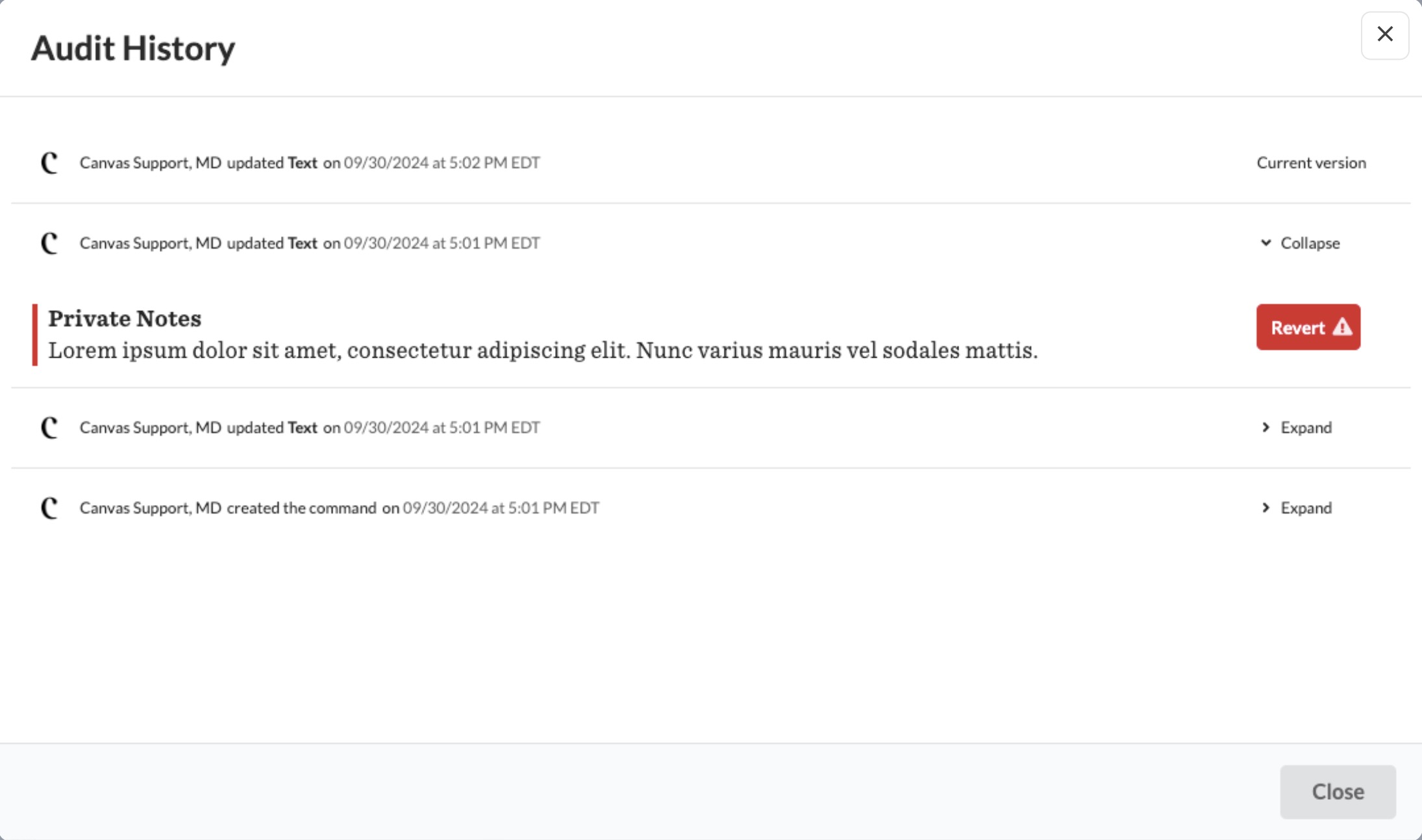
Reading the Audit History
Each line item represents a saved version or action, listed with the user and timestamp.
Click Expand on a line item to see the specific edits captured in that saved version; click Collapse to close it.
Entries appear in chronological order, so you can trace exactly how the command evolved.
Uncommitted commands — view versions and revert
For commands that have not yet been committed, the Audit History provides full version history:
Expand / Collapse any entry to move between versions and review what changed.
Click Revert on a previous version to replace the command's current state with that earlier version. This is the fastest way to recover from an unwanted edit before committing.
Committed commands — read-only log
Once a command is committed, version history and the Revert option are no longer available (committed commands can't be edited — they must be entered in error and re-created). The Audit History instead shows a log of the updates made before commitment, so the record of who changed what stays fully auditable.
How to leverage it
Compliance & accountability: Confirm who documented or altered a command, and exactly when.
Recover an earlier draft: Revert an uncommitted command to a prior version instead of retyping.
Review edits to AI/scribe-generated content: See what changed from an auto-generated draft before it was committed.
Troubleshooting: Understand the sequence of changes when documentation doesn't look as expected.
Notes & limitations
Audit History is available for commands built on the current (SDK) command framework.
Some command types (for example, Questionnaire) may show a more limited view — user and timestamp — rather than full field-level edit detail.
Command Audit History is separate from a note's lock/signature history — for that, see Understanding Note States in Canvas and How to Sign Notes in Canvas.
FAQs
Q: Can I revert a command after it's been committed?
A: No. Revert is only available for uncommitted commands. Once committed, use Enter in Error and re-create the command.
Q: Does the Audit History show who made each change?
A: Yes — each entry records the user and a timestamp.
Q: Where do I find the Audit History?
A: In the triple-dot (⋯) menu to the right of any command.
Q: Is the history kept after a command is committed?
A: Yes. The log of updates made before commitment stays visible; only the ability to revert goes away.