Patient Numbering Plugin
Last updated: November 18, 2026
The Patient Numbering plugin gives every patient a short Patient ID in addition to the Canvas MRN. Staff see the Patient ID in the patient's profile and can find a patient by it from the patient search bar. New patients get the next Patient ID automatically, and no two patients ever share one.
Overview
A Patient ID for every patient, such as 1, 2, 3, or a formatted ID such as PAT0001, shown as a read-only Patient ID field in the Patient demographics section of the profile.
Search by Patient ID from the patient search bar by typing
!followed by the Patient ID.Keep IDs from a previous system. When patients are imported with an ID from the system you used before (for example
PAT0102), each patient keeps that number, and new patients continue after the highest one in use.A Patient Numbering app for administrators, to number existing patients once and check progress.
The MRN does not change. The Patient ID sits alongside it.
Before you begin
The plugin must be installed on your Canvas instance. See Install the Plugin below.
Only staff listed in the plugin's
ADMIN_STAFF_IDSsetting can open the Patient Numbering app. Everyone can see the Patient ID in the profile and search by it.Decide on the ID format before you number anyone: plain numbers, or a prefix and fixed width such as PAT0001. If you are bringing patients over from a previous system, set the plugin to read their old IDs first. See Plugin settings below.
If patients are being imported, finish the import before numbering existing patients, so imported patients keep their old IDs.
Number existing patients
This is a one-time step an administrator runs after installing the plugin. Until it finishes, new patients are not numbered, so existing patients always get the lowest numbers.
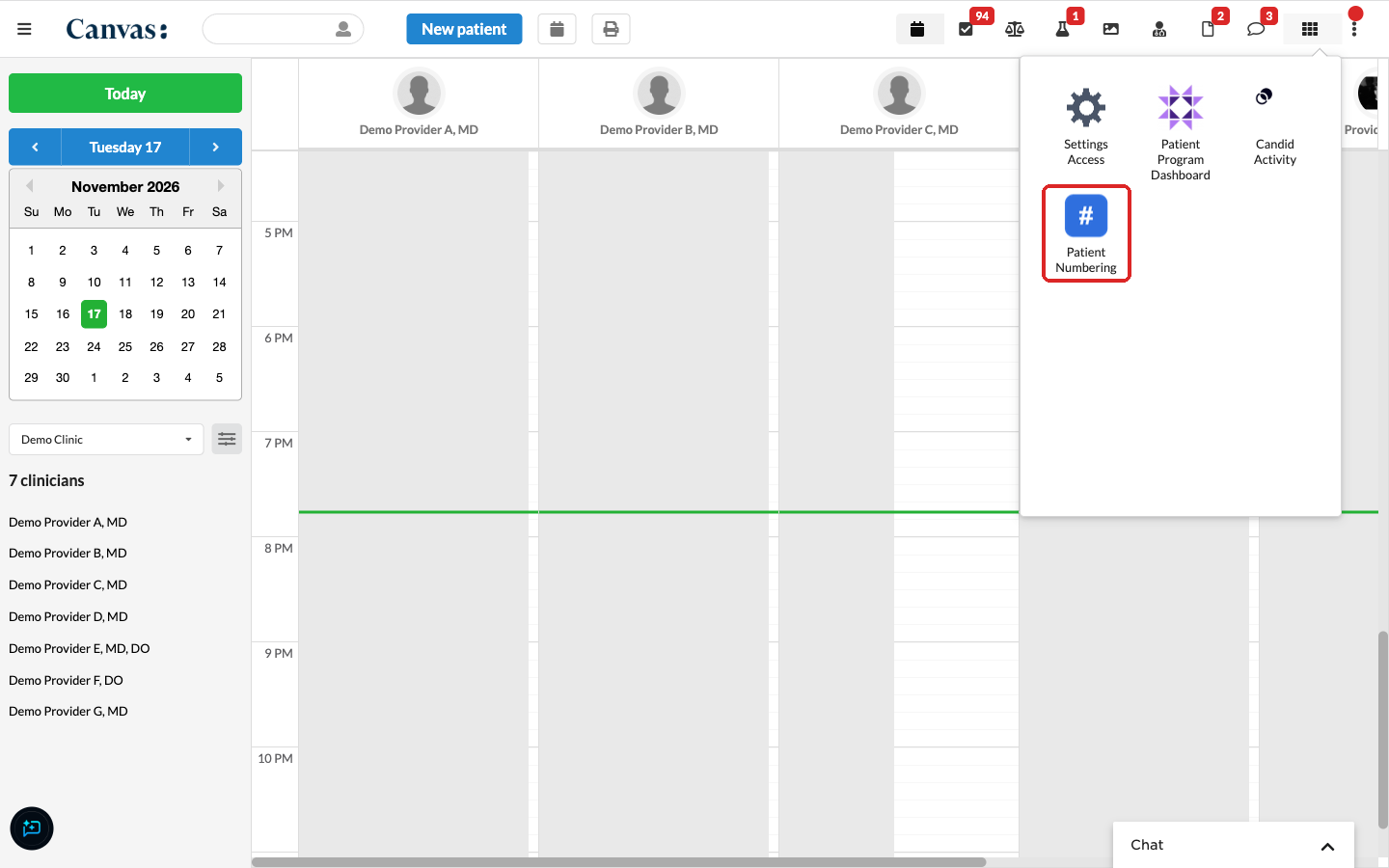
Click the app menu (the grid icon in the top right of Canvas) and select Patient Numbering.
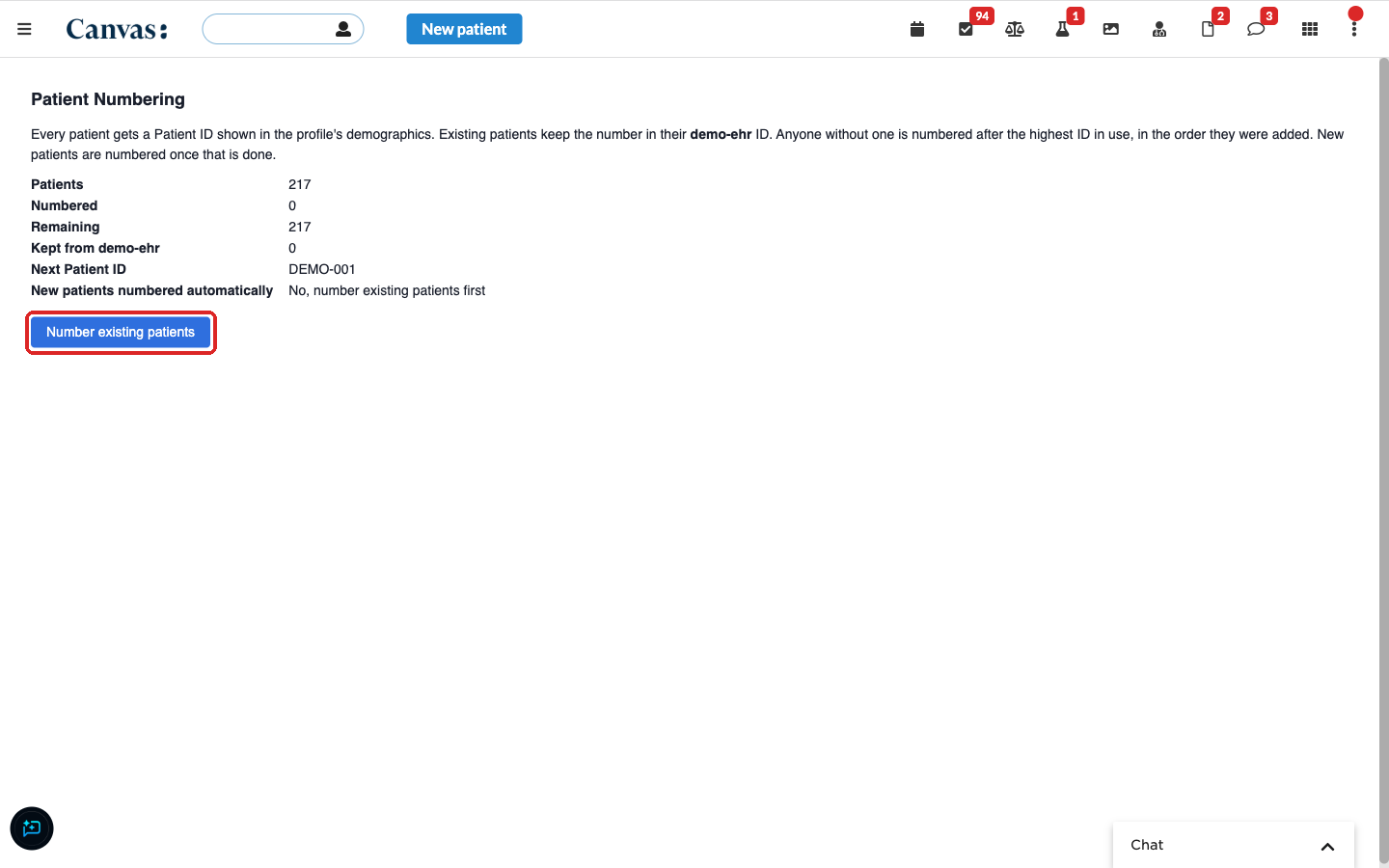
Review the summary. Patients is how many patients are in Canvas, Remaining is how many still need a Patient ID, and Next Patient ID shows the format the next number will use.
Click Number existing patients.
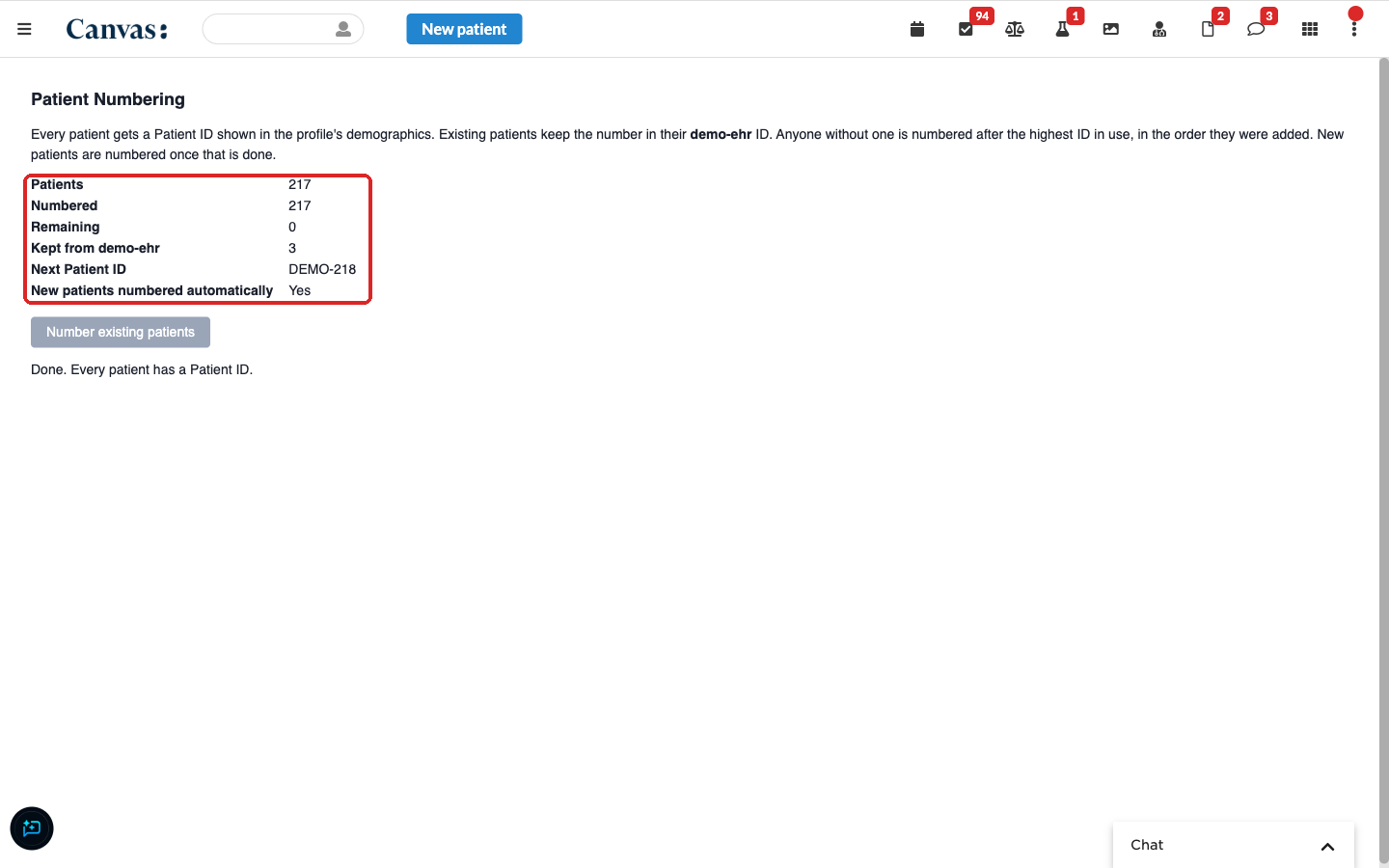
The app numbers patients in batches of 100 and shows progress below the button ("Numbered through ... remaining"). When it finishes, the message reads Done. Every patient has a Patient ID., the summary updates, and the button is grayed out.
How the numbers are assigned:
Patients who have an ID from your previous system keep the number in that ID. The app shows how many under Kept from <system>.
Everyone else is numbered after the highest number in use, oldest patient first, in the order they were added to Canvas.
New patients numbered automatically changes to Yes. From then on, each new patient gets the next Patient ID the moment they are created.
Leave the page open until you see "Done." If you close it or the connection drops partway through, open the app again and click Number existing patients. It continues where it stopped, and patients who already have a Patient ID keep it.
Find a patient's Patient ID
Open the patient's chart and click the Profile tab under the patient's name.
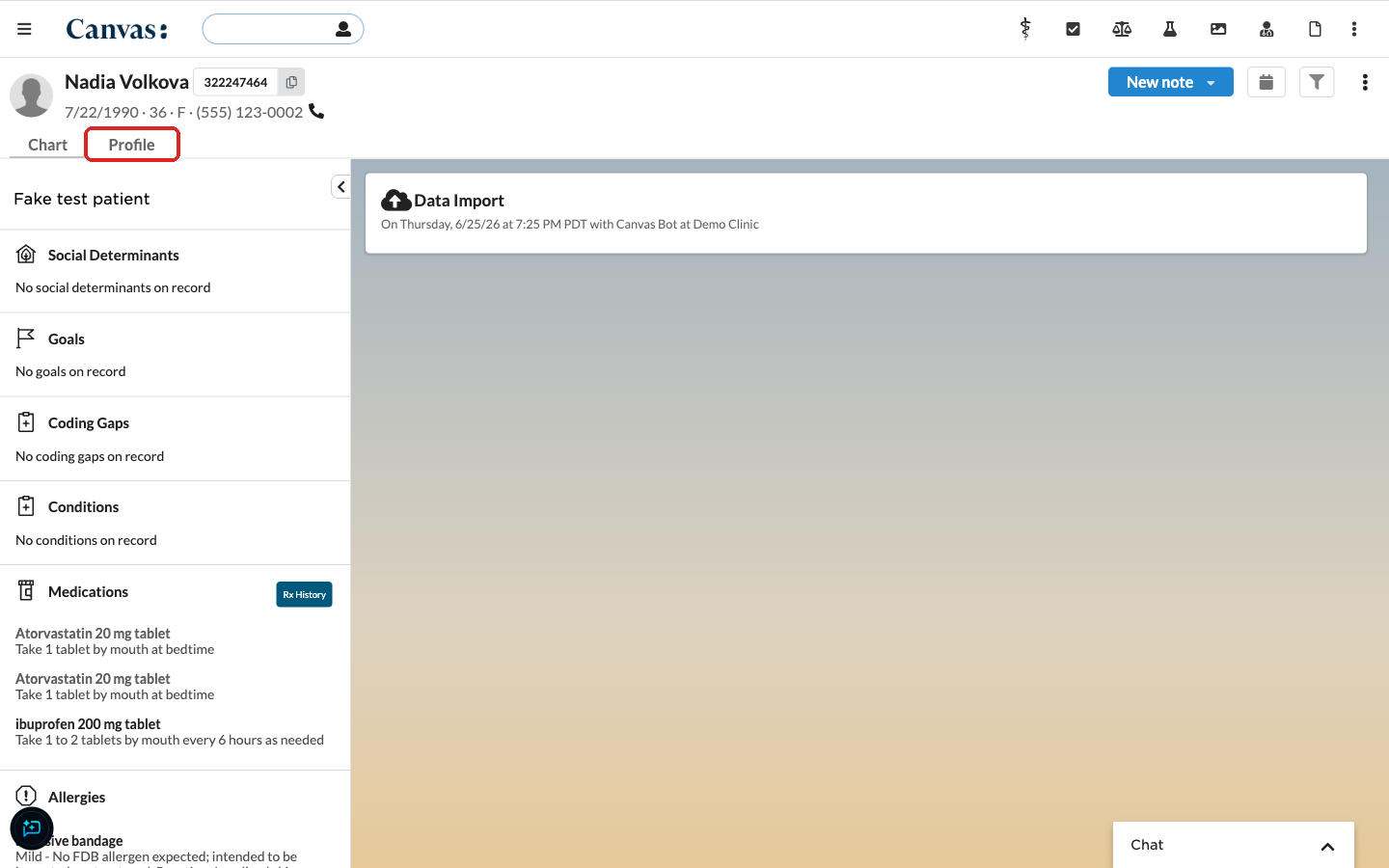
In Patient demographics, the Patient ID field shows the patient's number.
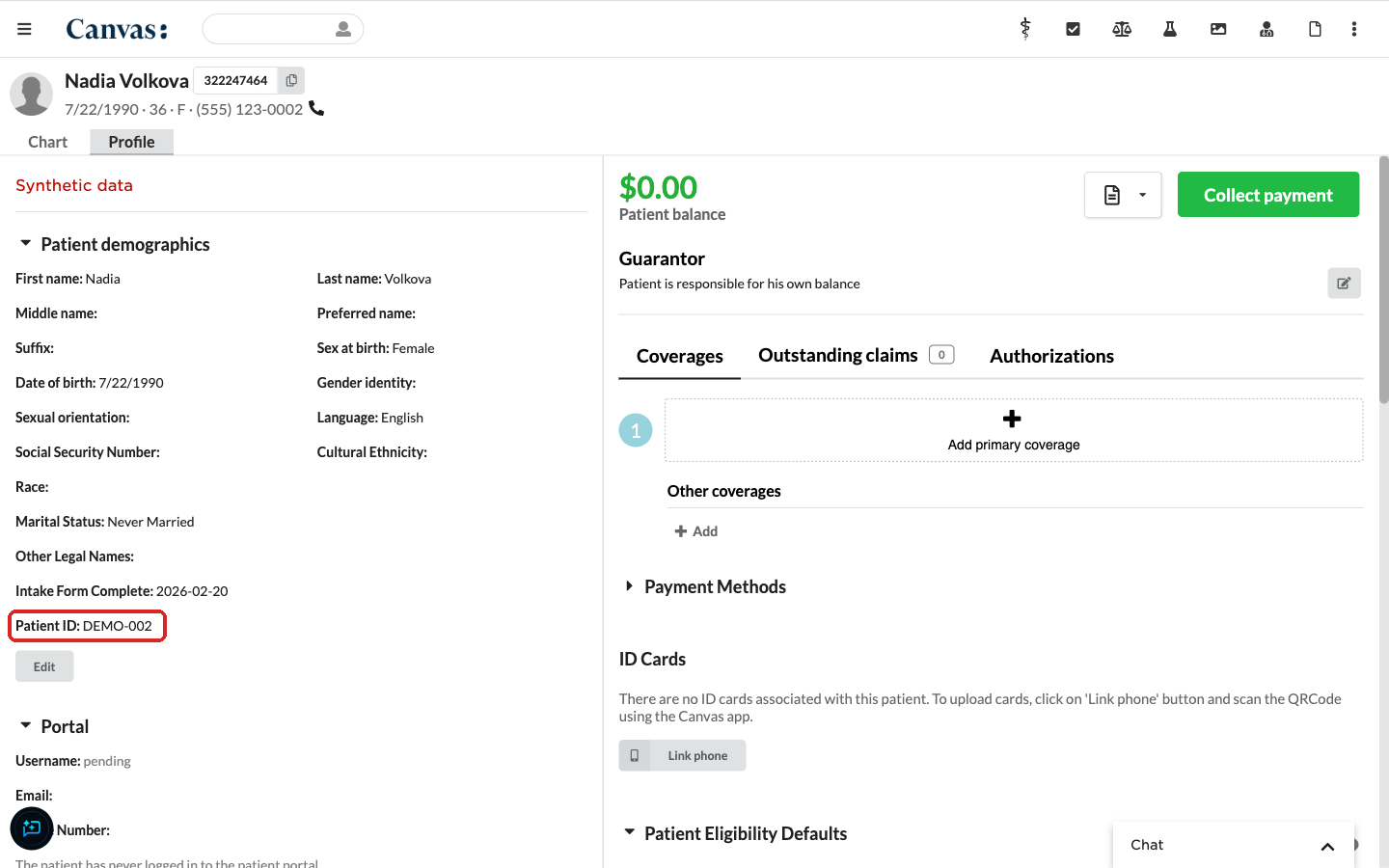
The Patient ID is read-only. Clicking Edit on the demographics section does not change it.
Search for a patient by Patient ID
Click the patient search bar at the top of Canvas.
Type
!followed by the Patient ID exactly as it appears in the profile, for example!42or!PAT0102.Select the patient from the results.
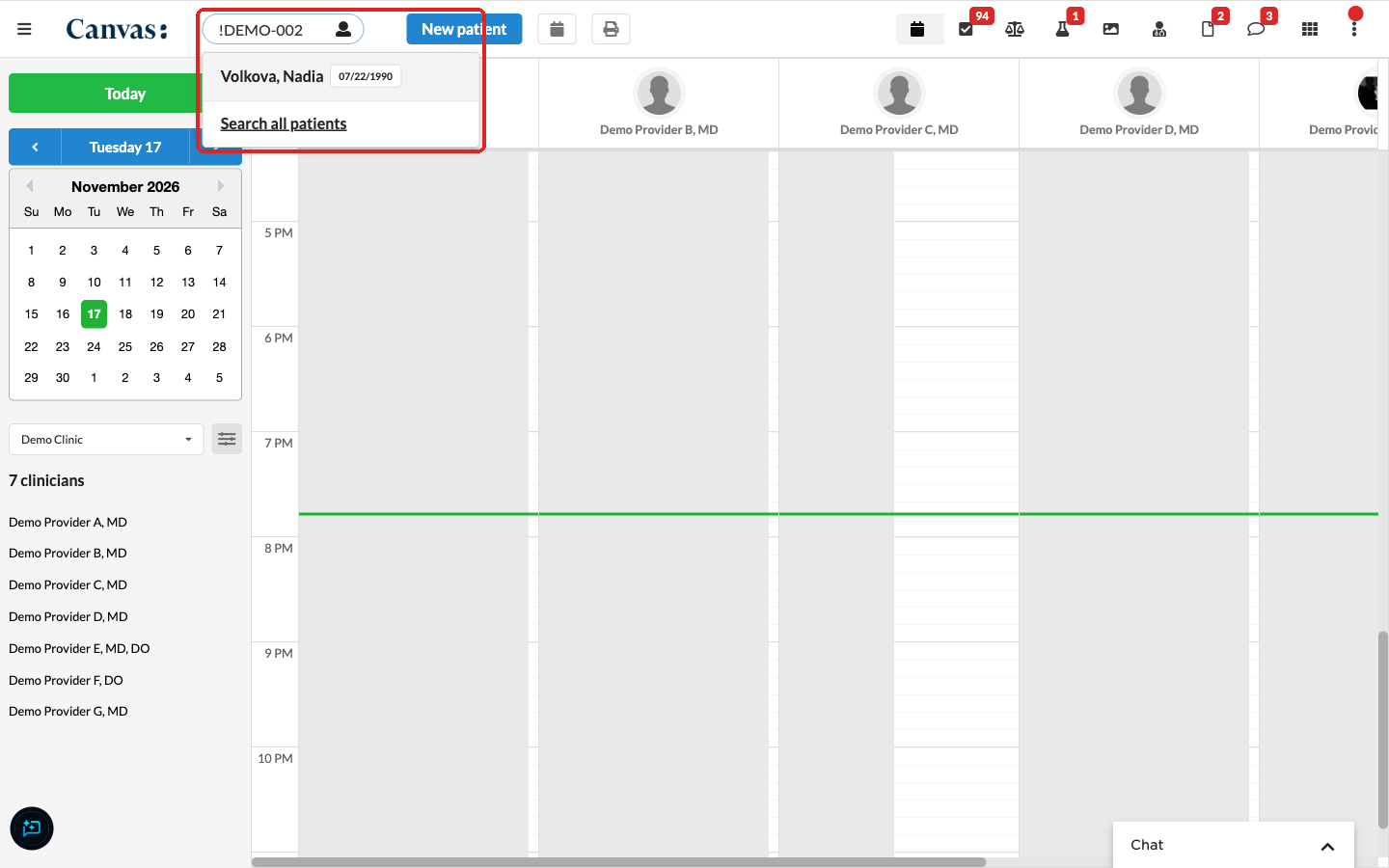
The ! tells the search bar to look up patient identifiers instead of names.
Troubleshooting
What you see | What to do |
|---|---|
The Patient Numbering app says Not authorized | Your staff ID is not in the plugin's |
A new patient has no Patient ID | Existing patients have not been numbered yet. Open the Patient Numbering app. If New patients numbered automatically says No, number existing patients first, click Number existing patients. The new patient is numbered in the same run. |
An error appears under the button, ending in "Click again to continue where it stopped." | Click Number existing patients again. Patients numbered before the error keep their Patient IDs. |
"Done" says some patients had a source ID whose number was already taken | Two or more patients had the same ID in your previous system. The patient added to Canvas first keeps the number, and the others get the next free number instead. Check those patients' records to see which IDs were duplicated. |
A patient did not keep their old ID | The old ID must start with the |
Searching by number finds no one | Type |
Install the Plugin
Find the plugin to install at Medical-Software-Foundation/canvas: extensions/patient-numbering.
After installing:
Copy the generated
namespace_read_write_access_keyandnamespace_read_access_keyfrom the plugin's settings and store them somewhere safe. Canvas creates them only on the first install, and reinstalling the plugin later needs them.Have one of the listed administrators open the Patient Numbering app and click Number existing patients.
Plugin settings
Administrators set these in Canvas admin settings under Plugin_Io > Plugins > patient_numbering. Set them before numbering existing patients.
Setting | Required | What it does |
|---|---|---|
| Yes | Staff IDs allowed to open the Patient Numbering app, separated by commas. Each one is the staff member's 32-character staff key. If it is empty, nobody can open the app. |
| No | The identifier system that holds each patient's ID from your previous system, matched exactly. Leave it empty to number every patient from 1. |
| No | Letters shown before the number, for example |
| No | Pads the number with leading zeros to this many digits. For example, |
| Generated | Created on the first install. Keep a copy for reinstalls. |
Choose the prefix and width before numbering anyone. Each patient's displayed Patient ID is written when they are numbered, so changing the prefix or width later applies only to patients numbered afterward.