Surescripts Medication History Plugin
Last updated: October 12, 2026
The Surescripts Medication History plugin requests medication history from Surescripts before a patient's upcoming appointments, then shows the results in the chart next to the patient's active medications. From one panel, you can add a medication from the history to the note or dismiss it.
For Canvas's built-in Medication History request and view under Settings, see Surescripts Medication History.
Overview
Requests eligibility and medication history automatically once a day for patients with upcoming appointments, by default 1 day and 7 days before the visit.
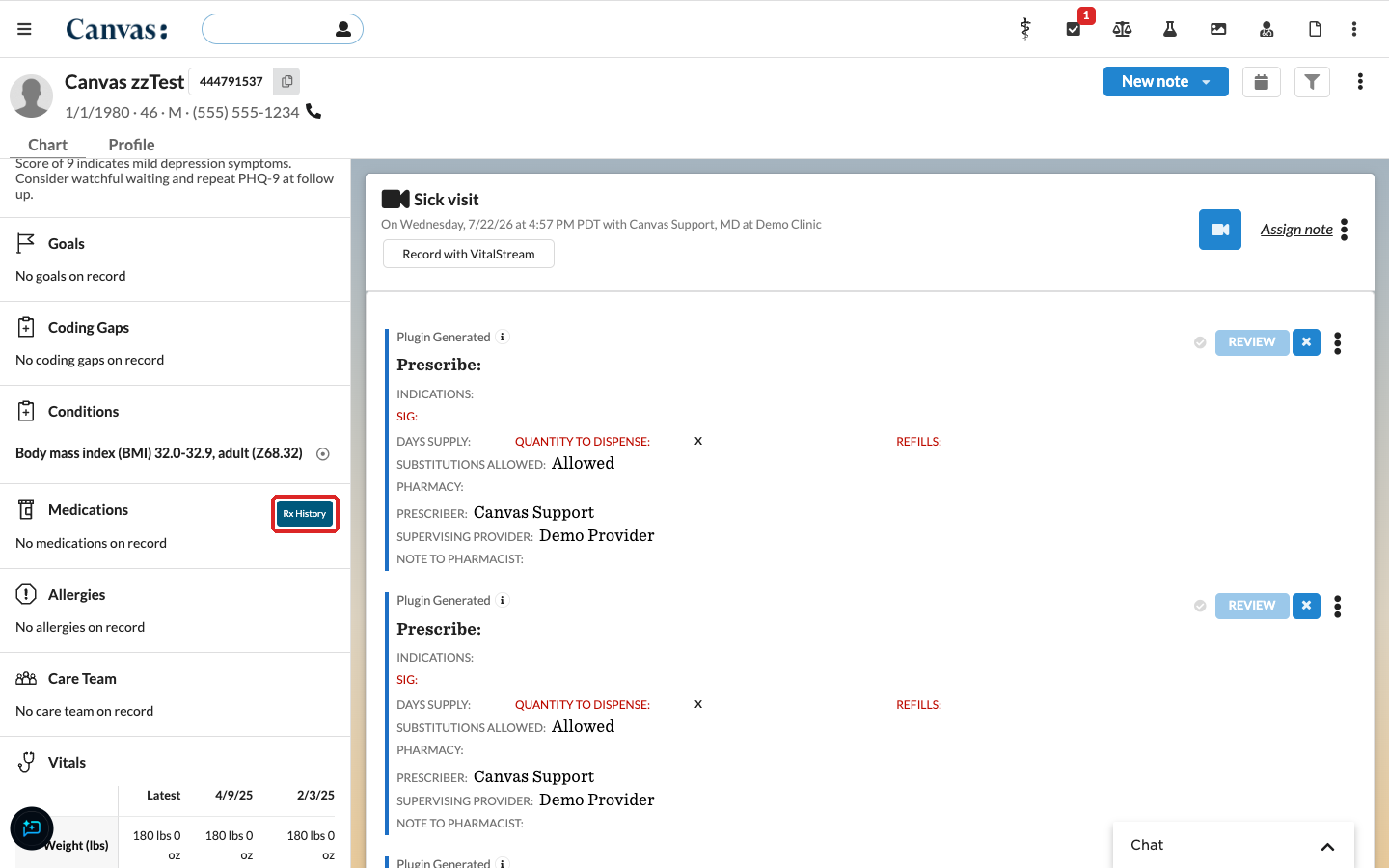
Adds an Rx History button to the Medications section of the patient chart.
Compares the returned history with the patient's active medications and sorts each medication into New / Unresolved, Matched, or Dismissed.
Adds a medication from the history to the note as a Medication Statement with one click.
Before you begin
Plugin requests to Surescripts are turned on per organization by Canvas, after an authorized representative of your organization signs an agreement. Contact Canvas Support to start that process.
Providers who request medication history need a valid NPI and SPI (Surescripts provider ID) on their staff profile.
Surescripts requires every request to be tied to a treatment event such as a visit. The plugin's automatic requests only cover patients with an appointment at the configured number of days before the visit.
Open the Rx History panel
Open the patient's chart.
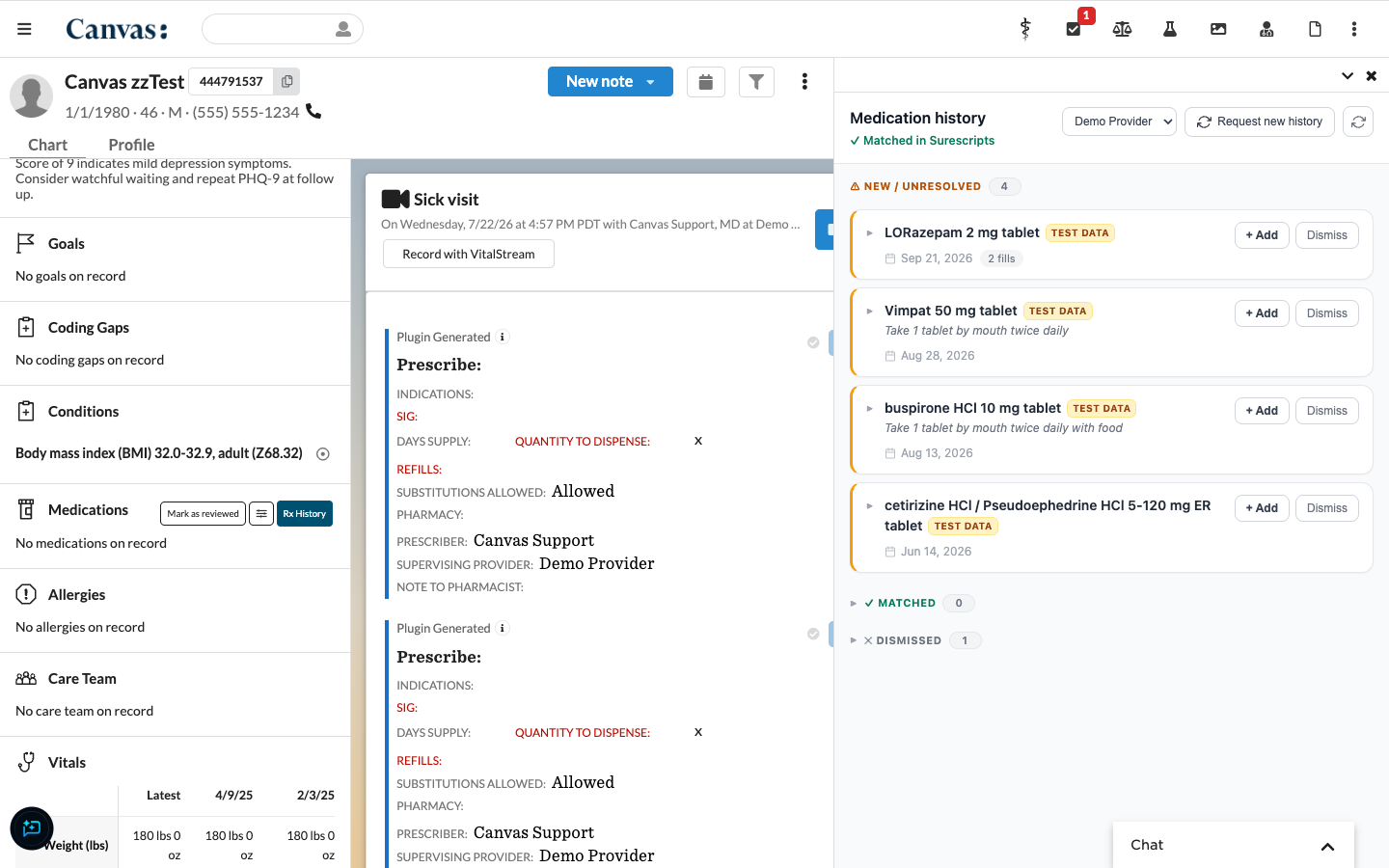
In the Medications section, select Rx History. The Medication history panel opens on the right.
Read the panel
The status under the title shows the latest request, for example Matched in Surescripts or Matched — no history returned.
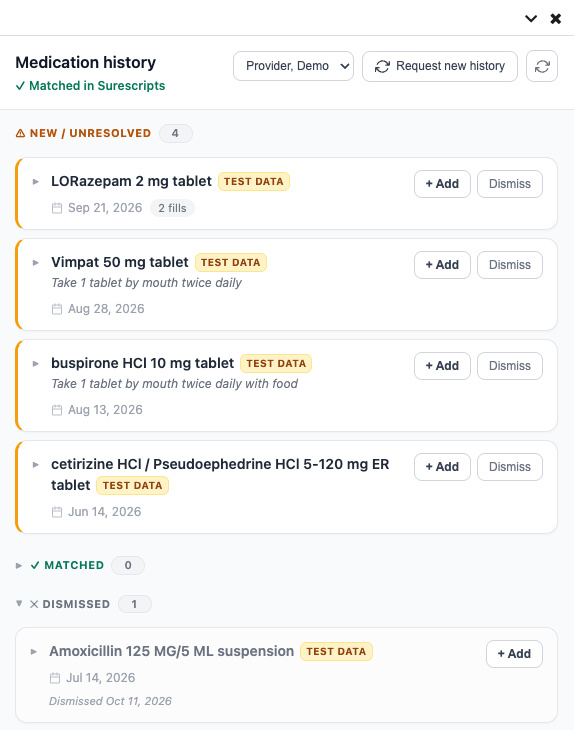
New / Unresolved lists medications in the history that don't match an active medication. Each shows the drug, the most recent fill date, and the number of fills.
Matched lists history that matches an active medication in the chart.
Dismissed lists medications someone dismissed, with the date.
Select the arrow next to a medication to see its codes and each fill: fill date, written date, prescriber, pharmacy, and source.
Request new history
The panel shows the latest results from the automatic daily requests. To request again for this patient:
Choose the provider to request as in the dropdown at the top of the panel. Staff without an SPI can choose a provider who is registered with Surescripts.
Select Request new history. Eligibility is requested along with medication history.
Select the refresh button to update the results.
Surescripts allows one medication history request per patient per day, and eligibility results are reused for 72 hours. A repeat request inside those windows returns the saved result.
Add a medication to the note
Open a note for the patient. Medications are added to the patient's most recent open note.
Next to the medication, select + Add. A Medication Statement command is added to the note.
By default the command is added unsigned so the provider can review it before committing. Your organization can choose to commit it automatically. Medications added this way are tagged as coming from Surescripts.
Dismiss a medication
Select Dismiss next to a medication you don't want to add. It moves to the Dismissed group and stays there on later visits. A dismissed medication returns to New / Unresolved when a newer fill arrives, and clears when it later matches an active medication. You can still select + Add on a dismissed medication.
Troubleshooting
"No open note found": Open a note for the patient, then select + Add again.
"Could not find a coded match": The medication couldn't be matched to a coded drug. Search for it manually in the note.
A request fails for the selected provider: The provider must have an SPI on their staff profile and be registered with Surescripts. If no provider is selected, the patient's default provider is used.
No history appears before a visit: Automatic requests only run for patients with an appointment at the configured number of days ahead, and only when the patient's provider has an SPI.
Install the Plugin
Find the plugin to install at https://github.com/Medical-Software-Foundation/canvas/tree/main/extensions/surescripts_med_history