VitalStream Plugin
Last updated: October 12, 2026
The VitalStream plugin connects the VitalStream device by Caretaker Medical to the patient's note. Readings stream into the chart while a treatment session runs, and when the session ends, the plugin saves averaged readings at set time marks to the chart, so staff don't retype vitals by hand.
Before you begin
The plugin must be installed and enabled, with each VitalStream device's serial number added to the plugin's authorized devices. You can find a device's serial number under Settings > About in the VitalStream app.
On the VitalStream tablet, open Settings > Data Forwarding, turn on Enable Forwarding, set Portal to Caretaker Portal, and set Portal URL to
https://<your-subdomain>.canvasmedical.com/plugin-io/api/vitalstream.
Start a session
Open or create a note for the patient.
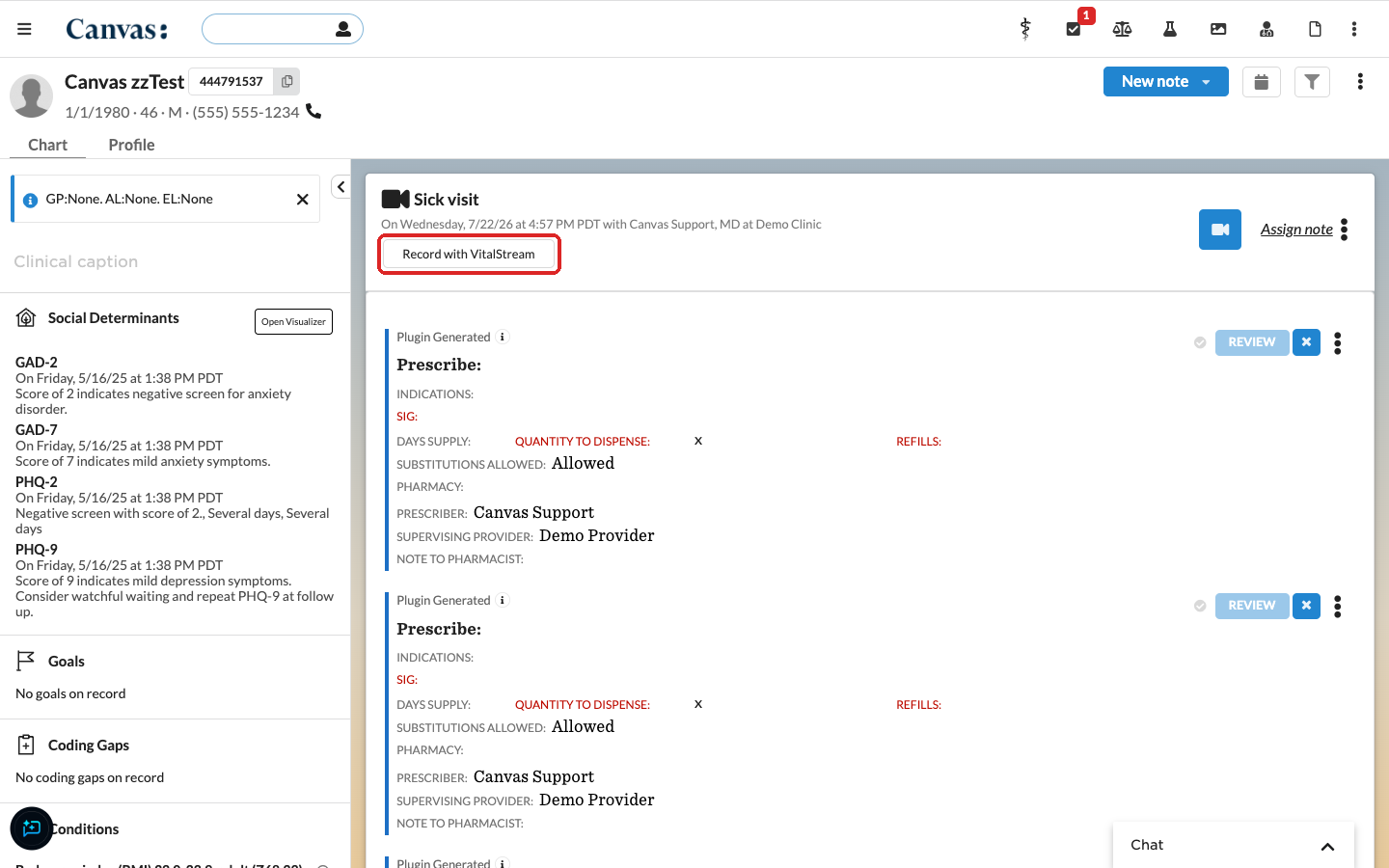
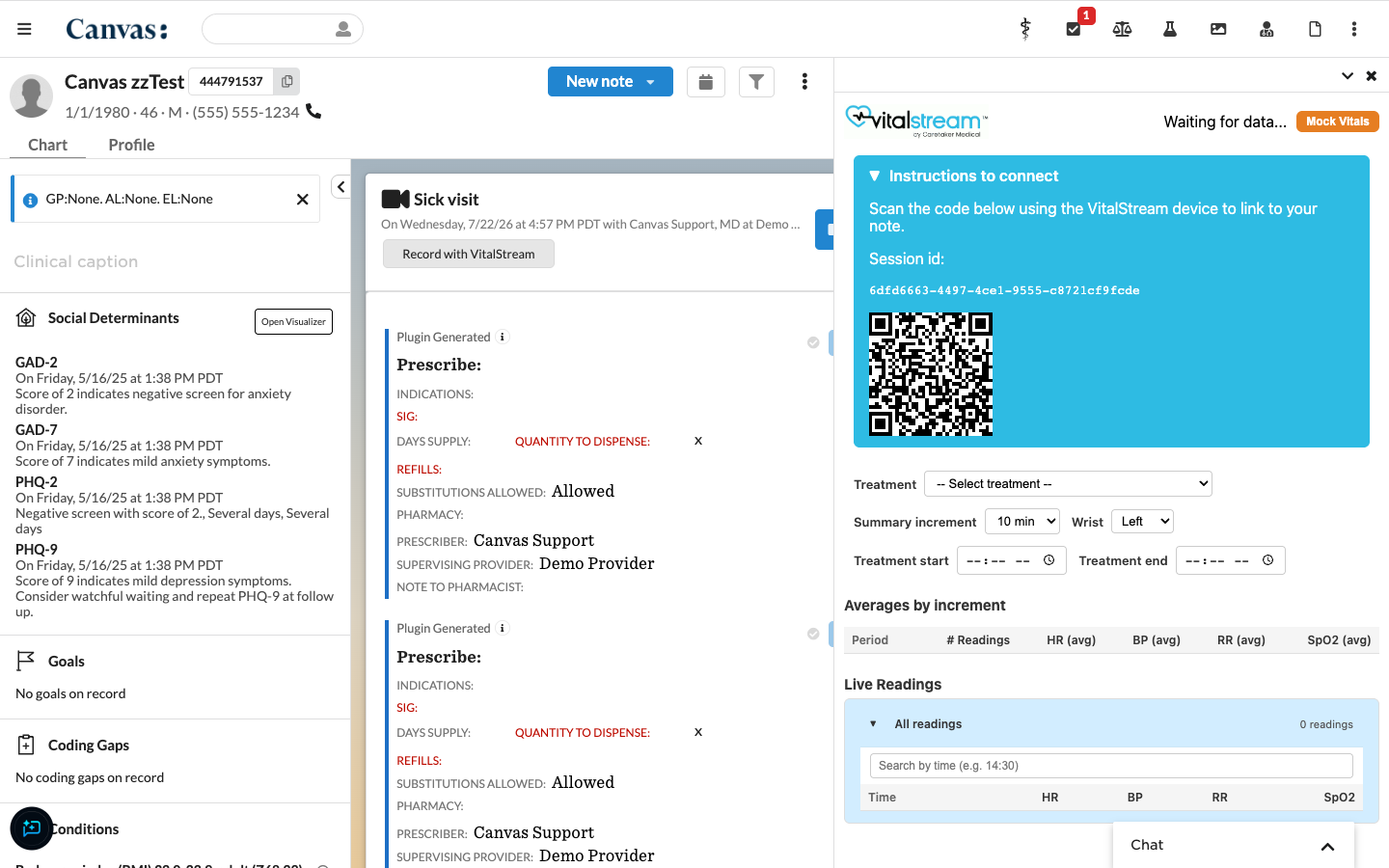
In the note header, select Record with VitalStream. The VitalStream panel opens on the right with a QR code.
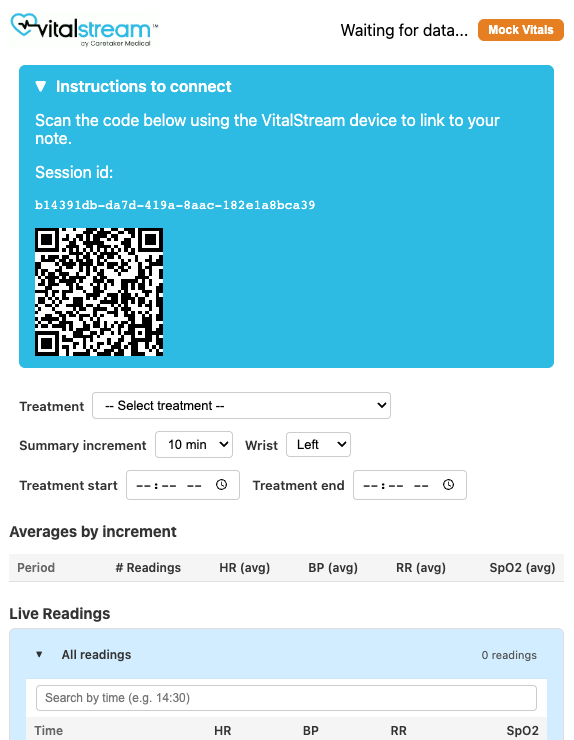
Start a session on the VitalStream tablet, tap the camera icon, and scan the QR code. The panel status changes from Waiting for data... to Receiving data...
Set up the summary
Treatment: Choose the treatment being given.
Summary increment: Choose how far apart the time marks are, for example 5 or 10 minutes.
Wrist: Choose the wrist the device is on.
Treatment start and Treatment end: Enter the times the treatment started and ended.
Watch live readings
Live Readings lists each reading as it arrives, newest first. Search by time to find a reading. Averages by increment shows, for each time mark, how many readings it includes and their average heart rate, blood pressure, respiratory rate, and oxygen saturation.
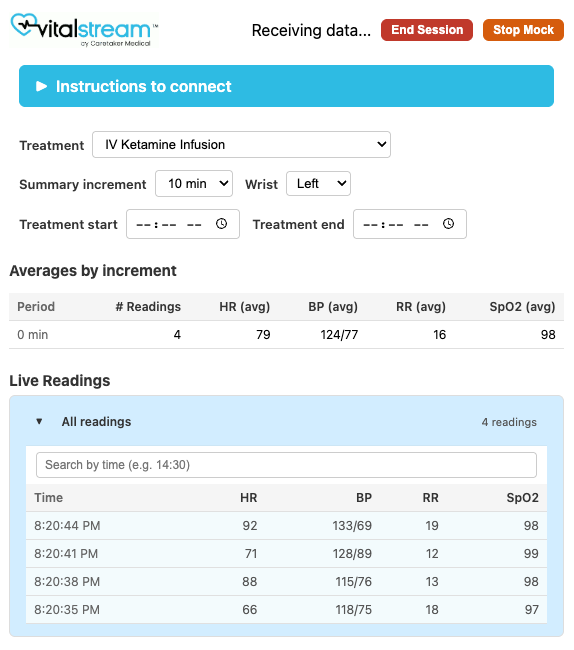
Readings are not saved to the chart until you select Save Summary to Chart.
End the session and save to the chart
Select End Session and confirm. The device stops sending readings to the note.
Select Save Summary to Chart.
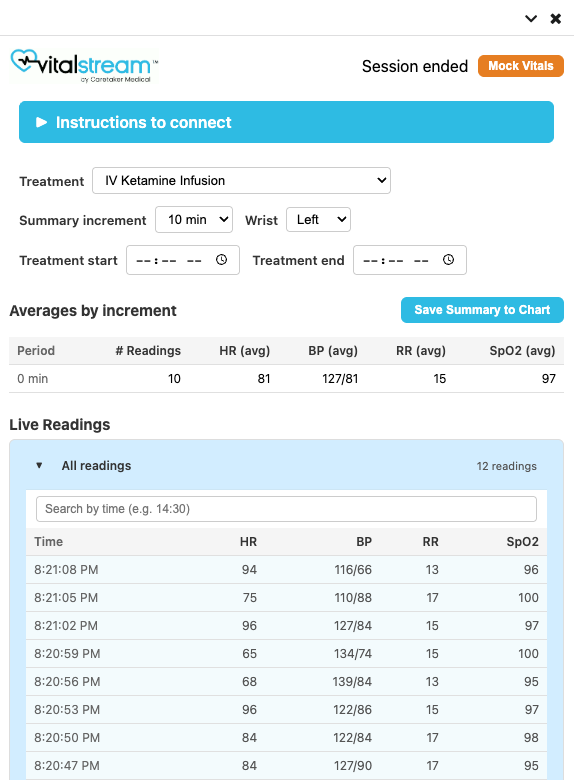
For each time mark (0, then every increment from the session start), the plugin averages the readings in the minute around that mark, from 30 seconds before to 30 seconds after. The averages are saved to the chart as observations for mean heart rate, mean respiratory rate, mean oxygen saturation, and blood pressure, and a command summarizing them is added to the note.
Spravato treatment intervals
When the note type or the note title includes the word Spravato, the panel opens with the treatment set to Spravato and a Spravato Treatment Intervals section for three timed checks: Pre-administration, 40-min post, and Pre-discharge. The section is set when the panel opens, so choosing Spravato from the Treatment list on another note does not add it.
In Live Readings, select the reading to use for an interval.
Select Assign next to that interval. Its time and vitals fill in.
Repeat for all three intervals. Save Intervals to Chart appears once all three are assigned.
Select Save Intervals to Chart to save them to the note.
To use this workflow for another note type, include "Spravato" in its name.
Troubleshooting
The panel stays on Waiting for data: Check that the device's serial number is on the plugin's authorized list and that Data Forwarding on the tablet points to your Canvas portal URL.
Readings didn't appear in the chart: Readings are only saved after Save Summary to Chart. End the session, then save.
The Treatment Intervals section doesn't appear: The note type or title must include "Spravato".
Install the Plugin
Find the plugin to install at https://github.com/Medical-Software-Foundation/canvas/tree/main/extensions/vitalstream
Plugin secrets
Set these in the Canvas admin settings, under Plugin_Io > Plugins > vitalstream.
AUTHORIZED_SERIAL_NUMBERS (required): the serial numbers of the VitalStream devices allowed to send readings to Canvas, one per line. Readings from any other device are rejected. Enter each serial number in lowercase, with no spaces before or after it, because the plugin compares it in lowercase. You can find a device's serial number under Settings > About in the VitalStream app. Add a line whenever your organization gets a new device.
ENABLE_MOCK_VITALS (optional, off by default): when set to
true(or1,yes,on,enabled), the panel shows a Mock Vitals button that generates random readings, for training and testing without a device. Leave it unset orfalsein production so staff can't save made-up vitals to a patient's chart.
On each VitalStream tablet, also turn on Data Forwarding to your Canvas portal URL, as described in Before you begin.