Coverages
Last updated: October 8, 2025
Managing patient insurance coverages is essential for ensuring accurate billing, claim processing, and eligibility verification. This guide provides detailed instructions for adding, updating, and managing insurance coverages, attaching insurance card images, configuring insurer settings, handling subscribers and guarantors.
User's Guide
Adding New Coverage
Accessing the Coverage Modal
Open the Patient Profile
Locate the Coverages section on the right-hand side.
Click + Add Primary Coverage.
Attaching Insurance Card Images
There are two options for uploading insurance card images: either upload an image from the user's device or use the Canvas Remote iOS app.
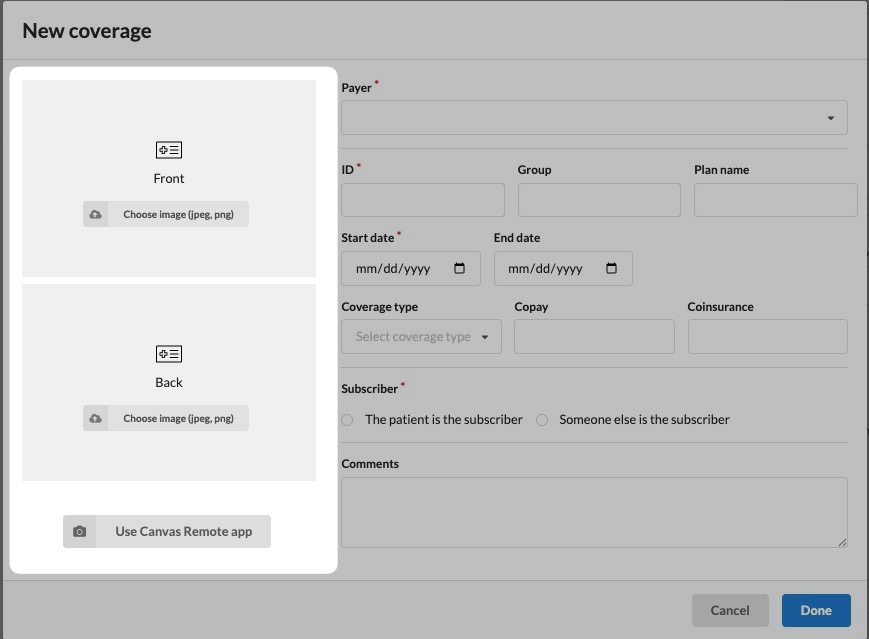
Upload Insurance Card Images
In the Coverage modal, click Choose image (JPEG, PNG) for both the Front and Back of the card.
Select the image files from the user's device (computer, tablet, etc).
The uploaded images will display as thumbnails.
Images can be printed directly from the modal.
Using the Canvas Remote App (iOS Method)
In the coverage modal, select Use Canvas Remote App in the Coverage modal.
Scan the displayed QR code using the Canvas Remote App to link the app to the patient
Capture the front and back of the card and crop or resize the images as needed.
A blue checkmark will indicate a successful upload.
Refresh the Patient Profile to view the image thumbnails.
Removing Insurance Card Images
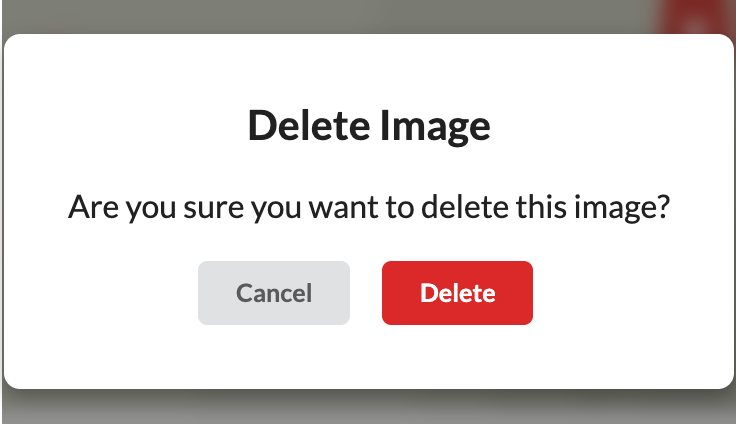
Open the coverage modal and click the trash can icon next to the image
Confirm deletion
Re-upload a new image if needed
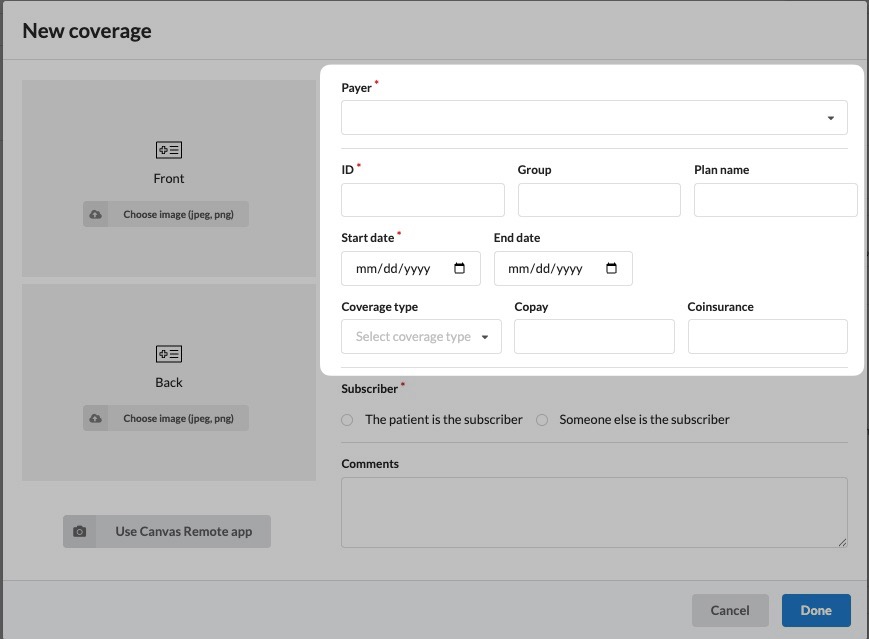
Entering Coverage Details
Payer Name: Select from active insurers
ID / Policy Number: Enter exactly as listed avoiding dashes, spaces or special characters
Group / Plan ID
Plan Name: PPO, HMO, etc.
Start / End Date: Define coverage period. Leave the end date blank if coverage does not have a defined expiration date
Coverage Type: Based on insurer configurations.
Copay / Coinsurance: Enter values from the card.
Claim Submission Address & Phone Number:
If set to Not Provided/Not Sure, Canvas auto-creates a task for follow-up.
Manually added entries are saved for future use when adding the same coverage to additional patient profiles
Missing address or phone data may cause lab order or prescription errors.
Adding a Subscriber
Subscribers carry the insurance plan for the patient. Subscribers can either be the patient or another individual.
Patient is the subscriber
When subscriber is the direct patient, select
The patient is the subscriber
Someone else is the subscriber
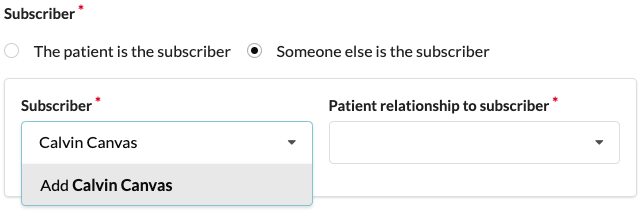
When the subscriber is NOT the patient, select
Someone else is the subscriber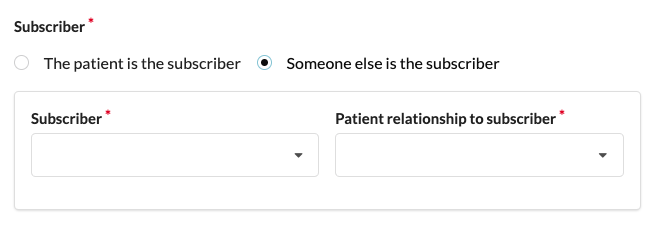
If the subscriber is an existing patient, search for the subscriber in the dropdown.
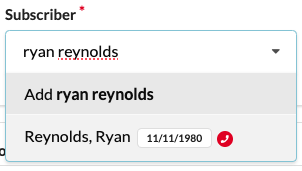
If the subscriber is not part of the practice, enter their name and select Add [Name] and select the patient's relationship to the subscriber.
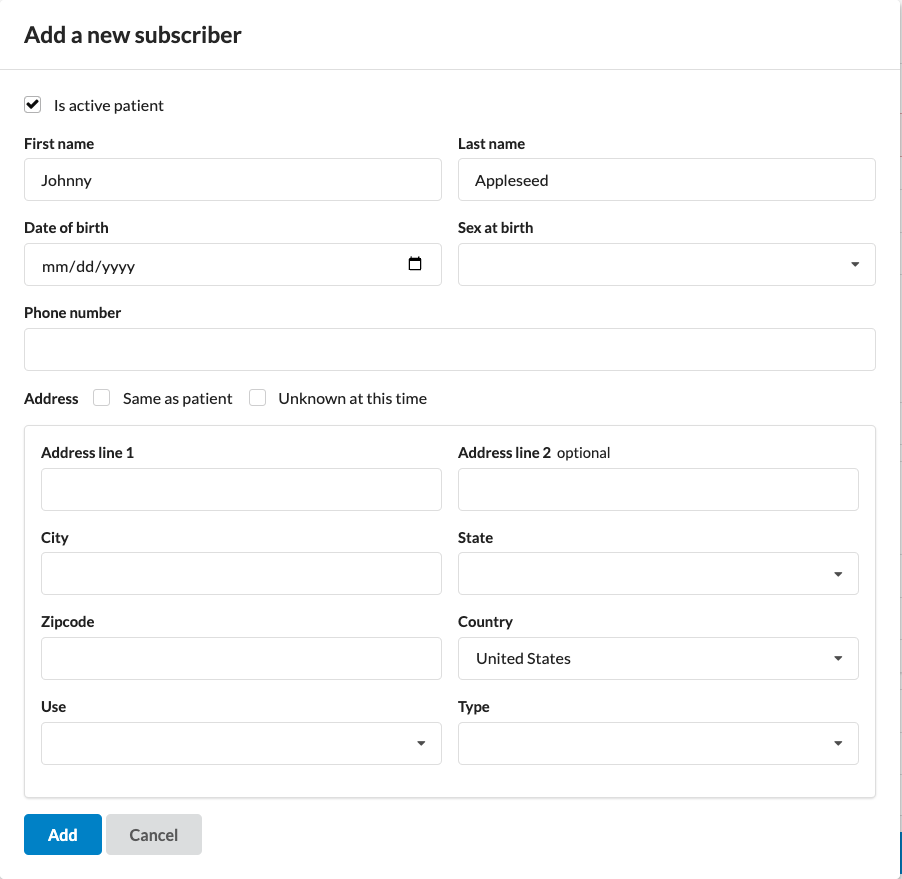
Complete the Add New Subscriber modal, filling in required fields such as name, date of birth, phone number, and address.
If the subscriber is not a patient of the organization, uncheck Is active patient to create them an inactive chart.
Adding Coverage Comments
Coverage-specific notes can be added for quick reference:
Go to patient profile
Open the coverage modal
Go to the Comments section to add free-text comments pertaining to the coverage.
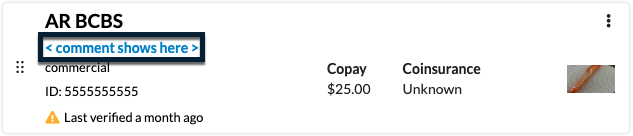
Comments can be updated at any time and are displayed on the coverage card in the profile view.
The first 200 characters of the comment will be displayed in the coverage card. Click the triple-dot menu on the card and View/Update to access the remaining information.
Modifying Coverage
Updating Coverage
Navigate to the Patient Profile and locate the desired coverage
Open the triple dot menu next to the coverage and select View/Update
Update any fields as necessary and select Update
If a patient's coverage information is changing, such as payers or ID numbers, DO NOT overwrite existing coverage information. Instead, expire the current coverage and create a new entry. Simply modifying the existing entry will result in incorrect claim processing.
Expiring Coverage
To end a coverage period
Open the triple dot menu and select Expire
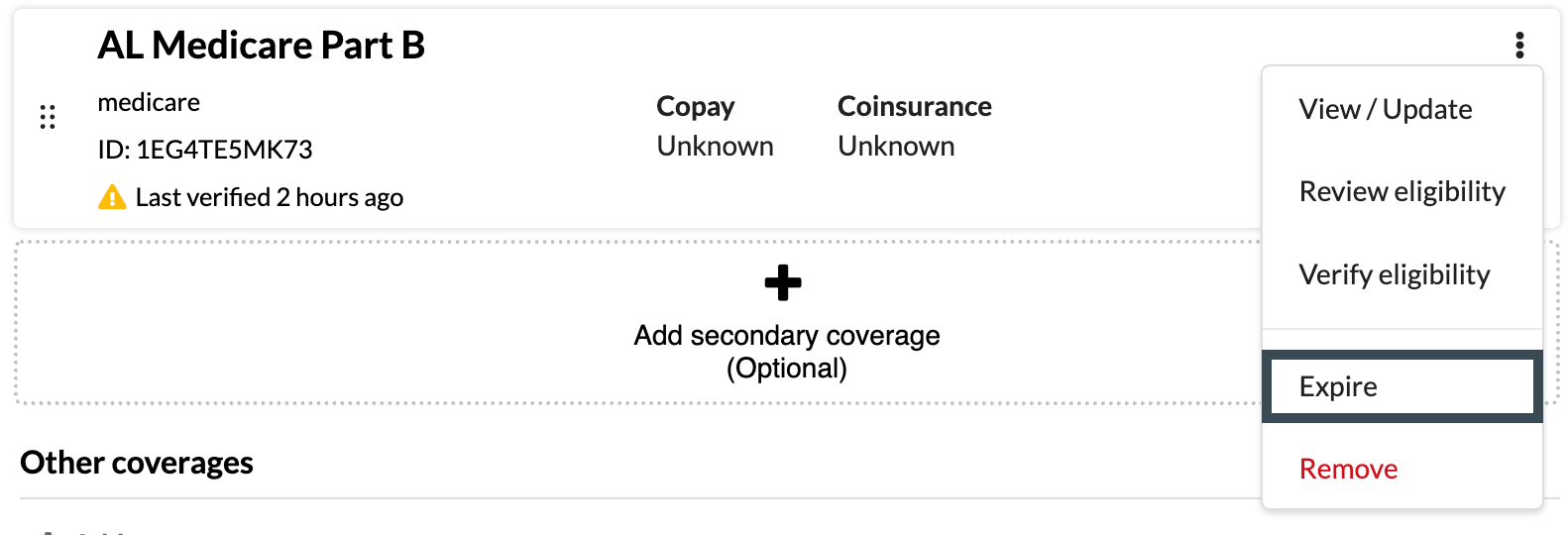
Enter an end date in the Expire Coverage modal and submit.
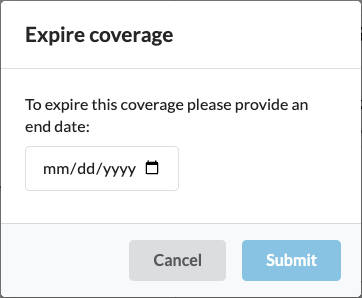
Expired coverages move to a new Expired Coverages section below active coverages.

Reactivating Expired Coverage
Go to the patient profile
Expand the Expired Coverages section under the active coverages
Open the triple dot menu next to the desired coverage and select View/Update.
Clear the end date by clicking the calendar icon and selecting Clear or add a future expiration date if the date is known.
Select Done to reactivate the coverage, which will move back to the active coverages view.
Removing Coverage
Coverage can only be removed if it hasn’t been linked to a claim.
Click the triple dot on the coverage being removed
Select remove from the dropdown
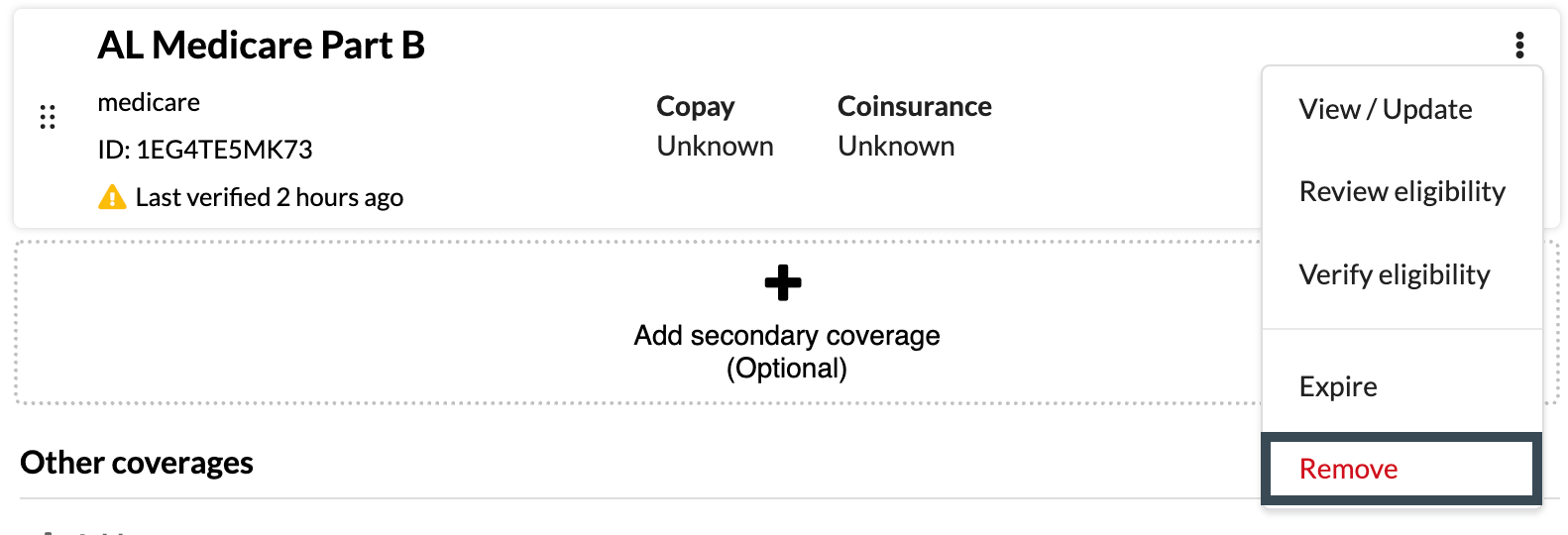
Confirm removal by selecting Remove
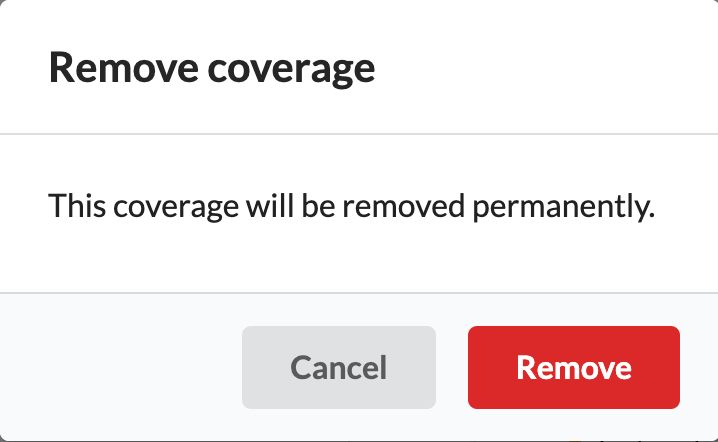
Removing a coverage will PERMANENTLY delete the coverage. Once it is removed, it cannot be restored.
Changing Insurance Coverage on Claims
Sometimes, a coverage entry is incorrect and has already been associated with a claim. In such cases, the coverage needs to be updated.
Navigate to the patient’s profile and locate the current insurance coverage in the Coverages section.
Remove or expire the old coverage:
Expire: Add an end date to indicate when the coverage ended.
Remove: Delete the old coverage entirely from the patient's record. A removed coverage cannot be restored
Add the new insurance coverage, ensuring the start date reflects the policy’s effective date.
Open the relevant claim.
Click Show available coverages under the current coverages on the claim to expose the new coverage
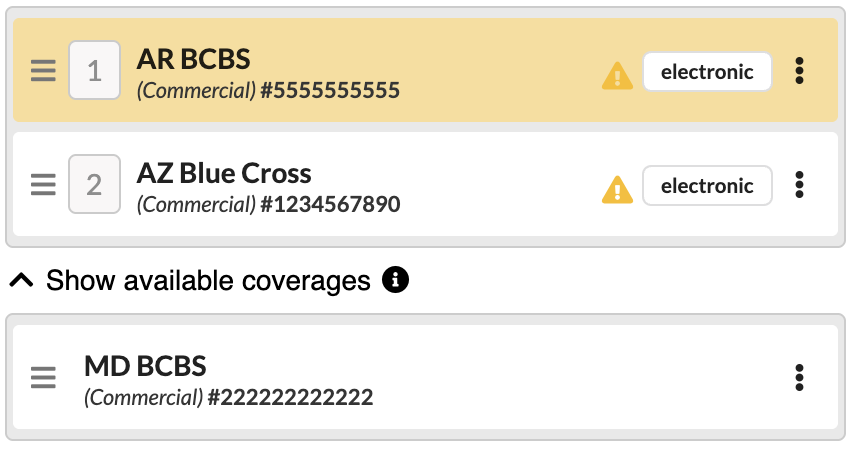
Click the triple dot of the new insurance and click Add coverage to claim
The coverage list will not reflect all 3 coverages
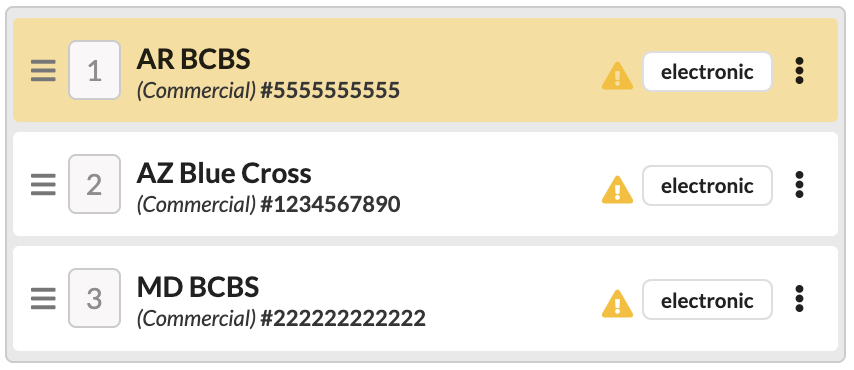
Click the triple dot menu on the coverage that should not be on the claim and click remove coverage.
Changing Current Insurance
If a coverage is labeled as Current (highlighted in yellow), it cannot be removed from a claim. An alert, You cannot remove the current coverage, will display when attempting to remove it. To proceed, another coverage must be marked as current before the initial coverage can be removed.
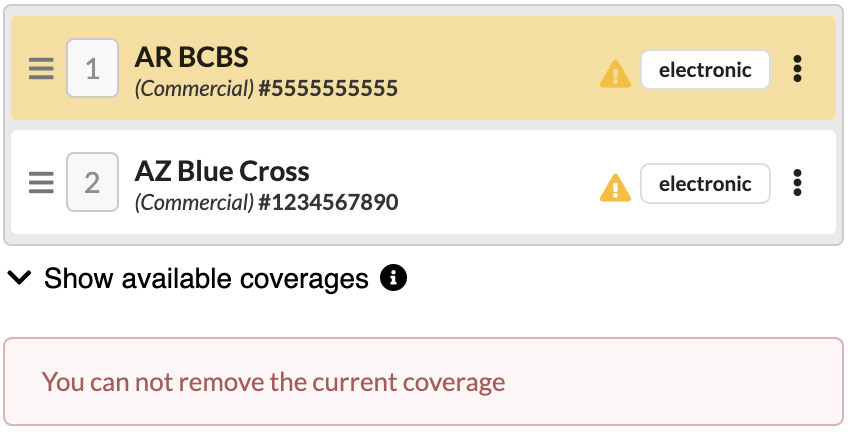
Click the triple dot of coverage that should now be current
Select Set as current
The selected coverage will be updated to current (highlighted yellow)
The previous selected coverage will no longer be current and can be removed from the claim
Other Coverages
Beneath the medical coverages on the patient profile, there is a section for Other Coverages. Here any non-medical insurances the patient may need can be added (prescription coverage, auto insurance, etc.).
Click +Add under the Other Coverages heading
Follow the same step used for adding, updating or removing medical coverages
Coverage Eligibility
Canvas integrates with ClaimMD to provide real-time eligibility verification, ensuring that patient insurance coverage is active before services are rendered.
When Eligibility is Checked?
Automatic Checks
Triggered when new coverage is added or updated.
Runs automatically 3 days before scheduled appointments.
Manual Checks
From the Patient Profile, locate the coverage card.
Click the triple-dot menu and select Verify Eligibility to run a check at any time.
Reviewing Eligibility Results
After a check, Canvas displays one of the following status indicators on the coverage card:
✅ Eligible — Coverage is active.
❌ Ineligible — Coverage is invalid; follow up required.
⚠ Error — The system encountered an issue processing the request.
For detailed information:
Select Review Eligibility from the triple-dot menu.
A modal will display eligibility details, including copay and coinsurance amounts (which can be edited if necessary).
Review all relevant data to ensure billing accuracy.
Patient Eligibility Defaults
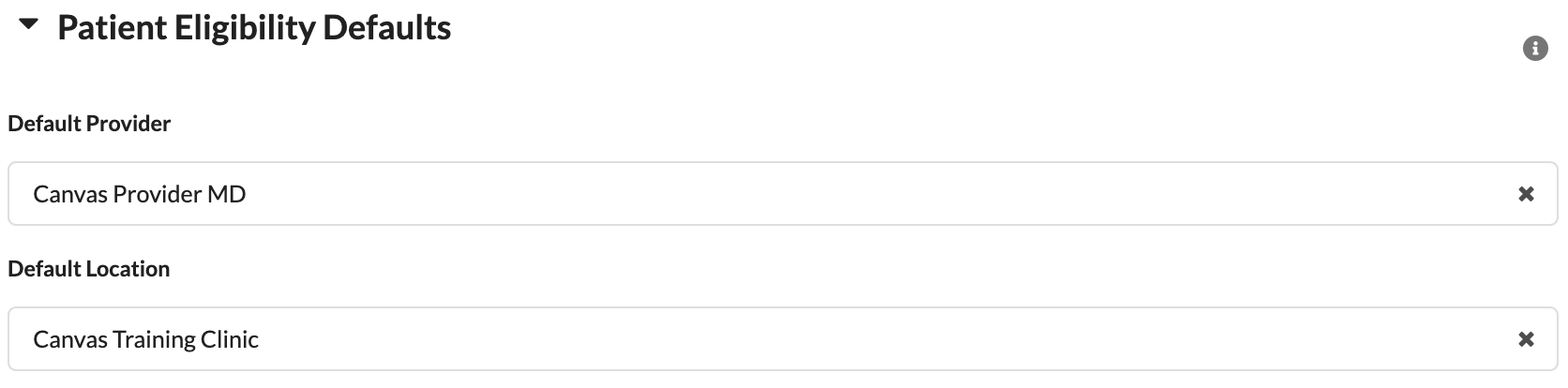
By default, eligibility checks are processed using the organization's information. However, some insurers require the use of a specific provider's details.
Admins can configure this behavior in Settings > Quality & Revenue: Insurers by enabling Use provider for eligibility.
If this setting is active, ensure Patient Eligibility Defaults (provider or location) are defined to prevent processing errors.
Common Eligibility Errors
Payer does not support electronic eligibility: Manual verification required outside of Canvas.
Provider not enrolled: Ensure Tax ID and NPI are registered with the payer.
Invalid policy number format: Remove dashes or suffixes like "-01" from policy numbers.
Configuration & Set Up
Managing Insurers
Canvas pulls an initial list of insurers from ClaimMD, but organizations can manually manage insurers to align with their specific needs.
Adding a New Insurer
Navigate to Settings
Select Quality & Revenue: Insurers.
Click Add Insurer + in the top-right corner.
Complete necessary fields with the insurers information
Name: Name of coverage
Payer ID: Unique ID assigned to insurance company
Active: Checked if insurer should be listed in coverage dropdown
Clearinghouse: Claims should be processed through clearinghouse
Paper claims need to be submitted through the practice. Canvas does not send paper claims.
Type: General category of insurance
Transactor Type: Indicates submission format to the clearinghouse
Possible Coverage Types: Specific benefits the insurance may cover
Use for Submission: Alternate payer submissions will process through
Submit Claim with SSN: Check if claims need to be submitted with the SSN included
Use Provider for Eligibility: Check if coverage eligibility is ran through the provider and not the organization
Description: Any added details on the coverage
Accept Remittances From: Alternate payer ERAs will be accepted from
Click Save.
Modifying or Inactivating an Insurer
In the Insurers section, search by insurer name or payer ID.
Select the insurer to open the details.
Update necessary fields or uncheck Active to inactivate.
Click Save.
Accurate insurer and address configuration reduces claim rejections and manual corrections.
Configuring Alternate Payers for Submissions and ERA Retrieval
Some insurers process their submissions through alternate payers or accept ERAs from other payers. To configure an insurer for this claim submission process:
Navigate to Settings
Select Quality & Revenue: Insurers
Choose the insurer that needs to submit and/or remit through an alternate payer
To select an alternate payer for claim submissions:
Locate the Use for Submission field
Select the payer from the dropdown menu (e.g., Medicare B for Medicare claims)
To enable remittances from other payers:
Locate the Accept remittances from field
Select the payer(s) the coverage can accept remittances from in the dropdown
Save your changes
Image Upload Settings
Organizations can opt to use Canvas Remote for processing insurance card images. Admins can toggle this setting based on organizational preference for image capture methods
Go to Settings
Click Constance: Config
Find the
COVERAGE_DEFAULT_QR_SCAN_MODALsetting.FALSE (default): Users are directed to upload images from their desktop when adding insurance cards to the patient profile.
TRUE: Users see the QR code for the Canvas Remote App by default when adding insurance cards to the patient profile.
FAQs
Q: Why isn’t updated insurance applied to existing claims?
A: Always expire or remove old coverage before adding new. Only new entries can be assigned to claims.
Q: What happens if address or phone is missing?
A: Canvas creates a task to prompt follow-up, but delays may impact labs, prescriptions, or claims.
Q: How do I verify if a coverage is active on a claim?
A: Active coverages are shown in the claim header.
Q: Why doesn’t the activity log show secondary coverage changes?
A: The activity log may not display it. Check the claim directly under Show available coverages.
Q: What if secondary insurance was added after claim creation?
A: Add it manually to the existing claim. Future claims will include all active coverages.
Related Resources
Keywords & Metadata
• Keywords: insurance coverage, eligibility verification, insurance card upload, Canvas Remote App, subscriber management, guarantor, claim reassignment, Constance settings, insurer management, payer address
• Categories: insurance management