Supervisor Cosign
Last updated: November 5, 2026
The Supervisor Co-sign plugin supports practices where a supervising provider reviews and co-signs notes written by the clinicians they supervise. When a supervised clinician signs a note, the plugin records that it needs a co-sign. When the supervisor opens that note, the note's Sign button is replaced with Co-sign, which saves a written attestation to the chart in the same step as the supervisor's signature. A Co-sign Summary page lists the notes each supervisor still owes.
Overview
Supervised clinicians have no extra steps. They sign their notes as usual.
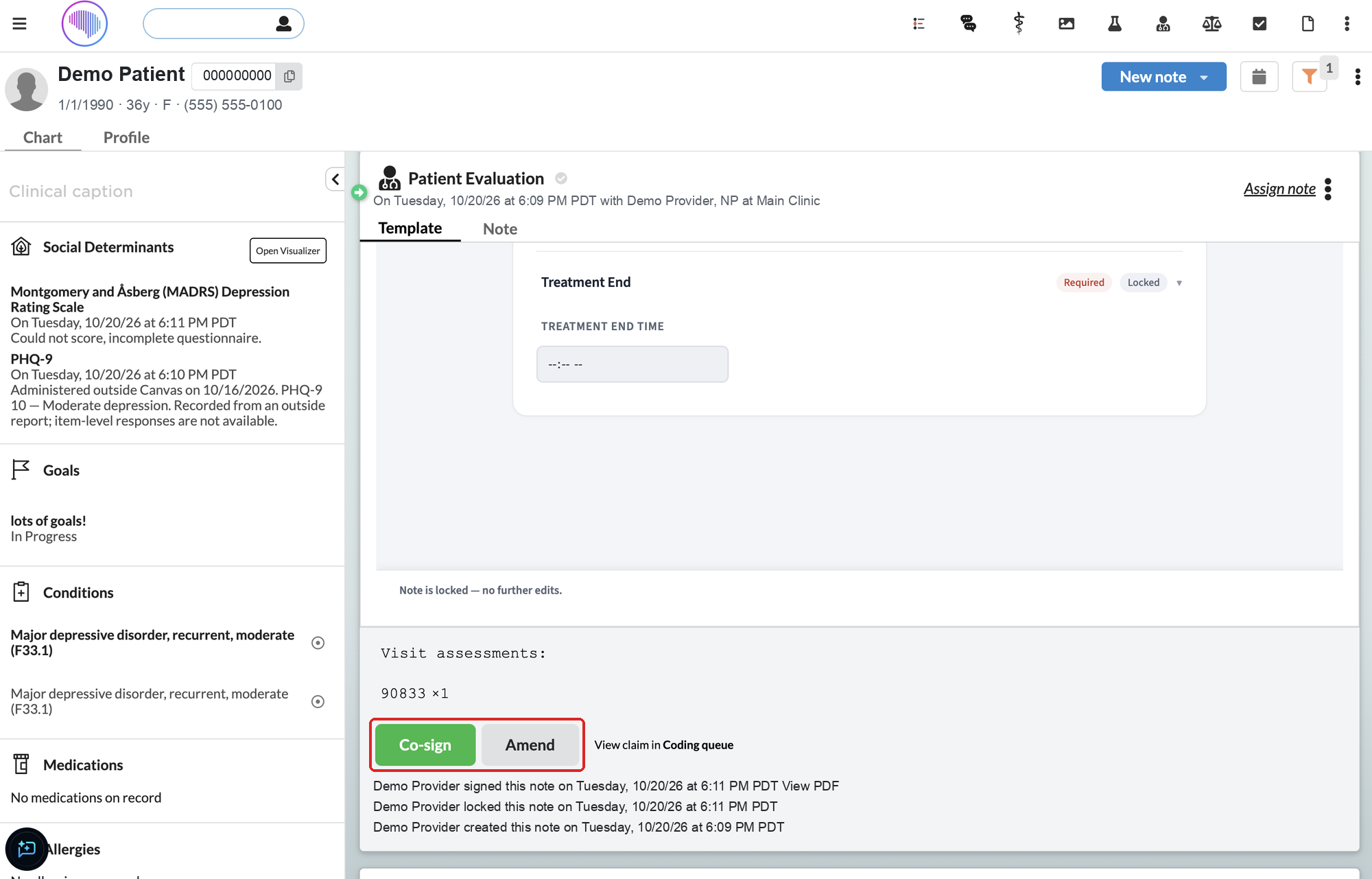
Supervising providers see a green Co-sign button in place of Sign on notes waiting for their co-sign. It opens a short form to pick or write an attestation.
The attestation is saved on the note as an Attestation Review entry in the Plan section, ending with who co-signed and when. It appears in Print note and in the PDF saved when the note is signed.
The Co-sign Summary page, in the provider menu, shows co-sign status across a supervisor's team and lets them co-sign from the list.
Optionally, each note waiting for a co-sign also creates a task for the supervisor.
Before you begin
Set who supervises whom. The plugin uses the supervising provider set on the note itself. If the note has none, it uses the Default Supervising Provider on the note provider's staff profile. If neither is set, the note is not tracked for co-sign.
Decide which note types need a co-sign. By default every note type does. Your Canvas team can limit this to specific note types (see Plugin secrets below).
Supervisors must be able to sign notes they did not write. Co-signing briefly unlocks the note, adds the attestation, and signs it again as the supervisor. If your instance restricts signing to the note's own provider, the co-sign cannot be saved. Ask your Canvas team to confirm this setting.
When a note needs a co-sign
A note is tracked for co-sign when the supervised clinician signs or locks it and all of these are true:
The note has a provider, and a supervising provider is set on the note or on that provider's staff profile.
The note's type is one of the types your practice requires a co-sign for (or no types are configured, which means all types).
The note is not already waiting for a co-sign, and has not already been co-signed.
Each note is tracked on its own, so a patient with several notes from a supervised clinician has a separate co-sign for each one. If your practice turned on tasks, the supervisor also gets a task titled Co-sign review with the note date and patient name, labeled cosign, due three days later, with a link to the note.
Co-sign a note
Open the note from the patient's chart, the task link, or the Encounter List.
In the note footer, click the green Co-sign button. You see it only on notes that are signed or locked and waiting for your co-sign. Everyone else, including the clinician who wrote the note, sees the usual footer.
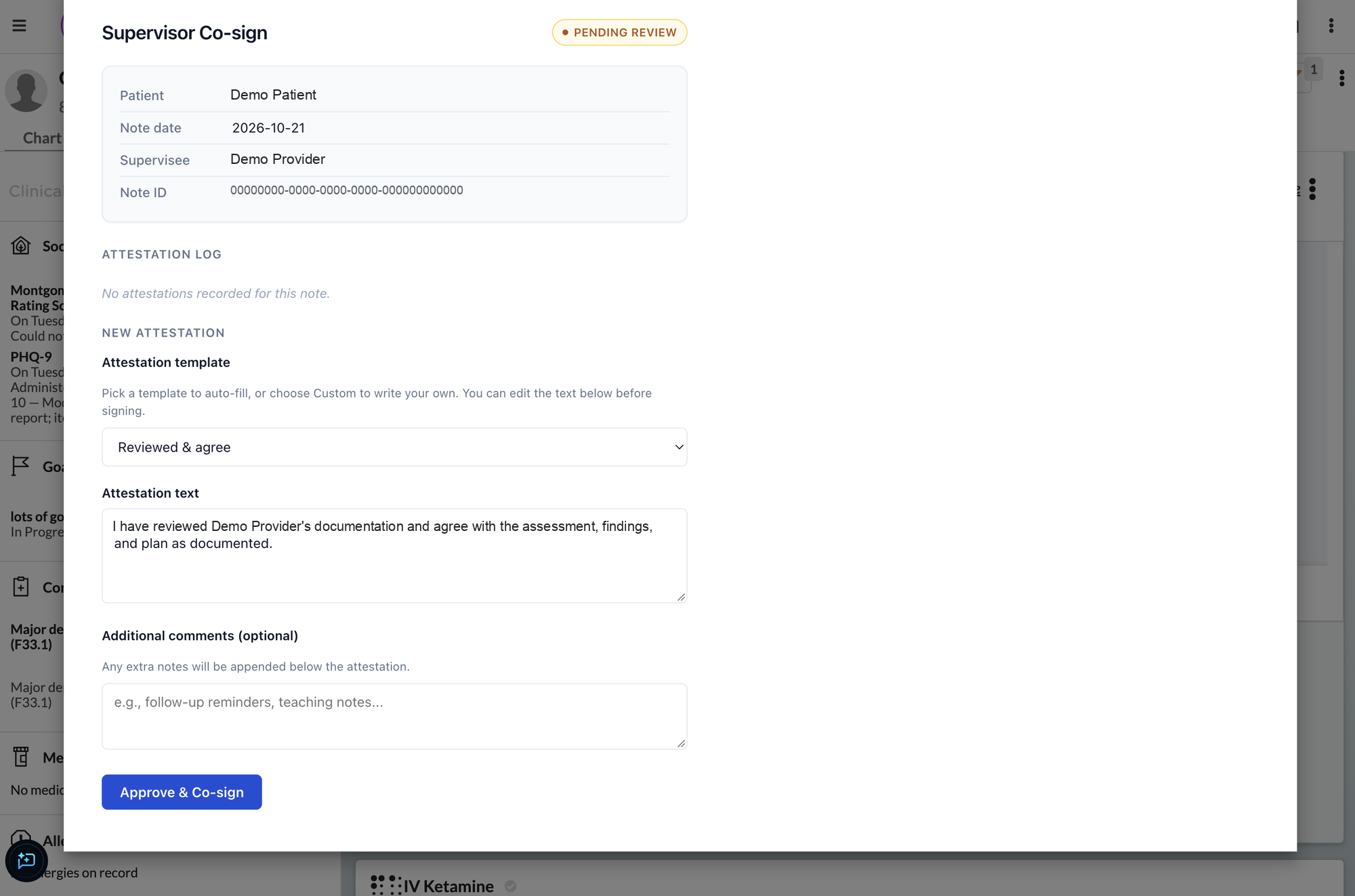
The Supervisor Co-sign window opens. It shows the patient, note date, supervisee, and an Attestation log of any earlier attestations on this note.
Under Attestation template, pick a template. Reviewed & agree is selected by default. The options are Teaching physician - present & participated, Reviewed & agree, Personally performed, and Custom (write your own).
Edit the text under Attestation text if needed. What is in the box when you submit is what is saved.
Optionally, add Additional comments. They are added below the attestation.
Click Approve & Co-sign. When you see Co-sign recorded. You can close this window., close the window.
The note now shows an Attestation Review entry in its Plan section, ending with Co-signed by your name and the date and time. The footer goes back to the usual buttons, and the note history shows the note signed again by you.

Use Co-sign, not Amend. The footer also shows Amend (or Unlock). Clicking it reopens the note for editing, and an open note shows the regular Sign button. Signing from there records your signature without an attestation, and the note still counts as waiting for your co-sign. If you open a note by mistake, close it without signing, and use Co-sign instead.
Use the Co-sign Summary page
Open Co-sign Summary from the provider menu. It lists co-sign work for your supervisees, with compliance percentages for each supervisee across the top.
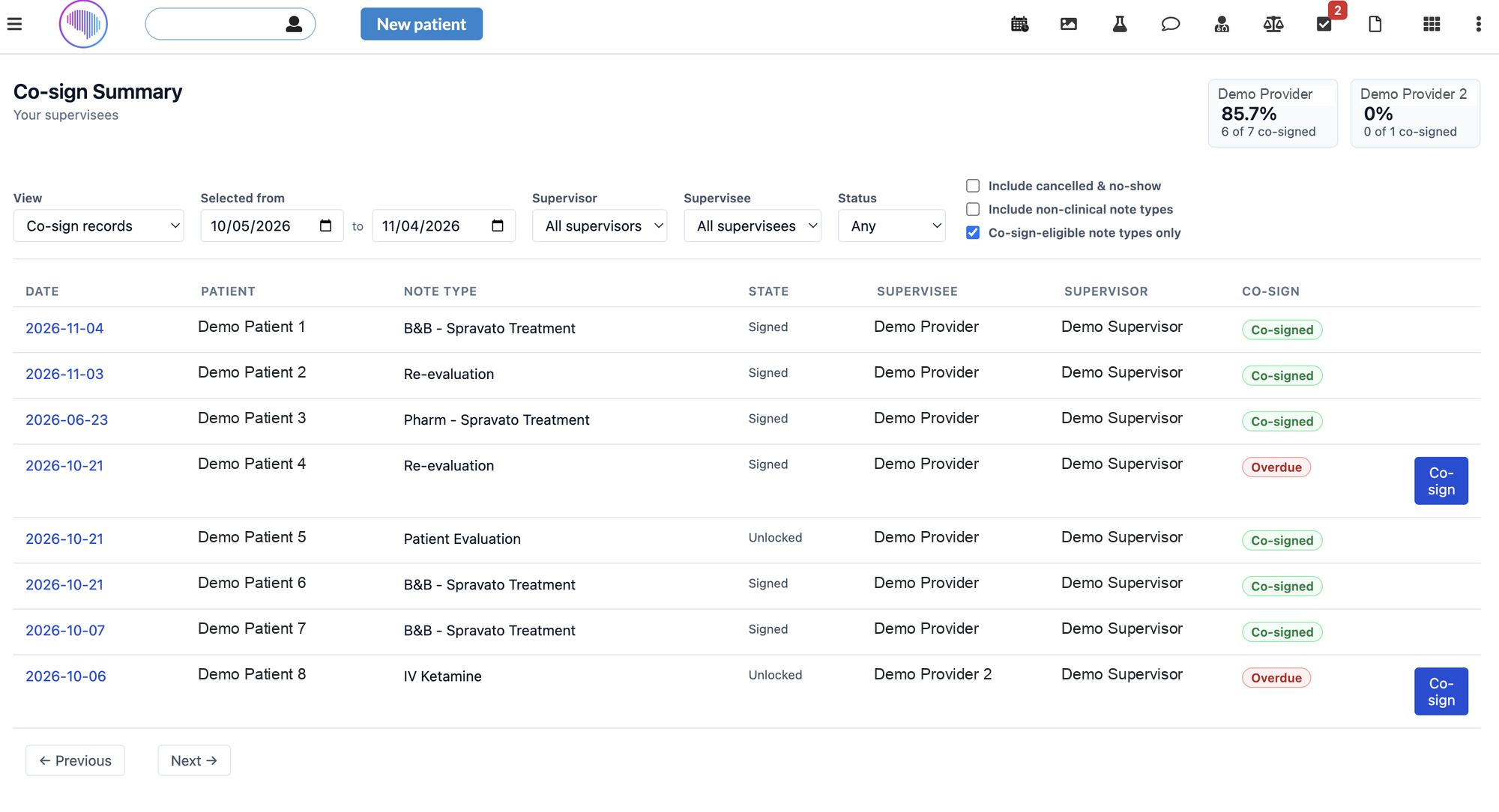
View: Co-sign records lists the notes tracked for co-sign, pending and done. All supervisee notes lists every note your supervisees wrote in the date range, so you can see the full picture. Drafts, unlocked, locked, and signed notes all appear there.
Filters: date range, Supervisor, Supervisee, and Status (Pending or Co-signed). In the all-notes view you can also include cancelled and no-show visits and non-clinical note types, or check Co-sign-eligible note types only to show only the note types your practice requires a co-sign for.
The Co-sign column shows Co-signed, Pending, or Overdue. A co-sign becomes overdue when it is still pending three days after the note was signed.
Click a row's date to open that note in the chart.
Click Co-sign on a row to open the attestation form right under it, then Approve & Co-sign. This saves the same attestation as co-signing from the note.
Who can open the page:
Who | What they see |
|---|---|
A supervisor of at least one active staff member | Their own supervisees' notes |
Staff your Canvas team listed for oversight | All supervisors, with supervisor and supervisee filters. They can view but cannot co-sign. |
Everyone else | A page saying there is nothing to show |
Every staff member sees the menu item, but only supervisors and oversight staff see data.
When a supervised clinician amends a co-signed note
By default, a co-signed note stays co-signed if it is amended later. Your practice can choose instead to send amended notes back for review: when the supervised clinician amends and signs a co-signed note again, it goes back on the supervisor's list as needing a co-sign. Changes made by anyone else, such as billing updates, never reopen a co-signed note. Whether amendments need a new co-sign is a practice policy decision; tell your Canvas team which you want.
Troubleshooting
What you see | What to check |
|---|---|
The supervisor does not see Co-sign on a note | The note must be signed or locked. An open note shows the usual footer. Confirm a supervising provider is set on the note or the clinician's staff profile, that the note type requires a co-sign, and that you are signed in as that supervisor. |
The note was signed before the plugin was installed | Only notes signed after installation are tracked. |
Attestation text is required. | The attestation box is empty. Pick a template or type an attestation. |
An error saying you are not authorized to co-sign this note | Only the supervisor the co-sign is waiting on can submit it. |
An error saying there is no pending co-sign for this note | The note was already co-signed, or it was never tracked for co-sign. |
An error saying the attestation could not be written to the chart | Your instance may restrict signing to the note's own provider. Contact your Canvas team. |
The Co-sign Summary page says there is nothing to show | You are not a supervisor of any active staff member and are not on the oversight list. |
After co-signing, the note shows as unlocked | The attestation was saved, but something in the note stopped it from being signed again, such as a required field left empty. Fill in the missing field, sign the note, and tell your Canvas team. |
Install the Plugin
Your Canvas team installs and configures this plugin. Ask them to turn it on for your practice.
Plugin secrets
Admins set these in Canvas admin settings, under Plugin_Io > Plugins > supervisor_cosign.
Secret | Required | What it does |
|---|---|---|
| Yes | Let the plugin store co-sign records. Without them, nothing is tracked and no Co-sign button appears, with no error shown. |
| No | Note type codes that need a co-sign, as a JSON list ( |
| No | Set to |
| No | Set to |
| No | Percent of eligible notes tracked for co-sign, from 0 to 100. Default 100. Use a lower number only for audit-style sampling; each note is picked at random. |
| No | Staff IDs who see every supervisor's notes on the Co-sign Summary page. Empty means nobody; |