Creating Referral Contacts
Last updated: October 22, 2025
Canvas maintains a global directory of contacts. Each customer can have up to 2 users with direct access to this directory to add or modify existing contacts. Users cannot delete or deactivate contacts themselves, but Canvas Support can assist as needed.
Logging In
Contacts are managed in the Canvas Medical Science instance. Begin by navigating to https://science.canvasmedical.com/admin/contacts/contact/ to log in. Once logged in, you’ll see a list of active contacts and a search option for filters.
The username and password for managing contacts are different from those for your individual Canvas instance. We recommend saving both logins in a secure password manager.
Getting Started
Before adding a new contact, search to see if it already exists under a slightly different name. You can search the following fields.
First Name (full or partial)
Last Name (full or partial)
Specialty
Fax (10 digits only, no special characters)
Phone (10 digits only, no special characters)
Notes (full or partial text)
You can also use the filters located on the right side of the page to narrow your search results based on active status or specialty.
Adding a New Contact
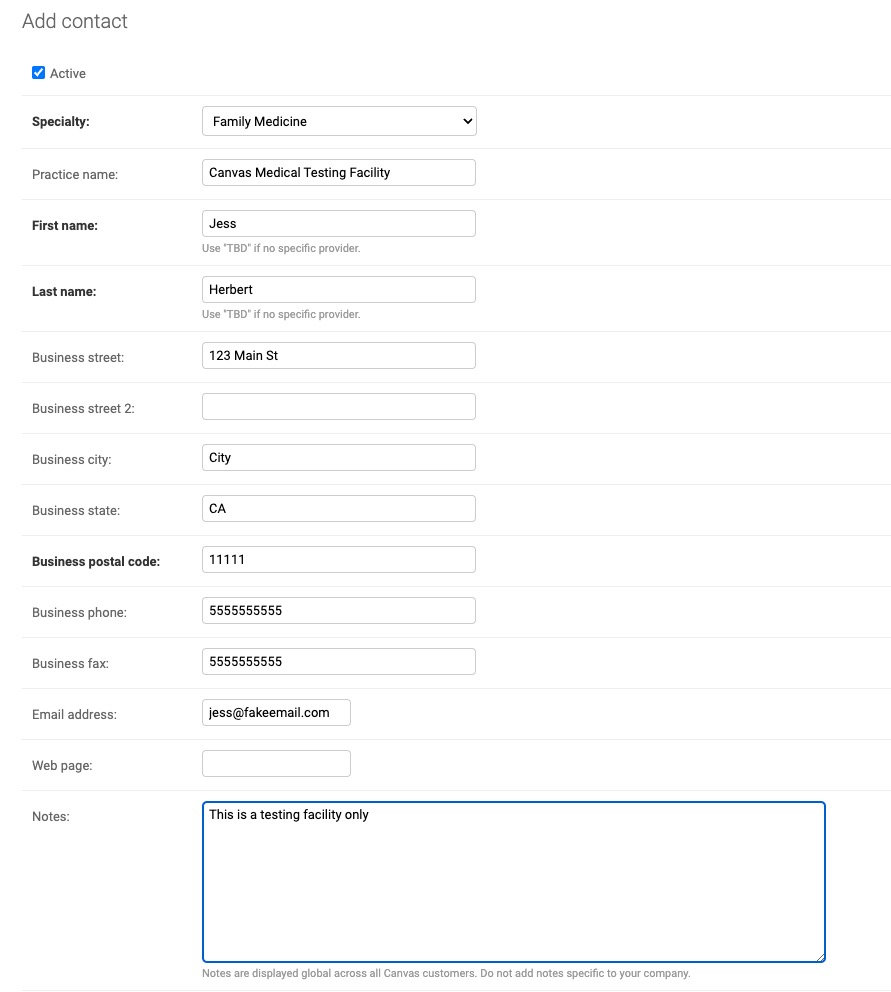
To add a new contact, select Add Contact + in the upper right corner. This will open a new contact modal.
Adding a contact requires specific information for optimal use, including
Specialty
If the new contact is an Imaging Location intended for use in the Image Command, the specialty must be set as
Radiology.
Provider’s First/Last name
Business Address with Zip Code
A valid zip code is required for contacts to appear correctly in the Refer Command. Canvas filters contacts by zip code so an incorrect zip code may prevent the contact from being displayed.
Business Fax
Additional fields such as Practice Name, Business Phone, Email, Website, and Notes can be used as desired.
Pharmacies cannot be added as referral contacts. Pharmacy management is handled through Surescripts. If a pharmacy is not available in Canvas, practices should contact the pharmacy directly and request that they register with Surescripts.
Contact Naming Guidelines
Properly naming a contact is crucial for ensuring it can be easily searched and used in the future. Follow these best practices to avoid errors or confusion:
For Practices Only: Enter the practice name in the First and Last Name fields (e.g., First Name: Canvas Medical, Last Name: Family Care).
Avoid Using "TBD": Placeholder text like "TBD" in contact fields can confuse staff and referral locations and hinder searches.
Do Not Duplicate Practice Name: Avoid entering the practice name in all three fields (Practice Name, First Name, Last Name) as this may result in too many characters, causing errors when sending referrals.
Using clear and consistent naming conventions helps streamline referral workflows and prevents issues.
Modifying an Existing Contact
Search for the contact that needs modification in the search bar at the top, and select the first name highlighted in blue to open the edit page. The following fields can be modified: Business Address, Business Phone, Business Fax, Email, Website, and Notes.
If you need any information modified that you do not have access, please reach out to Canvas Support for assistance.