Navigating Studio: Projects and Chats
Last updated: October 24, 2026
Getting Around Studio
The Overview Screen is your starting point for managing projects and getting help.
Project tiles: Each tile represents a plugin and displays its current stage: Discovery, Build, Test, Review, or Published.
Shared projects: Projects shared with you display a Shared badge and the project owner's name.
Overview chat: Located on the right, this AI assistant answers general questions about Studio.
Resizable layout: Drag the divider to adjust the space between your projects and the chat.
The Project screen is the workspace for the plugin and has two main areas:
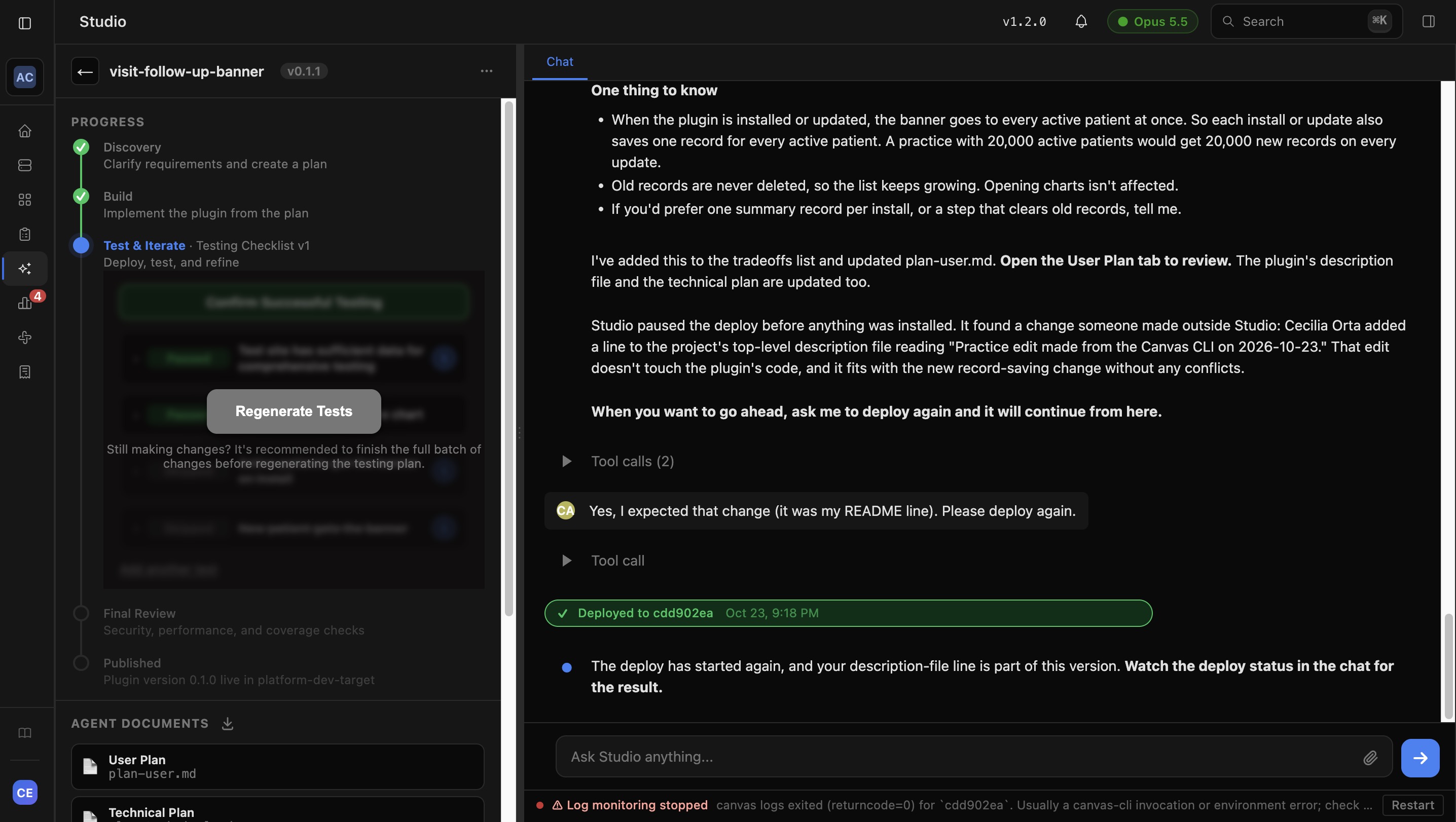
Left panel: Progress and Files
Progress Timeline: Shows the five project stages and the actions needed to advance.
Agent Documents: Contains plans and other documents created by Studio.
User Attachments: Contains files you've uploaded to the project.
Right panel: Chat and Documents
Chat: Work with the AI assistant to build, test, and refine your plugin.
Document tabs: View documents created by Studio, such as the User Plan and Technical Plan. Text appears as formatted pages, images display inline, and PDFs open in a viewer.
Chat history: For longer conversations, Studio initially loads the most recent messages. Use the button at the top of the chat to load earlier messages without losing your place.
Finding and Organizing Projects
Use the Overview screen to find projects quickly.
Search by project name, owner, or tag.
Filter by stage to view projects by stage, including archived projects
Filter by "shared with" to find projects shared with specific users, shared with you (Me), or available publicly (Public).
Filter by tag to narrow results using project tags.
Use View Toggle to switch between tile and table views using the toggle beside New Project.
You can combine filters to narrow your results. Your selections are saved in the page URL, so refreshing or sharing the link preserves the filtered view.
Overview Chat: Your Studio Guide
The Overview chat is available whenever you need help understanding Studio.
For example, you can ask:
"How do I create a project?"
"What can I build with Studio?"
"How does publishing work?"
The assistant can also reference organization-wide guidance configured by your Studio Admin.
Note: The Overview chat provides guidance but does not build plugins. To create or modify a plugin, open a project and use its chat.
Working with the AI Assistant
Communicating with Studio
Describe what you want to accomplish in plain language. You don't need technical terminology.
For best results:
Explain your goal: Describe what you want the plugin to do.
Provide examples: Share screenshots, existing workflows, or examples of the behavior you want.
Describe issues clearly: If something isn't working, explain what happened and what you expected instead.
Studio uses this information to guide development and troubleshooting.
Answering Questions
When Studio needs more information, it displays a question card.
When Studio needs more information, it displays a question card.
Uploading Attachments
Use the attachment option in the project chat to upload screenshots, PDFs, or other supporting files. Studio can reference these files to better understand your requirements or troubleshoot issues. Uploaded files are available in the User Attachments section of your project.
Next: Studio project stages · Collaborating on Studio projects