Getting Started with Studio: Build Your First Plugin
Last updated: June 17, 2026
Introduction
Studio helps clinical and operations staff build custom Canvas plugins by describing what they want in plain language, while an AI assistant does the building, testing, and deploying. You don't write any code — you have a conversation and click a few buttons along the way. This article walks you through your first project from start to finish.
When in doubt, ask Studio. Anything you're unsure about — what a button does, what to build, why something happened — you can simply ask in the chat. Studio can answer most questions about how it works, so you rarely need to leave the page to find an answer.
User's Guide
Getting Started
Open Studio inside Canvas. Studio runs as an app within your Canvas instance. Open it the same way you open other Canvas apps from the menu.
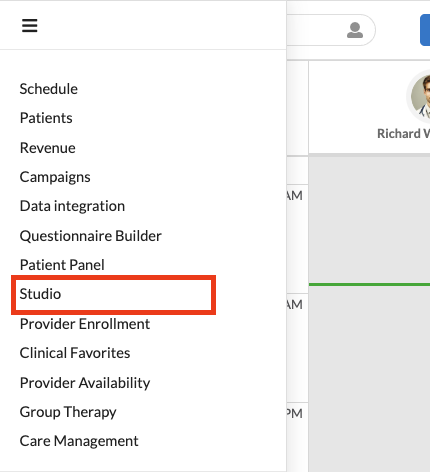
If you don't see Studio, your practice may not have given you access yet — ask a Studio Admin at your organization to add you. Once you have access, you'll get a welcome email with a direct link.
The two screens you'll use. Studio has just two views:
Overview — a grid of project tiles (one tile per plugin you're building), plus a chat on the right that answers questions about how Studio works. When in doubt, ask it anything — "How do I start?", "What does this button do?", even "What could I build?"
Project — opens when you click into a project. The left side shows your progress through the build; the right side is where you chat with the assistant. Documents the assistant creates (the User Plan, Technical Plan, and others) open in tabs along the top of the chat.
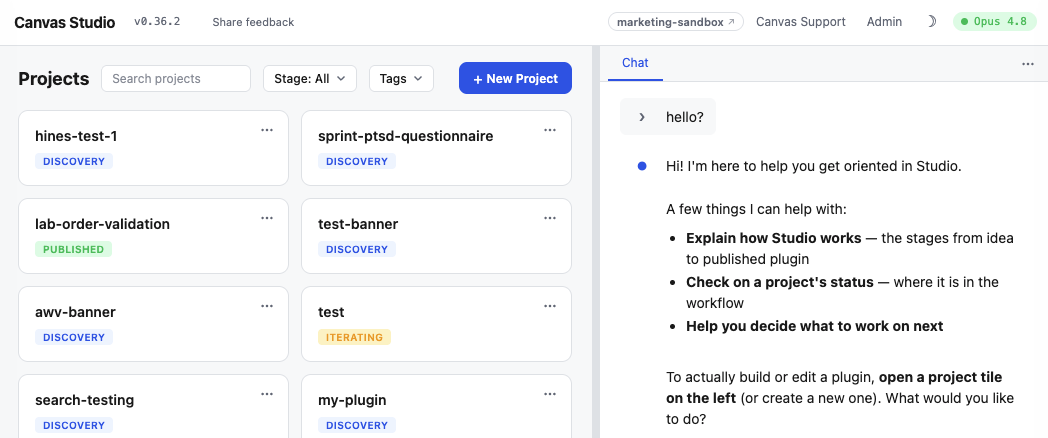
How a project moves. Every plugin moves through five stages:
Discovery → Build → Test → Review → Publish
The golden rule: you click a button to move to the next stage. The assistant never advances on its own — it does the work, then waits for you. You can also share a project with a colleague (view-only or full editing) and work on it together.
For more information: this guide covers your first build. For full detail on every screen and feature, see the Studio Reference Guide. If you manage Studio for your organization, see the Studio Admin Guide.
Step 1 — Start a new project
Each project builds one plugin. When you want to build something different later, start a fresh project rather than reusing this one.
On the Overview screen, start a new project and give it a clear name (for example, "Overdue follow-up reminder").
The project opens and the assistant greets you and asks what you'd like to build.
Step 2 — Describe what you want (Discovery)
This is the conversation where the assistant figures out exactly what to build.
Describe your idea in your own words — what should the plugin do, and for whom? You don't need to be precise or technical.
Answer the assistant's questions. It will gather what it needs in a question card. Use Back and Next to move through the questions and Review to check your answers before submitting.
Choose where your plugin shows up in Canvas. The assistant will ask which part of Canvas the plugin lives in (for example, the patient chart or a background task). This matters — picking the right spot now avoids rebuilding later, so take a moment to choose carefully.
Review your plans. The assistant writes two documents, which open in tabs along the top of the chat: the User Plan (plain-language description of what you'll get) and the Technical Plan (the build details). Read the User Plan and make sure it matches what you have in mind.
When the plans look right, click Approve Plan & Start Building.
Step 3 — Let it build and fill in settings (Build)
The assistant now builds your plugin. You'll see it working in the chat — you don't need to do anything while it builds.
Fill in any settings it needs. If your plugin needs values to work (like a web address or an account key), a Configuration Required panel appears on the left. Each field has a short note explaining what the value is, where to find it, and what it should look like.
Deploy for testing. Once the plugin is built and any required settings are filled in, a Deploy Now for Testing button appears in the timeline. Click it to put your plugin on your Canvas instance so you can try it.
Step 4 — Try it out (Test & Iterate)
Watch the deploy chip. After you click deploy, a small status chip appears in the chat and moves through Deploying… → Verifying… → Deployed (or Deploy failed, which you can click to see details). The assistant handles verification — you don't need to check anything yourself.
Test your plugin. Use the test steps the assistant prepared and try the plugin in Canvas. Tell the assistant in the chat what worked and what didn't.
Fixes happen in the chat. Describe any problem in plain language; the assistant adjusts the plugin and redeploys. Repeat until you're happy.
Watch the monitoring line. A slim status line just below where you type shows Studio watching your plugin's activity. If it turns yellow or red and says monitoring stopped, click Restart on that line — it's small and easy to miss, but the assistant needs it to see what your plugin is doing.
When everything works, click Confirm Successful Testing.
Step 5 — Final review and publish
Read the final review. The assistant prepares a plain-language summary. Pay special attention to the "Before you go live" section — it lists anything you should know before the plugin is in real use.
Publish. Click Publish to ship the plugin. What "publish" actually does depends on how your practice set up Studio — it may install the plugin directly, or send it to your team for review first. See the Reference Guide, "Publishing explained," for the details, and don't worry: the button is labeled to tell you where it's sending things.
Common Workflows
Attach a screenshot or file. Use the attachment option in the chat to give the assistant a picture of what you mean or a document to work from.
Stop or queue a message. If the assistant is working and you want it to stop, use the stop button. If you type while it's busy, your message is queued and sent when it finishes.
Find a project again later. Everything is saved automatically. Return to the Overview screen and use search or the stage and "shared with" filters to find a project. You can pick up exactly where you left off.
Troubleshooting Issues
When in doubt, ask Studio. Before anything else, try just asking in the chat — "Why did this happen?", "What should I do next?", "Is this normal?" Studio can explain most of what you're seeing and tell you the next step.
It looks frozen. A "thinking" indicator means the assistant is still working — large steps take a little time. Only if it stays quiet for a while with no indicator is something likely stuck; try sending a short follow-up.
A deploy failed. This is normal and not the end. The assistant reads the failure automatically and proposes a fix — just let it continue, or ask it to try again.
A button you expected isn't there. Stage buttons only appear once their requirements are met (for example, Deploy Now for Testing appears only after the build is ready and required settings are filled in).
Configuration & Set Up
Most users don't need to set anything up — you just need access.
Prerequisites: Studio must be enabled for your Canvas instance, and your account must be on the Studio user list.
Who grants access: A Studio Admin at your organization adds users and configures how publishing works.
To get access: Ask a Studio Admin to add you. You'll receive a welcome email with a link once you're added.
Verification: You're set up correctly when you can open Studio and see the Overview screen with the option to start a new project.
For the admin side of setup (user access, publishing, and practice-wide preferences), see the Studio Admin Guide.
FAQ & Troubleshooting
Q: Do I need to know how to code?
A: No. You describe what you want in plain language and the assistant builds it.
Q: Can I build more than one plugin?
A: Yes — create a separate project for each plugin. Each project builds one plugin.
Q: Can a coworker help me on the same project?
A: Yes. The project owner can share it with another Canvas user as view-only or full editing. See "How a project moves" above.
Q: What happens when I click Publish?
A: It depends on how your practice configured Studio — it may install the plugin directly to a Canvas instance, or open a review request for your team. The button is labeled to show where it's sending things. See the Reference Guide, "Publishing explained."
Q: I don't see a Publish button at all.
A: Your practice hasn't finished setting up how plugins are released. Ask a Studio Admin to choose a release strategy.
Q: My deploy failed — did I do something wrong?
A: No. Failed deploys are part of normal building. The assistant reads the error and fixes it for you.
Q: I closed the tab — did I lose my work?
A: No. Your project, chat history, and plans are saved automatically. Reopen the project from the Overview screen to continue.
Related Resources
Studio Reference Guide — look up any feature or screen in detail, including how publishing works.
Studio Admin Guide — for Studio Admins: granting access, choosing how plugins are released, and setting practice-wide preferences.
Keywords
Keywords: Studio, build a plugin, Canvas plugin, quick start, deploy plugin, publish plugin, AI assistant, no-code Categories: Studio, Getting Started