Studio Reference Guide
Last updated: June 17, 2026
Introduction
This guide explains every screen, button, and feature in Studio so you can look up exactly how something works when you need it. Unlike the Quick Start, it's meant to be skimmed by topic rather than read end to end. Publishing is covered in full here, including the two ways your practice might be set up.
When in doubt, ask Studio. This guide is here when you want it, but you don't have to look things up — the chat can answer most questions about how Studio works on the spot. Asking is often the fastest way to an answer.
User's Guide
Getting around
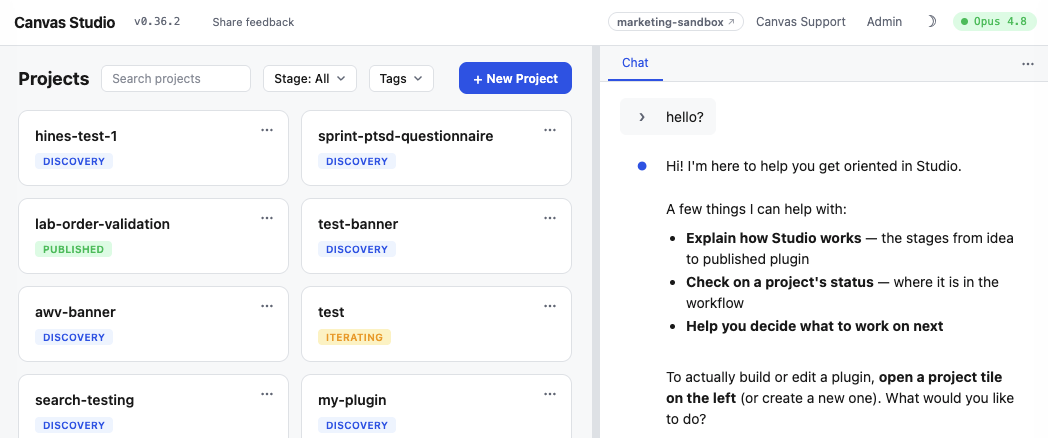
The Overview screen. This is your home base. The left side shows a grid of project tiles — one tile per plugin — each with a stage badge telling you where that project is (Discovery, Build, Test, Review, or Published). A project someone shared with you shows a Shared badge and the owner's name. The right side is the overview chat, a general assistant that answers questions about how Studio works. You can drag the divider to resize the two sides.
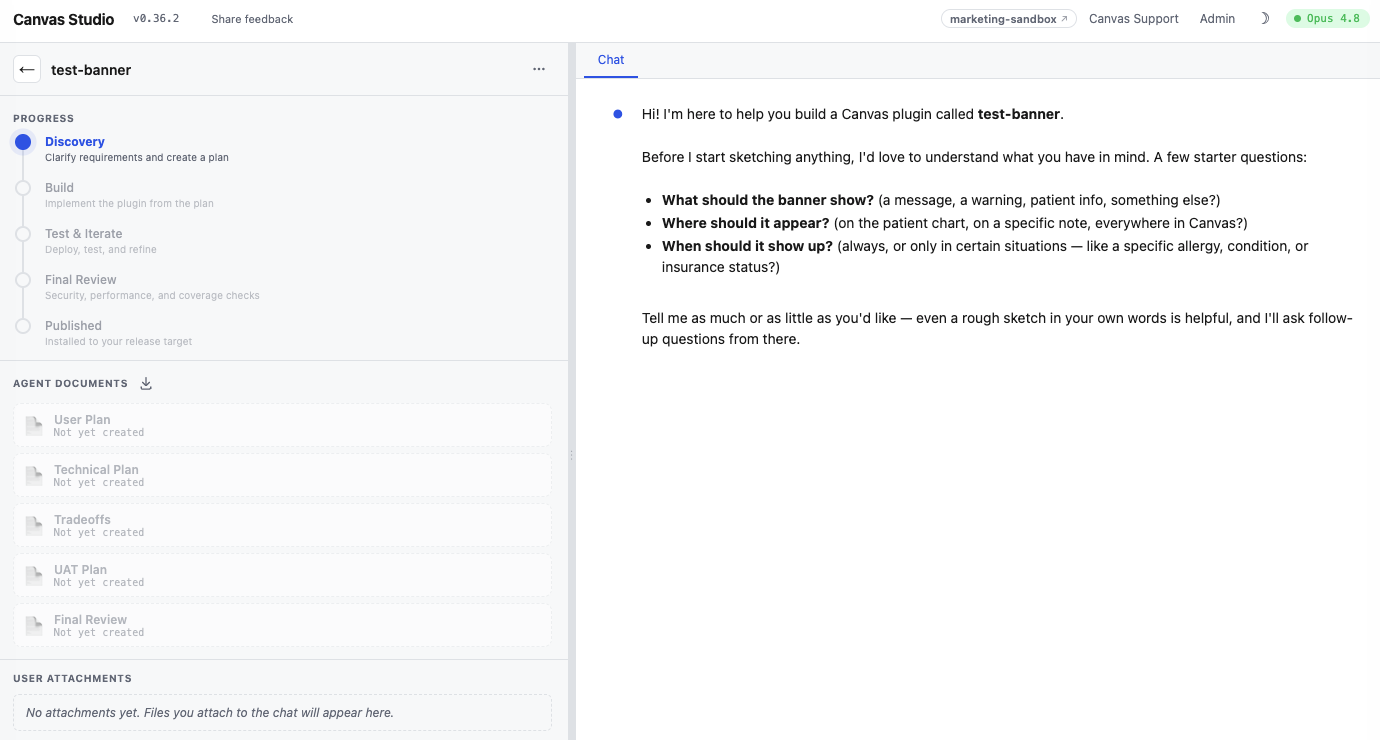
The Project screen. Click a tile to open a project. The left side is your progress timeline with the five stages and the buttons that move you forward, plus two more sections: Agent Documents (the plans the assistant writes) and User Attachments (files you upload). The right side is the chat, where you talk to the assistant, with tabs along the top for reading the documents the assistant writes (User Plan, Technical Plan, and so on) — text renders as formatted pages, images show inline, and PDFs open in a viewer.
Finding projects. On the Overview screen you can:
Search by project name, owner, or tag.
Filter by stage to see only projects at a given step (archived projects appear here as their own option).
Filter by "shared with" to see projects shared with specific people, a me option for projects shared with you, and a Public option for open-source plugins.
Filter by tag.
Filters combine, and your selection sticks in the page address — so refreshing or sharing the link keeps the same view.
The overview chat (your guide). The chat on the Overview screen answers questions like "How do I start?" or "What does publishing do?" Make it your first stop whenever you're unsure — it can answer far more than you'd expect, from how a feature works to what your projects are doing. It does not build plugins — to build, open or create a project. It can also draw on any practice-wide context your Studio Admins have set up, so it can speak to your organization's goals and conventions.
The five stages in detail
Every project moves through five stages. You advance each one by clicking its button — the assistant never skips ahead on its own.
1. Discovery. You describe what you want; the assistant asks clarifying questions, confirms where in Canvas the plugin will appear, and writes two plans: the User Plan (plain language) and the Technical Plan (build detail). When both exist, the Approve Plan & Start Building button appears.
2. Build. The assistant builds the plugin and, if it needs settings, shows a Configuration Required panel. Once the plugin is built, a testing plan exists, and any required settings are filled in, the Deploy Now for Testing button appears.
3. Test & Iterate. Your plugin is installed on your Canvas instance so you can try it. You test, report back in the chat, and the assistant fixes and redeploys. When everything works, click Confirm Successful Testing.
4. Final Review. The assistant runs its quality checks and writes a plain-language final review document. When it's ready, the Publish button appears (it may read Promote depending on your setup — see Publishing below).
5. Published / Promoted. The project is done. Under some setups this is "Published"; under a review-based setup it's "Promoted," and you can keep refining the plugin and send further updates downstream.
Working with the assistant
Talking to it well. Describe what you want in plain language — goals and examples beat technical precision. When something's wrong, say what you saw and what you expected; the assistant takes it from there. And the chat isn't only for instructions — when in doubt, just ask. "What does this do?", "Why did that happen?", and "What should I do next?" are all fair questions, and the assistant can usually answer them right away.
The question card. When the assistant needs answers, it shows a question card instead of asking inline. Use Back and Next to move between questions, Review to check everything before submitting, and select one or more options when a question allows multiple answers.
Plans & documents. The assistant writes several documents, which open in tabs along the top of the chat (and can be downloaded):
User Plan — plain-language description of what you'll get.
Technical Plan — the build details (you don't need to read this).
Tradeoffs — choices and limitations worth knowing about (see below).
Testing plan — the steps to try your plugin during Test & Iterate.
Final Review — the summary you read before publishing.
Open documents refresh on their own when the assistant updates them; you'll see a reload prompt in the tab.
Tradeoffs. Some choices have trade-offs — for example, data that's only kept for a limited time, or a setup that works for small volumes but not large ones. The assistant flags these in plain language at the moment it makes the choice and collects them in the Tradeoffs document, which feeds the "Before you go live" section of your final review. If a trade-off matters to you, just say so and the assistant can take a different approach.
Configuration values. If your plugin needs values to run, they appear in the Configuration Required panel:
Sensitive values (keys, passwords) are masked. Once saved, you'll see "Value set — leave blank to keep, type to replace"; your saved value never re-appears on screen.
Plain values (web addresses, IDs, display names) show as normal text so you can read what you typed.
Each value has a short description explaining what it is, where to get it, and what it should look like. If a value is missing one, you can ask the assistant to add it.
After saving you'll see a "Configuration saved" confirmation. Saving new values for an already-deployed plugin re-installs it automatically.
Attachments. Use the attachment option in the chat to add images (screenshots show as thumbnails), PDFs, or other files for the assistant to work from. Your uploads are listed under User Attachments on the project.
Deploying & understanding results
The deploy chip. Every time Studio installs your plugin, a status chip appears in the chat and moves through these states:
Deploying to (your instance)… — the install is running.
Verifying on (your instance)… — Studio is checking that it loaded.
Deployed to (your instance) — it loaded cleanly.
Deploy to (your instance) failed — click to expand the details; the assistant reads these automatically and proposes a fix.
Deploy unverified (orange) — Studio couldn't confirm the result; usually resolved by trying again.
You don't verify deploys yourself — Studio does it and posts the verdict.
When a deploy fails. This is a normal part of building, not a mistake on your part. The assistant reads the failure detail, fixes the cause, and redeploys — you can simply let it continue or ask it to try again.
The status pill during testing. While you're testing, Studio watches your Canvas instance's activity (its logs) in the background so the assistant can see what your plugin is doing. Look for a slim status line just below the chat input box — it's easy to miss. When it's working it shows a green "Monitoring Canvas logs…" with a count of activity captured. If it turns yellow or red ("Log monitoring stopped"), click the Restart button on that same line to resume it. If the assistant ever says it can't see your plugin's recent activity, check this line first and restart it.
Collaboration
Sharing a project. The project owner can share it with another Canvas user at the same organization, as either view-only or full editing. Open the share option, search for the person, choose their access, and they receive an email invite with a link. Sharing never crosses organizations.
View-only collaborators can watch the project and read everything, but can't send messages or click stage buttons.
Full-editing collaborators can send messages, add attachments, stop the assistant, and click stage buttons — everything except managing sharing.
Working at the same time. If two people share a project, only one request can be in progress at a time. If you send while a collaborator's request is running, you'll see "Another collaborator's request is in flight" — just wait a moment and resend.
Tags. Create colored tags and apply them to projects to organize your Overview. Use Manage tags… to create, rename, recolor, or remove tags, and the Tags filter to view by tag.
Archiving & renaming. Use the ⋯ menu on a project tile or in the project header to rename, share, or archive. Archived projects aren't deleted — they move out of the way and reappear under the archived option in the stage filter.
Making a plugin public (open source). The share dialog has a "Make this public (open source)…" option. Submitting it notifies Canvas, who publish the plugin's source to the open-source library. You can be attributed by name or stay anonymous. Once requested, the project shows a green Public badge, and public plugins appear under the Public option in the "shared with" filter.
Publishing explained (it depends on your setup)
What Publish does depends on how a Studio Admin set up your organization. The button is always labeled to tell you where it's sending things.
The two ways to publish:
Direct — Studio installs the finished plugin straight onto a configured Canvas instance. The button reads Publish to (target name).
Gated — Studio opens a review request in your team's code repository instead of installing. Your technical team reviews and approves it, then their own process takes it live. The button reads Promote to (your repo), and the finished stage is labeled Promoted — from there you can keep refining and click Promote updates to send more changes downstream.
Publishing to a specific target. If your organization has more than one configured destination and you're authorized for several, you'll see one button per destination (for example, "Publish to production" and "Publish to uat"). Click the one you want.
"There's no Publish button." If the final-review pane shows a notice instead of a Publish button, your organization hasn't finished choosing how plugins are released. Contact a Studio Admin — the notice lists who to reach — and they'll set up Direct or Gated release once.
Configuration & Set Up
Regular users don't configure anything — you just need access.
Prerequisites: Studio enabled for your Canvas instance, and your account on the Studio user list.
Who sets it up: A Studio Admin grants access and chooses how publishing works.
To get access: Ask a Studio Admin to add you; you'll get a welcome email.
Verification: You can open Studio and see the Overview screen.
All organization-level setup — user access, release strategy, and practice-wide preferences — is covered in the Studio Admin Guide.
FAQ & Troubleshooting
Q: Something's confusing or not working — what should I try first? A: Ask Studio. The chat can explain what you're seeing and suggest the next step for most situations, so it's the fastest first move before digging into this guide.
Q: What's the difference between the User Plan and the Technical Plan? A: The User Plan is the plain-language description of what your plugin will do — read this one. The Technical Plan is the build detail for reference; you don't need to read it.
Q: I opened a document tab and it changed while I was reading. A: The assistant updated that document. Open tabs refresh in place and show a reload prompt so you're always seeing the latest version.
Q: The Deploy / Publish button I expected isn't showing. A: Stage buttons appear only when their requirements are met — for example, Deploy Now for Testing needs the build finished, a testing plan written, and any required settings filled in. If Publish is missing entirely, see "There's no Publish button" under Publishing.
Q: A value I saved in the Configuration panel looks blank now. A: Sensitive values are hidden after saving for security. The placeholder "Value set — leave blank to keep" means it's still saved; only type if you want to replace it.
Q: I shared a project but my colleague can't send messages. A: They likely have view-only access. Re-share with full editing, or ask the owner to change their access.
Q: Why did I get "Another collaborator's request is in flight"? A: Someone else on the project has a request running. Only one runs at a time — wait a moment and resend.
Q: What does the orange "unverified" deploy chip mean? A: Studio couldn't confirm whether the plugin loaded. It usually clears on the next deploy; ask the assistant to try again.
Q: Can I get my plugin's source code? A: You can download the project's documents from the project pane. For the full source or making it open source, use "Make this public" or ask a Studio Admin.
Related Resources
Studio Quick Start Guide — the step-by-step path to building your first plugin.
Studio Admin Guide — for Studio Admins: granting access, choosing how plugins are released, and setting practice-wide preferences.
Keywords & Metadata
Keywords: Studio reference, project stages, deploy chip, configuration, sharing, tags, publishing, direct release, gated release, promote, open source Categories: Studio, Reference