Testing and Deploying in Studio
Last updated: October 24, 2026
Deploying Your Plugin
When Studio deploys a plugin to your Canvas instance, a deployment status indicator (deploy chip) appears in the chat. It shows the deployment progress and whether any action is needed. Studio automatically verifies deployments and reports the results, so you don't need to check the deployment status manually.
Status | What it means | What to do |
Deploying to (your instance) | Studio is installing your plugin | Wait for deployment to finish |
Verifying on (your instance) | Studio is checking that the plugin loaded successfully. | No action needed. |
Deployed to (your instance) | Your plugin was installed successfully. | Continue testing in Canvas. |
Deploy to (your instance) failed | An error occurred during deployment | Click the status to view details. Studio can help indetify and fix the issue. |
Deploy unverified (orange) | Studio couldn't confirm whether deployment succeeded. | Ask Studio to retry deployment. |
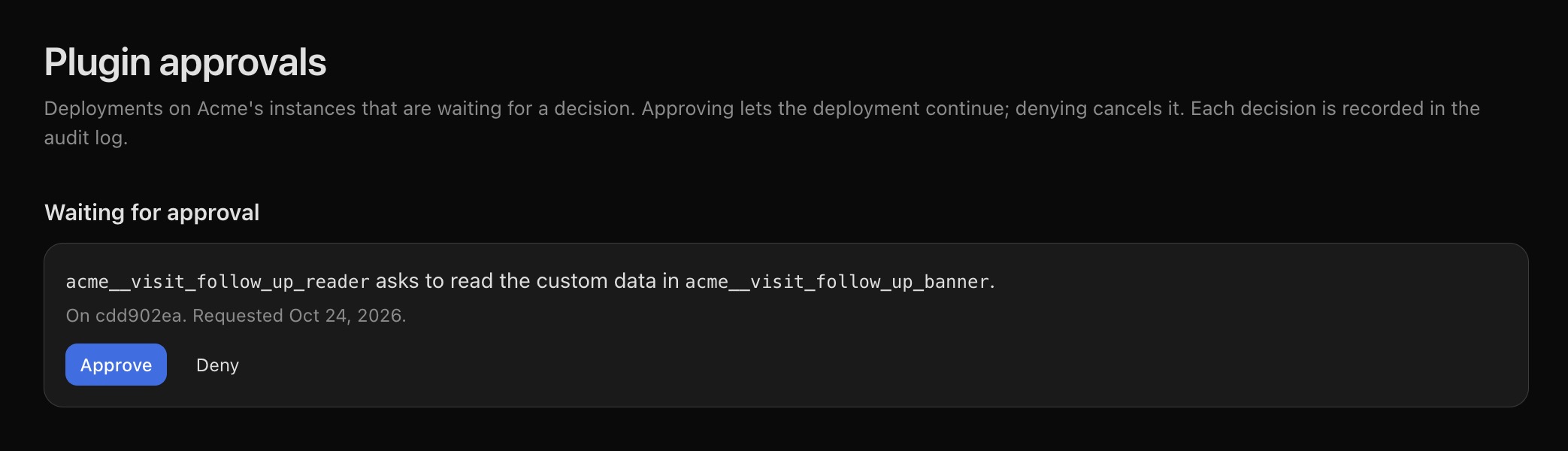
Waiting for approval on Canvas Platform | Deployment requires approval to access another plugin's data. | Follow the link in the chat to view the approval request. See When Deployment Is Paused or Waiting below. |
What Happens if Deployment Fails?
Deployment failures can occur during development and don't necessarily mean you've done anything wrong. Studio can review the error, identify the cause, and make corrections before redeploying. If deployment doesn't resume automatically, ask the assistant to try again.
Monitoring Your Plugin During Testing
While you test your plugin, Studio monitors activity from your Canvas instance to help identify issues. Look for the monitoring status indicator directly below the chat.
When it's working it shows a green "Monitoring Canvas logs…" with a count of activity captured.
If it turns yellow or red ("Log monitoring stopped"), Studio is no longer receiving activity. Click the Restart button on that same line to resume it.
Troubleshooting tip: If Studio says it can't see your plugin's recent activity, check the monitoring indicator first. Restarting monitoring may resolve the issue.
Managing Your Testing Checklist
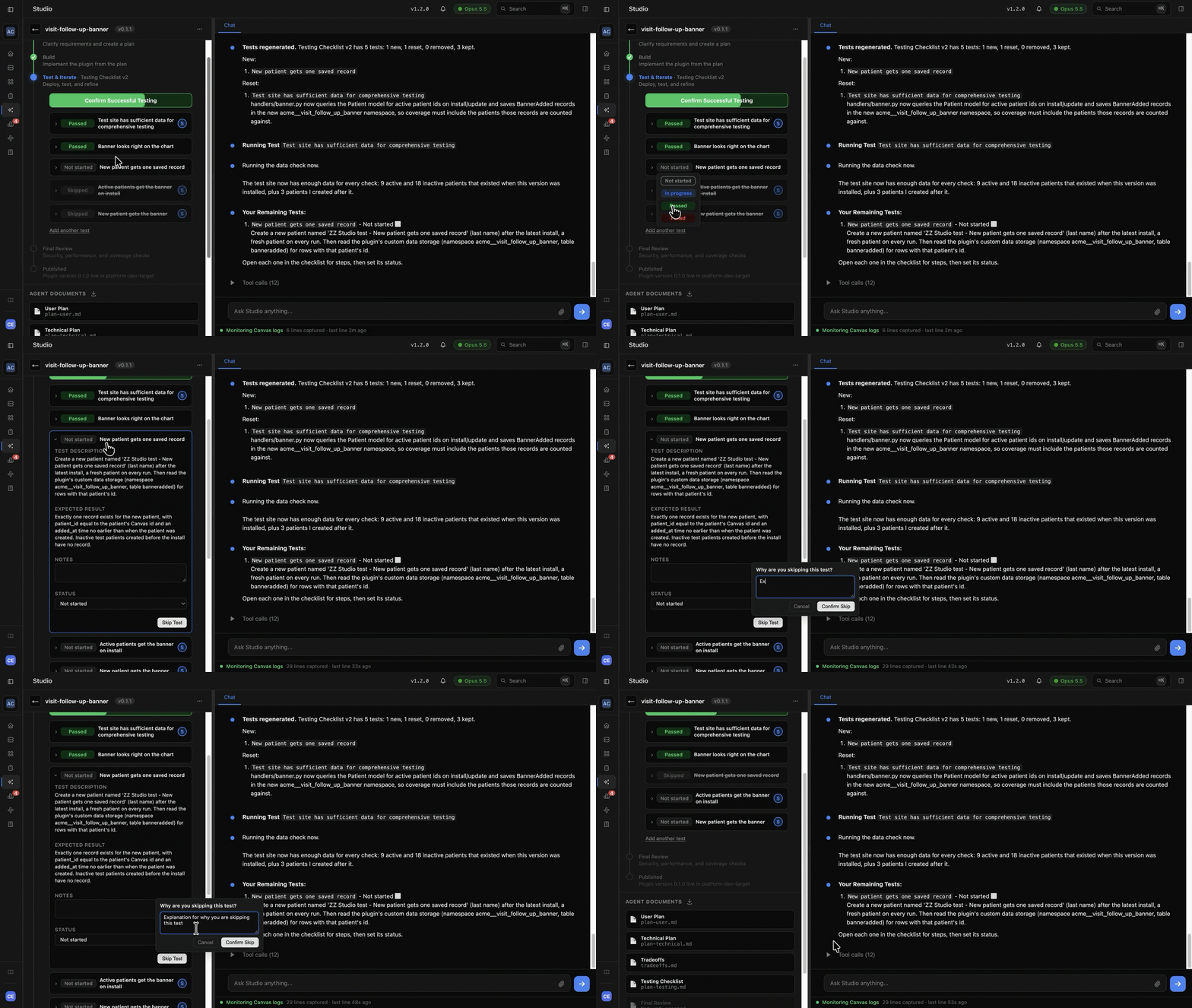
During Test & Iterate, Studio provides a Testing Checklist to help verify your plugin works as expected. For each test, select the appropriate status:
Passed: The plugin behaved as expected.
Failed: The plugin didn't behave as expected and needs attention.
Skipped: You chose not to complete the test.
Skipping a Test
If a test isn't applicable or can't be completed:
Expand the test in the checklist.
Click Skip Test.
Enter a reason for skipping it.
Click Confirm Skip.
Skipped tests don't prevent you from completing the testing stage. However, skipping a test means that functionality hasn't been verified. To undo a skipped test, change its status back to Not Started.
Testing After Changes
If you are making changes to your plugin you will also test those new changes. Studio only resets tests impacted by the update and provides a reason for each reset. To test code changes after the initial deploy:
Deploy the updated plugin.
Click Regenerate Tests to update your Testing Checklist.
Repeat any tests affected by the changes.
When Deployment Is Paused or Waiting
Some deployments require additional action before they can continue.
Reason | What Happens | Next Steps |
Plugin access approval required | Your plugin needs access to another plugin's data. Studio displays Waiting for approval on Canvas Platform with a link to the request. | A user with the Deploy Manager role must approve or deny the request on the Plugin Approvals page in Canvas Platform. Denying the request cancels deployment. |
Canvas SDK version | The plugin needs a newer Canvas SDK than your instance runs. | Review the requirement with Studio to determine how to proceed. |
Another deployment is waiting | A separate plugin deployment to the same instance is awaiting approval. | Resolve the outstanding approval before proceeding. |
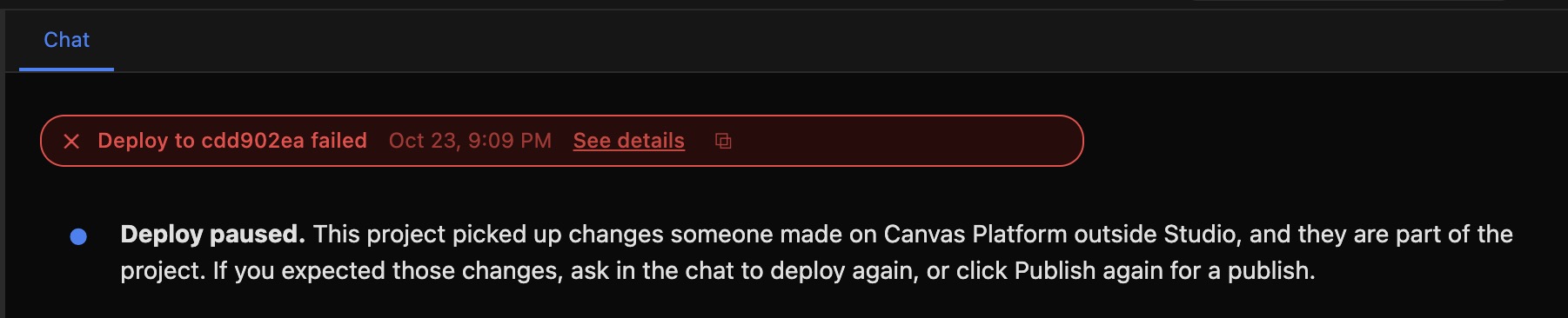
Code changed outside Studio | Studio detects changes made outside the project. The deployment shows Failed, and the chat displays Deploy paused. | Ask Studio to deploy again. See When Code Changes Outside Studio for details. |

Configuring Your Plugin
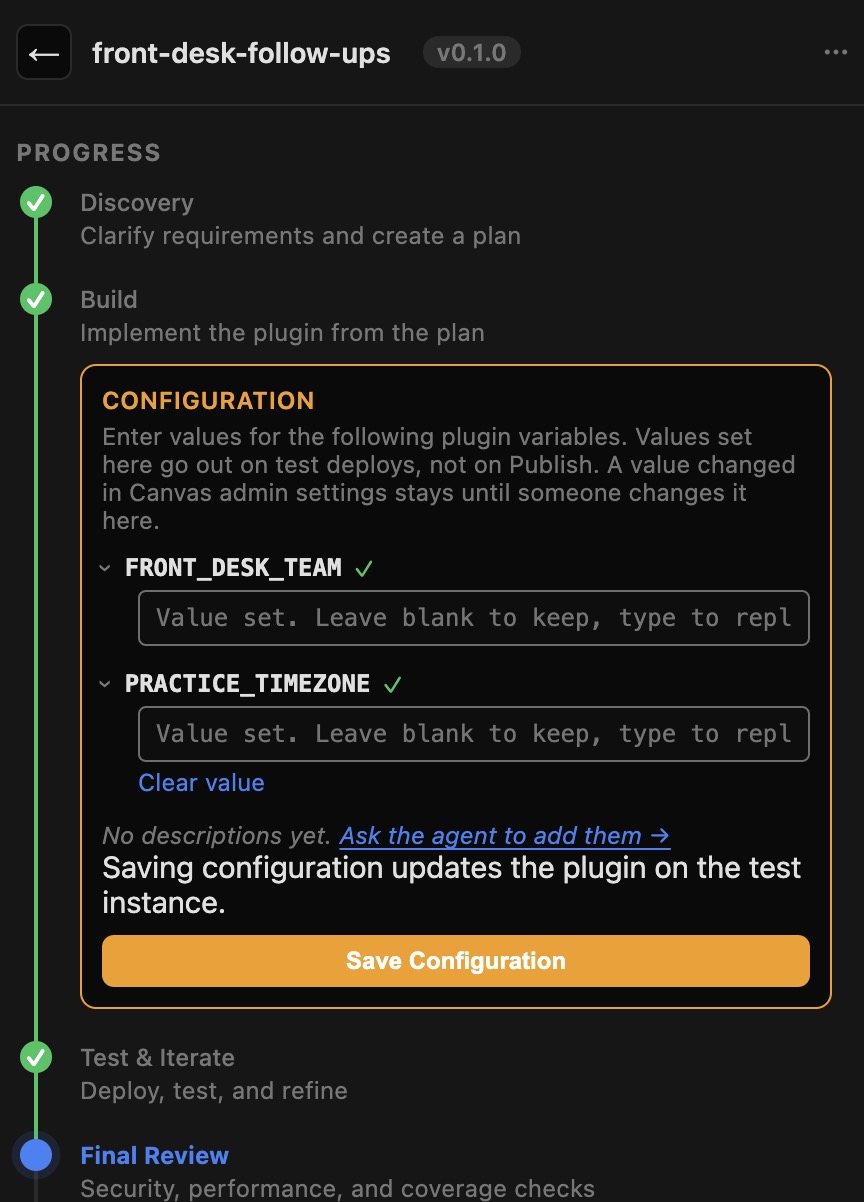
Some plugins require additional settings to function, such as API keys, web addresses, or account identifiers. When configuration is needed, Studio displays a Configuration Required panel.
Understanding Configuration Values
Studio handles configuration values differently depending on whether they contain sensitive information.
Value Type | How Studio Handles it |
Sensitive values (e.g. API keys) | Values are hidden after saving and cannot be viewed again. You can replace an existing value by entering a new one. For saved sensitive values, Studio displays Value set. Leave blank to keep, type to replace. |
Standard / Plain values (URLs, IDs, display names) | Values remain visible so you can review or update them. |
Each configuration field includes a description explaining:
What the value is used for.
Where to find it.
What format to enter.
If a description is missing or unclear, ask Studio for help. To save configuration values:
Open the configuration field you want to update.
Enter the required value.
Click Save.
Each field can be expanded or collapsed independently and indicates whether a value has been set. If a required value is missing when you click Save, Studio automatically expands that field.
Studio displays a Configuration saved confirmation when the changes are saved. Updating configuration values for an already-deployed plugin automatically triggers a new deployment.