Installing a Plugin Catalog plugin with Studio
Last updated: October 24, 2026
Studio guides you through installing plugins maintained by Canvas or its partners, including any required configuration.
Before You Begin
To install a plugin using Studio:
Your organization must have Studio enabled.
You must have the Studio User or Studio Admin role.
If either requirement is missing, the installation button will indicate what's needed.
How to Install a Plugin
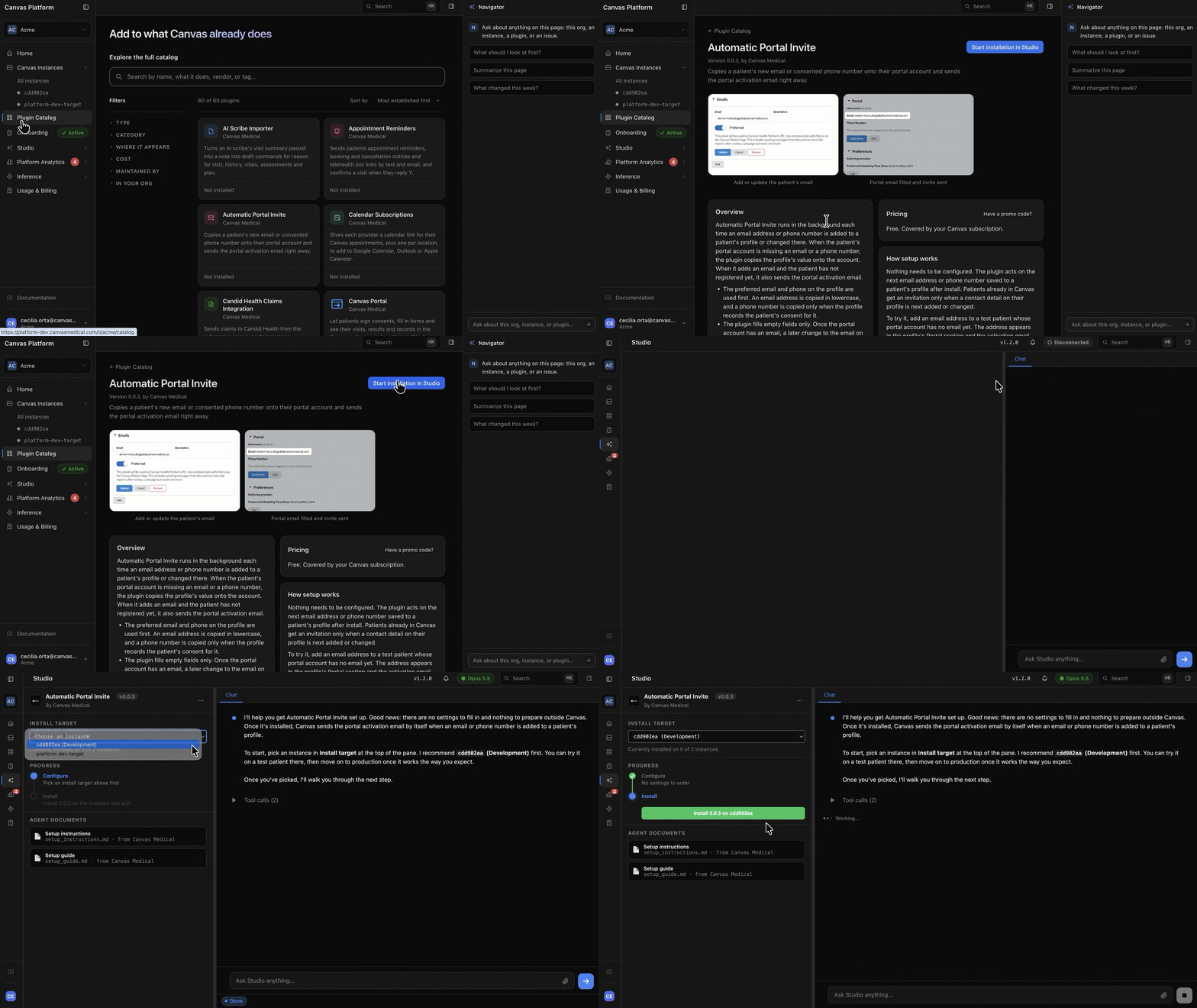
Select a plugin. Sign in to Canvas Platform, open the Plugin Catalog, and choose the plugin you want to install.
Start the installation. Click Start Installation in Studio. Studio opens an installation project and loads the plugin's setup instructions.
Configure and install. Select your Canvas instance, enter any required settings, and complete the installation. The installation result appears below the button.
Install on additional instances. Repeat the process for each Canvas instance where you want the plugin installed.
Need to start over? Archive the existing installation project, then return to the Plugin Catalog to begin a new installation.
Managing Installation Projects
Unlike projects where you build a custom plugin, installation projects are used only to configure and install existing plugins. They do not include Build or Test stages