Automations
Last updated: January 11, 2026
Canvas notes provide a flexible, “blank canvas” to document patient encounters by adding individual commands. Automations streamline documentation by serving as templates, which can contain either a single pre-filled command or a series of commands. Establishing automations for various encounter types significantly enhances efficiency.
User's Guide
Creating a Personal Automation
To create an automation, begin with a designated test patient, ensuring the last name is Zztest. This setup provides a safe environment and ensures no unintended inclusion of real patient data.
Open a blank note for the test patient
Enter the command(s) to include in the automation
While not required, it is best to commit commands being added to an automation. If an uncommitted command attached to an automation is accidentally removed or altered, it will affect all automations going forward.
The automation retains the team or individual assigned within a command when saved.
When adding a prescribe command, leave the pharmacy field blank to ensure broad applicability. Additionally, you can pre‑populate other prescription fields for efficiency: Sig – e.g., “one subcutaneous injection weekly”; Days supply – e.g., 28 days; Quantity – e.g., 2 mL; Refills – e.g., 0 for controlled substances; the Prescriber field will auto‑fill with the logged‑in staff member.
Once commands are finalized, click the triple-dot menu next to the first command and select Create or update an automation.
When the automation is later used, commands will execute in the sequence they were originally saved.
Type the preferred name of the new automation
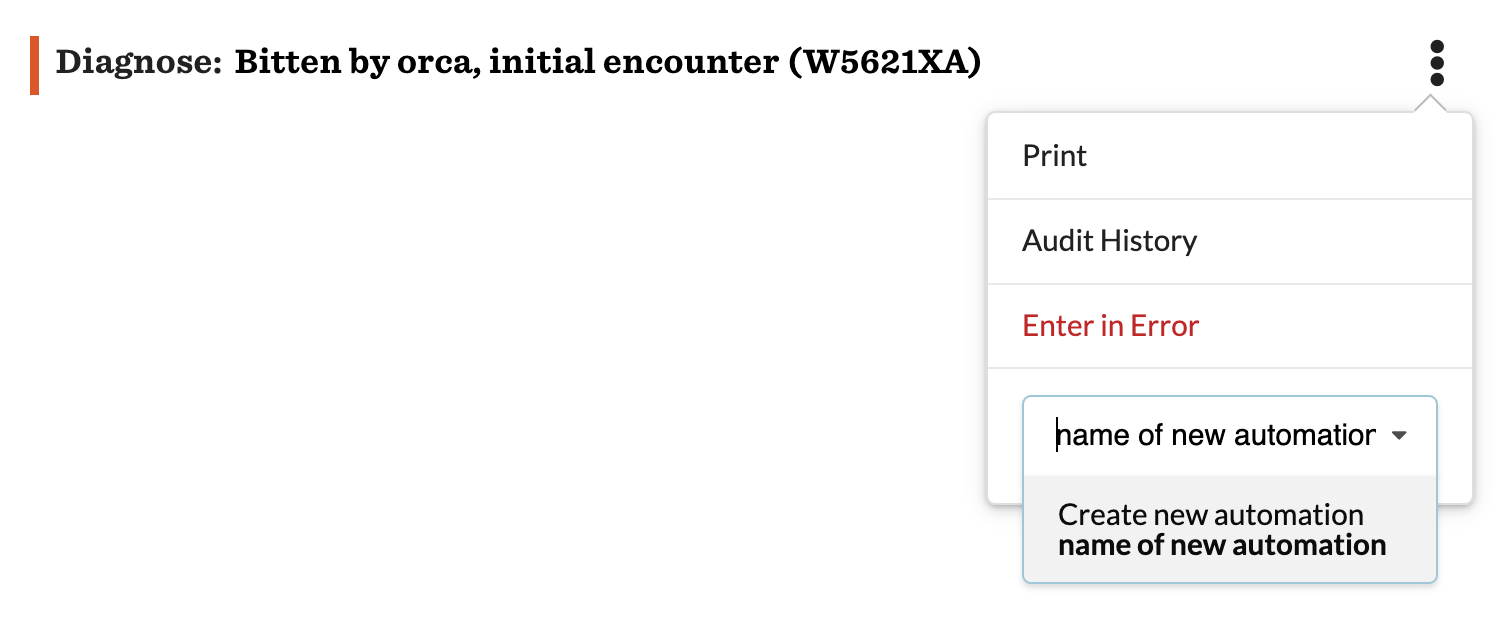
The automation is successfully created when its name appears alongside a lightning bolt icon.

Sequential commands will be added to the automation by clicking the triple dot and searching then selecting the name of the newly created automation
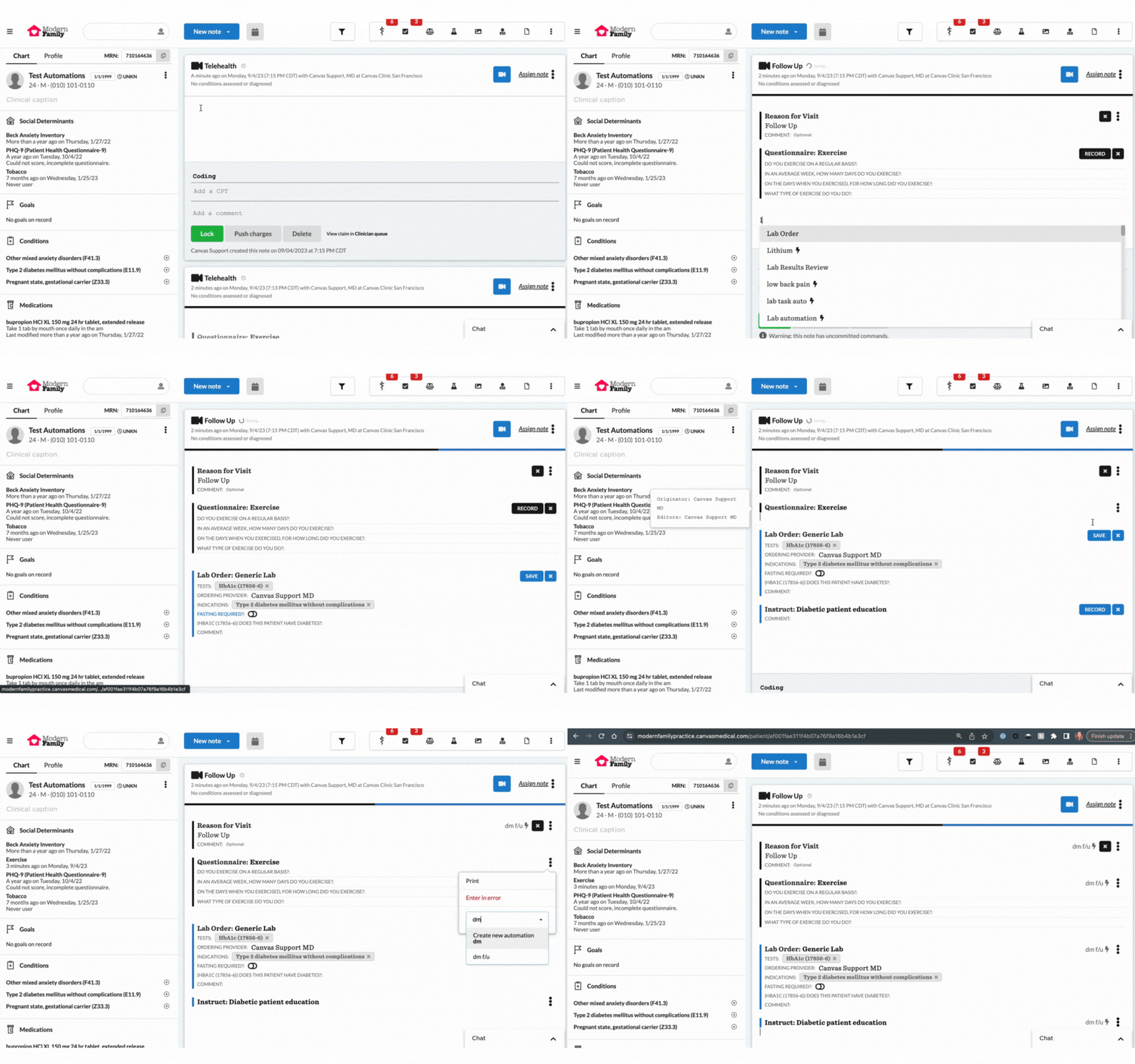
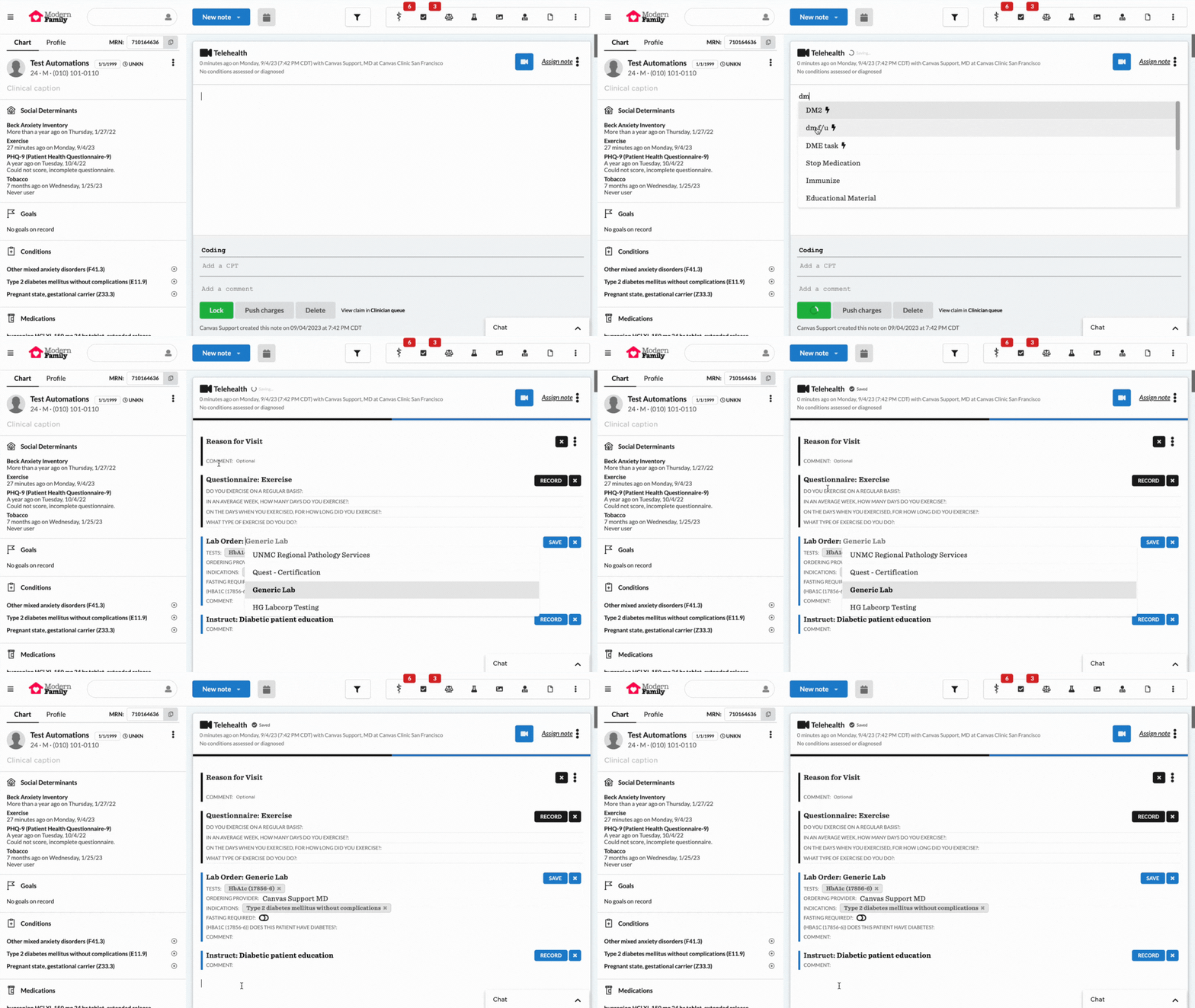
Once the full automation is created, open a new note and type the name of the automation to confirm it is available
The lightning bolt next to the name in the dropdown will indicate it is an automation
Typing a
spaceinto the note first will only include automations in the dropdown
Select the automation and confirm the commands display correctly within the note.
Recommended Workflow to Keep Automations Organized
Use an Automation Zztest patient for creating all automations.
Create a new note for each automation.
Use the Reason for Visit command to title each note with the name of the automation for easy tracking.
When Structured Reason for Visit is enabled, add the name of the automation to the Comment field of the command
Commit commands when possible to avoid accidental removal.
Lock notes when possible to prevent multiple automations overlapping in one note.
Using an Automation
Type the automation’s title in the note and select
The automation appears in the dropdown with a lightning bolt symbol
Typing a
spaceinto the note first will only include automations in the dropdown
All saved commands populate in the note
Additional commands can be added to the note outside of what was included in the automation
Proceed following the usual process complete and commit the commands
Adding to an Automation
Commands can be added to an automation by any Canvas user
Open the automation test patient note and create the command to add to the automation.
From the command’s triple-dot menu, select Create or update an automation.
Search the name of the existing automation and select from the dropdown
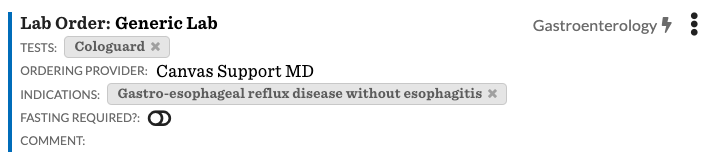
The lightning bolt and automation name next to the command will indicate the command was successfully added to the automation
Setup & Configuration
Sharing an Automation
Automations are private by default but can be shared across an organization.
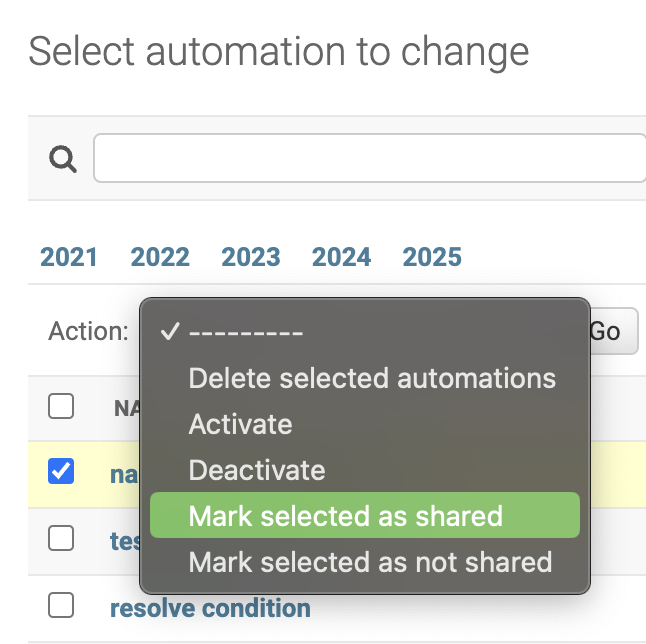
Navigate to Settings > Practice: Automations
Check the box next to the automation that needs to be shared
Under the Shared column, ❌ indicates the automation is not shared and ✅ indicates the command is shared

From the Action dropdown, select Mark selected as shared and click Go.
Modifying an Automation
To remove commands, adjust their order, or change the content within a command, it is recommended to open two browser tabs to complete the process.
In the first tab
Open the automation test patient's profile
Create a new note and include the automation you want to modify
In the second tab
Navigate to the Practice: Automations settings
Check the box next to the automation you are modifying
From the Action dropdown, select Delete selected automations and click Go
Return to the first tab
Refresh the test patient's page
Update the commands within the note containing the automation
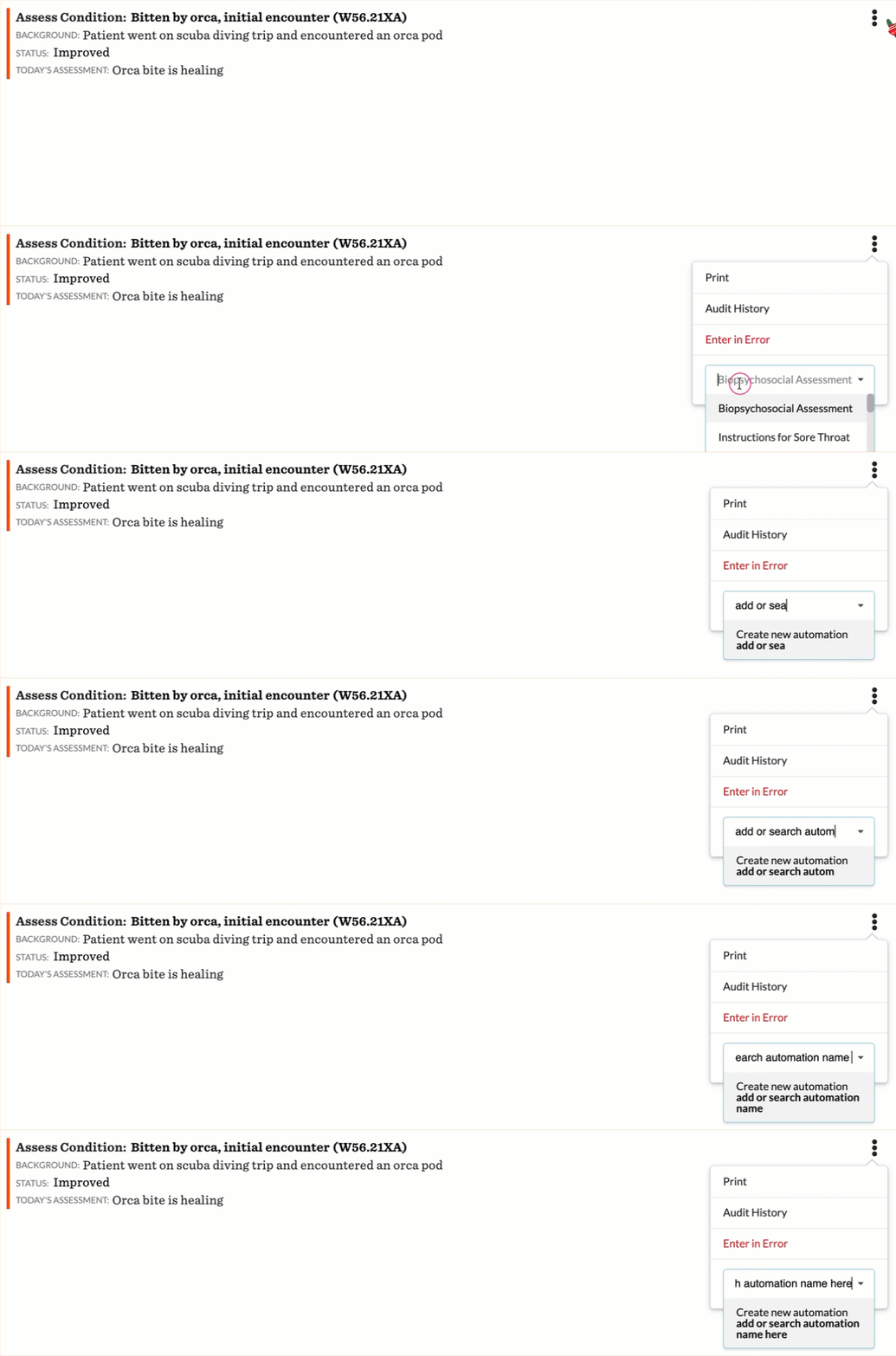
Click the triple dot on the first command you want to include in the automation
Enter the automation name in the Create or update automation field
For subsequent commands, search for and select the automation name from the dropdown to add additional commands
Note: Modifying an automation only affects how it functions moving forward. Any notes created before the change will remain exactly as they were.
Deleting an Automation
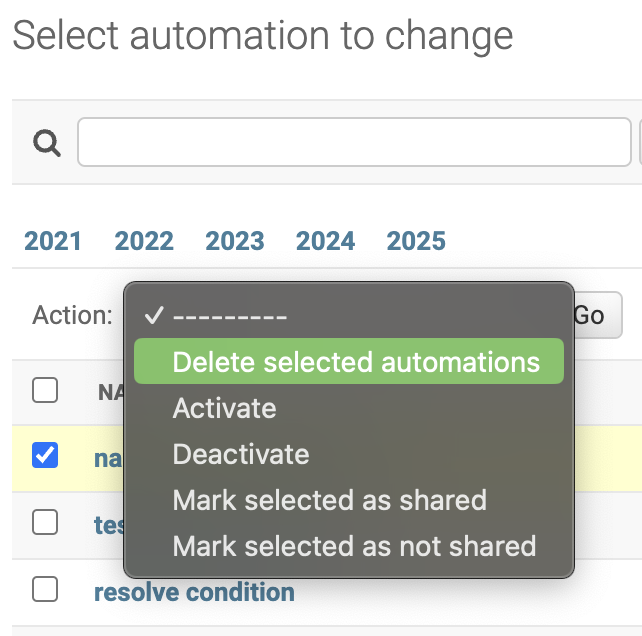
Go to the Practice: Automations setting
Check the box next to the automation being deleted
Choose Delete selected automations from the Action dropdown and click Go.
Confirm deletion on the Are you sure? page.
Avoid deleting shared automations unless the changes are communicated and agreed upon by all users.
FAQ & Troubleshooting
Q: Can I modify an existing automation?
A: Yes, but the existing automation must first be deleted before saving the updated version under the same name.
Q: Can I add a new command to an automation after creation?
A: Yes, simply use Create or update an automation and select the existing automation.
Reference Videos
Keywords & Metadata
Keywords: Canvas automations, patient documentation, note commands, automation setup, automation management, shared automations, automation
Categories: Documentation, Automation, Canvas Notes