How to start a Hyperscribe recording
Last updated: December 17, 2025
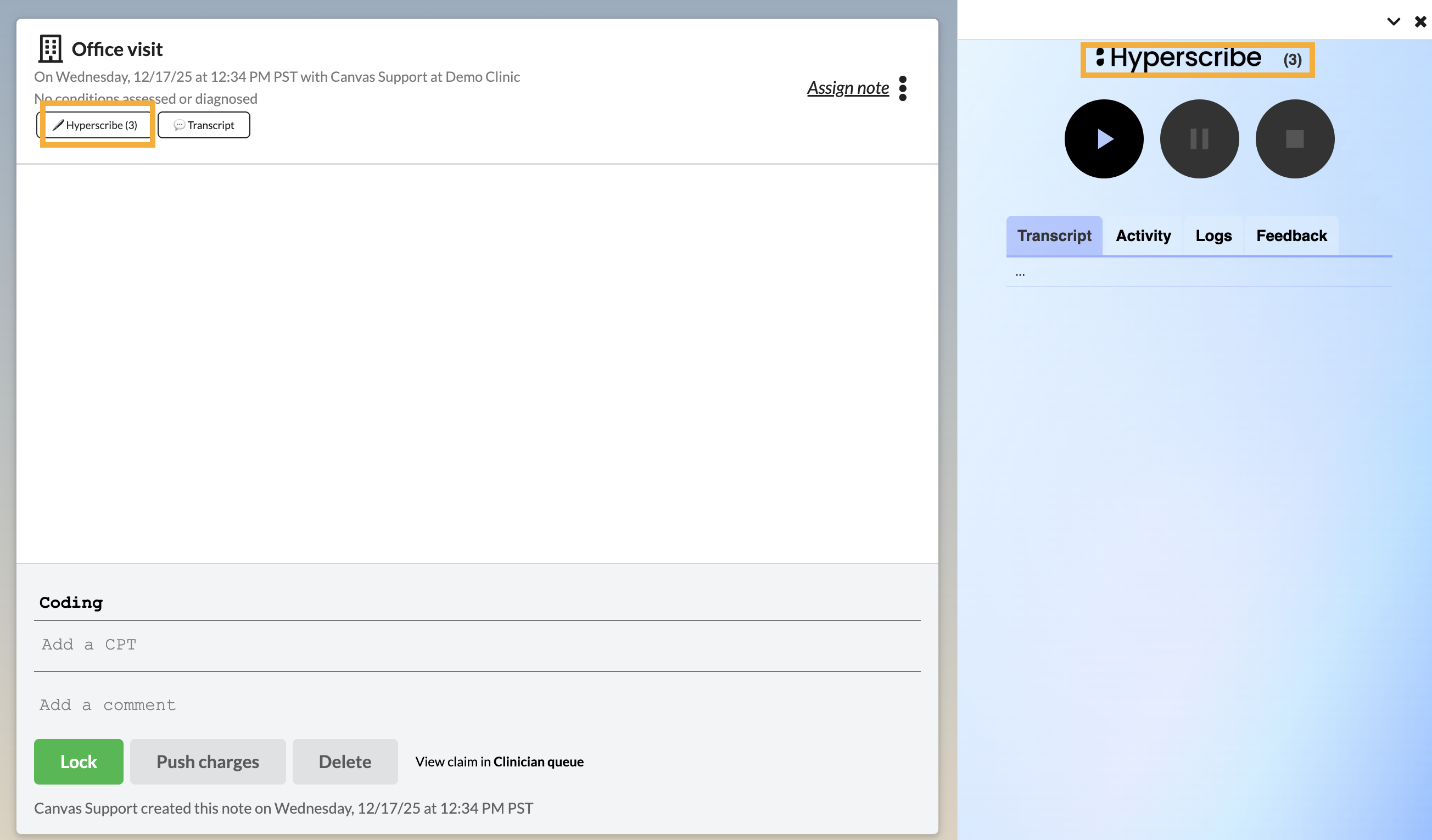
Once you have access to Hyperscribe, the launch button appears in the header of an editable patient note. Click this button to start a new session associated with the note.
Hyperscribe will open on the right-hand side with the same ID that appeared on the launch button. This ID indicates which note Hyperscribe is associated with.
If there are any templates or automations that you want Hyperscribe to reference, add them before you begin recording.
Video: How to Start a Hyperscribe Recording
Once you are ready to start recording, you can press "Play" to begin.
If you need to pause the recording, press the "Pause" button.
Once you have completed your audio recording, press "Stop" to end the session.
⚠ If you press Stop, you will not be able to add to the recording associated with that note.
Related Articles