Sending Documents for Signature
Last updated: November 2, 2026
A care manager prepares a form in Canvas, such as a home health order or a referral, and marks where the provider signs. The provider reviews the finished form and signs it with their own saved signature in one click. The signed form then comes back to the care manager to send out and record.
What it does
It works on all four review types: Lab, Imaging, Consult/Referral, and Uncategorized documents.
The provider signs only with their own signature. Their saved signature and today's date land in the marked spots, on the page itself, so the signature shows when the form is printed, downloaded, or faxed.
Every step is recorded. Each send, reassign, comment, signature, and recording shows in the document's history with who did it and when.
The flow at a glance
Prepare: the care manager fills in the form and marks a signature spot and a date spot.
Send: the form goes to a provider, either from Data Integration or from SEND FOR SIGNATURE in Review.
Sign or decline: the provider clicks SIGN FORM, or REASSIGN with a comment if something is wrong.
Finish: the signed form returns to the care manager, who sends it out and clicks RECORD.
Before You Start
Providers need a saved signature
SIGN FORM uses the signature saved on the provider's staff profile. A provider without one sees "Add your signature to your profile before signing a form." and nothing is signed. Providers can't add their own signature. An administrator adds it:
In Canvas, open Settings and go to Staff.
Open the provider's staff record.
In Signature, upload an image of the provider's signature.
Click Save.
Permissions
REASSIGN, SEND FOR SIGNATURE, SIGN FORM, and RECORD need the Clinical write auth group.
These buttons show only to whoever holds the document: its assignee, or its team when it has no assignee. The document must still need review.
SIGN FORM shows only to staff whose role has the Provider role type. Everyone else who holds the form sees SEND FOR SIGNATURE.
To check or change a staff member's auth groups, see User Permissions.
Which button you see
You are | In the Review footer, you see |
|---|---|
A provider holding a form with a signature spot | SIGN FORM, REASSIGN, RECORD |
Anyone else holding a form with a signature spot (care managers, MAs, administrative staff) | SEND FOR SIGNATURE, REASSIGN, RECORD |
Holding a form with no signature spot yet | REASSIGN, RECORD |
Provider means a staff member whose role has the Provider role type in Canvas.
Holding means the form is assigned to you, or it has no assignee and is with one of your teams.
Someone who opens a form they don't hold sees neither signing button.
A signature spot counts once it's saved. A date spot alone doesn't count.
Preparing a Form in Data Integration
Use this when the form arrives by fax or upload and you already know which provider signs it.
In Canvas, open Data Integration and select the document.
Click Annotate & Modify, then Confirm.
In the viewer, open the Fill and Sign tab (under the ... menu when the window is narrow). Fill in any fields the form needs.
On the Fill and Sign tab, click Mark where to sign. The panel on the left shows a Signature spot and a Date spot.
Drag each spot onto the form, or click it to drop it in view and then drag it into place. Drag the corners to resize it.
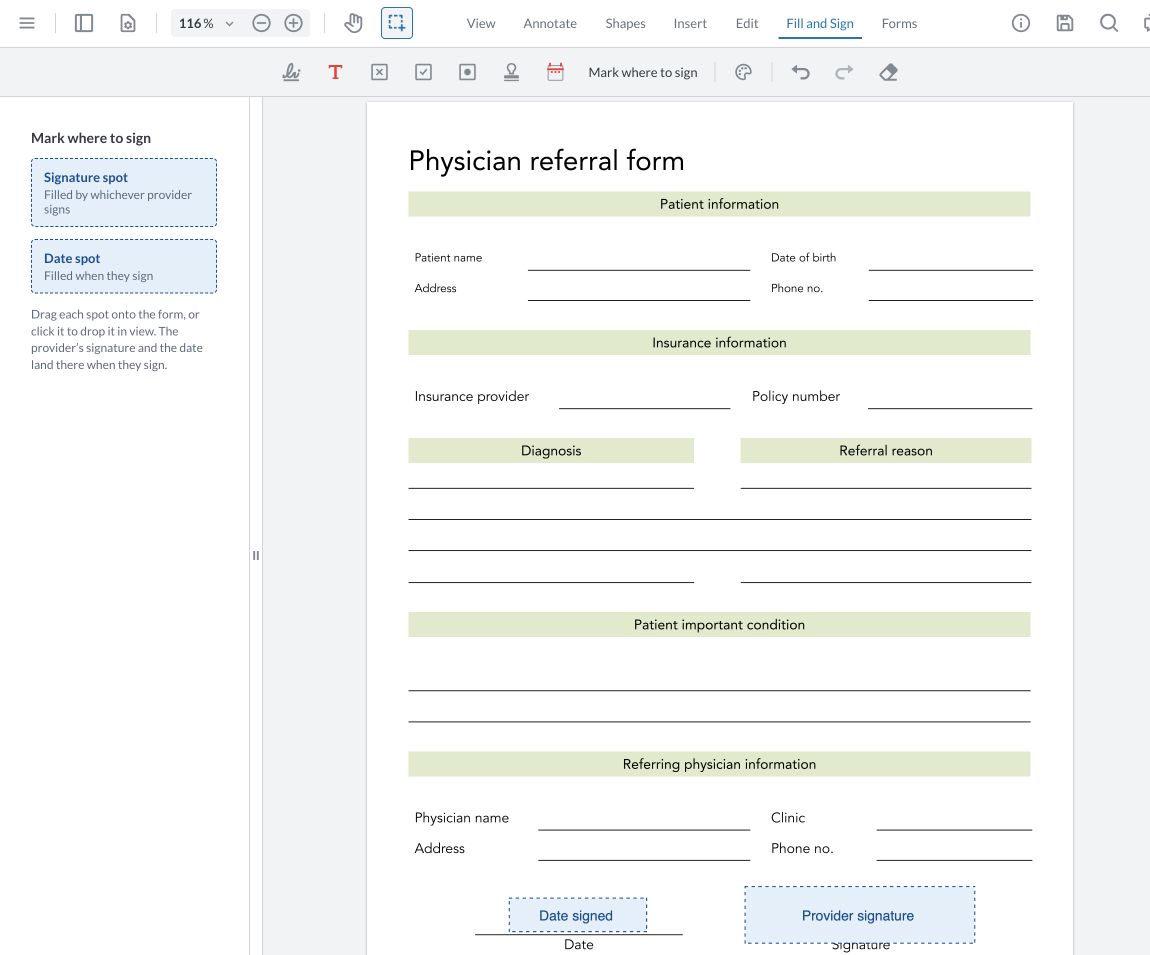
Click the save icon in the viewer.
Choose the patient and the document type.
In Select a reviewer, choose the provider who signs.
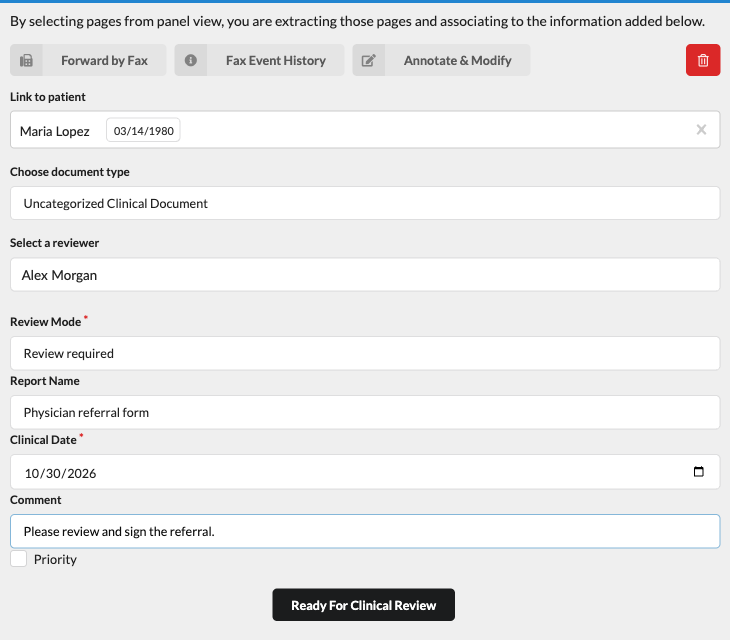
Fill in the rest of the form, and add a comment for the provider if you like.
Click Ready For Clinical Review.
The form goes straight to the provider's queue, with SIGN FORM ready for them. When they sign, it comes back to you, the person who filed it.
A form filed this way shows "Assigned to" the provider on its card, without the "Signature requested" line. That line shows only after SEND FOR SIGNATURE.
Preparing a Form from Review and Sending It
Use this for a form that's already filed and assigned to you or your team.
Open the form's Review: from the Medical documents panel in the patient's chart, or from your documents queue.
The footer shows only REASSIGN and RECORD while the form has no signature spot.

Click Annotate at the top right, then Confirm.
Open the Fill and Sign tab and click Mark where to sign. Place the Signature spot and Date spot, and fill in any fields.
Click the save icon in the viewer. SEND FOR SIGNATURE appears in the footer beside REASSIGN and RECORD.
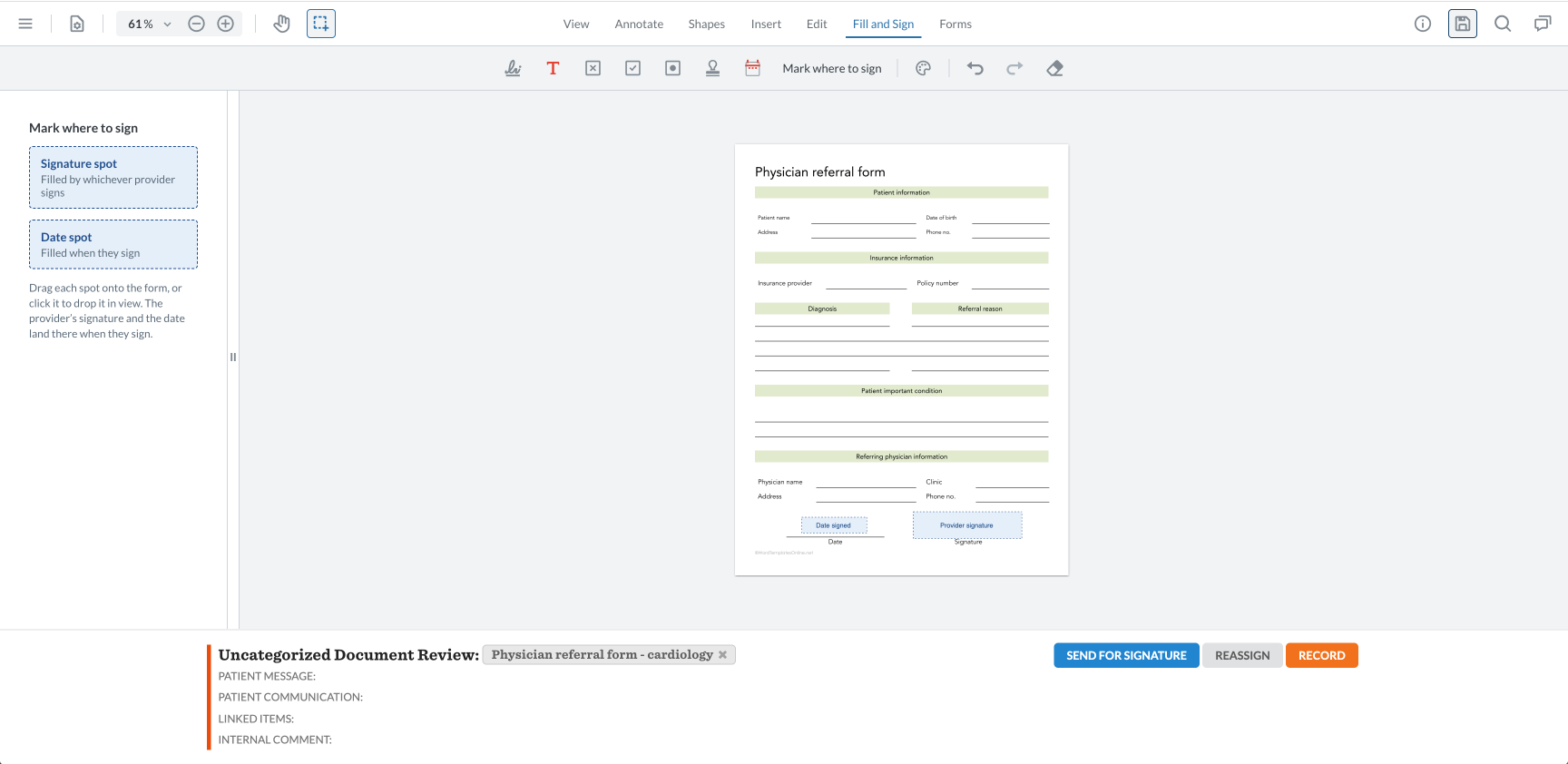
Click SEND FOR SIGNATURE.
In Provider, choose who signs. The list shows active staff with the Provider role type who can see this patient.
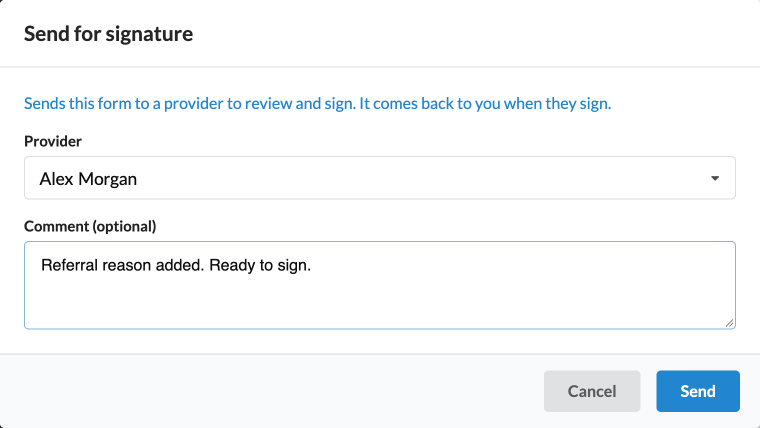
Add a comment if you like, and click Send.
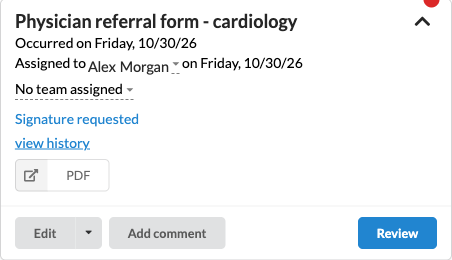
The form moves to the provider and keeps its team. The card reads "Signature requested", and the history shows "sent for signature" with your comment.
Signing a Form (Providers)
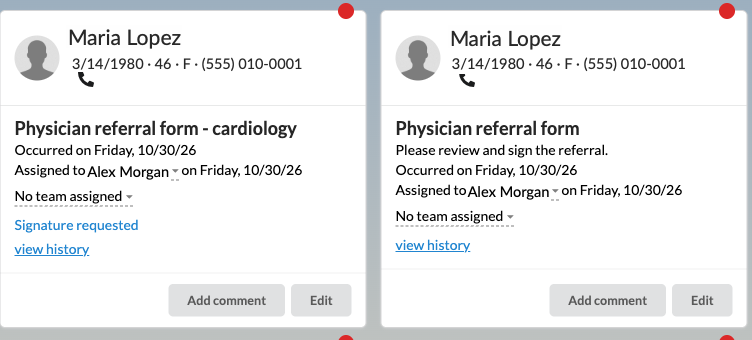
Forms waiting for you are in your documents queue and on the patient's chart.
From the schedule: click the documents icon in the top bar to open your queue, then click the form's title.
From the chart: open the Medical documents panel (the documents icon at the top right of the chart), open the form's card, and click Review.
A form sent with SEND FOR SIGNATURE shows "Signature requested" in the queue. A form filed from Data Integration doesn't.
Read the form. The dashed boxes show where your signature and the date go.
Click SIGN FORM.
Check the Sign this form? message. It names who the form goes back to.
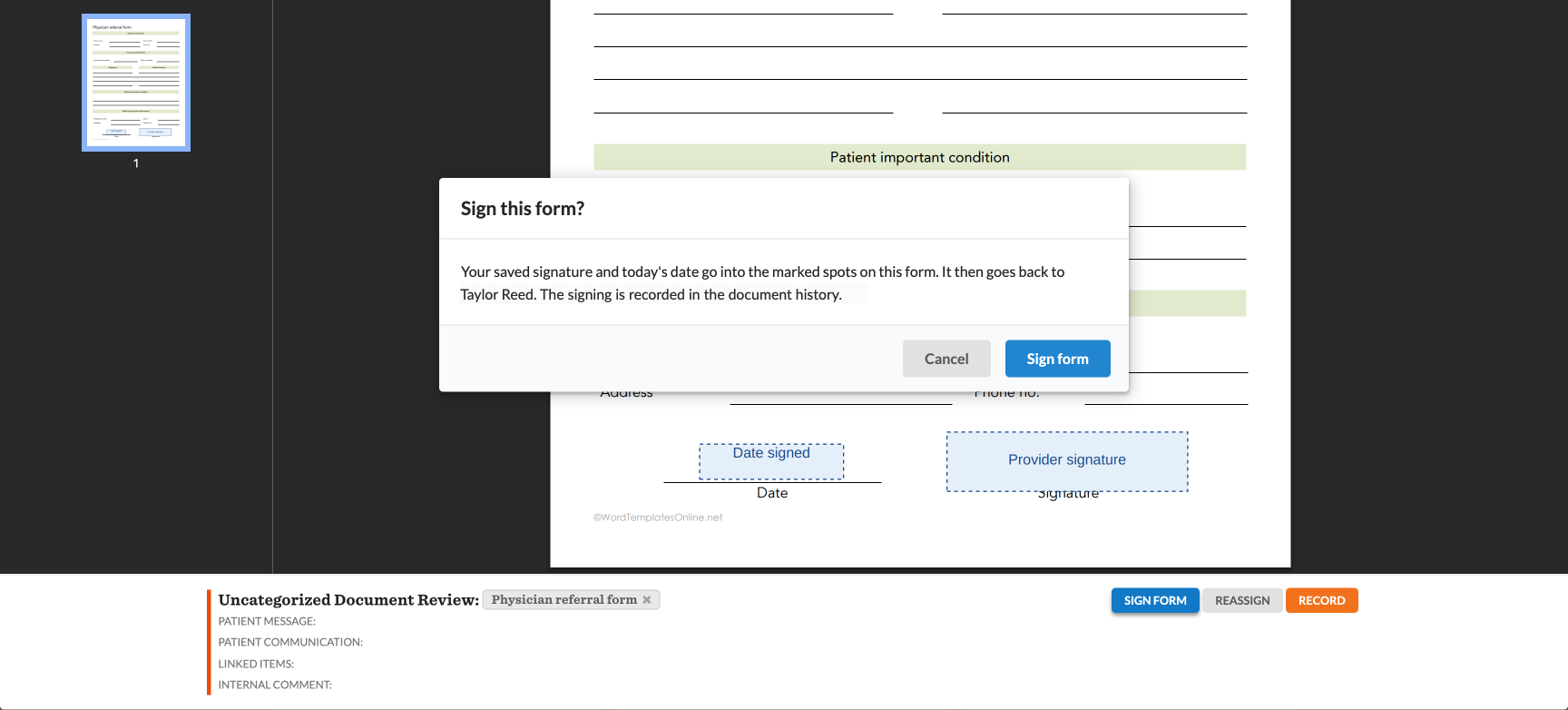
Click Sign form. Click Cancel instead to leave it unsigned.
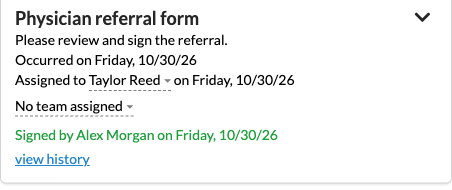
Your saved signature goes into each signature spot and today's date (MM/DD/YYYY) into each date spot. The form leaves your queue and goes back, keeping its team, to:
whoever last sent it to you with SEND FOR SIGNATURE, or
the person who filed it, when it came straight from Data Integration.
If neither of them can still see the patient, the form stays with you, and the message reads "It stays assigned to you." To see how staff are restricted to specific patients, see Restricting Staff to Specific Patients.

Declining or Sending to Someone Else
If something on the form is wrong, or a different provider should sign, don't sign it. Reassign it with a comment instead.
In Review, click REASSIGN.
In Assign to, choose a person, and in Team, choose a team, or both.
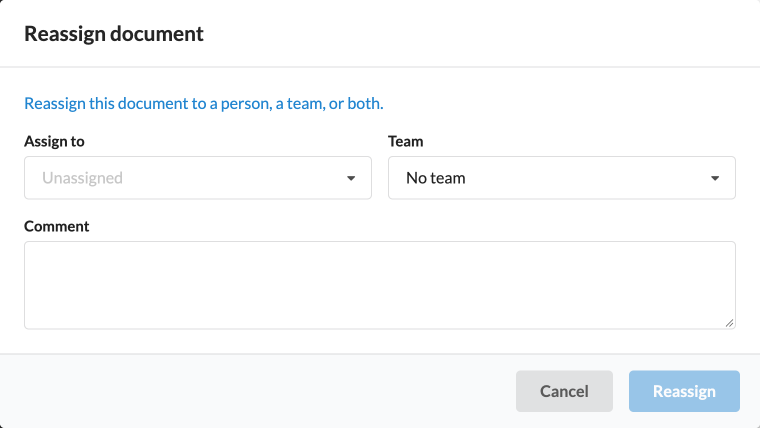
In Comment, say what's needed, for example "Referral reason is blank. Please complete it and send it back for signature."
Click Reassign.
Nothing is signed and the spots stay on the form, so the care manager can fix it and send it again. Anyone holding a form can reassign it to anyone who can see the patient. See Restricting Staff to Specific Patients.
The assignee and team dropdowns on the card still work for a quick reassign without a comment.
Changing a Form After It's Signed
Editing a signed form removes the signature, so the form has to be signed again.
Open the signed form's Review. "Signed by" the provider shows in green under Annotate.
Click Annotate. The Edit a signed form? message names who signed and when.
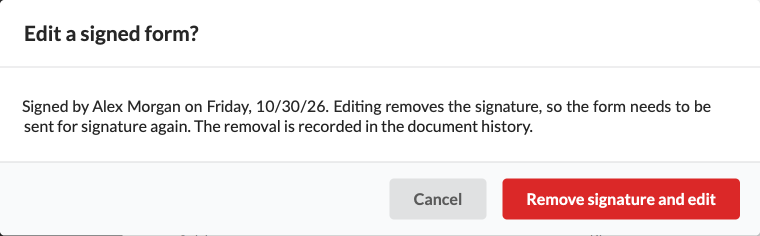
Click Remove signature and edit. Click Cancel to keep the signature.
The form goes back to the version from just before signing, with the empty spots, and Annotate opens. Make your changes, save, and use SEND FOR SIGNATURE to send it to the provider again. The history shows "signature removed" with your name.
Once a form's review is recorded, its signature can't be removed. To change it, enter the review in error first.
Finishing: Sending Out and Recording
Send the signed form where it needs to go, such as faxing it to the agency.
Open the form's Review and type a note in Internal comment, for example "Faxed signed referral."

Click RECORD.
The form leaves the queue. The history shows "recorded", whose signature the form carries, and the internal comment.
Comments and History
Add comment
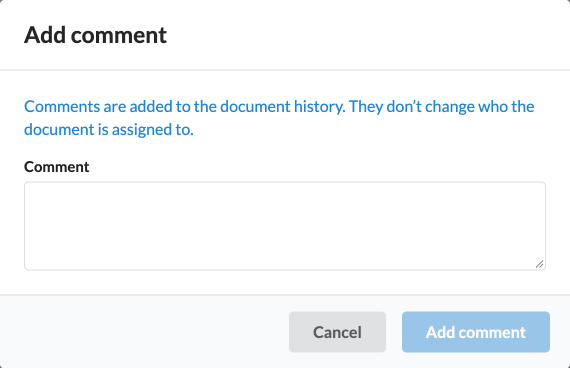
Anyone can add a comment from the form's card, in the patient's chart or in the documents queue. Click Add comment, type it, and click Add comment. The comment goes into the history and doesn't change who the form is assigned to.
View history
Click view history on the card to see everything that happened to the form, newest first, grouped by day.
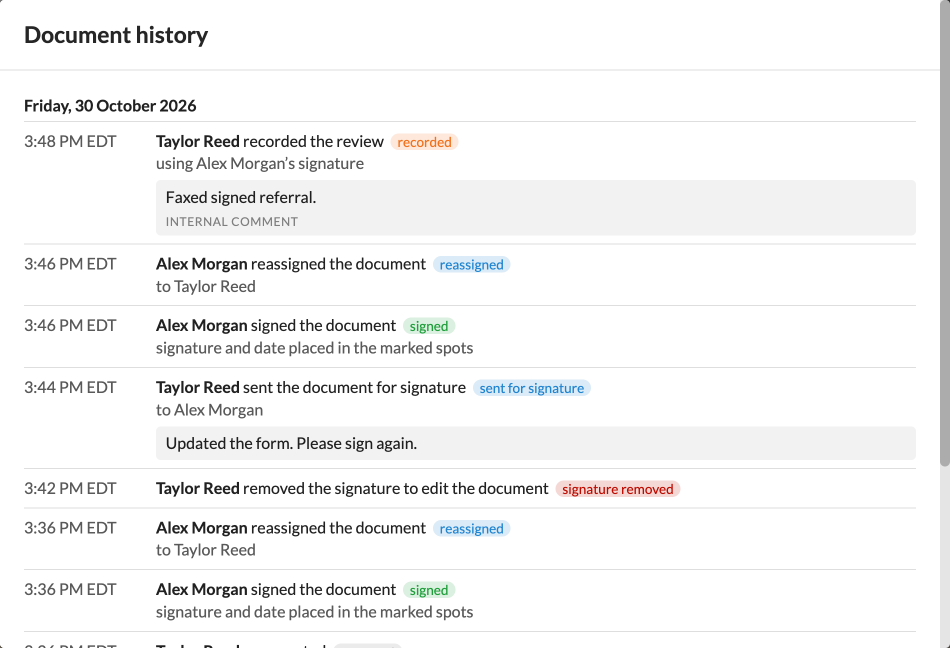
Entry | When it's added |
|---|---|
created | The form is filed. |
reassigned | Someone reassigns it, or it goes back to the sender after signing. Shows the comment when there is one. |
sent for signature | Someone uses SEND FOR SIGNATURE. Shows the provider and the comment. |
comment | Someone uses Add comment. |
signed | The provider clicks SIGN FORM. |
signature removed | Someone clicks Remove signature and edit. |
recorded | Someone clicks RECORD. Shows whose signature and the internal comment. |
entered in error | The review is entered in error. The internal comment is then hidden. |
Troubleshooting
You see | What it means and what to do |
|---|---|
No SEND FOR SIGNATURE button | The form has no saved signature spot, you don't hold the form, or you're a provider and see SIGN FORM instead. Open Annotate, place a Signature spot, and save. A spot placed but not saved doesn't count. |
No SIGN FORM button for a provider | The form isn't assigned to them, or it has no saved signature spot. Check who the card says it's assigned to. |
"Add your signature to your profile before signing a form." | The provider has no saved signature. An administrator adds one in Settings, Staff, on the provider's record. Then sign again. |
"Mark a signature spot before sending for signature." | The saved form has no Signature spot. Add one in Annotate, save, and send again. |
"This document has no signature spot to sign." | The spots are already filled, so the form is already signed, or they were removed. Refresh the page to see its current state. |
"You are not the current holder of this document." | The form was reassigned while you had it open. Refresh to see who has it now. |
"<name> cannot access this patient's chart." | That person can't see this patient. Choose someone who can. |
"This form's review is recorded. Enter the review in error before editing it." | Recorded forms keep their signature. Enter the review in error first, then remove the signature and edit. |
A provider is missing from the Provider list | The list shows only active staff with the Provider role type who can see this patient. Check the staff member's role in Settings, and see Restricting Staff to Specific Patients if they should see this patient. |
No Mark where to sign button | It's on the Fill and Sign tab in Annotate. Open that tab, under the ... menu when the window is narrow. |
The signature spot won't drag onto the form | Click the spot in the panel instead. It drops into the middle of the visible page, and you can drag it into place from there. |
"Signature requested" isn't on the card | The form was sent straight from Data Integration, which shows "Assigned to" the provider instead. It's still ready for them to sign. |
Frequently Asked Questions
Q: Can a provider sign with someone else's signature?
A: No. SIGN FORM only uses the signature saved on the signing provider's own profile, and the Fill and Sign signature list shows only "Your signature".
Q: Does the signature show when the form is faxed or printed?
A: Yes. The signature and date are written onto the page itself, so they show in every print, download, and fax.
Q: Can more than one provider sign the same form?
A: No. Signing fills every signature spot on the form with the signing provider's signature, and the form is then signed. Removing that signature to add a second one also removes the first.
Q: Who does the signed form go back to?
A: Whoever last used SEND FOR SIGNATURE on it, even if it changed hands since. If it was filed straight to the provider from Data Integration, it goes back to the person who filed it. The team stays the same.
Q: Can an MA or care manager sign a form?
A: No. SIGN FORM is only for staff with the Provider role type. Everyone else sends the form for signature.
Q: What happens to a form that was out for signature when someone reassigns it?
A: The request to sign ends. The new holder can send it for signature again.
Related Resources
• Processing Documents via Data Integration
Learn how to upload and assign clinical documents from the Canvas Data Integration system.
• Uncategorized Document Review
Review uncategorized documents, including reassigning and history.
• User Permissions
Check or change what a staff member can do.
• Restricting Staff to Specific Patients
Control which patients a staff member can see.