Data Integration and Document Management
Last updated: August 16, 2025
Data Integration serves as a centralized hub for managing patient-related documents, including scanned uploads, incoming faxes, and electronic labs. By categorizing documents as Administrative or Clinical, this system ensures efficient organization and accurate integration into patient charts. This guide provides detailed instructions for navigating Data Integration, uploading, linking, editing, and managing documents within Canvas Medical.
User's Guide
Data Integration Overview
Navigate to Data Integration
Open the triple-line menu on the top-left corner
Select Data Integration
Data Integration Header and Filters
The Data Integration interface includes:
Search bar: Filter by document channel or status and search for a patient's processed documents
Patients can be searched by first name, last name, or both
Filter icons: Filter documents by fax, uploaded document, or lab results
Upload documents: Click to upload a patient document to the Data Integration queue

Filtering Documents in Data Integration
Filtering Documents by Channel
Use the search dropdown or document icons
Select a channel. More than one channel can be selected from the dropdown.
Faxes: Inbound fax documents
Uploaded Documents: Manually uploaded files
Electronic Labs: Lab reports from Health Gorilla not linked to a patient
Review Processing Lab Reports and Reviewing Lab Results for further details
Filtering Documents by Status
Click the search bar to open the dropdown menu
Choose from
Processed: Displays patient linked documents
Junked: Displays discarded documents
Combine patient name, channel and status filters simultaneously for tailored results
Searching by a Patient's Name
This method can only be used on processed document that are linked to a patient
Enter patient's first name and/or last name in the search bar
Add Status filter (processed or junked) from the dropdown menu
If a Status filter is not selected, the list will be blank
Uploading Documents to Data Integration
Click the Upload Documents button in the Data Integration header
Choose upload method:
Browse Computer: Drag and drop files or select from folder
Paste URL: Enter URL for document ending in .pdf
Confirm file type (PDF, PNG, JPEG, GIF, TIFF)
Non-PDF files convert automatically during upload
File size cannot exceed 100MB
HEIC documents are not supported
Click Upload Files
Linking a Document to a Patient
When a document is selected from the list, a form will open to link the document to a patient.
Complete document form (form fields vary depending on document type selected):
Link to Patient: Enter the patient's name in the field
Patient can be searched by:
First name and/or last name
Date of birth
Phone number
Choose Document Type: Select appropriate document type from dropdown
Select Reviewer: Choose individual user or team responsible for document review
If the patient has a Care Team Lead assigned in their patient profile, the lead will default as the reviewer.
Set Review Mode: Select
Review Required: Assigned reviewer is notified in their user panel to review the document
Already Reviewed Offline: Document was reviewed outside of Canvas and does not require further review
Review Not Required: Document will bypass the review requirement
Report Name: Allows users to create a custom title which will display under Medical Documents in the panel.
Only available on Uncategorized Clinical Documents
If a report name is not included, the document will be titled Uncategorized Clinical Documents under Medical Documents in the panel
Enter Clinical Date: Use mm/dd/yyyy format or calendar
Add Comments: Include internal notes (optional)
Click Ready for Administrative or Clinical Review once all information is added
Additional Data Integration Functions
Undo a Document Linked to a Patient
If a document was linked to the wrong patient, it can be undone through Data Integration.
If necessary, search the patient name under Status: Processed
Click the document to select and expand the view
Click Undo to reverse the patient being linked to the document
Confirm by selecting Delete in the confirmation modal
The document link will be removed and the status will reset
Faxing a Document
Documents can be faxed directly from Data Integration on processed or unprocessed documents. Documents faxed through Data Integration will not be tracked in the patient's chart.
Select the document needing to be faxed
Click the Forward by Fax button
Complete fields on the Fax modal
Contact Details: Provide the details for the location receiving the faxed document
Saved Directory: Linked to Canvas' referral database.
To + Fax Number: Allows for manual entry of faxing details
These fields will be autopopulated of the location is selected from the directory
Include Cover Sheet: A coversheet will be included with practice information, subject and comments
Practice Location: The organization's practice location linked to the outgoing fax.
Subject: Purpose of fax
Comments: Any added information on the contents of the fax
Click Next for a preview of the fax
Click Send to finalize and send the fax to its designated location
Fax Event History
Once a document is faxed, the Fax Event History will provide a log of the transmission
Review 📄 Fax Migration & Event History for details on the process
Parse Document Sections
If a document contains multiple sections for various document types, it can be parsed and categorized under each relevant document type.
Select the document needing to be parsed
Click You may parse another section of this document
Repeat the process to link the document to the patient under the additional document type.
Reference the Linking a Document to a Patient section above to review the process, if needed.
Document Locations in the Patient Chart After Processing
Depending on the document type, the documents will land in various places within the patient chart.
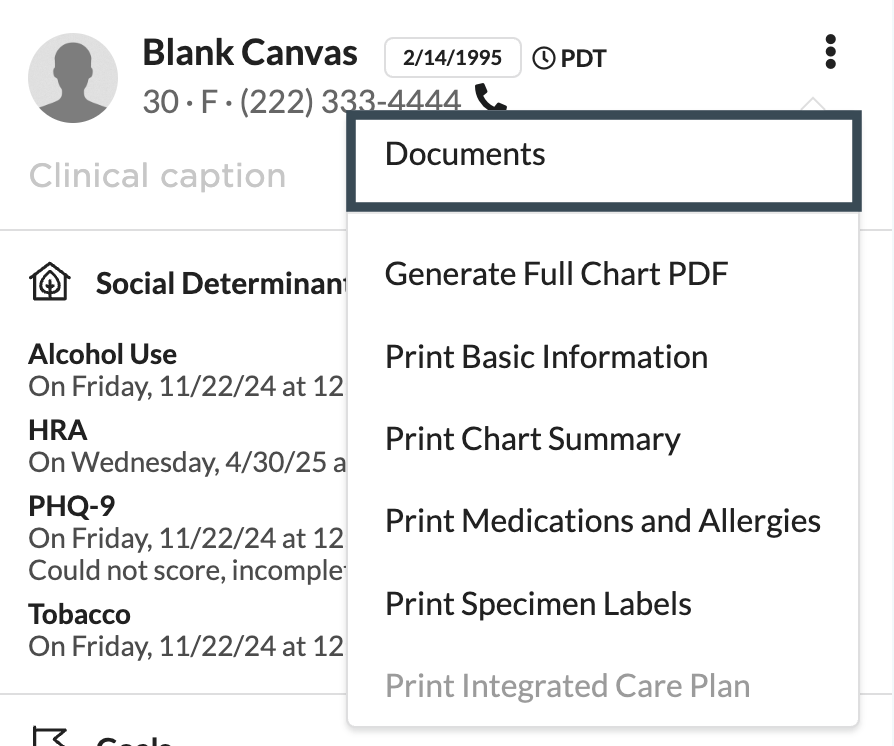
Administrative Documents
Click the triple dot next to the patient header
Click Documents
Clinical Documents
Click the icon in the patient panel associated to the document type
Labs
Imaging
Consult Reports
Medical Documents

Managing Processed Documents
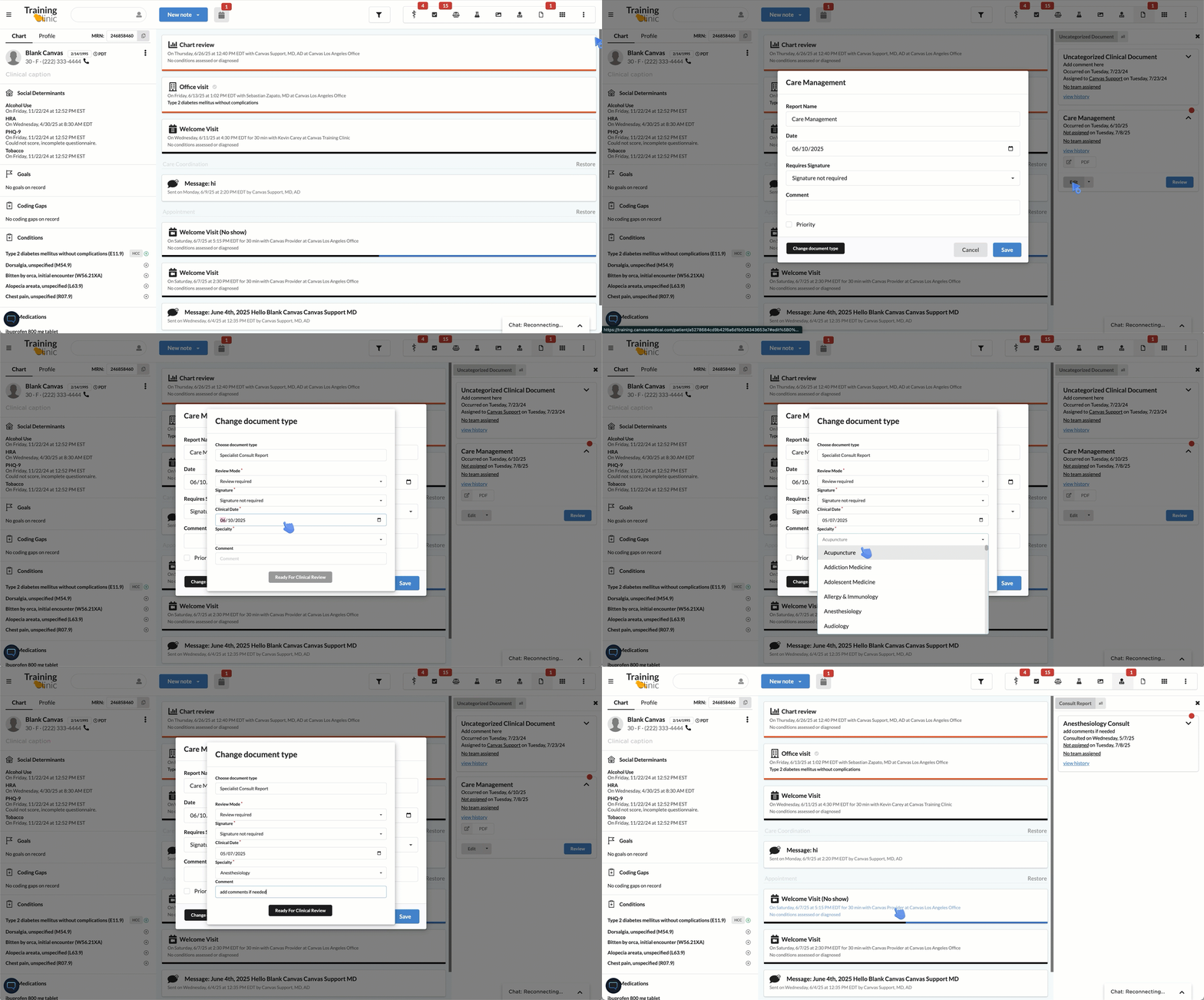
Changing a Document Type
Access the document either within the patient chart or from the user panel
For clinical documents: Click the appropriate icon for the document in the patient or user panel panel (labs, imaging, consults, or uncategorized documents)
For administrative documents: Navigate to the patient chart and click the triple dot next to the patient header
Open the edit modal
For clinical documents: Click Edit on the document card.
If editing from the patient panel, click the card to expand and access the Edit button
For administrative documents: Click the triple dot next to the document and select Edit from the dropdown
Click Change Document Type located on the bottom left of the modal
Select the new document type from the dropdown menu
Complete fields for the selected document type.
Depending on the chosen document type, additional fields such as review mode, clinical date, report type and others may need to be completed
Select Ready for Clinical Review or Submit Administrative Document to finalize changes
A green checkmark will display to confirm the change was successful
Removing a Documents Linked to a Patient
Access the document either within the patient chart or from the user panel
For clinical documents: Click the appropriate icon for the document in the patient or user panel panel (labs, imaging, consults, or uncategorized documents)
For administrative documents: Navigate to the patient chart and click the triple dot next to the patient header
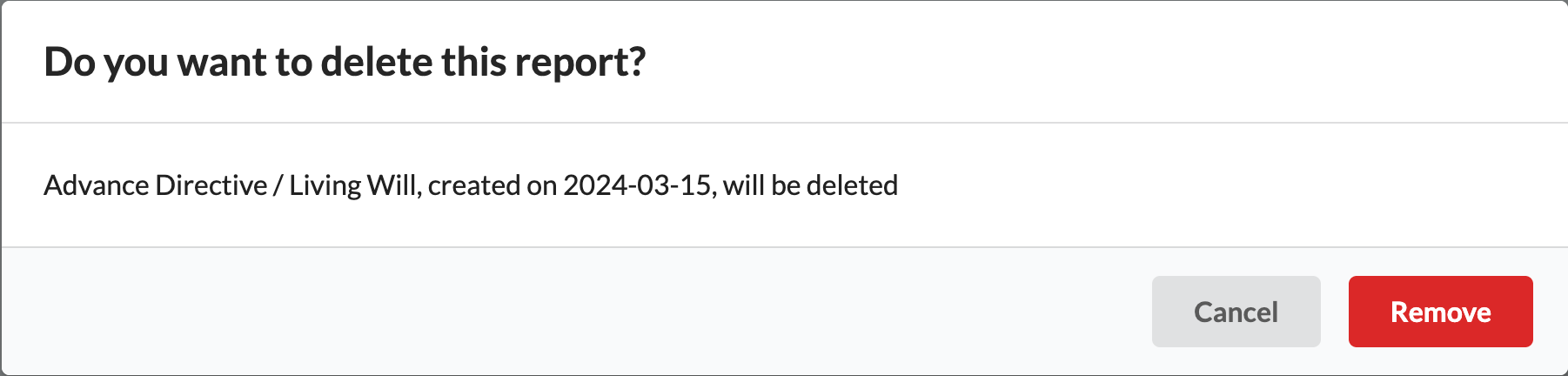
Click Remove to dissociate from patient
For clinical documents: Click the dropdown arrow next to Edit on the document card and select Remove from the dropdown
For administrative documents: Click the triple dot next to the document and select Remove from the dropdown
Confirm deletion by clicking Remove on the pop up message
Reviewing Processed Documents for Patients
Reviewing Documents From a Patient Chart
Navigate to the patient's chart
Click the appropriate icon from in the patient panel
If there are documents pending review, a red badge will display next to the icon
The panel will open with a list of documents on their own card
To quickly get to a specific item, the search bar is available at the top of the list
The search will be based on the name of the document (it will not search other items of the card)
Click the document card to expand for options
If the card has a red badge, it is pending review
Click Review to open the Review modal
Complete review fields
Patient Message: Message to communicate to patient (2048 character limit)
Patient Communication: Contact method for communicating results to the patient
Internal Comment: Staff-only notes
Click Sign to complete
If a note has been selected, the review command will display in the note
If a note has not been selected, the review command will be added to a Chart Review note
Reviewing Documents from the User Panel
Click a results icon in the User Panel on the Schedule View to access documents pending review
Click the document card for the patient to open the review modal
Review the document and complete review fields
Patient Message: Message to communicate to patient (2048 character limit)
Patient Communication: Contact method for communicating results to the patient
Internal Comment: Staff-only notes
Click Sign to finalize the review
A locked Chart Review note will be created in patient's chart with the review command
Document Cards in the User and Patient Panels
Viewing Document History
Allows users to review an audit history of users and teams assigned to a specific document.
Select an icon from user or patient panel
Click the View History link on document card to open the Audit History modal
Review the history of individuals and teams assigned to the document
Created by: User that linked the document to the patient and the time stamp of when it occurred
Assigned to: Each user and team assigned to the document with time stamp of when it occurred
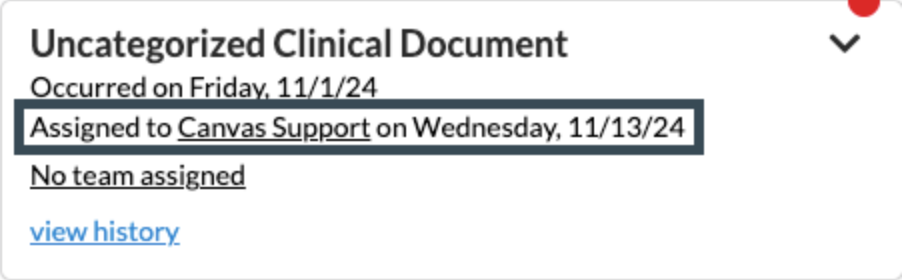
Assigning a User to a Document
Click the user link next to Assigned to
Select a new user from the dropdown
A user cannot be unassigned from a document. Instead, the document can be reassigned to a different user, but it is not possible to remove a user entirely.
The panel refreshes with updated assignee
Assigning a Team to a Document
Click No team assigned or the name of the current assigned team
Select a team from the dropdown menu
A team can also be unassigned by clicking Unassigned in the dropdown menu
The panel refreshes with the newly selected team
Configuration & Set Up
Document Types
Administrative Document Types
Advance Beneficiary Notice (53243-2 | Advanced beneficiary notice)
Advance Directive/Living Will (42348-3 | Advance directives)
CDL (Commercial Driver License) (53245-7 | Driver license)
Disability Form
Handicap Parking Permit
Insurance Card (64290-0 | Health insurance card)
Insurer Prior Authorization (52034-6 | Payer letter)
Medicaid Documents
POLST (Provider Order for Life Sustaining Treatment) (46209-3 | Provider orders)
Patient Administrative Intake Form
Patient Agreement (80570-5 | Agreement)
Patient Assistance
Patient Consent (59284-0 | Consent Document)
Power of Attorney (64298-3 | Power of attorney)
Uncategorized Administrative Document (51851-4 | Administrative note)
Worker's Compensation Documents (52070-0 | Workers compensation attachment)
Prescription Card
Release of Information Request (101904-1 | Release of Information request)
Clinical Document Types
Care Management (91983-7 | Care management note)
Emergency Department Report (96335-5 | Emergency department summary note)
External Medical Records (11503-0 | Medical records)
Home Care Report (75503-3 | Patient's home note)
Hospital Discharge Summary (34105-7 | Hospital discharge summary)
Hospital History & Physical (47039-3 | Hospital admission history and physical note)
Imaging Report (18748-4 | Diagnostic imaging study)
In-Office Testing
Lab Report (11502-2 | Laboratory report)
Nursing Home (34113-1 | Nursing facility note)
Operative Report (11504-8 | Surgical operation note)
Patient Clinical Intake Form (64285-0 | Medical history screening form)
Physical Exam (51848-0 | Evaluation note)
Prescription Refill Request (57833-6 | Prescription for medication)
Rehabilitation Report (34823-5 | Physical medicine and rehab note)
Specialist Consult Report (11488-4 | Consult note)
Uncategorized Clinical Document (34109-9 | Note)
Reviewable Clinical Documents: The following document types can be found in the review workflow
Imaging Report
Lab Report
Specialist Consult Report
Uncategorized Clinical Document which include the following subcategories
Care Management
Emergency Department Report
External Medical Records
Home Care Report
Hospital Discharge Summary
Hospital History & Physical
In-Office Testing
Nursing Home
Operative Report
Patient Clinical Intake Form
Physical Exam
Prescription Refill Request
Rehabilitation Report
FAQ & Troubleshooting
Q: What file formats can be uploaded into Data Integration?
A: Supported formats include PDF, PNG, JPEG, GIF, and TIFF. Non-PDF files are automatically converted to PDF during upload. HEIC documents are not supported.
Q: What is the criteria for pasting a URL when uploading a document?
A: The URL must end in .pdf (e.g., example.com/document.pdf)
Q: What is the maximum file size for uploads?
A: File size cannot exceed 100MB.
Q: How do I know if a document needs review?
A: New or pending documents will display a red badge in the patient chart or schedule view.
Q: Can I change who is assigned to review a document?
A: Yes, click the user link on the "Assigned to" line in the audit log and select a new user from the dropdown.
Q: What happens when I review a document from the Schedule View?
A: Reviewing from the Schedule View creates a locked Chart Review note in the patient's chart.
Q: What happens to the document when I change its type?
A: The document will move from its current category to the new category. All document content and metadata remain unchanged - only the organizational category changes.
Q: What if additional fields are required after changing the document type?
A: Depending on the chosen document type, you may need to complete additional fields such as review mode, clinical date, or report type before the change can be finalized.
Q: How do I know the document type change was successful?
A: A green checkmark will display to confirm the change was successful, and the patient panel will refresh to show the document under its new document type category.
Q: What happens if I don't select a Status filter when searching by patient name? A: The list will be blank. You must select either "processed" or "junked" status when searching by patient name.
Related Resources
Keywords: Data Integration, document management, upload documents, linking files, clinical documents, administrative documents, faxes, electronic labs, audit log, view history, document review, document type, patient panel, clinical review, chart organization, edit document, change document
Categories: Patient Records, Workflow Optimization, Patient Charts, Document Management, Clinical Workflow