Reviewing Consult Reports
Last updated: November 14, 2025
Consult reports are a critical part of the patient care continuum, providing external clinical perspectives and recommendations. In Canvas, consult reports are uploaded and managed through the Data Integration system. Once uploaded, these reports can be reviewed, edited, and assigned using either the Schedule View or directly within a patient’s chart. This article outlines how to manage and review consult reports efficiently while keeping documentation organized and accessible.
User’s Guide
This section is designed to help users understand and utilize the Consult Reports feature by providing actionable steps to review, edit, and manage these reports from multiple locations within Canvas.
Reviewing Consult Reports
Consult reports can be reviewed from two main locations in Canvas:
From Schedule View
Navigate to the badge icons on the top-right of the screen.
Click on New Consult Reports to view all consults assigned for review.
A summary screen will appear showing all reports needing attention.
Select the desired report to open the Referral Review Command (left side) and the report preview (right side).
Complete the following fields in the command:
Patient Message: A message that will be visible to the patient. (Limit: 2048 characters)
Patient Communication: Method of message delivery.
Internal Comment: Private notes visible only to internal staff. (Limit: 2048 characters)
Click Sign to finalize the review.
From the Patient Chart
Use the search bar in the Schedule View to locate and open the patient’s chart.
Click the Consult Reports icon located in the top-right panel.
Select the card of the consult report you wish to review to expand it. Reports pending review will display a red badge in the upper-right corner of the card. The sorting logic for the cards is as follows:
Documents requiring review by the logged in user will be listed first
Documents that need review and are assigned to a team the logged-in user is part of will show second
All other documents not assigned to the logged in user or their team(s) will be sorted by descending occurrence date
Click Review to open the review modal. This modal displays the PDF document for the consult report along with review fields.
Heading: Displays the name of the document being reviewed
Patient message: Information to relay to the patient
Patient communication: Method to share message with the patient
Delegate call, can leave message: The caller can leave a message if the patient does not answer
A task will be created for the team with the responsibility Communicate Diagnostic Results to a Patient to call the patient and share the provider's message.
Delegate call, need patient to answer: The caller must speak to the patient directly and cannot leave a message.
A task will be created for the team with the responsibility Communicate Diagnostic Results to a Patient to call the patient and share the provider's message.
Already left message: A message has already been left for the patient based on what the provider reviewed.
Already reviewed with patient: The patient has already been made aware of what the provider reviewed.
Send via patient app: The contents of the Patient Message field will send to the patient's portal for them to review.
Linked Items: The PDF of the reviewed item will automatically link here. You can attach related components of the patient's chart for reference.
Internal Comments: Content is only displayed internally for staff visibility. It will not display on any documents shared externally.
Click Sign to finalize the review process.
Reviewing Internal Comments for the Consult Report Review
Internal review notes for the Consult Report results are only visible on the command itself. Follow these steps to be routed directly to the command.
Navigate to the patient chart
Click the Consult Reports icon in the patient panel
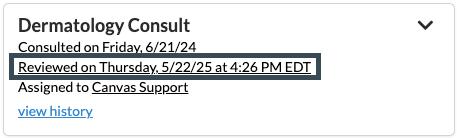
On the card for the consult report result, click Reviewed on [DATE] at [TIME]
A new tab will open that takes the user directly to review the command associated to the consult report.
Assigning a Processed Consult Report to a New User or Team
Results can be assigned to a team or individual after the results have been processed and linked to a patient
Assigning a Consult Report to a Team
Click the Consult Report icon in the patient or user panel to open the result cards

Click the team link on the card to open the dropdown. It will either say No Team Assigned or state the name of the team currently assigned
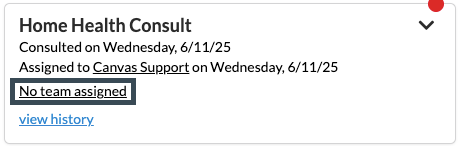
Select the team name from the dropdown
Lab will show under the user's labs in their panel
Assigning a Consult Report to an Individual User
Click the Consult Reports icon on either the user or patient panels to open the report cards

Click the name of the assigned user to open the dropdown
A user will already be assigned since it is required to process in Data Integration
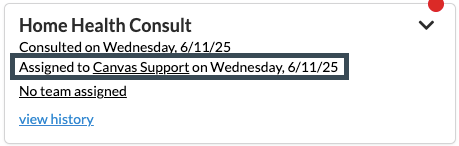
Select name of new assignee
Consult reports will show under the user's Consult Reports in their panel
FAQ & Troubleshooting
Q: When reviewing a report, how can I quickly view the patient chart?
A: Click the patient’s name at the top of the review module to open their chart directly.
Q: The report title is vague. How can I change it?
A: From the patient chart, click Edit on the report card to modify the document title, date, or type.
Q: Are the document title and document type the same thing?
A: No. The document title is the visible label when reviewing the report, while the document type determines which structured fields appear in the review module.
Related Resources
• Processing Documents via Data Integration
Learn how to upload and assign clinical documents from the Canvas Data Integration system.
• Understanding Commands
Explanation of how commands influence workflows and documentation
Keywords & Metadata
• Keywords: Consult reports, Referral Review, Canvas Medical, document upload, patient chart, Data Integration, document type, review workflows
• Categories: Referral Management, Clinical Documentation, Data Integration, Patient Records