Managing Duplicate Charts
Last updated: October 6, 2025
Duplicate patient charts can lead to significant challenges in maintaining accurate medical records. To prevent duplicates, establishing a prevention process is essential. This can be done through the Canvas UI or using the Patient API Search endpoint.
Moving Clinical Data
Even with best practices in place, duplicates may still occur. When both charts contain clinical data, the data needs to be consolidated into a single chart. Below are the most common methods to transition clinical data:
Letter Note Method:
The most frequently used method is to use the Letter note type, which allows attachments. All clinical and administrative documents from the duplicate charts can be added to one or more letters. These documents are combined into a single PDF, which can then be downloaded and uploaded into the correct chart as a clinical document type through Data Integration.
Generate Full Chart PDF:
You can also use the Generate Full Chart PDF functionality to download the entire chart and then upload it back into Data Integration for the correct patient chart.
Manual Entry or API Utilization:
In cases where automation is not suitable, you can manually recreate and document the clinical notes or use Canvas API endpoints to do so.
Print Specific Notes:
For individual notes, you can use the Print Note functionality to print only the necessary notes for transfer.
When creating specific timeline entries, ensure the note details are updated to reflect accurate information, such as:
• Date of service
• Practice location
• Provider details
Inactivating a Duplicate Chart
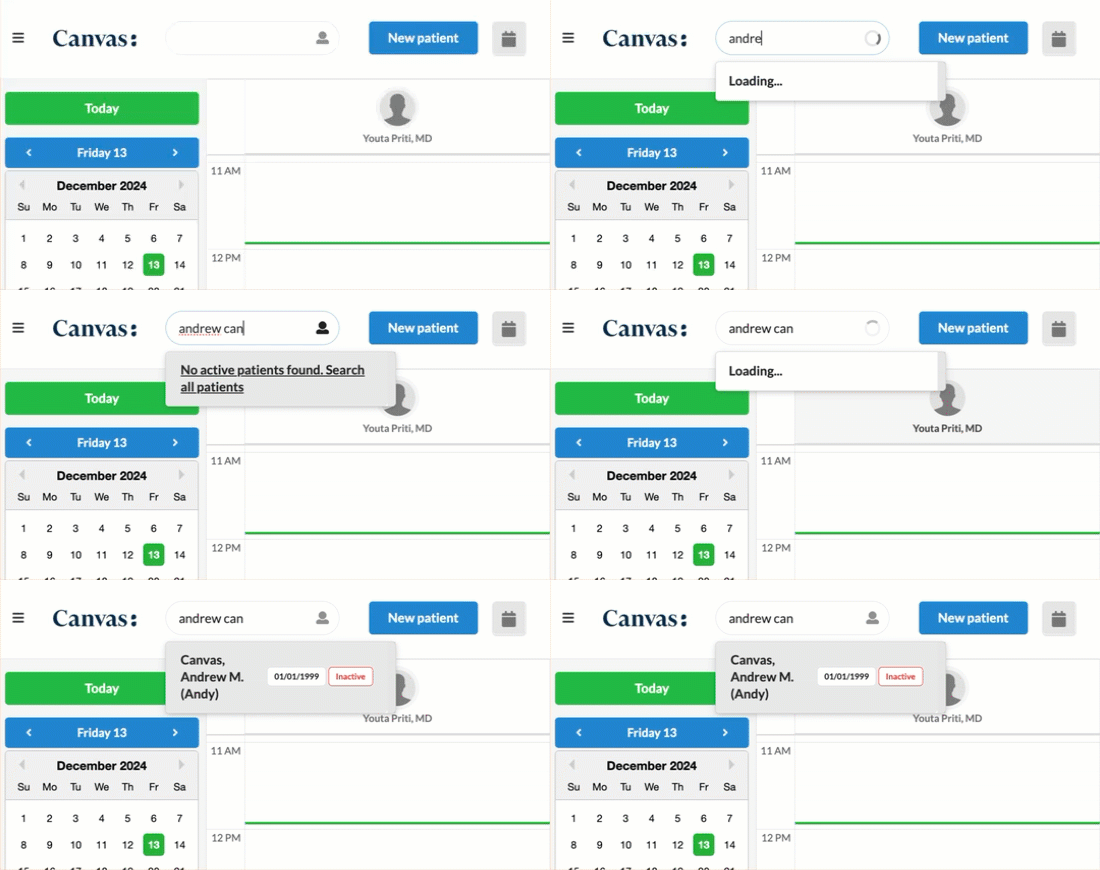
Once a duplicate chart has been consolidated, it’s important to mark the duplicate chart as inactive. This will keep the chart available but move it to a secondary search. To search for inactive charts, select “Search All Patients” in the search filter.
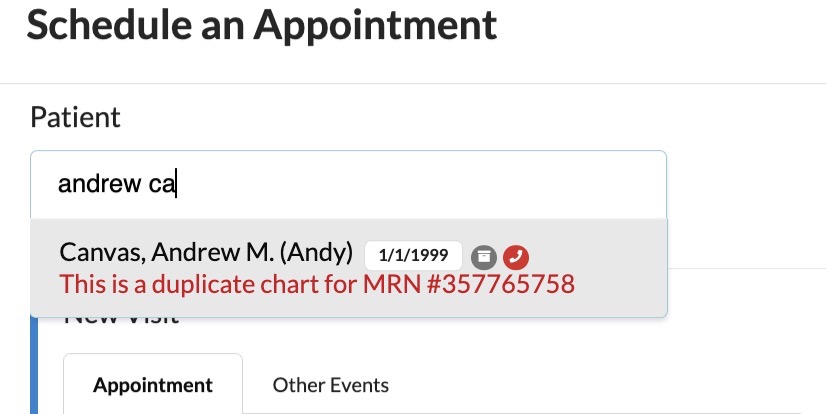
If you’re concerned that your team might still use the duplicate chart, you can add an administrative or clinical caption that displays both in the chart and during scheduling. This caption can include the MRN of the correct chart to prevent confusion.
Best Practices to Prevent Duplicate Charts
To minimize the occurrence of duplicate charts, we recommend implementing a process that includes:
Using Patient API Search: Utilize the Patient API Search/Read endpoint to search for existing patient records before creating new ones.
Educating Team Members: Ensure all team members are aware of the process for identifying and handling duplicates.
Important: Canvas's duplicate detection system requires both the patient's name and date of birth to match exactly for duplicate flagging to occur. If either field differs (for example, if an incorrect DOB is entered during chart creation), Canvas will not flag the patient as a duplicate, potentially leading to duplicate charts. Always verify that patient information, especially the date of birth, is accurate before creating a new chart.