Updating a Document
Last updated: October 7, 2025
Document type accuracy is essential for proper clinical organization and workflow efficiency. When documents are entered under incorrect document types or generic names, they can be difficult to locate and may disrupt clinical review processes. This article explains how to update a document to ensure proper categorization and accessibility.
User's Guide
Editing a Document
Follow these steps to modify a document within a patient's chart or from the user panel on the schedule view:
Access the document either within the patient chart or from the user panel
For clinical documents: Click the appropriate icon for the document in the patient or user panel panel (labs, imaging, consults, or uncategorized documents)
For administrative documents: Navigate to the patient chart and click the triple dot next to the patient header
Open the edit modal
For clinical documents: Click Edit on the document card. If editing from the patient panel, click the card to expand and access the Edit button
For administrative documents: Click the triple dot next to the document and select Edit from the dropdown
Make any necessary edits on the modal
Report Name: Heading that will display on the document card
Date: Represents the date for the event occurred
Labs: Date labs were collected
Imaging: Date imaging was performed
Consult Report: Date the consultation/visit occurred
Uncategorized Documents: Date of occurrence
Linked Orders: Lab or imaging order that ties to the results
Comment: Free text field to add additional details about the document
Click Save
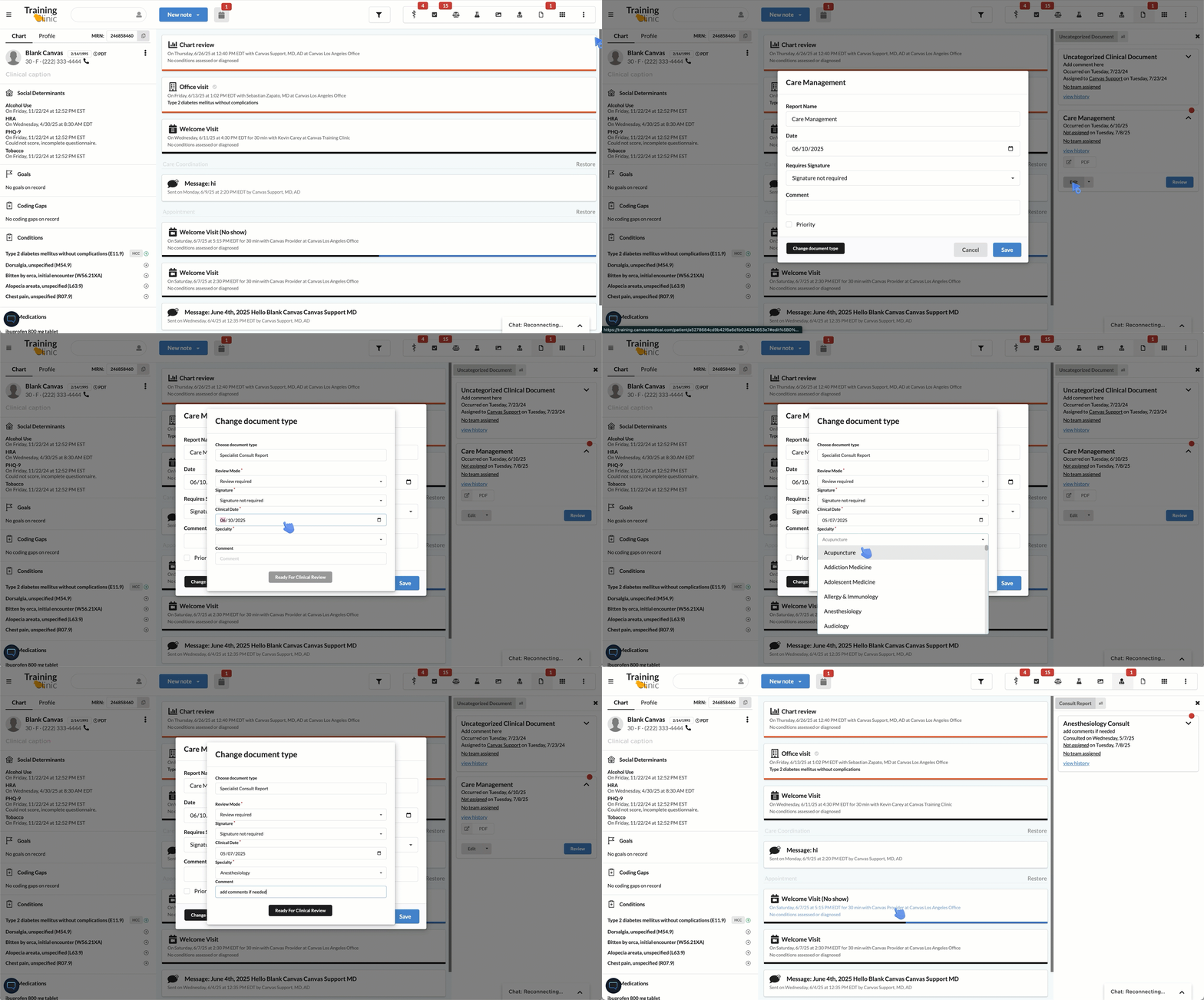
Change Document Type
From the Edit modal, click Change Document Type
Select the new document type from the dropdown menu
Complete fields for the selected document type.
Depending on the chosen document type, additional fields such as review mode, clinical date, report type and others may need to be completed
Select Ready for Clinical Review or Submit Administrative Document to finalize changes
A green checkmark will display to confirm the change was successful
FAQ & Troubleshooting
Q: What happens to the document when I change its type?
A: The document will move from its current category to the new category. All document content and metadata remain unchanged - only the organizational category changes.
Q: What if additional fields are required after changing the document type?
A: Depending on the chosen document type, you may need to complete additional fields such as review mode, clinical date, or report type before the change can be finalized.
Q: How do I know the document type change was successful?
A: A green checkmark will display to confirm the change was successful, and the patient panel will refresh to show the document under its new document type category.
Related Resources
Keywords: document type, patient panel, clinical review, document management, chart organization, edit document, change document
Categories: Patient Charts, Document Management, Clinical Workflow