Google Scheduled Reports
Last updated: September 12, 2025
Reporting is key to understanding how your care model is performing. There will be data that you may want to reference on a regular basis. Scheduled reports allow you to automate the reporting process in Canvas using Google Delivered Planned Reports.
Adding Google Delivered Planned Reports
Select to the Google Delivered Planned Reports under Settings
Click Add Google Delivered Planned Reports + in the top right corner and then complete the field
Title: Name for the report being created
Command: Canvas has standard reports that can be selected from the dropdown or select Custom SQL Query to run a custom report
Google Spreadsheet ID: ID from the Google Sheets URL that the report will run on. To generate a new spreadsheet for the report:
Go to the Google Drive shared with Canvas
Open the folder for stored reports
Right click and select Google Sheets to create a new sheet
Title the spreadsheet the name of the report
Copy the spreadsheet ID from the URL. The highlighted section in the image below is the spreadsheet ID. It is the string of text between
/d/and/edit
Paste the spreadsheet ID into the Google Spreadsheet ID field in Canvas
The Google sheet must be located in the Resources folder of the Google Drive that was shared during implementation. The folder contains Canvas user with write permissions needed to load the data into the sheet. The two users are:
dev-canvas-sheets@astute-nuance-203013.iam.gserviceaccount.com
Frequency: How often the report will run: daily, weekly or monthly options.
Planned day of week: Required if weekly is selected for frequency
Planned day of month: Required if monthly is selected
Planned hour: The time the report will run. Reports run at the top of the hour for the instance timezone.
Status: This defaults to ‘active’ for new reports.
Alert email: The system will send an email to this address when the spreadsheet runs a new report
Data management: Choose whether to update the same tab each time the report is ran or create a new tab each time the report is ran
Sql query: Add query if Custom SQL Query was selected as the Command above.
Standard Reports Available
Patient List - provides a list of all patients both active and inactive with their demographic information including name, DOB, address and contact information
Balance Due - provides a report of patients who have an unpaid balance, have not made a payment within the last 25 days, have not had an invoice printed within the last 25 days and who have an encounter within the last year but not less than the less 25 days.
Aging by Financial Class - provides a report that includes patients and their outstanding claims including coverage information and associated financial class.
Productivity - provides a report with raw data and grouped data that displays the count of encounters, RVU, charges and payments broken down by provider.
Invoices Tracking - provides a report that should run daily to capture invoices sent via email or LOB physical mail. This report is essential to monitor for failed invoice sends. If you utilize LOB for statements, only sent invoices are charged as your passthrough cost per your MSA
Missing Patient Birthdays - provides a report of all patients who are missing a birthday and could cause errors within Canvas
Managing Existing Reports
The table shows all existing scheduled reports with the following details
ID
Command
Interval
Status
Link to Google Spreadsheet
Searching and Filtering Google Delivered Planned Reports
You can search your scheduled reports using the search tool bar at the top. You can search by title, command or google_spreadsheet_id. Click Show all to remove the search parameter once you're done searching.
You can also filter reports based on status, command, or frequency, using the filters on the right. One from each section can be selected to narrow down your results. Click X Clear all filters to remove the selected filters.
Updating Google Delivered Planned Reports
To edit a Google Delivered Planned Report, click into the title of an existing report and make changes as needed. You can also use the action dropdown to delete, activate, or inactivate one or several selected reports.
Validating your SQL Query
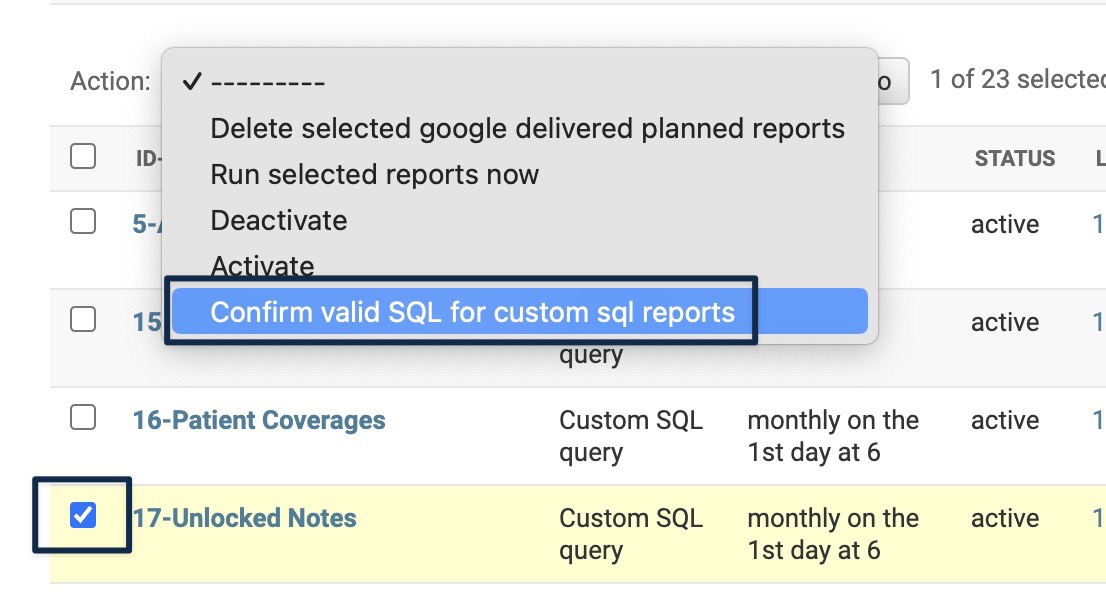
To ensure your report runs successfully when using a custom SQL query, a tool is available to validate your query. Click the checkbox on the report you want to validate, or reports that you want to validate, select Confirm valid SQL for custom SQL reports from the action dropdown, and click Go. A banner at the top will appear with the result, including any errors found.
Manually Running Google Delivered Planned Reports
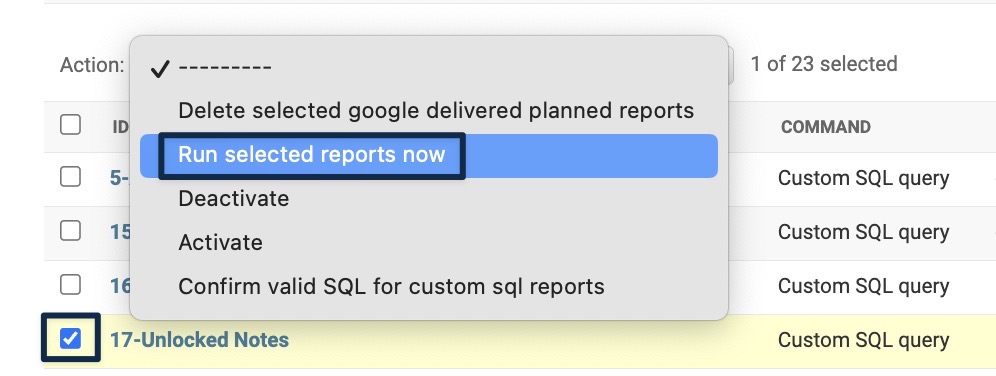
The reports will run based on the schedule you set. If you need to run a report outside of that schedule, click the checkbox on the report, or reports, use the action dropdown, select Run selected reports now, and click Go. A banner at the top will appear with the status of the report, including any errors preventing it from running.