Event and Note Types
Last updated: September 6, 2026
Event types and note types are essential for aligning scheduling and visit settings with your organization's specific care models. These configurations support various patient interactions including in-person visits, telehealth encounters, and asynchronous care. Note types generate documented encounters in the patient timeline, while event types are used for scheduling administrative or provider-specific blocks that don't require documentation.
User's Guide
Note Types
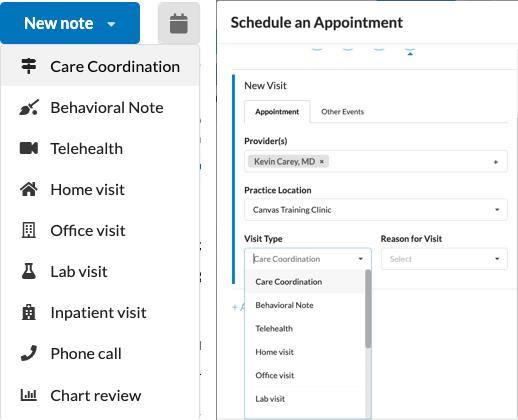
Note types serve two primary functions: scheduling appointments (referred to as Visit Types) and creating standalone notes through the New Note dropdown in a patient's chart. Use note types for documenting any patient interaction that necessitates record-keeping
The following note types are provided out of the box with Canvas:
Home visit
Telehealth
Office visit
Lab visit
Inpatient visit
Phone call
Chart review
Letter
Message
Data import
Event Types
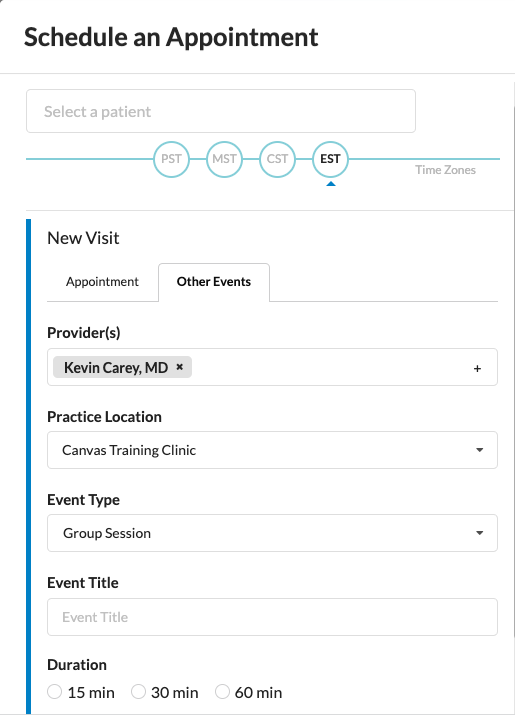
Event types configure Other Events in the schedule modal and are designed for administrative purposes or provider time blocking. Unlike note types, event types do not generate timeline documentation and do not always require an associated patient. Generic Event is provided out of the box with Canvas.
Configuration & Set Up
Creating Event and Note Types
Creating a New Note Type
Practices can create their own note types to create a more customized experience to support their workflow.
Navigate to Practice: Event and Note Types in settings
Click Create Note Type + in the upper right of the page
Complete necessary fields and save
Name: Display name of the note type
Icon: Image for note headers and schedule view appointment cards
System/Code: Unique identifier for FHIR API appointment creation
Display: Code description visible when reading appointments via API
Rank: Controls display order in dropdowns
Is Schedulable: Note type will be available as a visit type
Is Default Appointment Type: Will be the default selection when scheduling in Canvas or through the API. Only one note type can be default.
Is Billable: Enables claim generation
Is Telehealth: Adds telehealth button to the note header that links to the virtual meeting room.
Defer place of service to practice location: When checked, notes inherit place of service from practice location setting for claims
Available places of service: Only relevant when "Defer place of service" is unchecked and "Is billable" is checked.
If the note type has multiple POS selected, the applicable location will be selected in the footer of the encounter note.
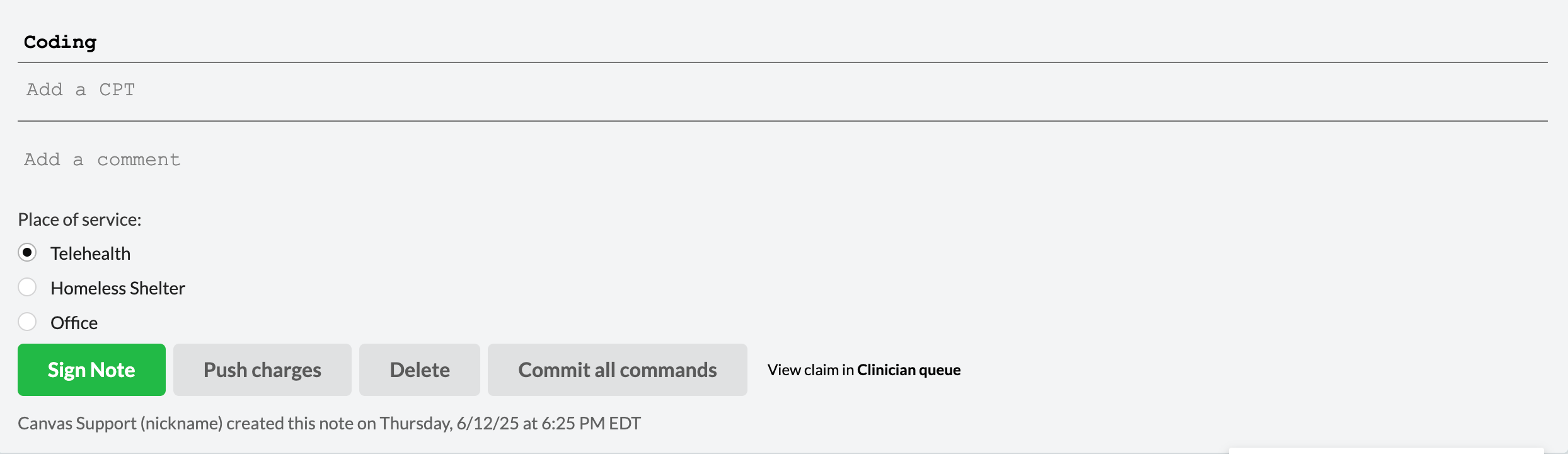
Default place of service: Default selection when multiple places of service are available
Is Active: Controls visibility in dropdowns
Is scheduleable via patient portal: Allows scheduling through patient portal as a visit type
Online Duration: The default duration for scheduling in the patient portal. If the note type is schedulable in the portal, a duration must be set to enable scheduling functionality.
Click Save to create the note type
Scheduling and billing settings only apply to encounter notes.
Creating a New Event Type
Navigate to Practice: Event and Note Types in settings
Click Create Event Type + in the upper right of the page
Complete necessary fields and save
Name: Display name of the event type
Icon: Image for schedule view and event cards
System/Code: Unique identifier for FHIR API event creation
Display: Code description visible when reading events via API
Rank: Controls display order in dropdowns
Possible Durations: Predefined duration options for scheduling
Additional durations can be added within the Practice: Schedule durations setting.
Is Patient Required: When checked, patient assignment is mandatory
Allow Custom Title: Enables custom event titles when scheduling events
Click Save to create the new event type
Managing Event and Note Types
Changes made to event and note types will only apply to events and notes created after the modification. These changes will not affect any existing events or notes.
Editing Event and Note Types
Navigate to Practice: Event and Note Types in settings
Select event or note type to edit
Make updates to necessary fields
Click Save to confirm changes
Some settings may be restricted on Canvas provided note types.
Deactivating Event and Note Types
Navigate to Practice: Event and Note Types in settings
Check the box(es) next to the event and/or note type(s)
From the Action dropdown, click Deactivate
Click Go
FAQ & Troubleshooting
Q: Can I modify existing note types after they've been used for patient encounters?
A: Yes, but changes are not retroactive. Modifications only impact new events and notes created after the change.
Q: What's the difference between deactivating and deleting event types?
A: Event types are deleted from the schedule view if they need to be "cancelled". Event and note types are deactivated when they should no longer be used.
Q: How do I set up multiple places of service for a billable note type?
A: When Is billable is checked and Defer place of service to practice location is unchecked, you can select multiple available places of service and designate a default option.
Q: Why can't I see my new note type in the patient portal?
A: Ensure both Is Scheduleable via patient portal is checked AND Online duration is configured for patient portal visibility.
Q: Do scheduling and billing settings apply to all note types?
A: No, settings for scheduling and billing only apply to encounter notes, all others are excluded.
Related Resources
Keywords: event types, note types, scheduling, appointments, telehealth, billing, patient portal, FHIR API, place of service
Categories: Practice Management, Scheduling, Configuration, Billing