Staff Roles
Last updated: January 11, 2026
Staff roles in Canvas specify the responsibilities and permissions of team members within a healthcare organization. These roles control access to clinical workflows, determine displayed credentials, and ensure appropriate permissions for various tasks. Assigning roles such as “MD,” “NP,” “RN,” “Administrator,” or “Product Lead” is essential when setting up staff profiles. This guide outlines how to create, update, and manage these roles to integrate seamlessly into clinical and administrative operations
Creating a Role
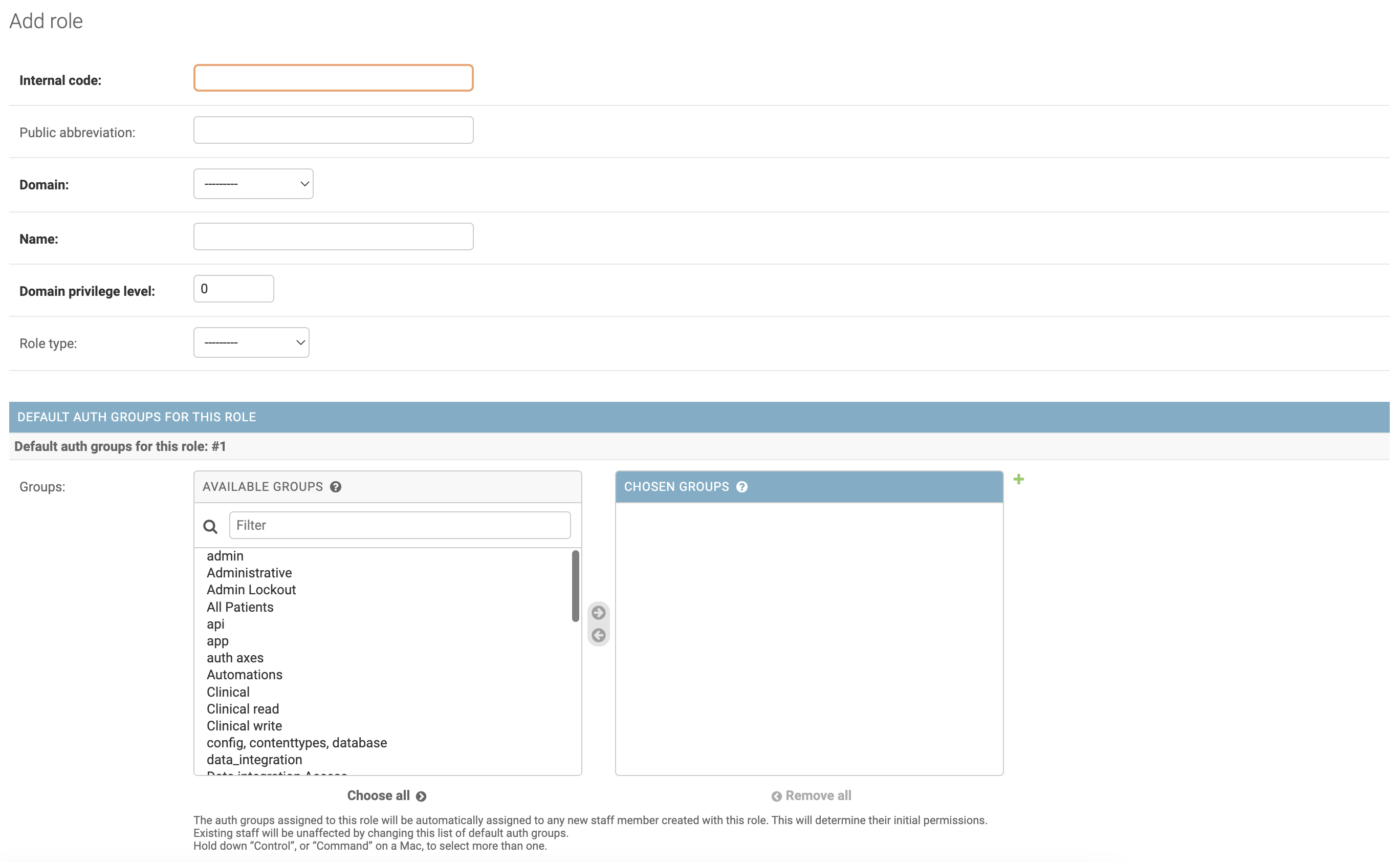
Roles are added in the settings menu under Practice: Roles and clicking ADD ROLE +.
The following fields must be completed in the role creation form:
Internal code: A unique identifier for the role, ideally a meaningful abbreviation such as “MD,” “DO,” “LCSW,” or “RN.”
Public abbreviation: A display abbreviation that may appear alongside a staff member’s name. It does not need to be unique and is only used for display purposes.
Domain: Options include Clinical, Administrative, or Hybrid.
Clinical and Hybrid: Appear as options for patient care teams
Administrative: Does not appear as options for patient care teams
Name: Display name for the role, such as “Nurse Practitioner” or “Medical Doctor.”
Domain privilege level: Determines the displayed credential when staff have multiple roles. Higher privilege levels also influence prescribing and lab ordering capabilities when multiple clinical roles exist.
Permissions: Reserved for system use. Permissions should be managed using the Default auth groups setting.
Role type: Specifies if the staff member can prescribe or order labs.
Provider: Enables the role to act as a “Prescriber” or “Ordering provider.” When multiple clinical roles exist, the role with the highest domain privilege level determines these capabilities.
Default auth groups for this role: Assigns initial permissions via predefined auth groups. Auth groups control access to features like lab reports and clinical data.
If auth groups are not assigned when a new role is created, the users assigned to the role will not have access to Canvas. They can login, but they will not be able to view or navigate to anything.
New staff members automatically inherit all default auth groups specified by the assigned role. Auth groups control access to features such as lab reports or clinical data.
After creating a new clinical role, additional configuration may be required in Settings > Organizations:
For schedule visibility: Add the role's internal code to the SCHEDULABLE_STAFF_ROLES setting so staff with this role appear in the schedule view and home dashboard. Note that setting a role's domain to Clinical or Hybrid does not automatically make it schedulable - the role must be explicitly added to this setting.
For prescribing capabilities: If the role type is set to "Provider," add the role's internal code to the PRESCRIBER_STAFF_ROLES setting to enable medication prescribing functionality
Internal code: A unique identifier for the role, ideally a meaningful abbreviation such as “MD,” “DO,” “LCSW,” or “RN.”
Public abbreviation: A display abbreviation that may appear alongside a staff member’s name. It does not need to be unique and is only used for display purposes.
Domain: Options include Clinical, Administrative, or Hybrid.
Clinical and Hybrid: Appear as options for patient care teams
Administrative: Does not appear as options for patient care teams
Name: Display name for the role, such as “Nurse Practitioner” or “Medical Doctor.”
Domain privilege level: Determines the displayed credential when staff have multiple roles. Higher privilege levels also influence prescribing and lab ordering capabilities when multiple clinical roles exist.
Permissions: Reserved for system use. Permissions should be managed using the Default auth groups setting.
Role type: Specifies if the staff member can prescribe or order labs.
Provider: Enables the role to act as a “Prescriber” or “Ordering provider.” When multiple clinical roles exist, the role with the highest domain privilege level determines these capabilities.
Default auth groups for this role: Assigns initial permissions via predefined auth groups. Auth groups control access to features like lab reports and clinical data.
If auth groups are not assigned when a new role is created, the users assigned to the role will not have access to Canvas. They can login, but they will not be able to view or navigate to anything.
New staff members automatically inherit all default auth groups specified by the assigned role. Auth groups control access to features such as lab reports or clinical data.
Updating Roles
Navigate to Settings > Practice: Roles
Select the role that needs their role permissions changed
Either add or remove the groups from the Chosen Group.
Removing Roles
Navigate to Settings > Practice: Roles
On the main settings page, check the box of the role(s) needing to be removed.
Click Delete Selected Roles from the Action dropdown.
Click Go.
Important: Updating default auth groups for an existing role only impacts new staff. To apply changes to existing staff, the role must be unassigned and reassigned in their staff profile.
How Roles Affect Permissions
When a new staff member is created and assigned a role, that staff member automatically inherits all default auth groups specified by the role. These auth groups control what the staff can view and manage within the system. For example, an auth group called Patient Data might include permissions like View lab report and View imaging report.
Changing default auth groups for a role does not update existing staff assigned to that role. To apply auth group changes to existing staff, the role must be unassigned and reassigned in their staff profile.
Changing a staff member’s role adds the new role’s auth groups but does not remove any they currently have.
If modifications are needed to auth groups, contact Canvas Support.