Publishing and updating Studio Plugins
Last updated: October 24, 2026
Publishing Your Plugin
Once your plugin passes testing and Final Review, it's ready for release. How Studio releases your plugin depends on the release strategy configured by your Studio Admin.
Understanding Release Options
Studio supports two release methods:
Release method | How it works |
|---|---|
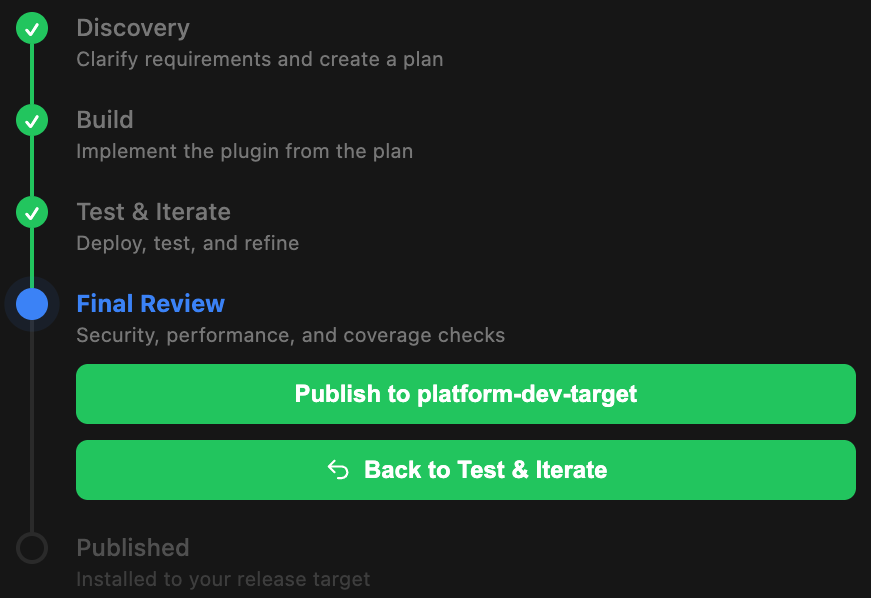
Direct Release | Studio installs your plugin directly on a configured Canvas instance. The button reads Publish to (target name). |
Gated Release | Studio submits your plugin to your team's code repository for review and approval. Your team's release process then moves it into production. The button reads Promote to (your repo), and the finished stage is labeled Promoted. |
Publishing to a Specific Target
If your organization has multiple release targets, Studio displays separate Publish button for each available target. Select the target where you want to release your plugin.
What if I Don't See a Publish Button?
If the Final Review panel displays a notice instead of a Publish or Promote button, your organization hasn't configured a release strategy. Contact a Studio Admin to complete the setup. Once a release strategy is configured, you can continue publishing.
Updating a Published Plugin
An existing plugin can be edited without starting a new project. Project owner and collaborators with Full Editing access can move a project back to Test & Iterate. Updates must complete testing and Final Review before they can be released.
How to Update a Plugin
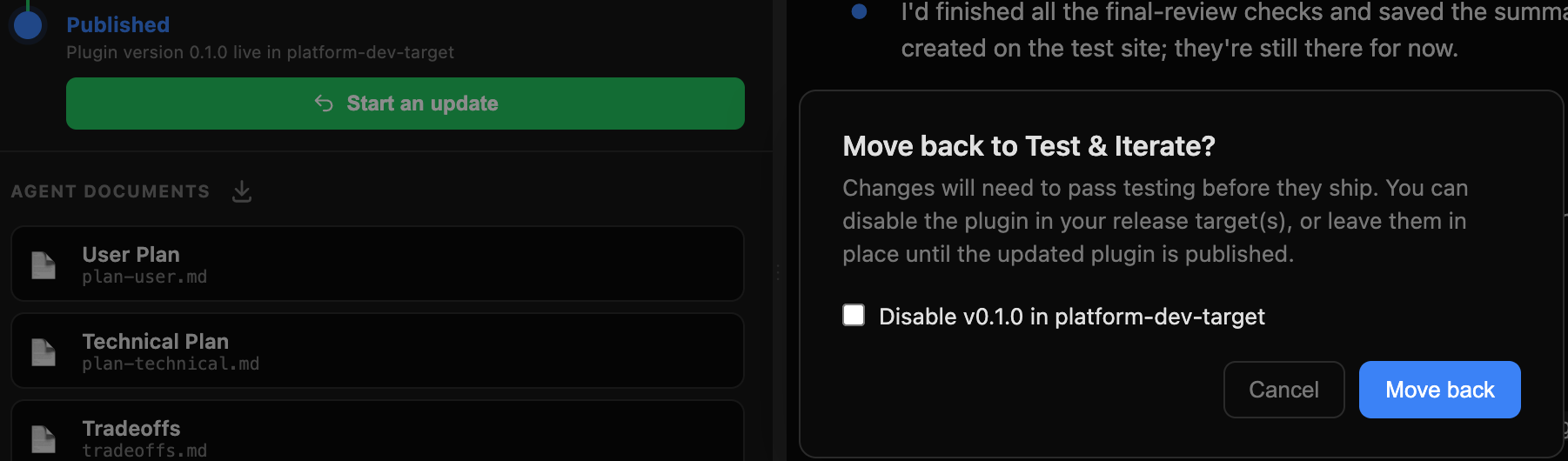
Start an update. Open your published project and click Start an Update.
Studio asks how to handle the existing version:
Direct Release: Choose whether to keep the current plugin running or disable it on each release target while you make changes.
Gated Release: The plugin remains promoted. Studio also offers to close any open promotion pull request (PR), unless you deselect that option.
Click Move Back to return to Test & Iterate.
Describe your changes. Tell Studio what you'd like to update in the chat. Studio modifies the plugin and deploys the updated version to your test instance.
Regenerate your tests. Once your changes are deployed, click Regenerate Tests to update the Testing Checklist.
If you're making several changes, complete them before regenerating tests. You can continue asking questions or updating plans and tests without affecting the published version. However, if Studio modifies the plugin's code, the project automatically returns to Test & Iterate.
Test your changes. Studio automatically runs its assigned tests. Complete the remaining tests in Canvas and mark each as Passed, Failed, or Skipped.
Complete Final Review. Once all tests are Passed or Skipped, click Confirm Successful Testing. Studio performs its final checks and prepares the updated version for release.
Release your update. Depending on your organization's configuration, select:
Publish [version] Updates to [target name] for direct releases.
Promote [version] Updates to [repository] for gated releases.
Making Changes During Final Review
Plugin code is locked during Final Review to prevent changes after testing is complete. If additional changes are needed, click Back to Test & Iterate to return to development and testing.
Enabling or Disabling a Published Plugin
You can disable or re-enable a published plugin independently on each configured release target.