Fixes from Canvas Platform
Last updated: October 24, 2026
When Canvas Platform detects an error in one of your Studio plugins, Studio can automatically prepare a fix. Studio first creates a test to reproduce the issue, then develops a fix on a separate code branch. Your existing project work remains unchanged until you apply the fix.
Reviewing and Applying a Fix
When a fix is ready:
Find the Issue. Studio notifies you in the project chat with a link to the Issue. You can also find it in Canvas Platform → Platform Analytics → Issues, marked Ready to Apply.
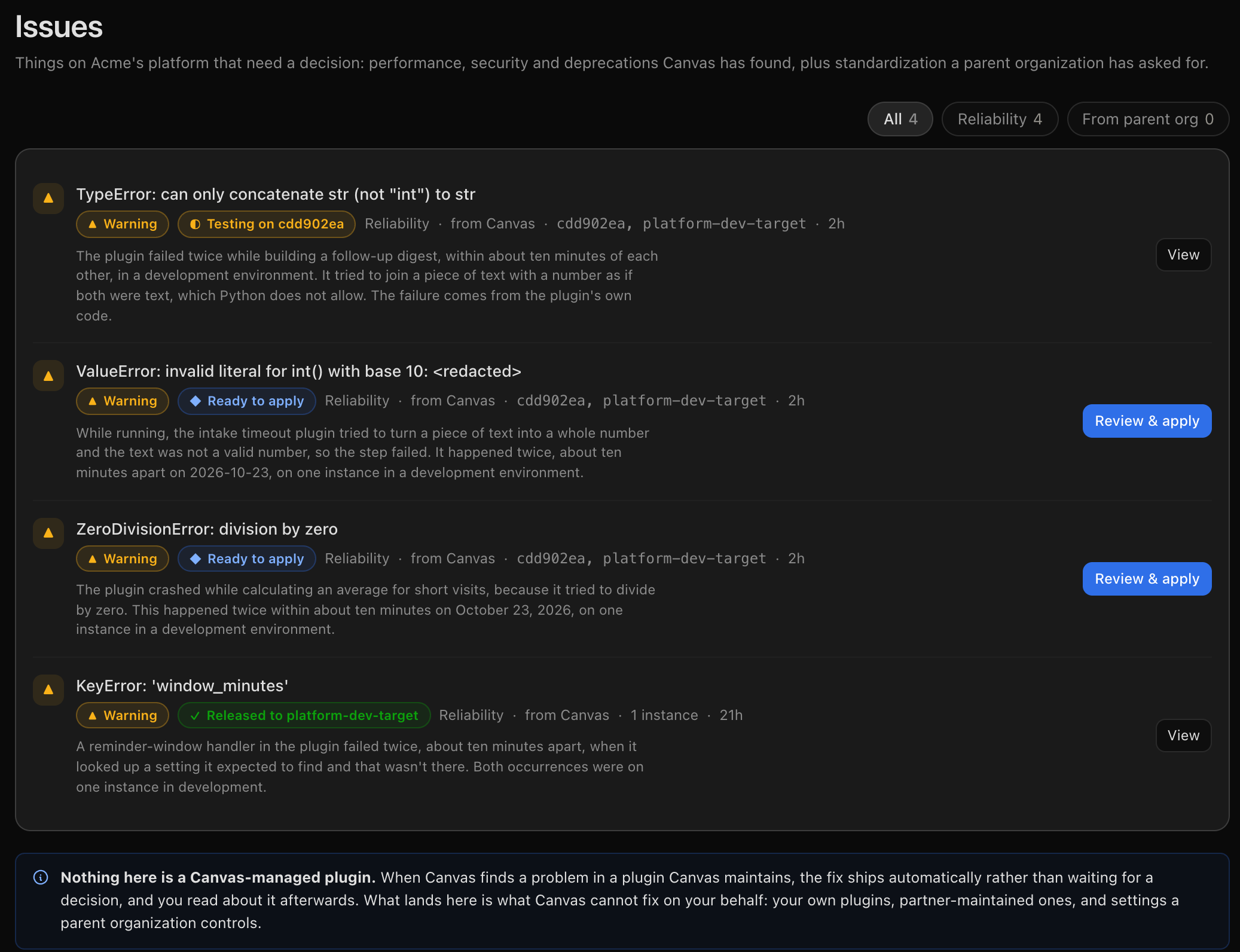
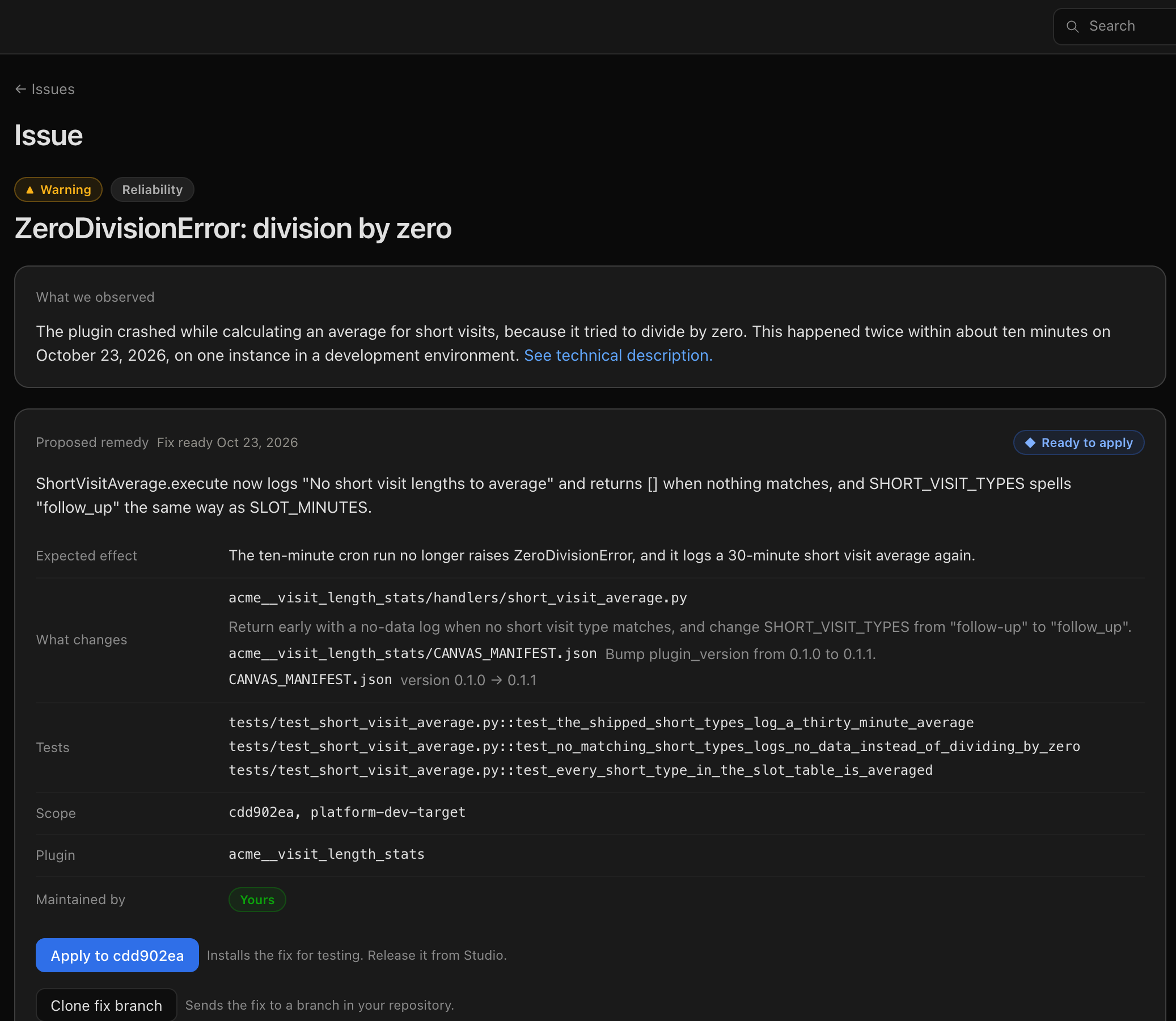
Review the fix. Open the Issue to see what went wrong, what the fix changes, and which tests verify it.
Apply the fix. Click Apply to [test instance]. Studio adds the fix to your project and deploys it to your test instance.
Test and publish. Verify the fix works as expected, then complete the standard testing and publishing process. Publishing also updates the Issue in Canvas Platform.
Applying Fixes with Gated Release
If your organization uses Gated Release, select Clone Fix Branch from the Issue instead.
Studio sends the fix to a branch in your team's code repository, where your technical team can review and release it through your organization's process.