Enable Mailed Patient Statements (Lob)
Last updated: October 19, 2026
Overview
Canvas can mail paper statements to patients who have an outstanding balance. Canvas prints and mails them through Lob, a HIPAA-compliant print and mail service. Once enabled, Canvas will creates a statement for patients with an outstanding balance and deliver it using Lob.
What patients receive
Each patient with an outstanding balance receives a letter by USPS First Class Mail containing:
The statement, printed in black and white on single-sided pages. This is the same PDF your staff can open from the patient's Statements list.
A perforated first page, so the patient can tear off the payment portion.
A return envelope.
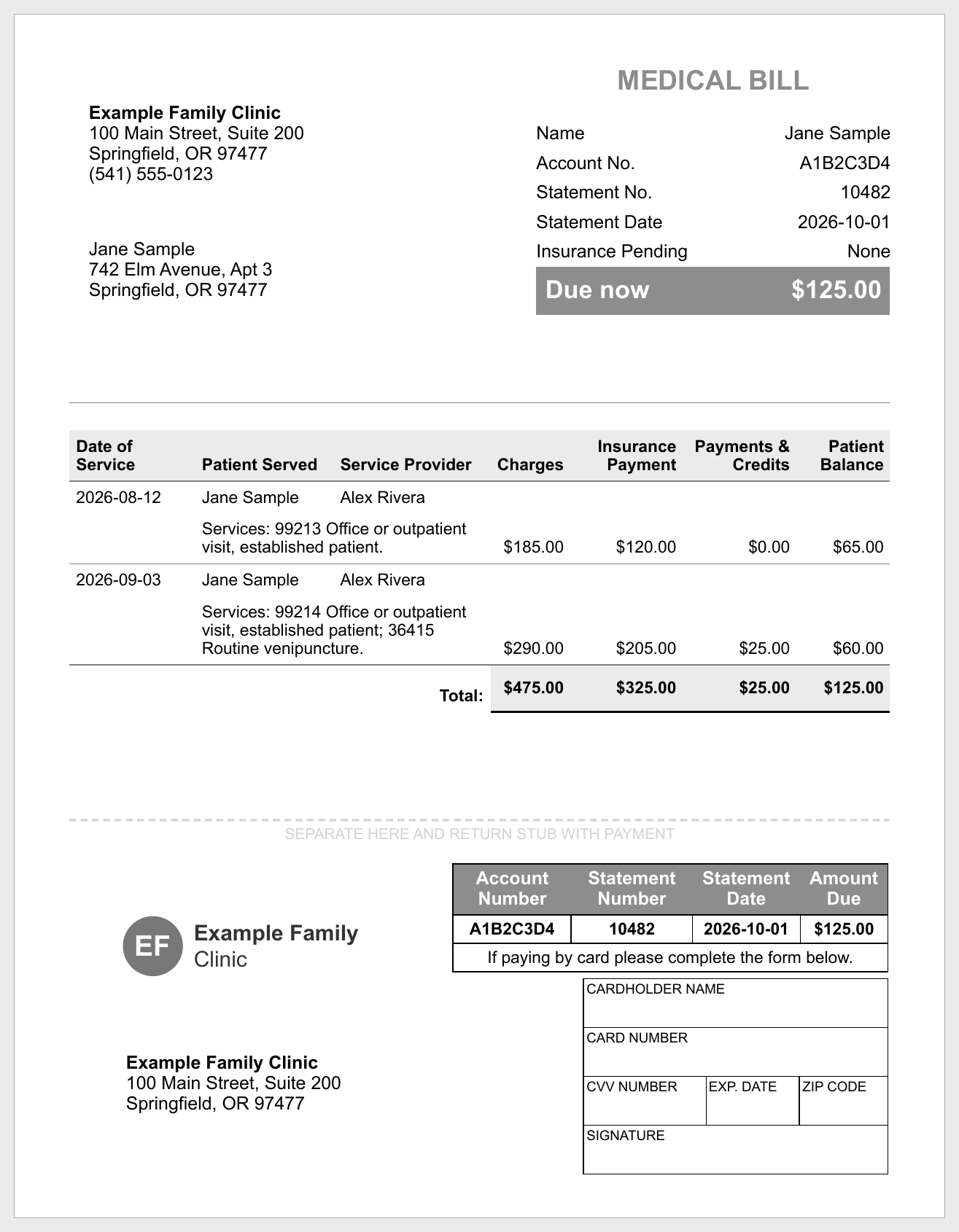
The letter is addressed to the patient, or to their guarantor when the patient has one who can be contacted. A guarantor's statement includes the balances of their dependents.
Who receives statements
Statements will be sent to every patient with a patient balance greater than zero, regardless of which billing queue the claim is in.
Claims in the trash and claims on an active installment plan are left off statements.
After a statement is sent, the same patient does not receive another until
INVOICE_INTERVALdays have passed.Canvas uses the patient's active postal address, choosing a home address first, then work, then temporary.
If email statements are also turned on, Canvas emails patients who have an email address on file and mails a paper statement to everyone else.
See 📄 Enable Automated Patient Statements and Payment Reminders via Email
Turning on mailed statements
Reach out to Canvas Support to request to enable Mailed Patient Statements. They will establish the connection with lob in your instance. Before enabling, you will need to review the following:
Review outstanding patient balances. Once enabled, a statement will be sent to every patient who currently has a patient balance, not only to new balances. Confirm those balances are accurate first.
Confirm your practice address. The return address on the envelope is your practice name and primary address as set up in Canvas.
Check patient mailing addresses. A statement can only be mailed to a patient with an active home, work, or temporary postal address on their profile.
Decide on your mailing schedule. See "Customer Settings for Administrative Developers" below.
Customer Settings for Administrative Developers
These settings live in Settings > Constance: Config > Billing, and an administrator on your instance can change them at any time.
Setting | What it does |
|---|---|
| Turns on automated patient statements. Canvas creates statements once a day for patients with a balance. |
| Sends statements by mail through Lob. Mailing also needs a Lob connection that only Canvas can set up, so check this only after your Canvas team confirms mailing is ready. Without that connection, statements fail instead of mailing. |
| Number of days between statements to the same patient (default is 15). |
| When True, Canvas emails patients who have a qualifying email address and mails only those who do not. When False, every statement is mailed. See Enable Automated Patient Statements and Payment Reminders via Email for the email requirements. |
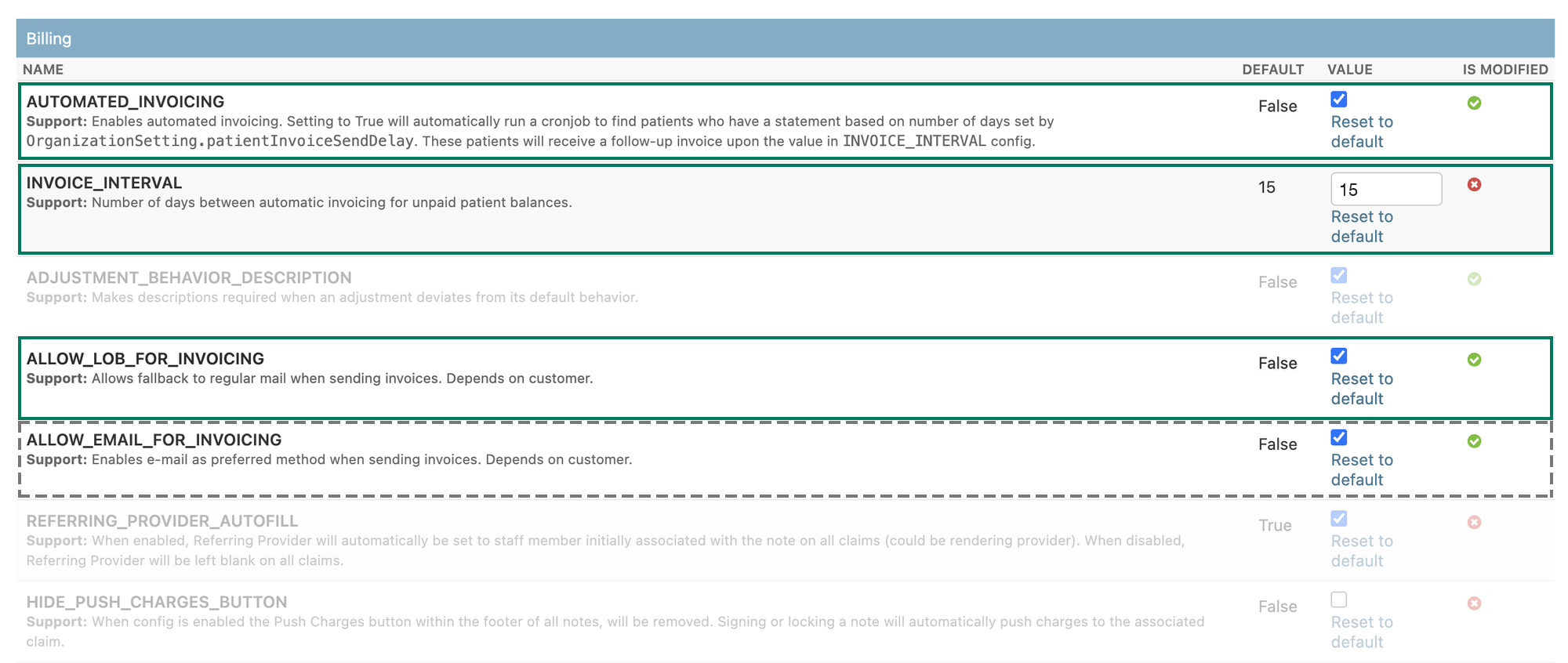
Solid boxes show the settings needed for mailed statements.
The dashed box is optional: check it to email patients who qualify and mail everyone else, or leave it unchecked to mail every statement.
You can also give your team a grace period before a patient's first statement. Under Settings > Organizations, select your organization and add an organization setting named patientInvoiceSendDelay with a value such as {"days": 7}. The delay counts from the date of service, not from the date the balance moved to patient responsibility.