Change the Canvas idle logout timeout setting
Last updated: October 6, 2026
Canvas automatically logs a user out after a period with no activity. This protects patient information on computers that are left unattended. Each practice sets its own time limit, and new Canvas accounts start at 15 minutes. This article shows how to change that time limit.
Required role and permissions
To change this setting, you need a Canvas user in the Administrative group, which grants the following permissions:
api | organization | Can change organization, required to open and save the Organization page
api | organization setting | Can change organization setting, required to edit the Idle Logout In Minutes value
Every Canvas staff user has Staff status, which allows the user to open Settings.
If you do not see Organizations under the Practice heading in Settings, or the organization settings are read-only, you are not in the Administrative group. Ask an existing administrator on your instance to add you to it.
Before you start
Choose a value of 60 minutes or less. A longer limit means an unattended computer stays logged in to patient records for longer. Choose the shortest limit that works for your team.
The change applies to everyone at your practice. There is one time limit for all staff users.
Steps
1. From the left hand menu, open Settings
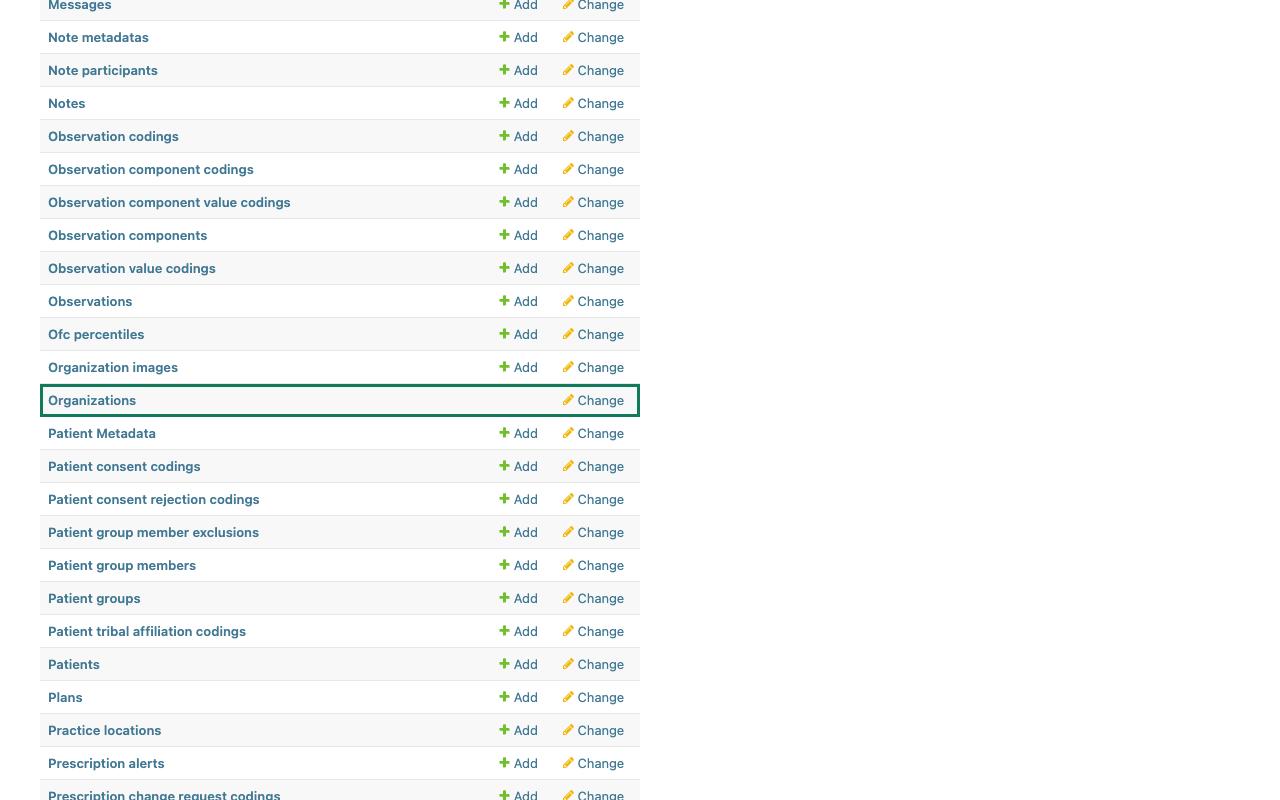
2. Open Organizations
Settings shows a long list of sections. Scroll down to the Practice section and click Organizations.
Tip: to find it faster, type organ in the Start typing to filter… box at the top left of any Settings page that has a left-hand menu, then click Organizations in the filtered list.
3. Open your organization
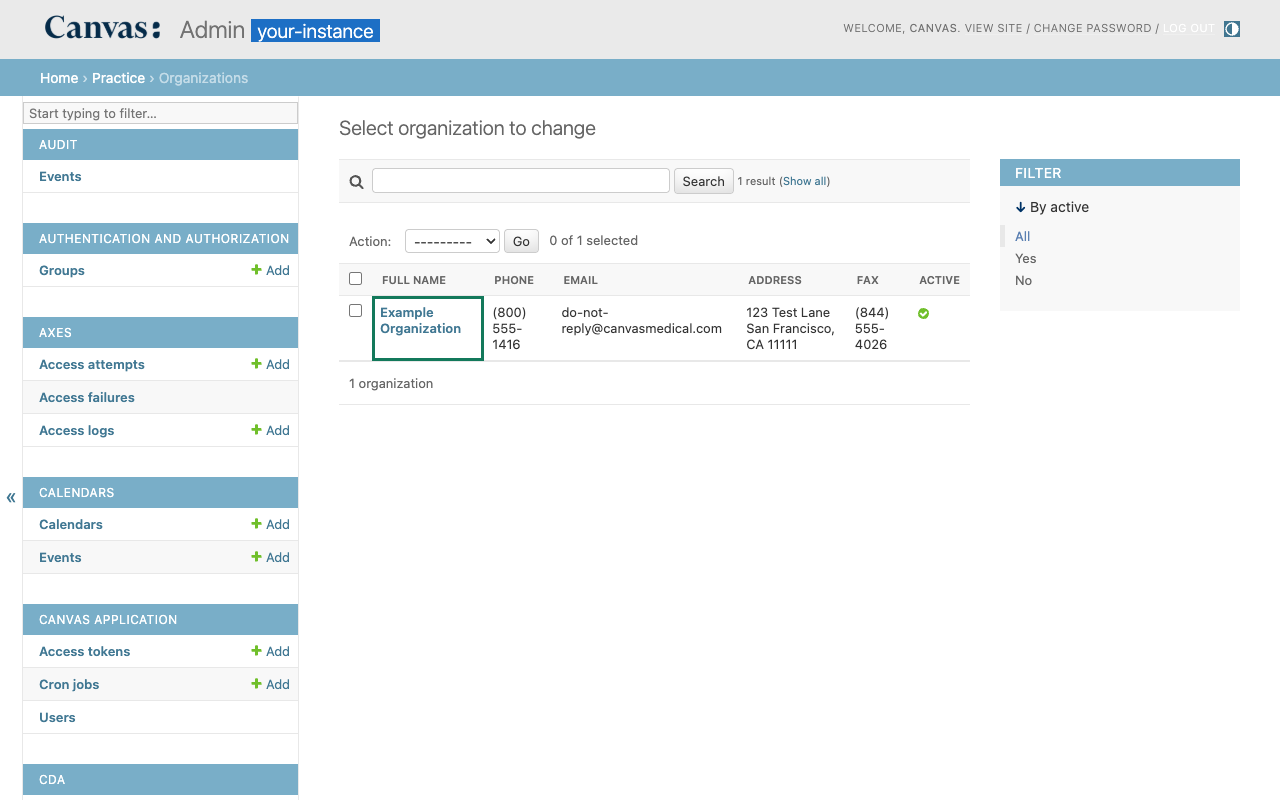
Click your organization's name. Most practices have only one.
4. Find the Idle Logout In Minutes setting
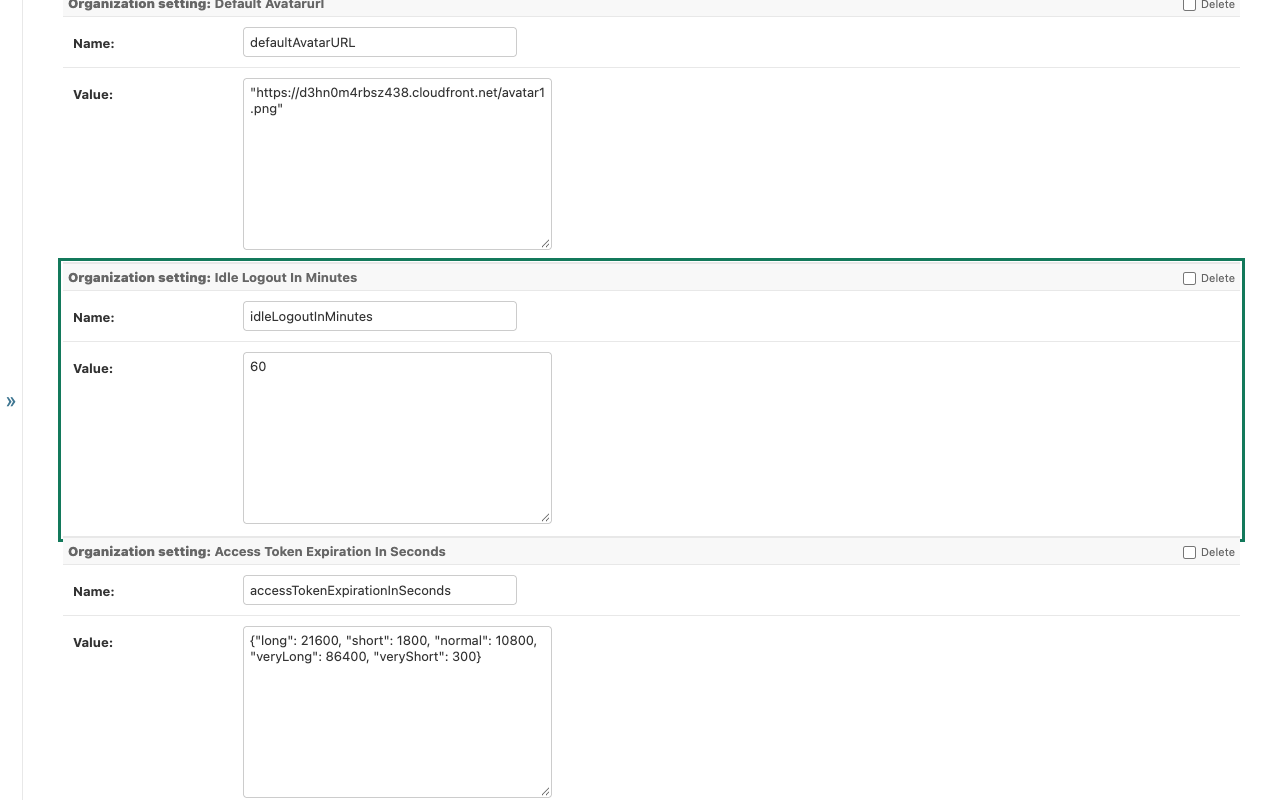
Scroll down past the address and contact details to the list of organization settings. Find the box titled Organization setting: Idle Logout In Minutes. Its Name field reads idleLogoutInMinutes.
Tip: press Ctrl+F (Windows) or ⌘+F (Mac) and search for Idle Logout to jump straight to it.
In the Value field, replace the current number with the number of minutes you want. For example, type 60 for one hour.
Type the number only, with no quotation marks or other text.
5. Save
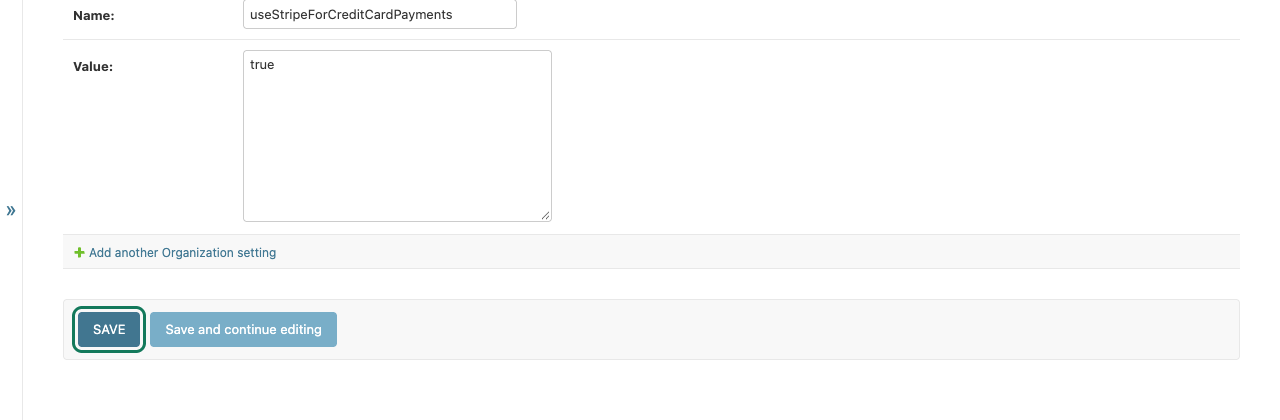
Scroll to the bottom of the page and click Save.