Studio Admin Guide
Last updated: July 16, 2026
For Studio Admins (clinical or operations leads who manage Studio for their organization — no coding experience needed)
Introduction
This guide is for Studio Admins — the people who decide who can use Studio at your organization and how finished plugins get released. It covers the one-time setup you do once, plus the settings you'll revisit occasionally. Everyday plugin building is covered in the Quick Start and Reference guides; this guide is only the admin side.
User's Guide
Getting Started
What a Studio Admin can do. A Studio Admin controls the organization-wide settings that regular users can't:
Who is allowed to use Studio.
How finished plugins are published (the "release strategy").
Which users can publish to which destinations.
Practice-wide context and instructions the build assistant follows.
How the role is granted. The Studio Admin role is assigned in Canvas's own system admin (assign the "Studio Admin" role to a staff member) — not from inside Studio. Studio itself can't promote someone to admin, so if you need another admin, have a Canvas administrator assign the role.
Opening the Admin panel. Once you have the role, you'll see an Admin button to the right of your name in the top toolbar (next to the version label), from any screen.

Clicking it opens a panel from the right side. Closing it (the close button, clicking outside, or Escape) returns you to where you were; if you have unsaved changes, Studio asks you to confirm before closing.
Managing who can use Studio
Studio access is an explicit list you curate under Admin → User access.
Add a user: search for the staff member by name and add them. They receive a welcome email with a link to Studio.
Remove a user: removing access takes effect on their next visit. Their projects are not deleted — they stay on file and remain visible to admins and to anyone the project was shared with.
Existing users: the first time this was switched on, everyone who already had a Studio project (as an owner or collaborator) was added automatically, so no one lost access.
Choosing a release strategy
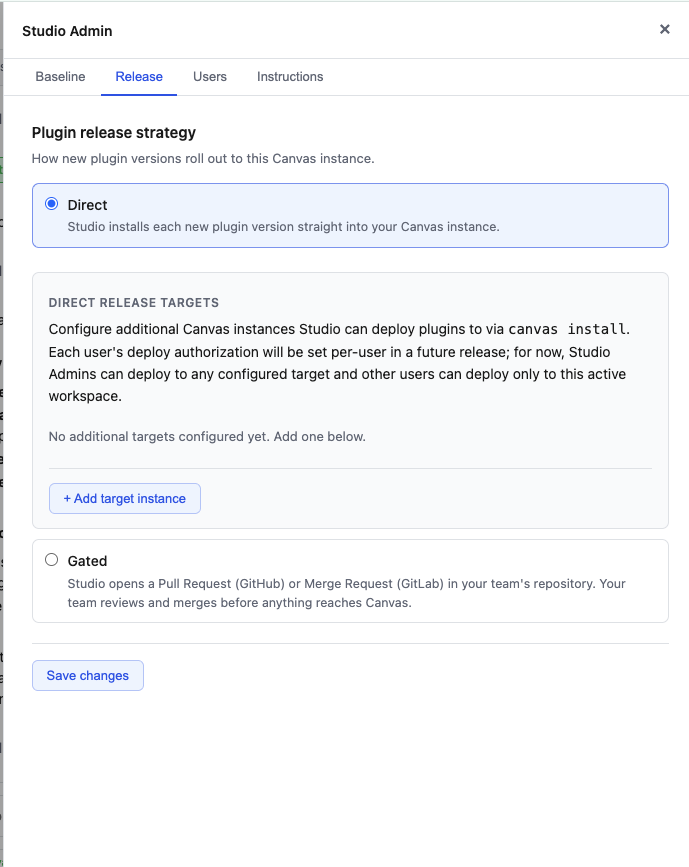
Before anyone can publish a finished plugin, you choose how publishing works, under Admin → Plugin release strategy. There are two options:
Direct — Studio installs each finished plugin straight onto a Canvas instance you configure.
Gated — Studio opens a review request in your team's code repository instead of installing, so a technical reviewer approves it before it goes anywhere.
Until you choose one, a project that reaches final review shows a notice asking the user to contact a Studio Admin instead of a Publish button. Pick the strategy that matches how your organization wants to ship software, then follow the matching setup section below.
Setting up Direct release
When your strategy is Direct, add the Canvas instance(s) Studio may install to:
In Admin → Plugin release strategy, with Direct selected, open + Add target instance.
Give the target a name (for example, "production" or "uat"), its subdomain, and the Canvas client ID and client secret for that instance.
Save. Repeat for each instance you want to publish to.
By default, only Studio Admins can publish to configured targets; to let specific non-admin users publish, see "Granting per-user deploy permissions" below.
Setting up Gated release
When your strategy is Gated, you connect Studio to your team's repository. Studio supports both GitHub and GitLab.
GitHub:
Install the Canvas Studio GitHub App on your organization, granting it access to the one repository you want plugins sent to.
In Admin → Plugin release strategy → Gated, paste the installation id (the numeric id or the full GitHub URL works).
Click Verify. Studio confirms it can find the install, that exactly one repository is connected, that it has the right permissions, and that it can push a test change. The destination repository is filled in for you.
GitLab:
In Admin → Plugin release strategy → Gated, choose GitLab.
Paste your project URL and a Project Access Token (with the
apiandwrite_repositoryscopes, and the Developer role or higher).Click Verify.
If a check fails, Studio shows the reason inline with a Re-verify button, and keeps your project URL and token so you can fix permissions and try again without re-entering everything. Once connected, the final-review action reads Promote to (your repo) and Studio opens a pull request (GitHub) or merge request (GitLab) for each promotion.
That request is a handoff, not an install. For what happens next — review, merge, and the install step your team owns — see Gated release: from Promote to live in production.
Keeping a GitLab connection healthy. GitLab requires access tokens to expire. Studio shows a reminder pill in the toolbar (visible to admins) starting 30 days before expiry, and emails Studio Admins at 30, 14, 7, and 1 day before — so you have time to rotate the token before promotions stop working.
Granting per-user deploy permissions
Under Direct release with more than one target, you decide who can publish where, under Admin → User access:
Each user's row has Deploy targets chips with an + add target picker — grant or revoke targets one at a time.
An empty list means that user can publish only to the active workspace instance (the default for newly added users).
Studio Admins automatically have access to every configured target.
Users then see one Publish button per target they're authorized for (for example, "Publish to production" and "Publish to uat"). A user with no authorized targets sees a panel telling them to contact a Studio Admin, with your contacts listed — no silent failures.
Setting practice baseline context
You can give the build assistant durable, practice-wide background once so it doesn't have to be re-explained on every project — your strategy, care model, goals, naming conventions, and preferred tone/brand. This lives on the Admin panel.
Upload files with that context, or simply tell the overview chat something like "save this as our care model" and Studio files it for you.
Every project's build assistant automatically reads this context, so new plugins start aligned with how your organization works.
Providing instance instructions
You can also give the assistant standing instructions that apply to every project at your organization — house style, naming conventions, things to prefer or avoid — under Admin → Instance instructions.
Because these instructions guide the assistant directly, each submission is reviewed by Canvas before it goes live. While a submission is in the queue you'll see a Pending Canvas review status, and any instructions already live keep working until the new version is approved. If a submission isn't approved, the reviewer's note appears in the panel so you can adjust and resubmit.
Chat page size. Studio Admins can also control how many events load at once in project conversations, under Admin → Settings → Chat. The default page size is 200 events, and Studio applies it only to project chats. On a fresh open, users see the most recent page first and can load older conversation history on demand.
Configuration & Set Up
A quick recap of prerequisites and the order to do things in.
Prerequisites: Studio enabled for your Canvas instance; the Studio Admin role assigned to you in Canvas system admin.
Who can make these changes: Studio Admins (and the organization's root user). Regular users see none of these settings.
Recommended order:
Add the users who need Studio (User access).
Choose and set up a release strategy (Direct or Gated).
For Direct with multiple targets, grant per-user deploy permissions.
Optionally add baseline context and instance instructions.
Verification: you've set things up correctly when a user can reach final review and see a working Publish (Direct) or Promote (Gated) button — not a "contact a Studio Admin" notice.
FAQ & Troubleshooting
Q: How do I make someone else a Studio Admin?
A: Have a Canvas administrator assign the "Studio Admin" role in Canvas system admin. Studio can't grant the admin role itself.
Q: A user says they can't see a Publish button.
A: Either no release strategy is configured yet (choose Direct or Gated), or — under Direct with multiple targets — that user hasn't been granted any deploy target. Add a target to their row under User access.
Q: I removed a user. What happens to their projects?
A: Their access ends on their next visit, but their projects are kept and stay visible to admins and to anyone they shared with.
Q: My Gated connection won't verify.
A: Studio lists exactly what failed (permissions, repository count, base branch, or the test push) with a Re-verify button, and keeps your URL and token. Fix the flagged item and re-verify in place.
Q: Why was my instance instruction submission not live immediately?
A: Instance instructions are reviewed by Canvas before they take effect. You'll see "Pending Canvas review" until it's approved; existing instructions keep working in the meantime.
Q: What's the difference between baseline context and instance instructions?
A: Baseline context is background the assistant reads (your goals, care model, tone). Instance instructions are standing rules it follows on every project — and because they steer the assistant, they go through Canvas review first.
Related Resources
Studio Quick Start Guide — the build experience your users follow.
Studio Reference Guide — full detail on every screen and feature, including how Direct and Gated publishing look to users.
Keywords
Keywords: Studio admin, user access, release strategy, direct release, gated release, deploy targets, baseline context, instance instructions, GitHub, GitLab Categories: Studio, Administration