Image Command | Ordering Imaging
Last updated: June 8, 2026
The Image Command is a critical tool for ordering imaging studies for patients within their chart. This feature streamlines the process of initiating, delegating, and managing imaging orders while ensuring accurate documentation and communication. This article provides an overview of its functionality, setup, and troubleshooting to enhance workflow efficiency.
User’s Guide
Using the Image Command
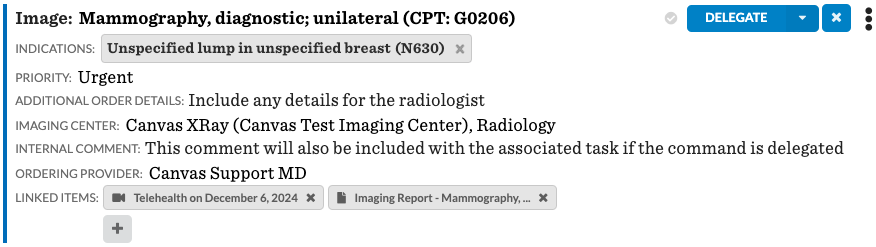
Add the Image command into a blank line within the note. The red text are required fields.
Image: Enter the imaging test (e.g., CT abdomen). Test can be searched with CPT code or free text name of test
Indications
Priority: Setting the priority of the task (if delegated).
Additional Order Details
Imaging Center
Internal Comment: Will show in linked task if the command is delegated.
Ordering Provider
Linked Items: Attach any documents that should be reviewed in relation to the order
Sending the Imaging Order
Selecting DELEGATE will pull a dropdown showing DELEGATE and ORDER IMAGING
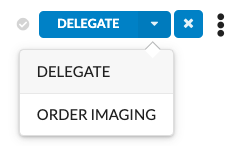
Delegate: Selecting the Delegate option creates a task for the designated team to take further action on the imaging order.
An orange PENDING badge will appear, indicating an active task. The button for this option will then update to display Order Imaging.
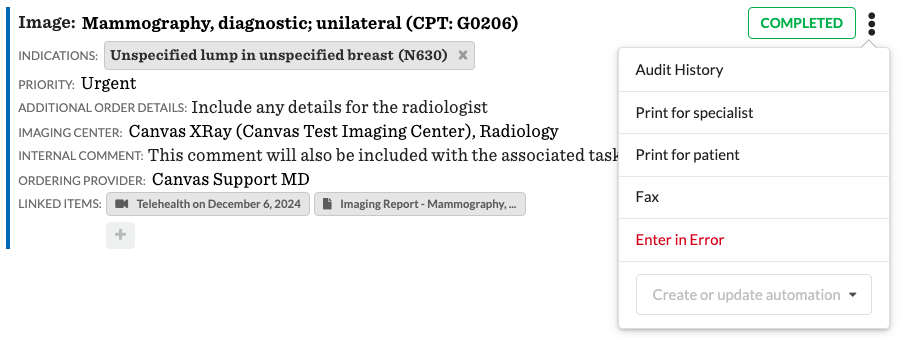
Once the associated task is complete, a green COMPLETED badge will display.
The command will remain editable until Order Imaging is clicked

This badge IS NOT an indication of if the image order was sent or not. It indicates if the task has been complete or not.
Order Imaging: Commits the command to send and no further edits can be made.
To send the order, click the triple dot menu on the command to access the multiple delivery options to suit various operational needs
Print for Specialist: Generates a printed copy of the imaging order for delivery to the imaging office.
Print for Patient: Produces a physical copy of the imaging order for the patient’s personal reference.
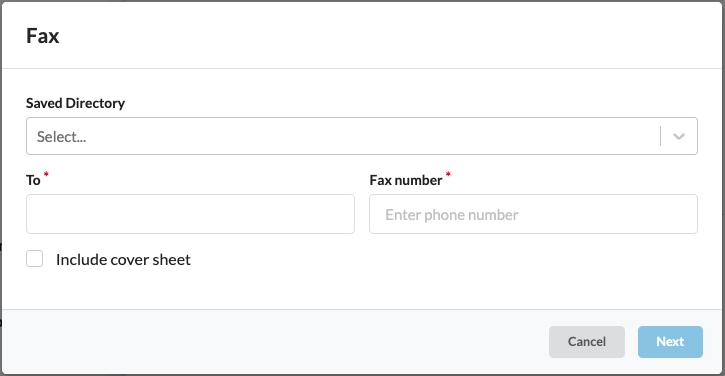
Fax: Sends the imaging order electronically to the selected imaging center via fax.
Fax information will populate automatically in the faxing modal if an imaging center is selected in the command.
FAQs
Q: Why is the Imaging Center I'm looking for not listed in the command?
A: If the desired imaging center does not appear in the dropdown menu or the saved directory, it can be added to the referral database. 📄 Managing Referral Contacts
For cases where manual entry is preferred or necessary, the imaging center information can be added as free text. Use the To field to specify the imaging center's name and the Fax number field to include the appropriate fax number. This ensures that the imaging order can still be processed even if the center is not pre-registered in the system.