How to find a patient statement
Last updated: October 19, 2026
Overview
Every statement Canvas creates for a patient is saved as a PDF, whether it was sent automatically, created one at a time, or printed in a batch. Staff can open these PDFs from the patient's profile or from a claim to see exactly what the patient received.
Before you start
You need access to Revenue in Canvas. Without it, the document menu described below is grayed out. Ask an administrator on your instance if you can't open it.
From the patient's profile
Open the patient's chart and select Profile at the top of the page.
In the billing area on the right, next to the patient's balance, select the document icon 📄.
Select Statements.
Find the statement you need and select PDF to open it.
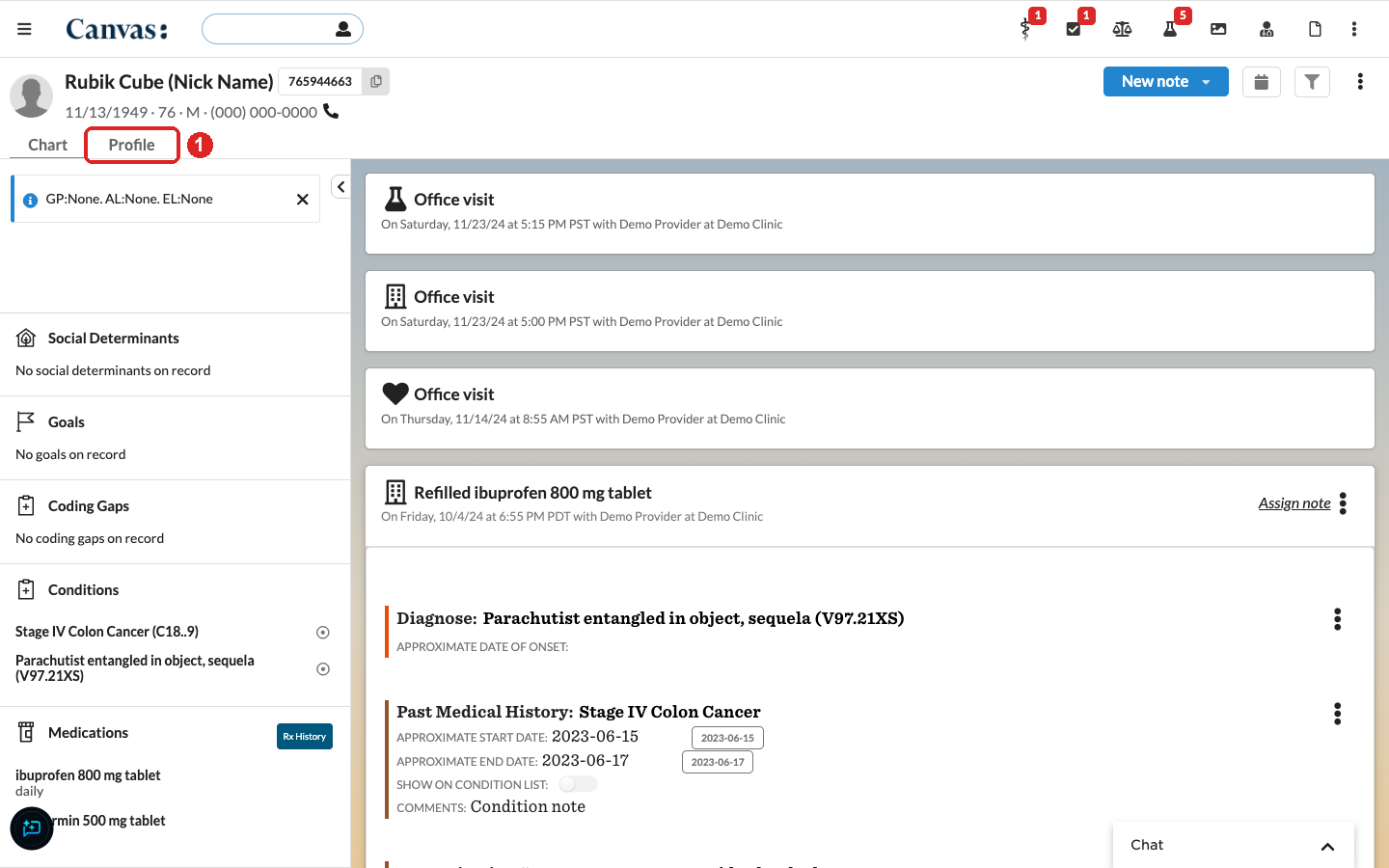
Step 1: select Profile at the top of the patient's chart.
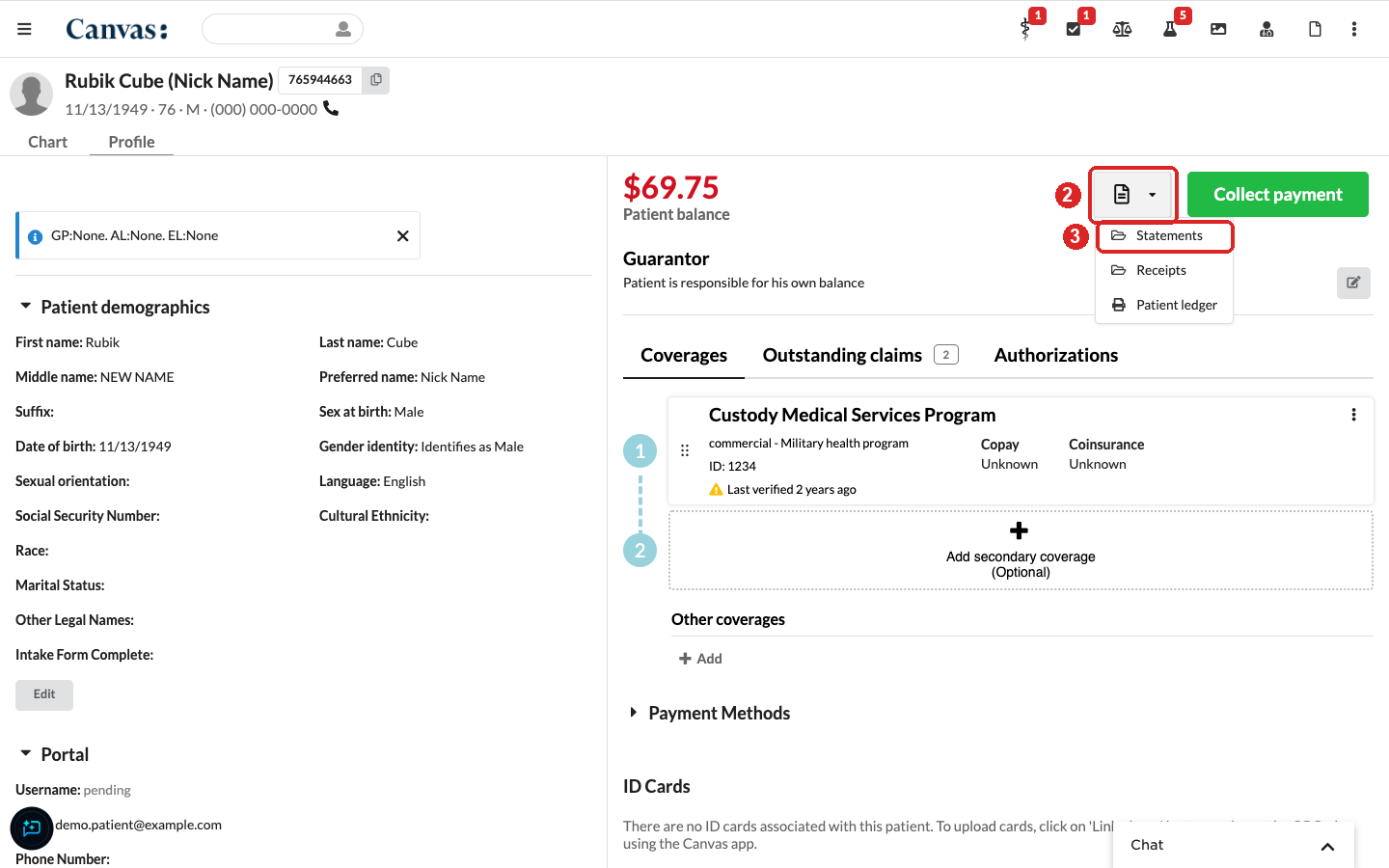
Steps 2 and 3: select the document icon next to the patient balance, then Statements.
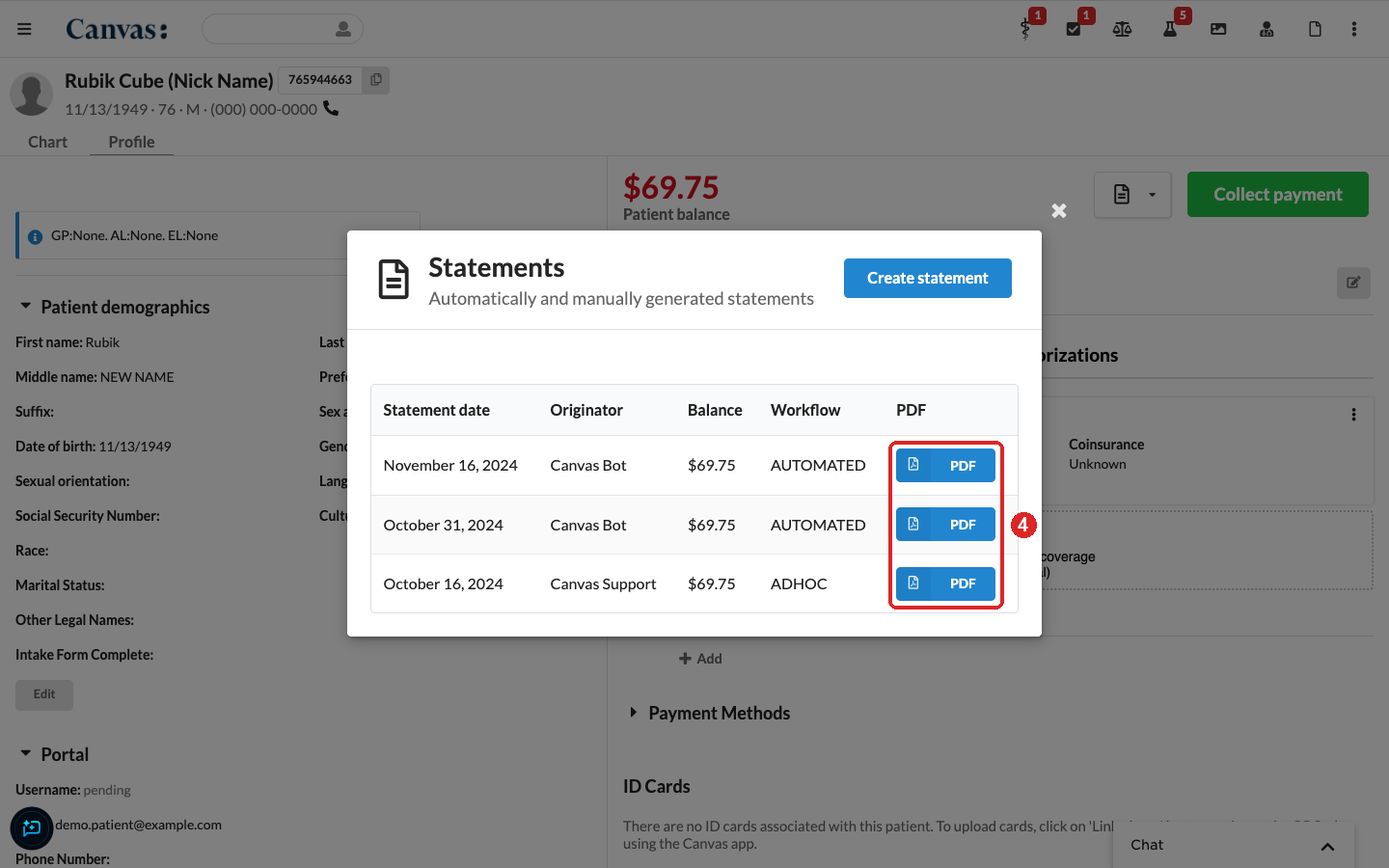
Step 4: select PDF on the statement you need.
The Statements list shows each statement with these columns:
Column | What it shows |
|---|---|
Statement date | When the statement was created. |
Originator | Who created it. Automated statements show Canvas Bot. |
Balance | The amount due on the statement. |
Workflow | How it was created: automated (sent on a schedule), adhoc (created with Create statement), or batch (printed in a statement batch). |
Opens the statement. |
From a claim
Open the claim. From the patient's profile, select Outstanding claims and then the claim, or open it from a claims queue in Revenue.
Select the document icon 📄.
Select Statements to see the statements that include this claim, then select PDF.
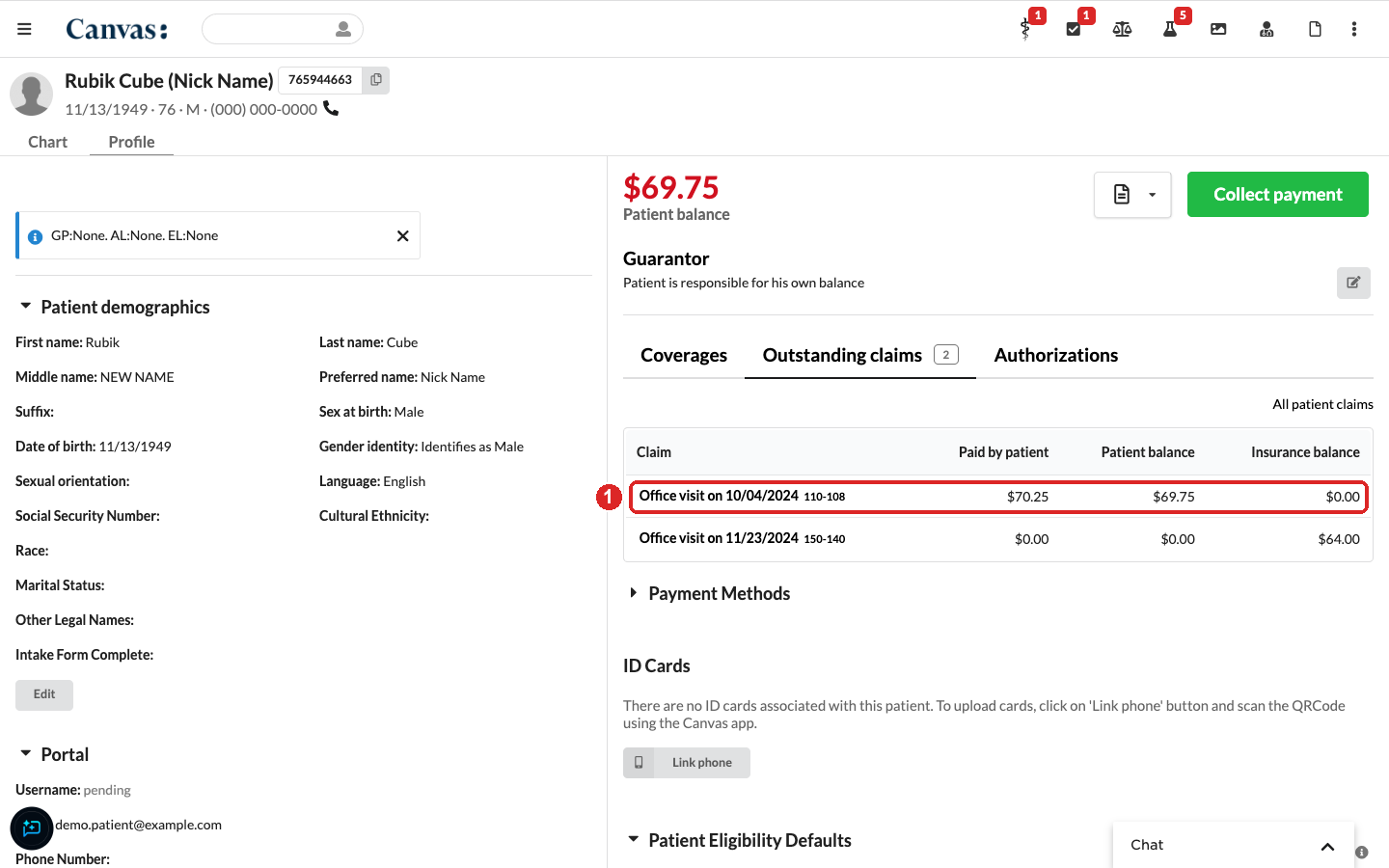
Step 1: open the claim from Outstanding claims on the patient's profile.
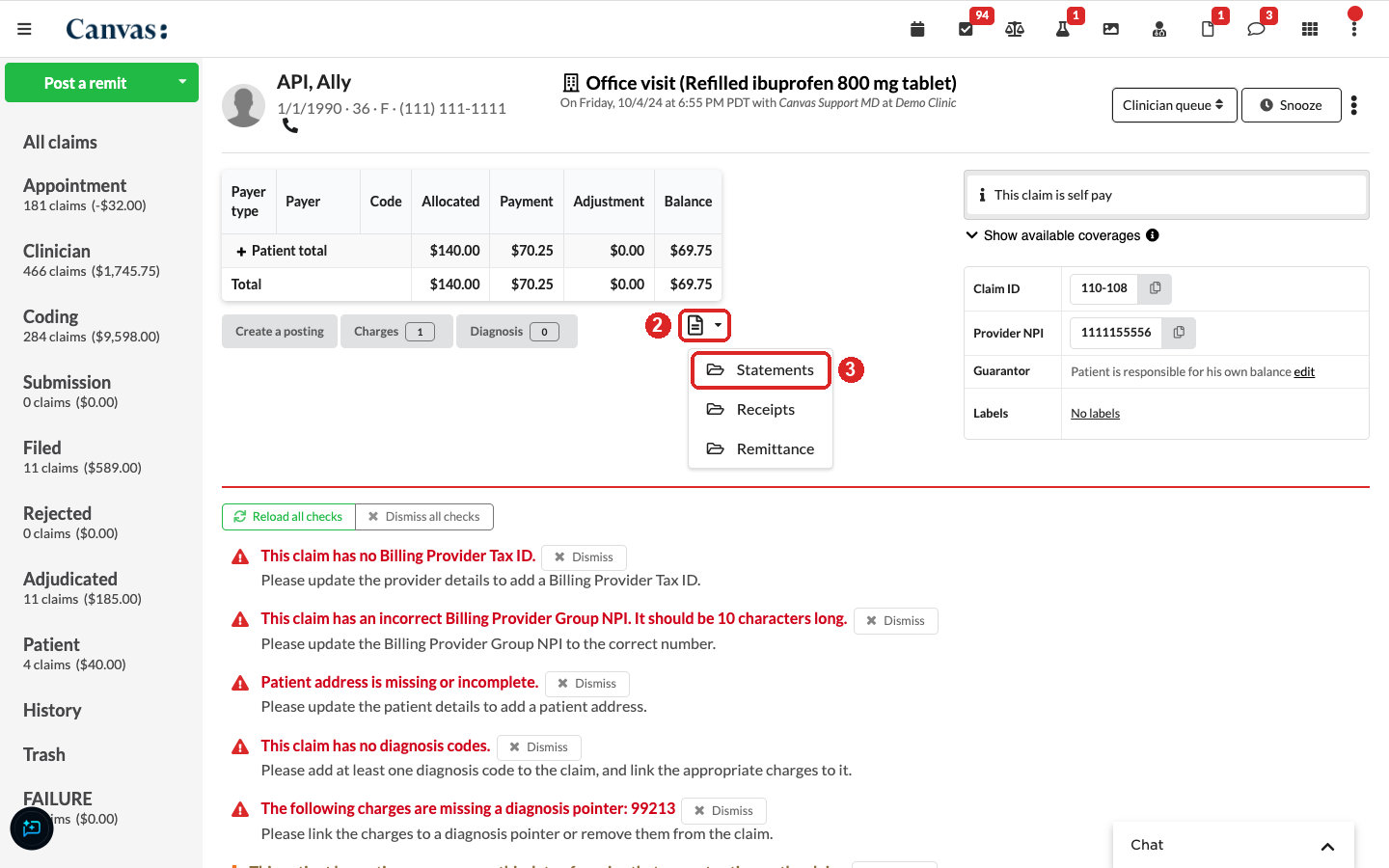
Steps 2 and 3: on the claim, select the document icon, then Statements.
Creating a new statement
To create a statement on the spot, select Create statement at the top of the Statements list. The button is available when the patient has a balance and you have permission to create statements. The new statement appears in the list with the workflow adhoc.
Things to know
The list shows that a statement was created, not whether it was emailed or mailed.
A statement that could not be sent, for example because the patient has no valid mailing address, does not appear in this list. Your Canvas team can set up a daily tracking report that shows each statement Canvas attempted, how it was sent, and any delivery error.