How to find a receipt for a patient payment
Last updated: October 19, 2026
Overview
Canvas creates a receipt for each patient payment, such as a copay or a balance payment. Staff can open a patient's receipts from the patient's profile or from a claim, and print or save them as PDFs.
Before you start
You need access to Revenue in Canvas. Without it, the document menu described below is grayed out. Ask an administrator on your instance if you can't open it.
From the patient's profile
Open the patient's chart and select Profile at the top of the page.
In the billing area on the right, next to the patient's balance, select the document icon 📄.
Select Receipts.
Find the receipt you need and select PDF to open it in a new tab. Some receipts show Print instead, which opens a print preview where you can print the receipt or save it as a PDF.
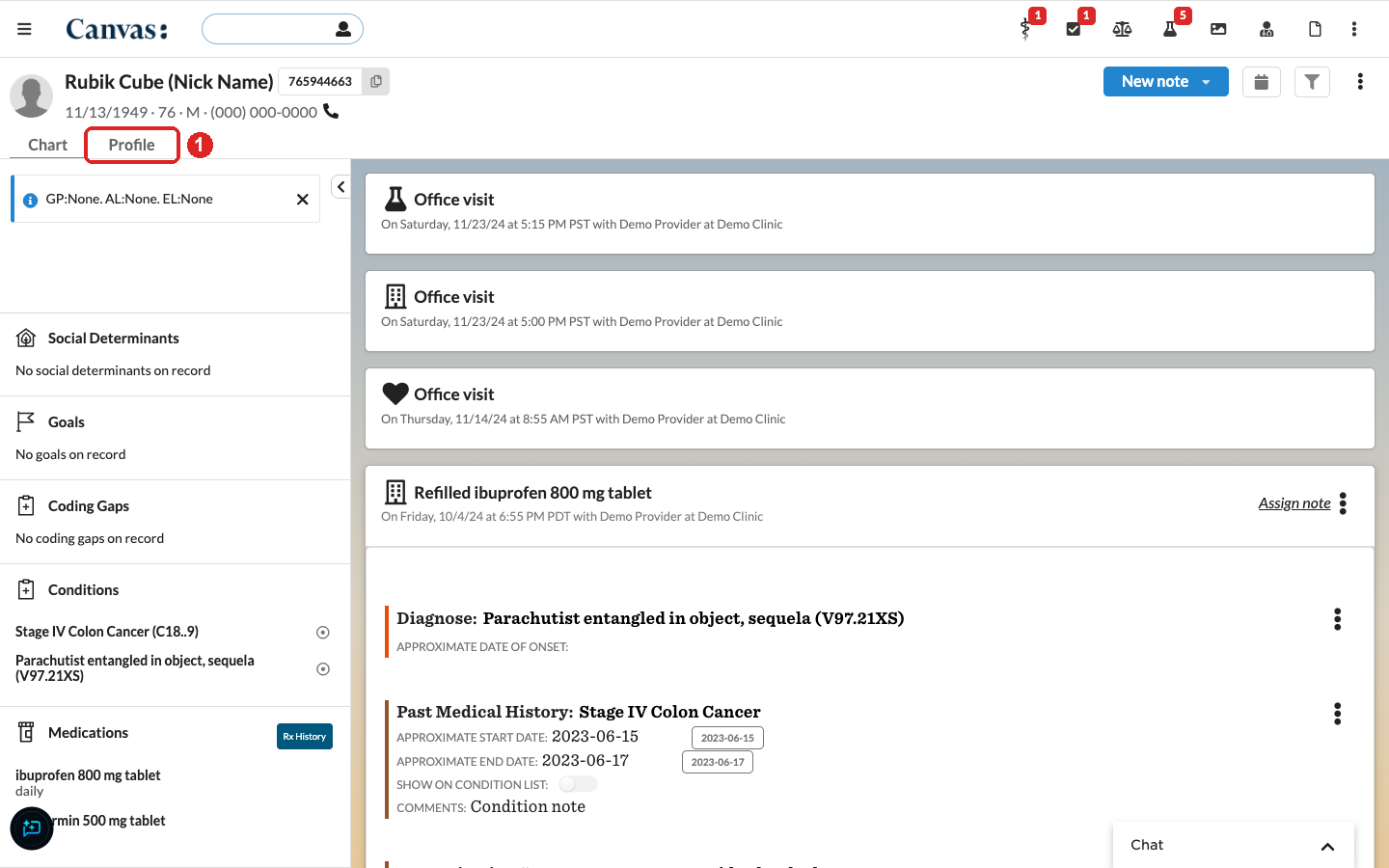
Step 1: select Profile at the top of the patient's chart.
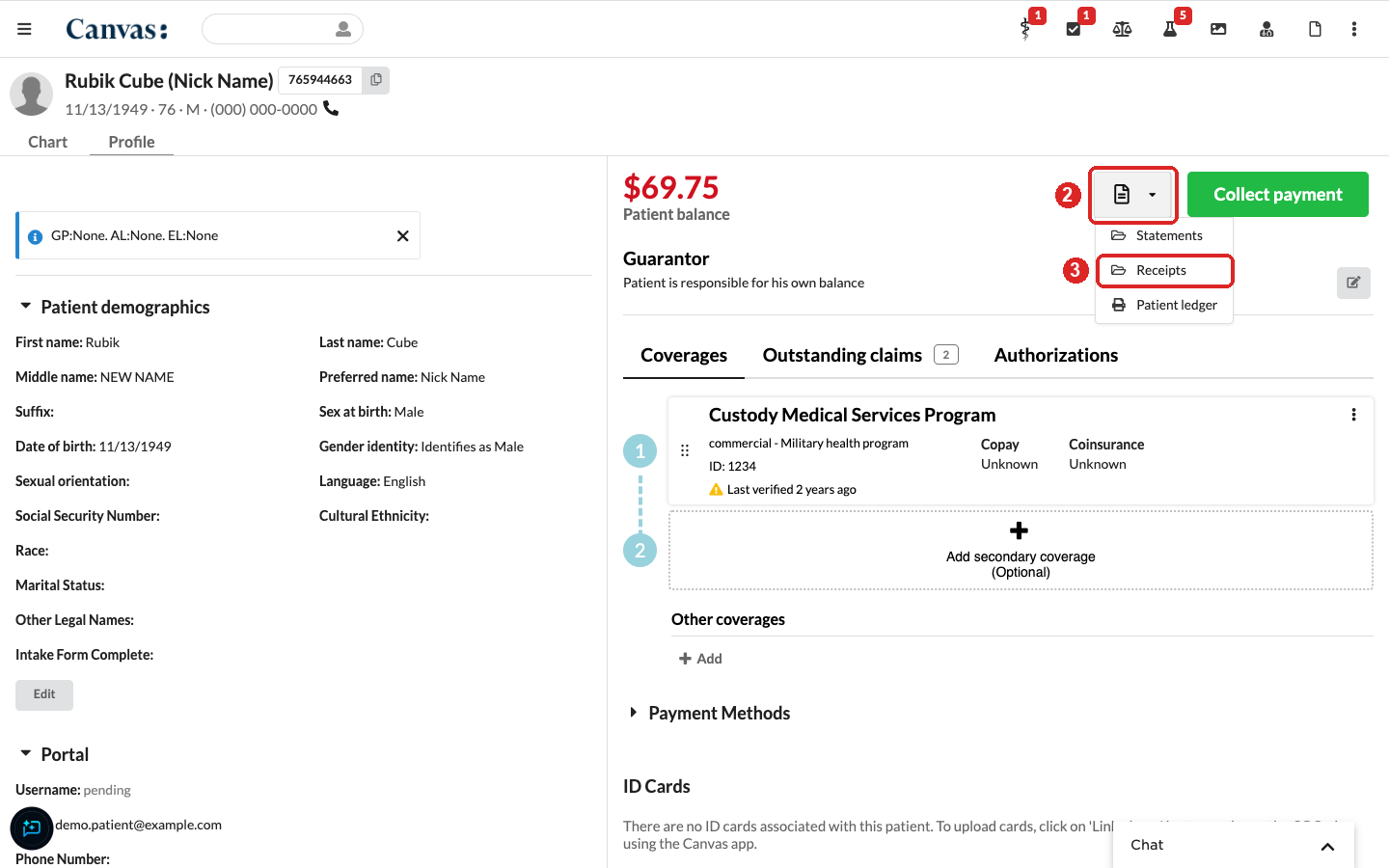
Steps 2 and 3: select the document icon next to the patient balance, then Receipts.
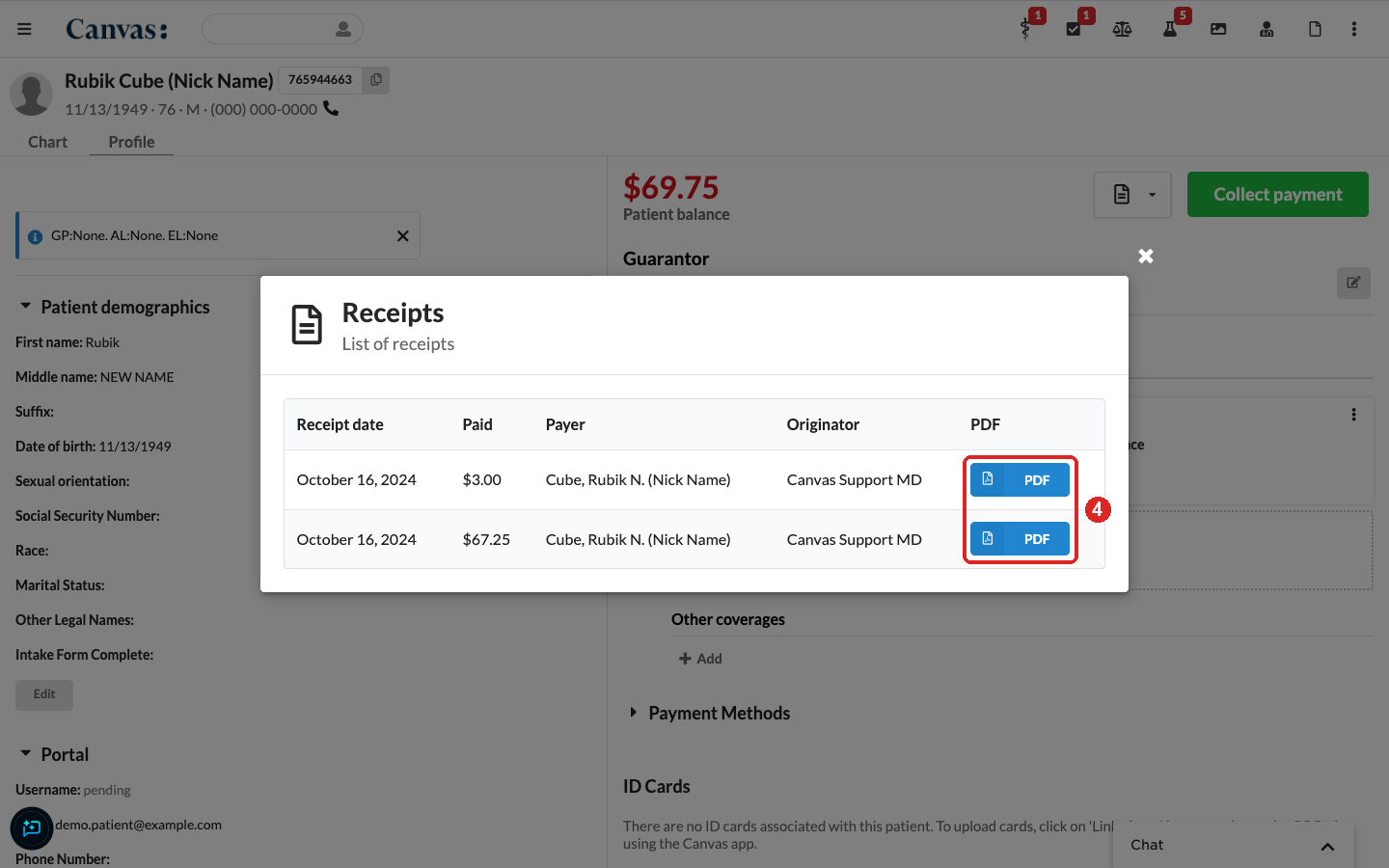
Step 4: select PDF on the receipt you need.
The Receipts list shows the most recent receipts first, with these columns:
Column | What it shows |
|---|---|
Receipt date | When the payment was recorded. |
Paid | The total amount collected. |
Payer | The person who paid. This can be a guarantor rather than the patient. |
Originator | The staff member who recorded the payment, or the patient if they paid through the patient portal. |
Opens or prints the receipt. |
From a claim
Open the claim. From the patient's profile, select Outstanding claims and then the claim, or open it from a claims queue in Revenue.
Select the document icon 📄.
Select Receipts to see the payments applied to this claim, then select PDF or Print.
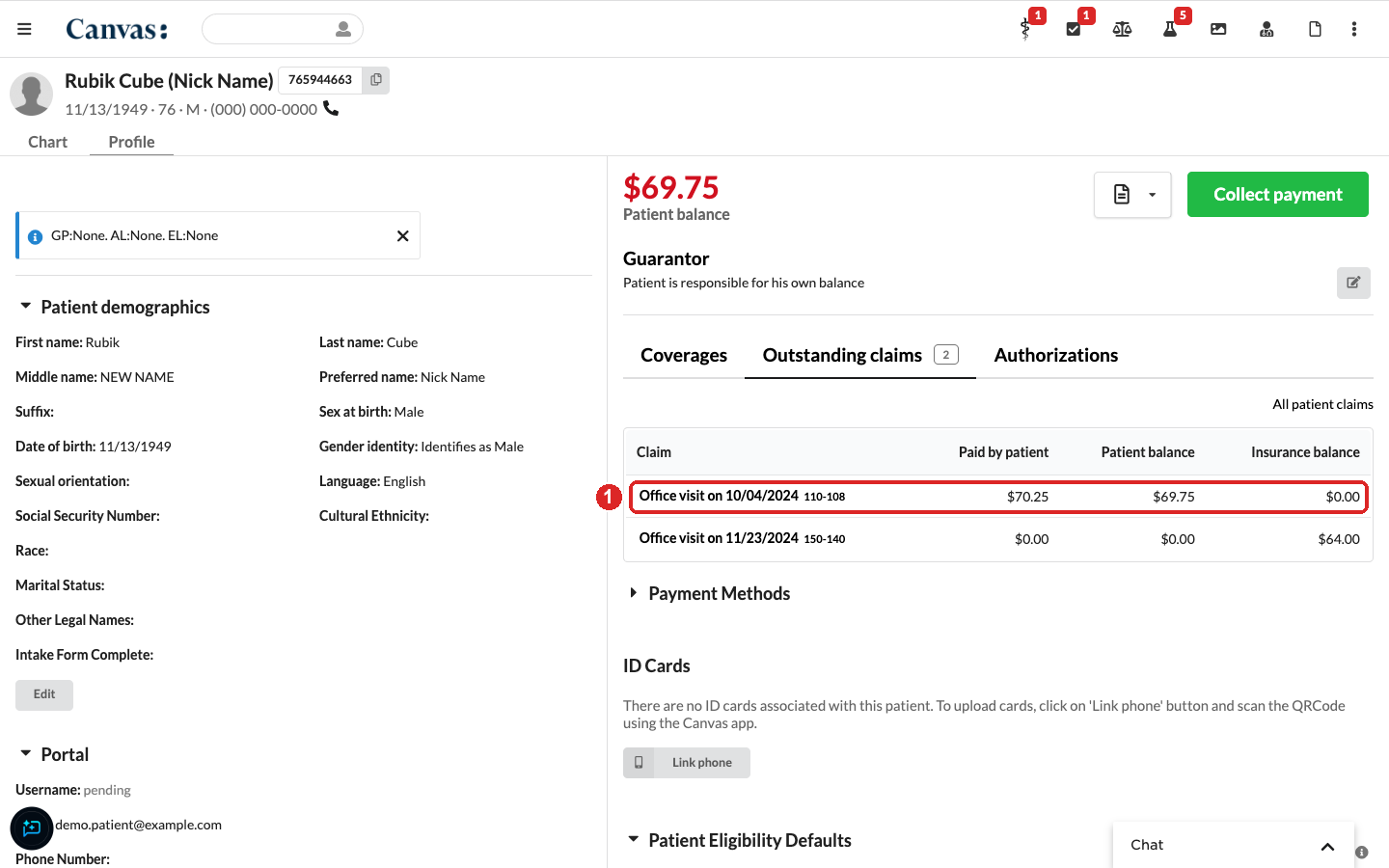
Step 1: open the claim from Outstanding claims on the patient's profile.
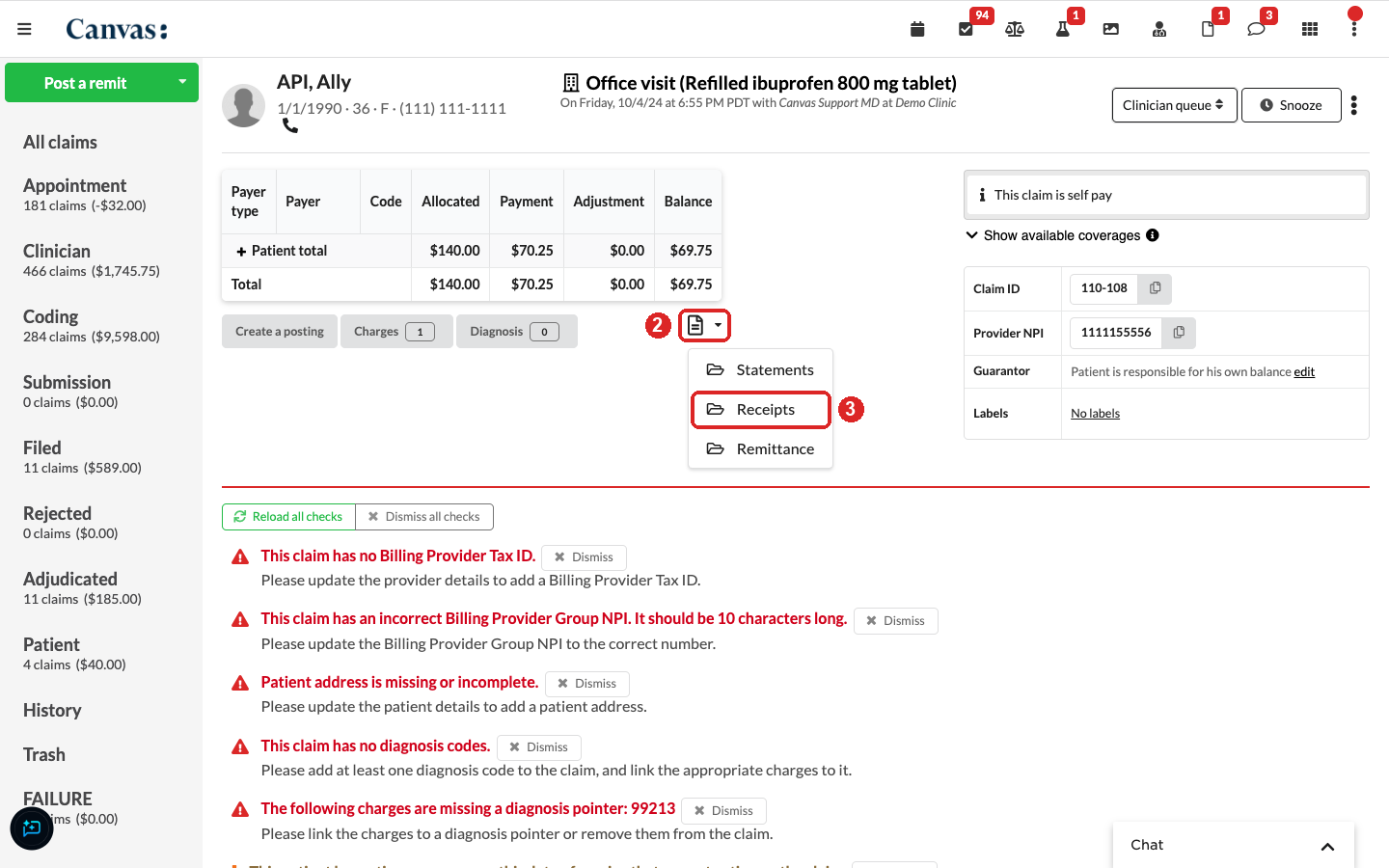
Steps 2 and 3: on the claim, select the document icon, then Receipts.