Canvas Instances
Last updated: November 5, 2026
Canvas Platform gives you a central place to monitor your Canvas instances, compare configurations, and promote changes from lower to higher environments.
The Deploy manager role is required to promote configuration or manage integration credentials.
View All Instances
Go to Canvas Instances → All instances in the sidebar. Each instance is also listed individually, with a colored dot indicating its health.
The All instances page includes:
Section | What it shows |
|---|---|
Summary tiles | Total production and pre-production instances, completed and pending promotions, plugins with drift, and Canvas releases in use. |
All instances | Each instance's stage, release, plugin count, staff count, and health. Click an instance name to open it. |
What is installed where | A matrix of plugins and their installed versions across instances. Amber indicates a version behind the newest one running in your organization. A dot indicates the plugin isn't installed. |
Filter the plugin matrix using Drift only, Production only, the Plugin search field, or the filter icon to select which instances appear.
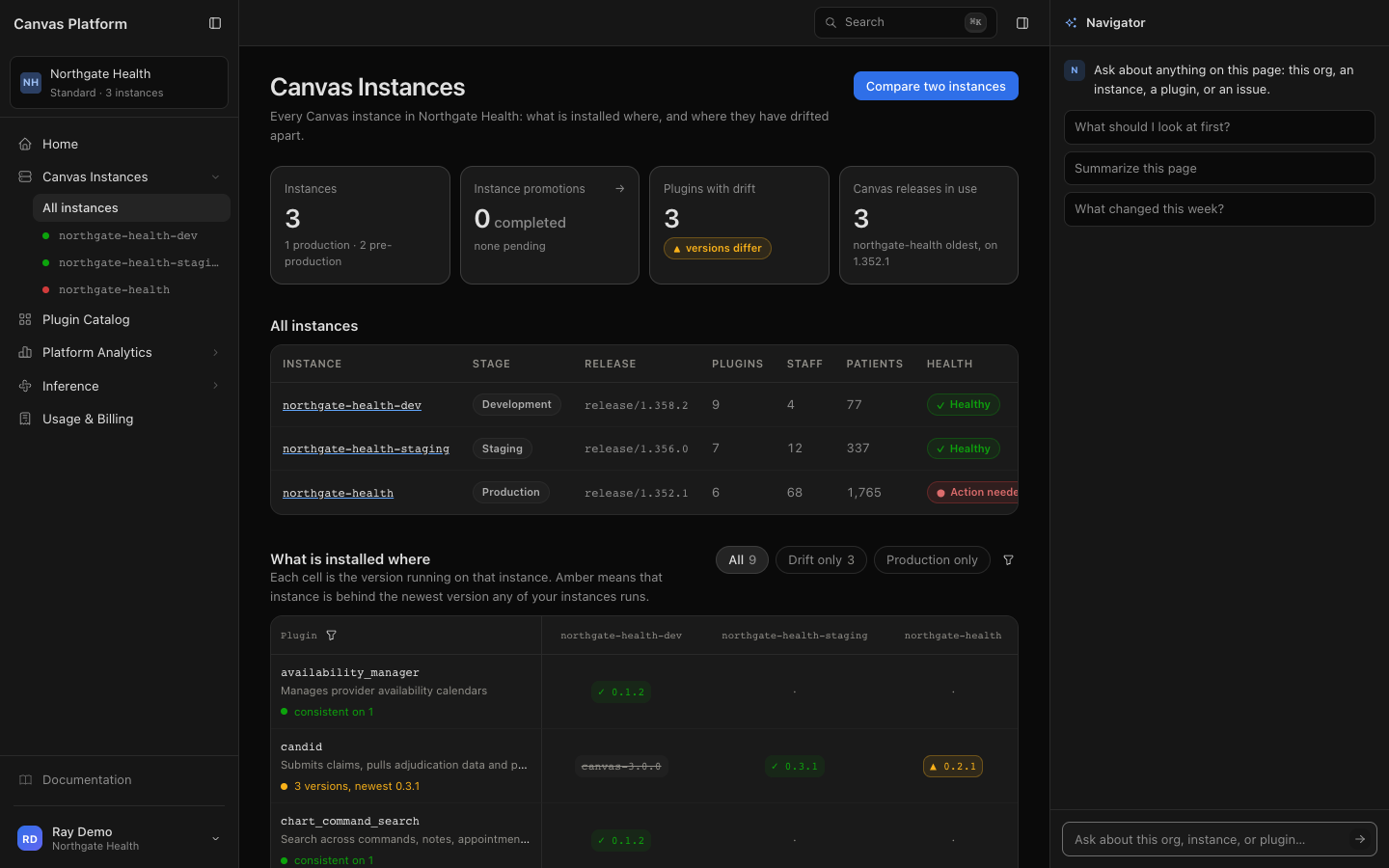
The date beside All instances shows when the data was last retrieved. Opening the page refreshes data if the previous reading is at least 15 minutes old, up to 12 times a day per instance.
View Instance Details
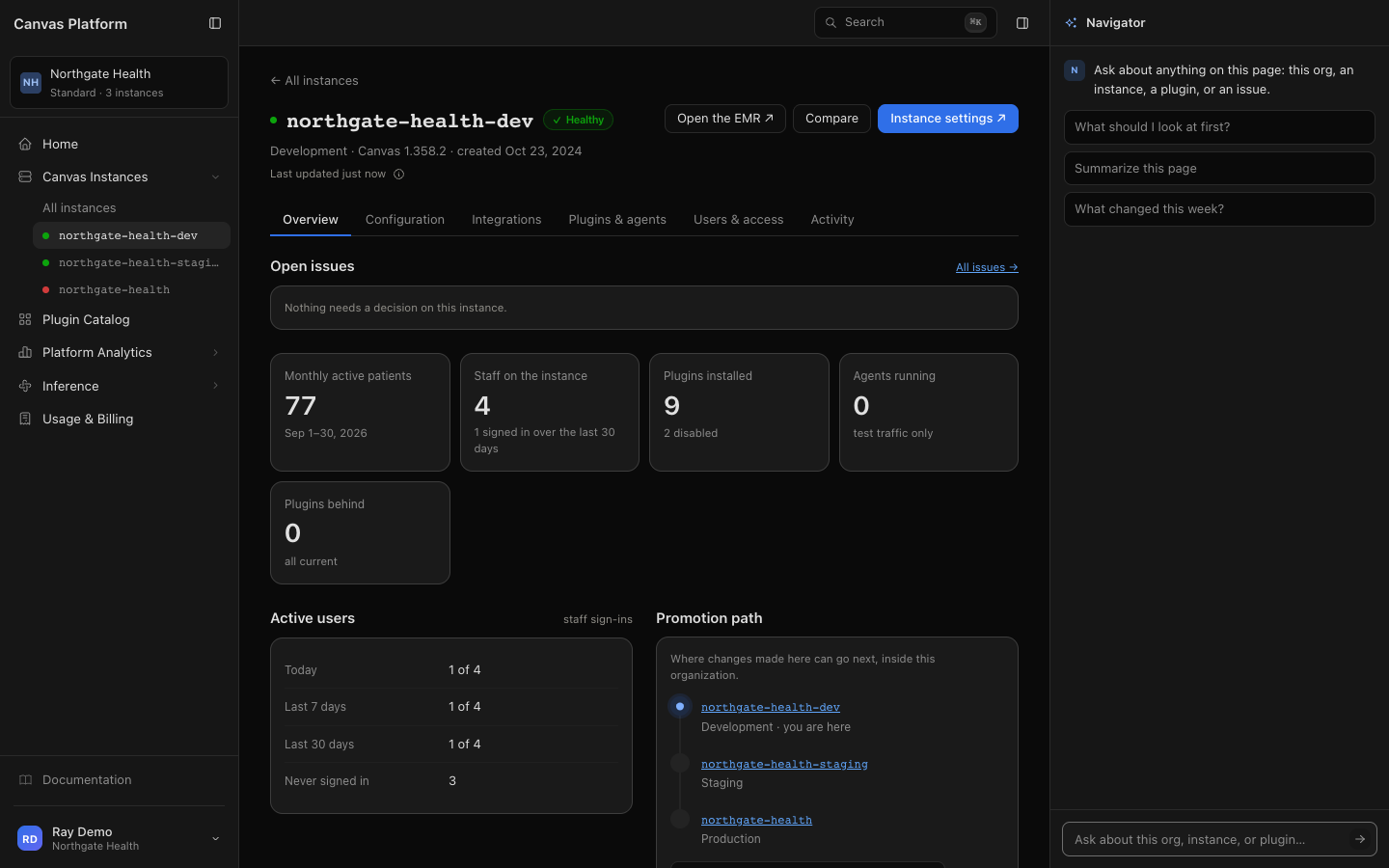
Select an instance to view its health, stage, Canvas release, and creation date.
Use Open the EMR or Instance settings to open the corresponding page in a new tab.
Tab | What you'll find |
|---|---|
Overview | Open issues, monthly active patients, staff, installed plugins, running agents, plugins behind, active users (staff sign-ins), and promotion path. |
Configuration | EMR configuration records used in comparisons and promotions. View-only; edit them in instance settings. |
Integrations | Integration status and setup options. Canvas manages regulated connections (level 1); your team configures the remaining integrations (level 2). |
Plugins & agents | Installed plugins, maintainers, current and newest deployed versions, and effects and errors from the last 30 days. |
Users & access | A note with an Open instance settings link. Staff accounts, roles, and sign-in are managed in the EMR admin. |
Activity | Note volume and staff sign-ins over 24 hours, 7 days, 30 days, or 12 months. View charts or tables and select Download CSV to export. |
Understand Instance Health
Status | Meaning |
|---|---|
Healthy | The healthcheck passes, and the instance is running its deployed release. |
Degraded | The running release differs from the deployed release, indicating a pending or failed release. |
Action needed | The healthcheck failed or the instance is in an error state. A banner explains the issue. |
Not checked | No healthcheck result is available, or the instance is still being set up. |
Manage Integration Credentials
Deploy managers can configure credentials directly from the Integrations tab.
Click Set up, Finish setup, Fix key, or Replace keys, depending on the integration's status.
Enter only the credentials you want to update. Each field indicates what the instance currently holds.
Click Set on [instance name] to save.
Entered credentials are not displayed again. Changes are recorded as promotions.
Compare Two Instances
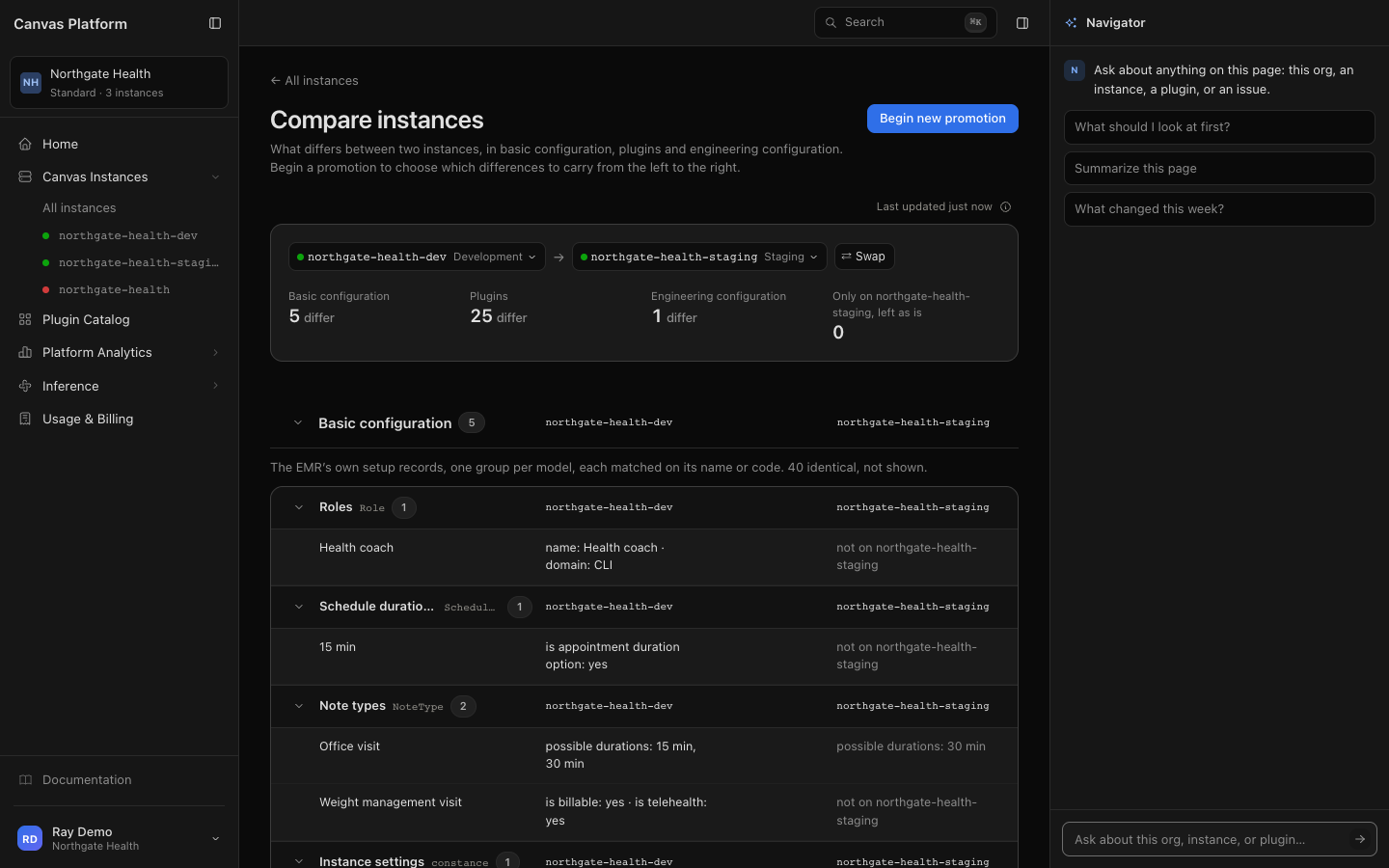
Compare instances to identify differences in configuration, plugins, and engineering settings.
Open Compare. Click Compare two instances from All instances or Compare on an instance's page.
Select your instances. Choose one on each side. If you plan to promote changes, place the lower instance on the left. Use Swap to reverse them.
Review differences. Select the summary counts to jump between Basic configuration, Plugins, and Engineering configuration.
Each difference shows what the right-hand instance needs to match the left. Items found only on the right are counted separately and remain unchanged.
Promote Configuration
Promotions let you apply selected configuration changes from a lower instance to a higher one, following this sequence:
Sandbox → Development → Staging → Production
You need the Deploy manager role on the destination instance.
Compare instances. Place the lower instance on the left and the destination on the right.
Start a promotion. Click Begin new promotion. If disabled, hover over the button to see why.
Select changes. Check the differences to promote. Enter any destination-specific values, such as secrets, when prompted. Your selections save automatically, so you can choose Finish later.
Review and apply. Click Apply [number] changes to review the summary. If a plugin requests access to another plugin's custom data, select the checkbox to allow it. Then click Apply to [instance name].
Before applying:
Canvas Platform checks both instances again. If either has changed since the promotion began, the promotion stops.
Changes to production take effect immediately when applied.
Each change is recorded under your name in your organization's audit log.
Important: Promotions only create or update configuration. Items that exist exclusively on the destination instance are not deleted.
Track Instance Promotions
From All instances, click the Instance promotions tile to view promotion history.
Status | What it means |
|---|---|
Pending | Started but not applied. Click to resume. |
Completed | Applied promotion showing changes, who applied them, when, and whether writes succeeded. Use Retry failed if any writes failed. |
Abandoned | Canceled before changes were written. Cannot be reopened. |
Anyone with access to Canvas Instances can view promotions. Only Deploy managers can start, edit, apply, or abandon them.
Note: To publish a Studio project to an instance, use Studio.
Frequently Asked Questions
Why can't I see Canvas Instances?
Your assigned roles may not include access. Publisher, Billing admin, Studio, and Onboarding roles do not provide instance access. Ask an Organization admin to assign Read-only or another eligible role.
Why is Begin new promotion disabled?
Hover over the button for details. A promotion requires:
The lower instance on the left
Two instances at different stages, each with a stage assigned
At least one difference to promote
Deploy manager access to the destination instance
What if my pending promotion says the data is stale?
One of the instances changed after the promotion started. Abandon the promotion and create a new one from an updated comparison.
How current is instance data?
Each page shows when its data was last retrieved. Opening a page refreshes data if the previous reading is at least 15 minutes old, up to 12 times a day per instance. Every instance is also checked at least once every six hours.
Can I edit an instance's configuration in Canvas Platform?
The Configuration tab is view-only. Make changes through the instance's settings or promote configuration from another instance.
In Platform you can view every Canvas instance your organization runs, compare two instances, and promote configuration from a lower instance to a higher one.