Platform: Users and Roles
Last updated: October 30, 2026
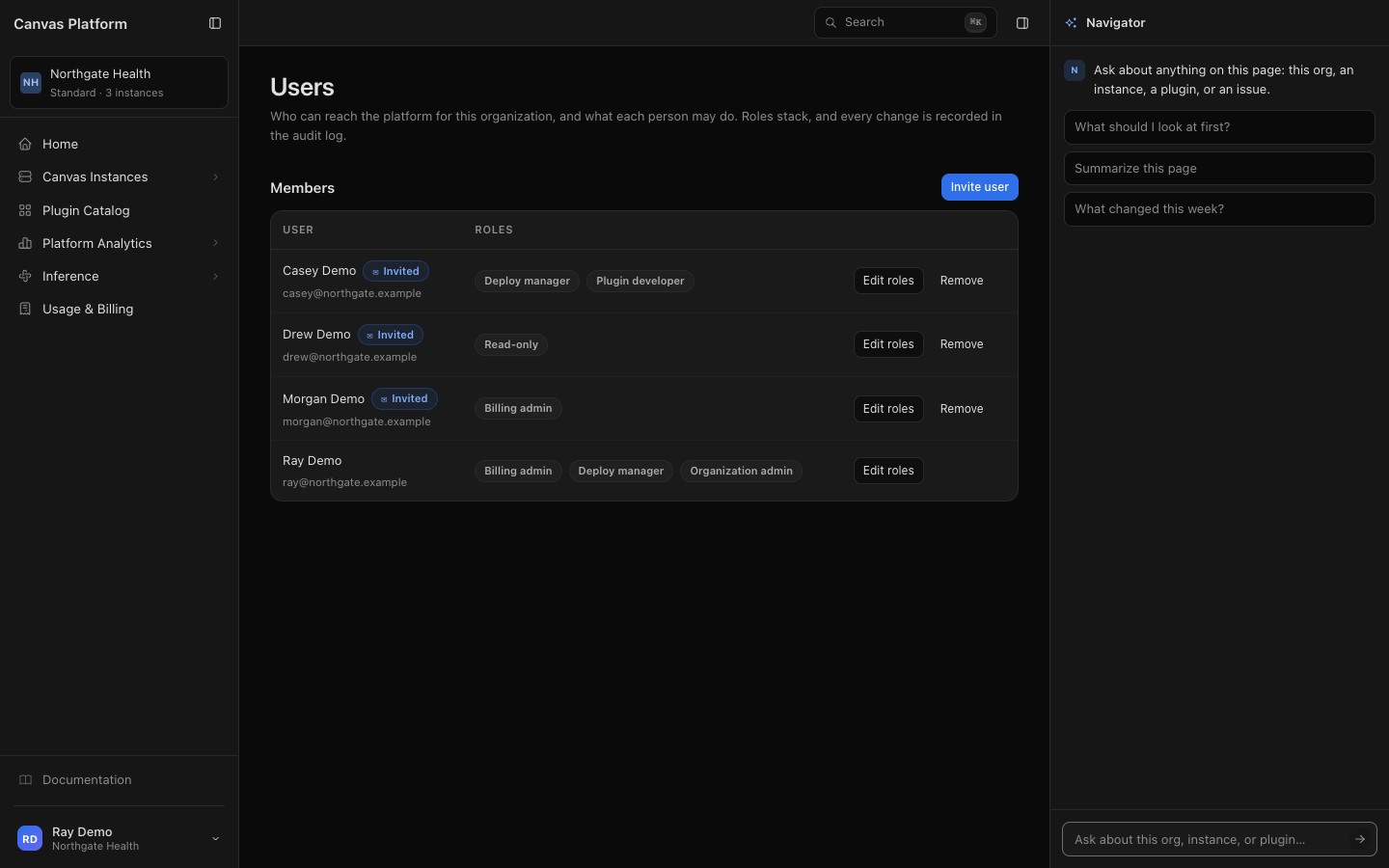
Your roles decide what you can see and do in Canvas Platform. Each person can hold several roles and only an Organization admin on your team can manage users and assign roles from the Users page in Canvas Platform.
How to Invite Someone
Open Users. Click your name at the bottom of the sidebar, then Users.
Start the invitation. Click Invite user.
Enter their details. Add their Email, First name and Last name.
Choose their roles. Pick one or more roles. See The Roles below for what each one allows.
Send it. They get an email. If their address is on a domain your organization signs in to through single sign-on, they sign in there. Anyone else chooses a password from the link.
They show as Invited on the Users page until they sign in for the first time.
💡 If an Organization admin has turned on Managed by your identity provider (under Organization → Provisioning), inviting is off: add people in your identity provider instead. People your provider added are also removed there, and they lose access to Canvas Platform the next time your provider sends its changes.
How to Change Someone's Roles
Open Users. Click your name at the bottom of the sidebar, then Users.
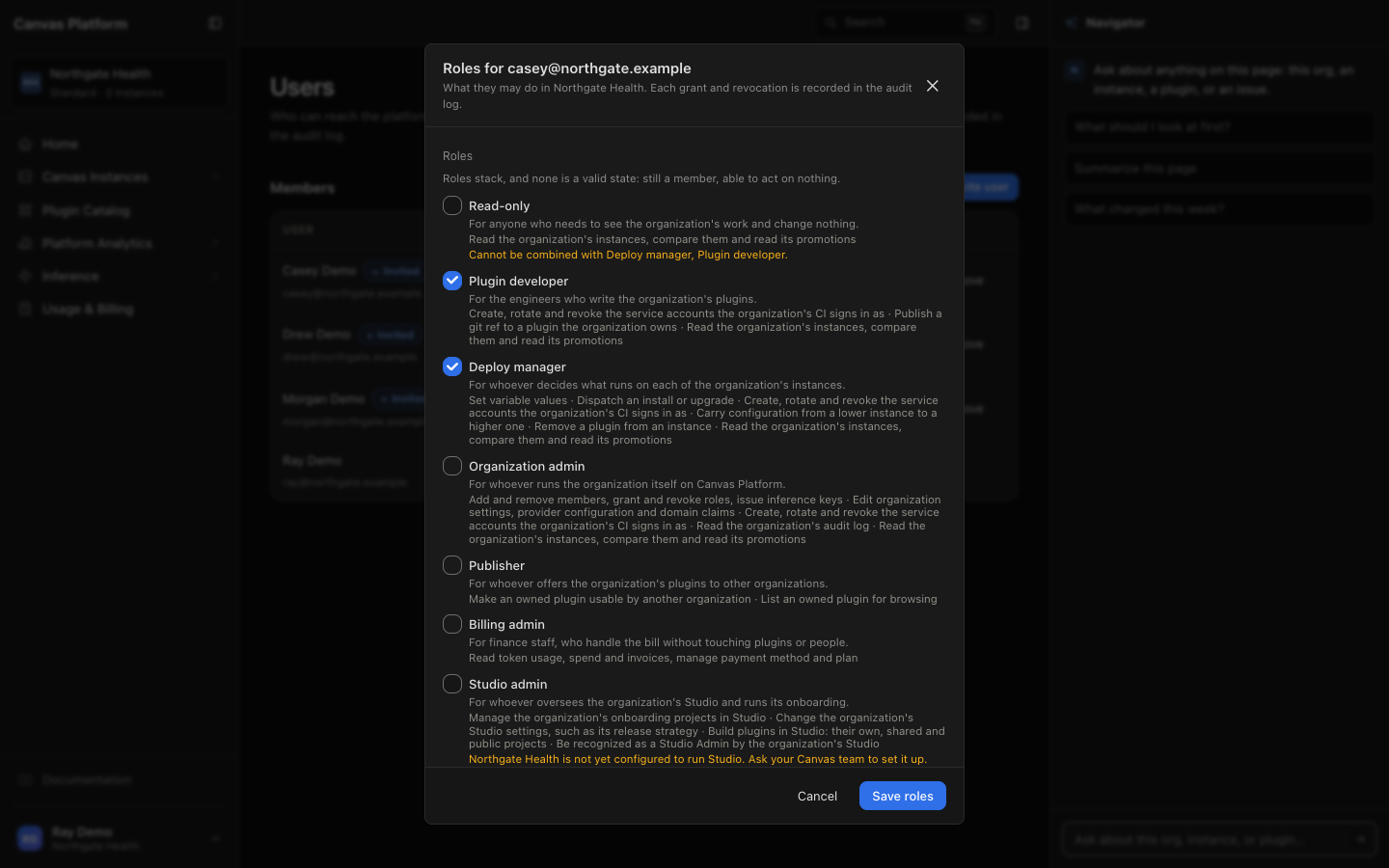
Edit their roles. Click Edit roles beside the person.
Check or clear roles. A person with no roles stays in your organization but can't do anything until you give them one.
Save. Click Save roles. Every change is recorded in your organization's audit log.
How to Remove Someone
Click Remove beside the person on the Users page. You can't remove yourself, so your organization always keeps at least one admin.
How Roles Work
Roles are cumulative. Users receive the combined permissions of all their assigned roles.
Read-only access is separate. All other roles include access to view your organization's plugins and configuration. The Read-only role cannot be combined with other roles.
Studio roles require setup. Studio user, Studio admin, and Onboarding admin roles are available only after Canvas has configured Studio for your organization. When assigning one of these roles, you must link the user to an existing staff member in your Canvas EMR.
Service accounts have limited roles. Service accounts used for automation can only be assigned the Plugin developer or Deploy manager role.
The Roles
Role | Who it's for | What it lets you do |
|---|---|---|
Read-only | Anyone who needs to see the organization's work and change nothing | See plugins, configuration and instances. Compare instances and read promotions. |
Plugin developer | The engineers who write the organization's plugins | Everything Read-only can, plus push plugin code and manage service accounts |
Deploy manager | Whoever decides what runs on each of the organization's instances | Everything Read-only can, plus install, upgrade, configure and remove plugins, promote configuration between instances, approve plugin access, and manage service accounts |
Organization admin | Whoever runs the organization itself on Canvas Platform | Everything Read-only can, plus organization settings, single sign-on, people and roles, inference keys, and service accounts |
Publisher | Whoever offers the organization's plugins to other organizations | List the organization's plugins in the Plugin Catalog and make them available to other organizations |
Billing admin | Finance staff, who handle the bill without touching plugins or people | See usage, spend and invoices, and manage the payment method |
Studio admin | Whoever oversees the organization's Studio and runs its onboarding | Build in Studio, see every Studio project, change Studio settings, and run onboarding |
Studio user | Clinical and operations staff who build in Studio without writing plugin code | Build in Studio |
Onboarding admin | The implementation lead, who runs onboarding without building in Studio | Run onboarding |
💡 Deploying and approving belong to Deploy manager, not Organization admin. If an Organization admin also deploys plugins, give them both roles.
FAQ
Why can't I give someone Read-only and another role?
Every role already lets a person see your organization's plugins and configuration, so Read-only alongside another role adds nothing. Choose Read-only on its own, or leave it out.
Why can't I give someone a Studio role?
Canvas hasn't set up Studio for your organization yet. Contact your Canvas team.
Who can change my roles?
An Organization admin on your team. If your organization doesn't have one yet, contact your Canvas team.
Someone never got their invitation. What should I check?
Check that the email address is spelled correctly on the Users page. If their address is on a domain your organization signs in to through single sign-on, they don't need the email: they can sign in through your identity provider, and their Home page shows the invitation. Their roles apply once they click Accept.
Next: What Is Canvas Platform