Processing Claims with Candid
Last updated: July 2, 2026
Canvas and Candid support a streamlined API integration for claim and payment sharing. This article covers what the Candid integration includes, how to prepare and submit claims, how Canvas updates claims after Candid adjudicates them, how patient payments are shared, and how to monitor Candid activity in Canvas.
Before Candid is Enabled
Make sure the following are in place before claim processing to Candid is enabled:
All organization, practice location, and provider addresses use a 9-digit zip+4 format — for example, 12345-6789
Each practice location has a Tax ID and billing address configured, or Bill Through Organization is enabled with a Tax ID at the organization level
Hold any claims you plan on processing through Candid in the Coding revenue queue
What's Included in This Integration
The Candid integration focuses on claim submission, claim status updates, adjudication updates, and payment sharing between Canvas and Candid.
Real-time claim submission: When a claim is moved to the Submission Queue, Canvas automatically sends it to Candid via API 60 seconds after the move. The 60-second delay gives users time to undo the action if it was accidental.
Automatic queue movement: Canvas moves the claim to the appropriate queue based on whether the submission was successful, requires changes, or has been adjudicated.
Claim status updates: Once Candid receives a claim, users can monitor its status directly in Canvas without needing to log into Candid.
Adjudication sync: Canvas retrieves insurance payment data from Candid and updates the claim to reflect its finalized state.
Patient payment reporting: When a patient payment is collected in Canvas, that information is sent to Candid via API.
Patient payment sync: Payments recorded in Candid can be pulled back into Canvas during sync.
Moving Claims to the Submission Queue
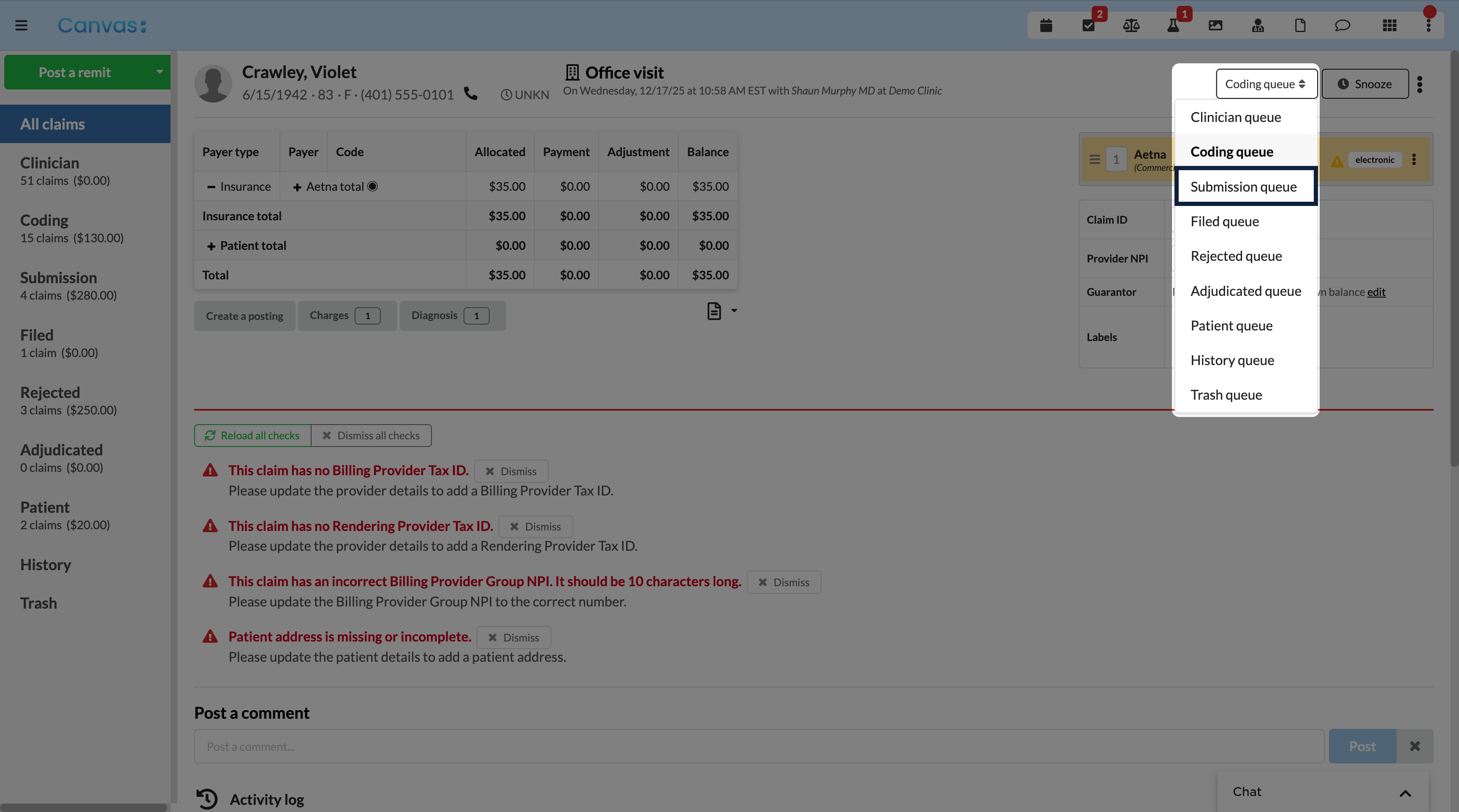
Moving an individual claim
Navigate to the claim.
In the upper right of the claim heading, locate the claim's current queue.
Click the queue name to open the dropdown of all revenue queues.
Select Submission Queue to complete the transfer.
Batch moving claims
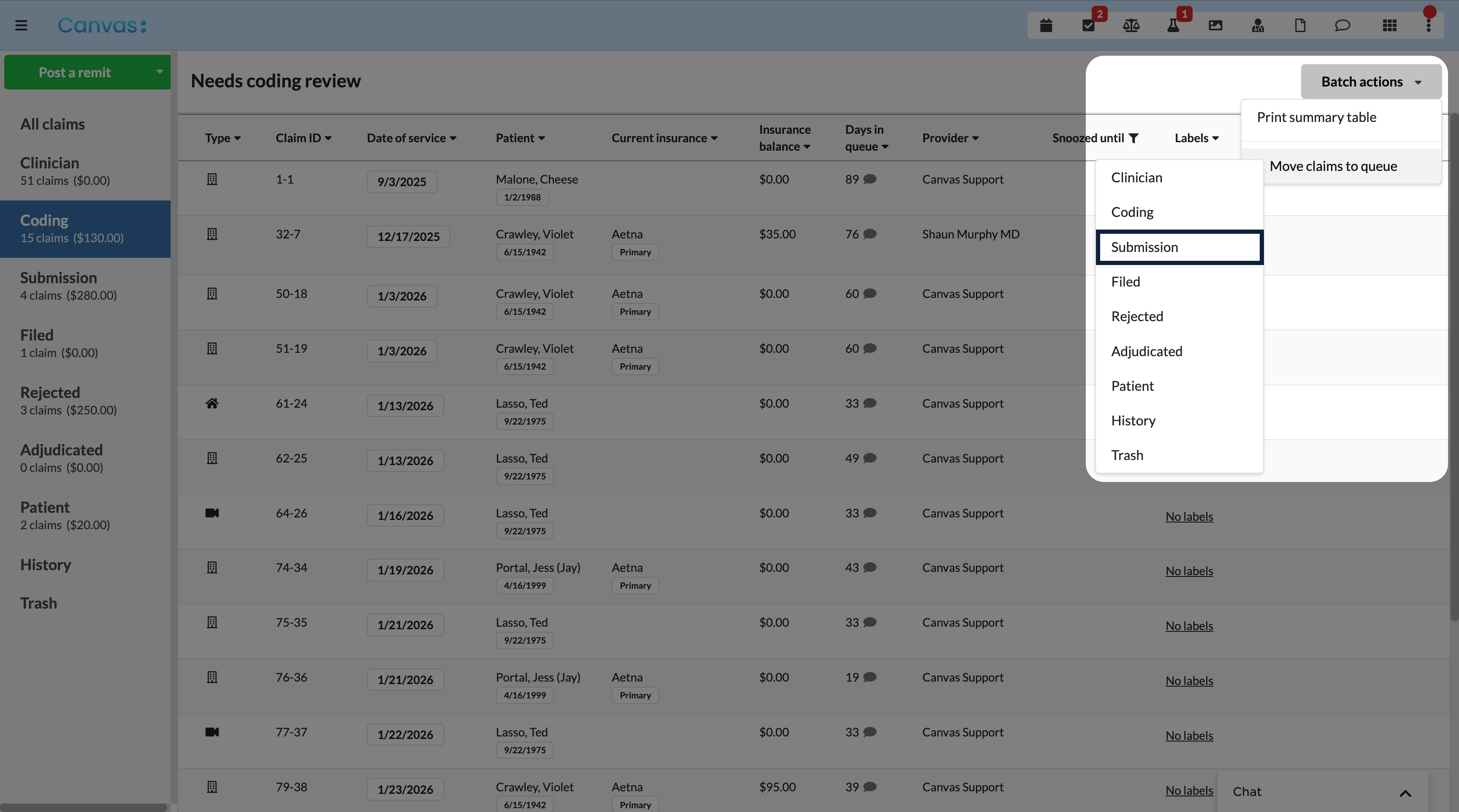
Navigate to the Coding Queue in the Revenue view.
Apply any necessary filters to target specific claims — for example, claims for a specific provider.
In the upper right, click Batch Actions to open the dropdown.
Click Move claims to queue.
Select Submission Queue — the claims will transfer immediately.
Accidentally moved a claim? You have 60 seconds to undo it. An option to revert the move will appear immediately after moving a claim or batch of claims. Once that window closes, the claim will need to be worked from whichever queue it landed in.
What Happens After a Claim Reaches the Submission Queue
60 seconds after a claim lands in the Submission Queue, Canvas sends it to Candid via API.
On success: The claim moves to the filed queue, a comment is added to the claim activity, and a Candid status banner appears.
On failure: The claim moves back to the coding review workflow with an error comment explaining what went wrong. Make the necessary changes and move the claim back to the Submission Queue when ready.
The goal is for your Submission Queue to be at zero at the end of every day — giving your team a clear picture of what Candid is working on and what still needs attention.
Claims with 13+ diagnosis codes
CMS-1500 forms limit claims to 12 diagnosis codes per encounter. If your claim has more than 12 diagnosis codes, the integration can split it into multiple Candid encounters. You'll see a comment noting that the claim was submitted across multiple encounters. No action is required.
Making changes to a filed claim
If changes are needed after a claim has been filed, make them directly with Candid when possible. You can still update the claim in Canvas to keep your records aligned.
If a filed claim is returned to the Submission Queue after adjustments and Candid already has the claim on file, Candid may return a 422 EncounterExternalIdUniquenessError. This happens because Candid cannot accept a duplicate submission for an encounter it already has on file.

Adjudication Sync
Canvas checks for new insurance payment data from Candid on a nightly schedule. When new ERA (Electronic Remittance Advice) data is found:
Insurance payments are posted to the claim with the appropriate CARC codes.
If the remaining balance is the patient's responsibility, it transfers to the patient.
The claim moves to the appropriate queue based on remaining balances.
The Candid status banner updates with the latest synced status.
Denied claims show a warning status so your team can identify claims that need attention.
Patient Payments
Canvas supports both general payments and copayment collection through the Payment Collection workflow. When a payment is collected in Canvas, that information is automatically sent to Candid via API.
Collecting copayments for Candid? Wait until the claim has successfully landed in the Filed Queue before collecting. Collecting a copayment before that point may prevent it from linking to the correct Candid encounter.
General payments don't carry the same timing requirement, but following the same order is good practice. For step-by-step payment collection instructions, see Collect Patient Payments.
Payments recorded directly in Candid are also pulled back into Canvas during sync. Duplicate prevention is built in to avoid double-posted payments.
If a patient payment fails to report to Candid, Canvas creates a task labeled Candid Integration with error details so your team can follow up.
Candid Activity Panel
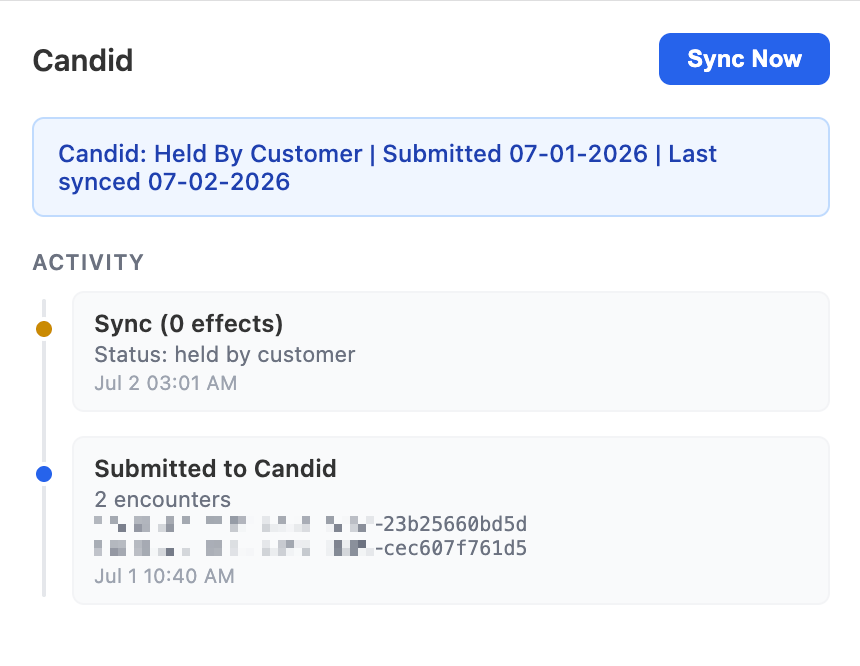
When viewing a claim, open the Candid Activity app from the app drawer. It shows:
Status bar: The current Candid status at the top
Activity timeline: A chronological list of Candid activity, including submissions, ERA syncs, patient payments reported, and sync history
Summary: Pill badges showing totals for ERAs synced and patient payments
Sync Now: A button to trigger an immediate sync for this claim without waiting for the nightly schedule
Candid Claims Dashboard
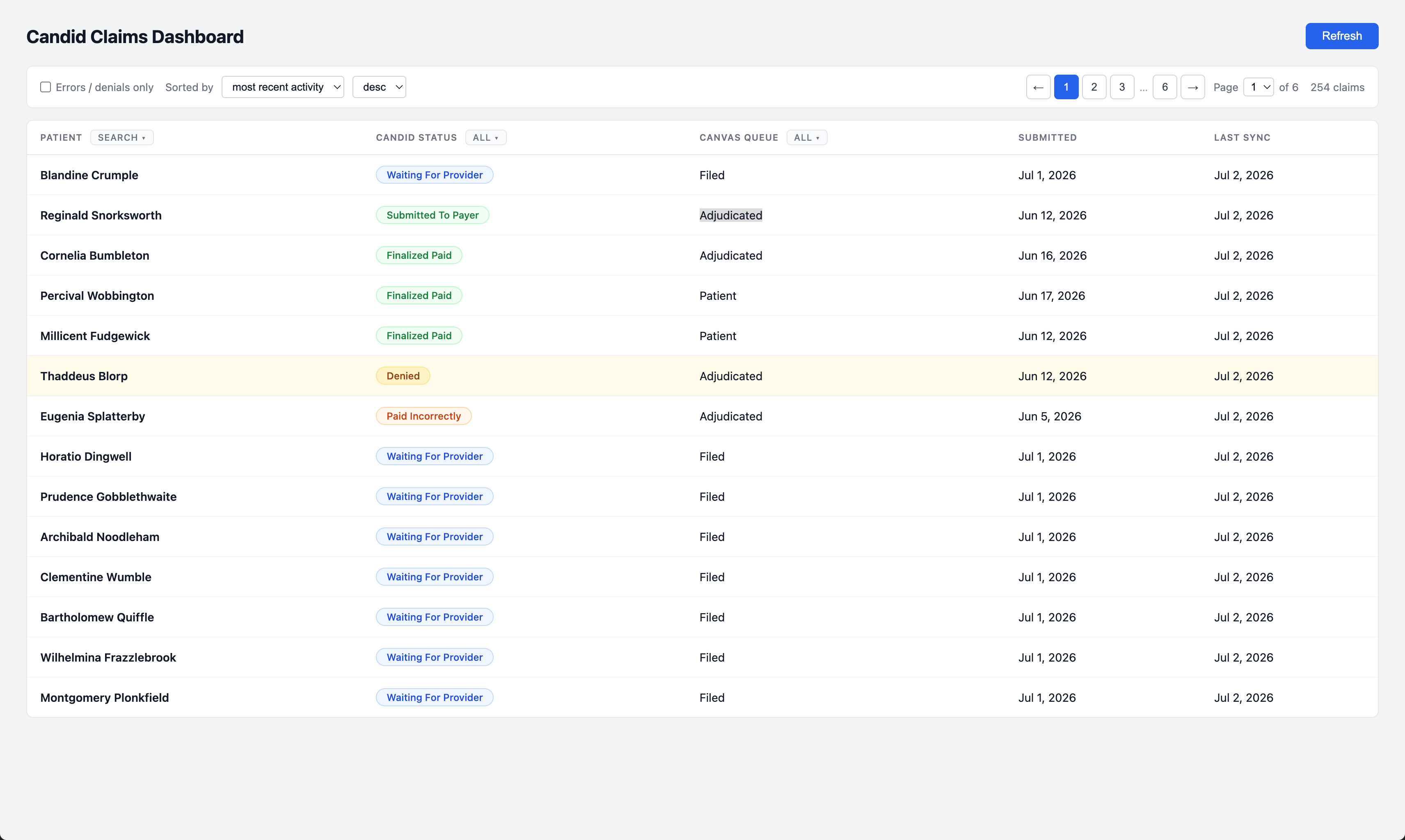
The Candid Dashboard is accessible from the Canvas provider menu. It gives you an overview of all claims submitted to Candid with:
Patient name, Candid status, Canvas queue, submission date, and last sync date
Color-coded status pills for paid, in-progress, denied, error, and pending claims
Filtering by errors or denials, Candid status, Canvas queue, or patient name
Sorting by most recent activity, submission date, last sync, status, or queue
Direct navigation to a claim by clicking any row
Queue Routing Reference
Trigger | Destination Queue |
|---|---|
Successful submission | Filed |
Failed submission | Coding |
ERA received, insurance balance remaining | Adjudicated |
ERA received, only patient balance remaining | Patient |
Troubleshooting
Problem | What to Do |
|---|---|
Claim stuck in Filed Awaiting Response with no adjudication data | Open the Candid Activity panel and click Sync Now to check for updates. |
Submission failed | Check the claim activity for the error message. Common causes include missing patient demographics, provider data, or address details. Fix the issue and move the claim back to the Submission Queue. |
Patient payment not reported to Candid | Look for a task labeled Candid Integration. It will contain the error details. |
Need to change a filed claim | Make the changes directly with Candid when possible. Update the claim in Canvas to keep records aligned, but avoid duplicate submission if Candid already has the claim on file. |
If you encounter an issue not listed here, contact Canvas Support for assistance.
Frequently Asked Questions
Q: Does incident-to billing work with Candid?
A: Yes. When a claim is billed incident-to, the supervising provider is sent to Candid as the rendering provider on the encounter. Set the supervising provider and turn on the Incident-to toggle in the claim's provider details before submitting. See Claim Management for details.
Q: Does the Candid integration change how I create appointments or document notes?
A: No. The Candid integration has no effect on appointment creation, note creation, or locking a note. Your clinical workflows are unchanged — this integration only applies after a claim moves to the Submission Queue.
Q: How is this different from the previous Candid process?
A: Previously, Canvas sent a nightly CSV file to Candid once every 24 hours. This integration replaces that process with an API connection for faster claim filing, status updates in Canvas, and payment sharing.
Q: Why does the Submission Queue need to be at zero at the end of the day?
A: The Submission Queue is a transit point, not a holding area. A claim sitting there means Candid hasn't confirmed it one way or the other. Keeping it at zero gives you a clear signal about where every claim stands.
Q: What zip code format is required for Candid submissions?
A: All addresses for your organization, practice locations, and providers must use a 9-digit zip+4 format — for example, 12345-6789. Claims with standard 5-digit zip codes may fail to submit to Candid.
Q: Can I move claims individually and in bulk?
A: Yes. Individual claims can be moved from within the claim view, and multiple claims can be batch moved from the Revenue view in the Coding Queue.
Q: What should I do if I moved a claim to the Submission Queue by mistake?
A: You have 60 seconds to revert the move. Look for the undo option immediately after moving the claim. Once that window closes, address the claim from the queue it landed in.
Q: Should I resolve check notifications before moving a claim?
A: Yes, whenever possible. Resolving them before submission reduces the chance of a claim being returned to the Coding Queue. If you can't resolve a notification, you can still move the claim — just monitor the outcome closely.
Q: How do I know if a claim submitted to Candid successfully?
A: After the 60-second delay, Canvas sends the claim to Candid and the claim will automatically move to either the filed workflow on success or back to coding review on error. If it returns to coding review, check the claim activity for Candid's comments on what needs to be corrected.
Q: What is a 422 EncounterExternalIdUniquenessError and why am I seeing it?
A: This error can appear when a claim that was already filed with Candid gets sent back through the Submission Queue after adjustments. Since Candid already has the claim on file, resubmitting it may cause a conflict. If changes are needed after a claim has been filed, make them directly with Candid when possible and update the claim in Canvas to keep your records aligned.
Q: When does Canvas update a claim with Candid's data?
A: Canvas checks for new Candid data on a nightly schedule and updates the claim when adjudication or payment information is available. You can also use Sync Now from the Candid Activity panel to check for updates on a claim.
Q: Can I collect a copayment before the claim reaches the Filed Queue?
A: It's not recommended if you want the copayment linked to the correct Candid encounter. Wait until the claim has successfully landed in the Filed Queue before collecting copayments.
Q: Does the timing recommendation apply to general payments too?
A: The requirement is specific to copayments that need to link to a Candid encounter. General payments don't carry the same dependency, though following the same order is good practice.
Related Articles
Keywords: Candid claim processing, Submission Queue, Canvas billing workflow, Candid API integration, filed queue, claim queue movement, copayment timing, zip+4, Candid Activity, Candid Dashboard
Categories: Revenue Cycle Management, Claims Management, Candid Integration
Roles: Billing Staff, Practice Managers, Revenue Cycle Teams