How to Sign Notes in Canvas
Last updated: December 29, 2025
Signing notes in Canvas adds your formal provider signature to clinical documentation. This creates a clear audit trail and ensures you're meeting regulatory requirements—all while keeping your workflow smooth. We'll walk you through exactly how to sign notes, make amendments when needed, and track your signature history.
Before You Begin
What you'll need:
An open note that's ready to finalize
The right permissions to sign notes
A note type that's configured to require signatures
Good to know:
Signing automatically locks your note at the same time
You'll see a Sign button if your note requires a signature (if you see Lock instead, your note type doesn't require a signature)
You can't undo a signature, but you can amend the note
How to Sign a Note
Finish all your documentation in the note.
Review for accuracy and completeness.
Click the Sign button at the bottom of the note.
That's it! Your note is now locked and signed, and the system automatically generates a PDF snapshot.
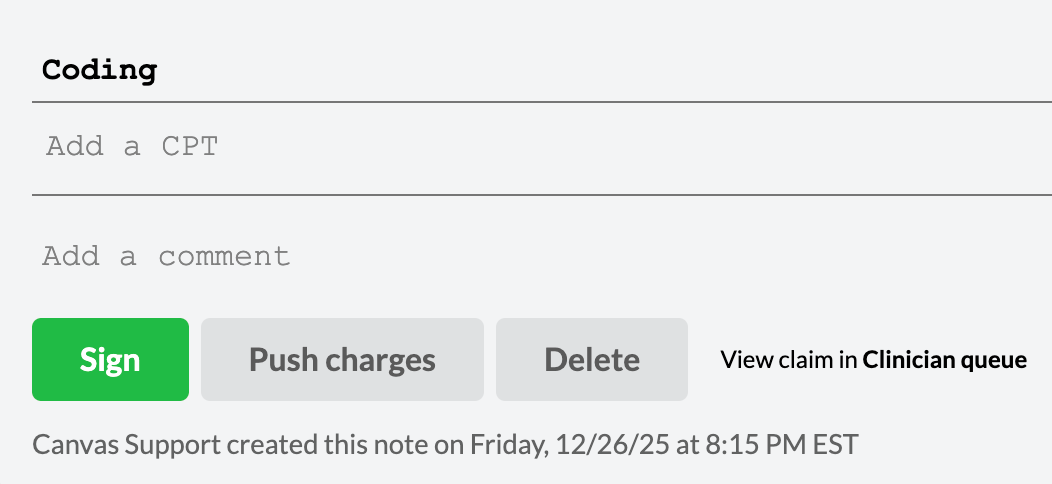
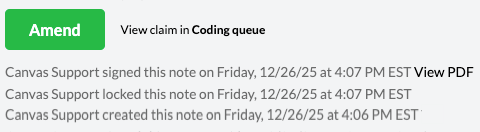
When you look at the note footer after signing, you'll see:
The Amend button
When the note was locked
When it was signed
A View PDF link to access that version
How to Amend a Signed Note
Need to add something after you've already signed? Amendments are a normal part of documentation.
Open your signed note
Click the Amend button at the bottom
Make your changes
Click Sign again when you're finished
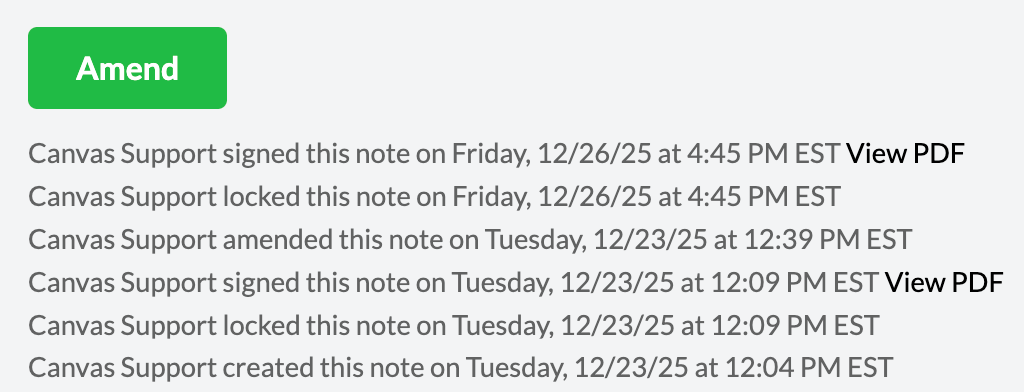
Each time you amend and re-sign, you get a new entry in the note footer showing:
Who made the amendment
The date and time
Who signed after the amendment
A fresh "View PDF" link for this version
This version tracking lets you see exactly what the note looked like at any point in time.
How to View Your Signature History
You can check signature history in two places:
In the note footer –
Shows most recent activity first (newest to oldest)
Uses your personal timezone
Lists locked, signed, and amendment events
Each signed event includes a "View PDF" link
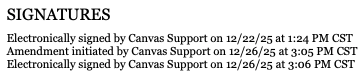
In your PDF printouts –
Shows oldest activity first (chronological order)
Uses instance timezone for organizational consistency
Only signatures and amendments will be captured, locked events will not.
Has a SIGNATURES heading
Common Signing Scenarios
Scenario 1: Standard visit note
You document your patient encounter, click Sign when complete, and you're done. If you forgot something, click Amend, add it, and Sign again.
Scenario 2: Note started by support staff
Your MA opens the note and documents vitals and chief complaint. You come in, review their work, complete your documentation, and click Sign to finalize. Only your signature appears (if signature restriction is enabled for your practice).
Scenario 3: Multiple amendments over time
You sign your initial encounter note. Lab results come back—click Amend, add them, and Sign again. A specialist report arrives later—Amend and Sign a third time. All three signature events show up in order, each with its own PDF version.
Tips for Signing Notes
We recommend –
Taking a quick moment to review before signing
Making sure all required sections are complete
Checking that your documentation supports any billing codes
Using Amend whenever you need to add something—that's what it's there for
Try to avoid –
Rushing to sign incomplete documentation
Signing notes for other providers unless it is a part of your practice's workflow
Forgetting to re-sign after amendments
Troubleshooting
I don't see a Sign button
Your note type might not require signatures. Look for a Lock button instead. If you think it should require a signature, check with your administrator about the note type configuration.
I can't sign this note
The note may have already been signed or you may not be the note creator if signature restrictions are enabled. The footer will indicate which user is authorized to sign the note, corresponding to the user assigned to it.
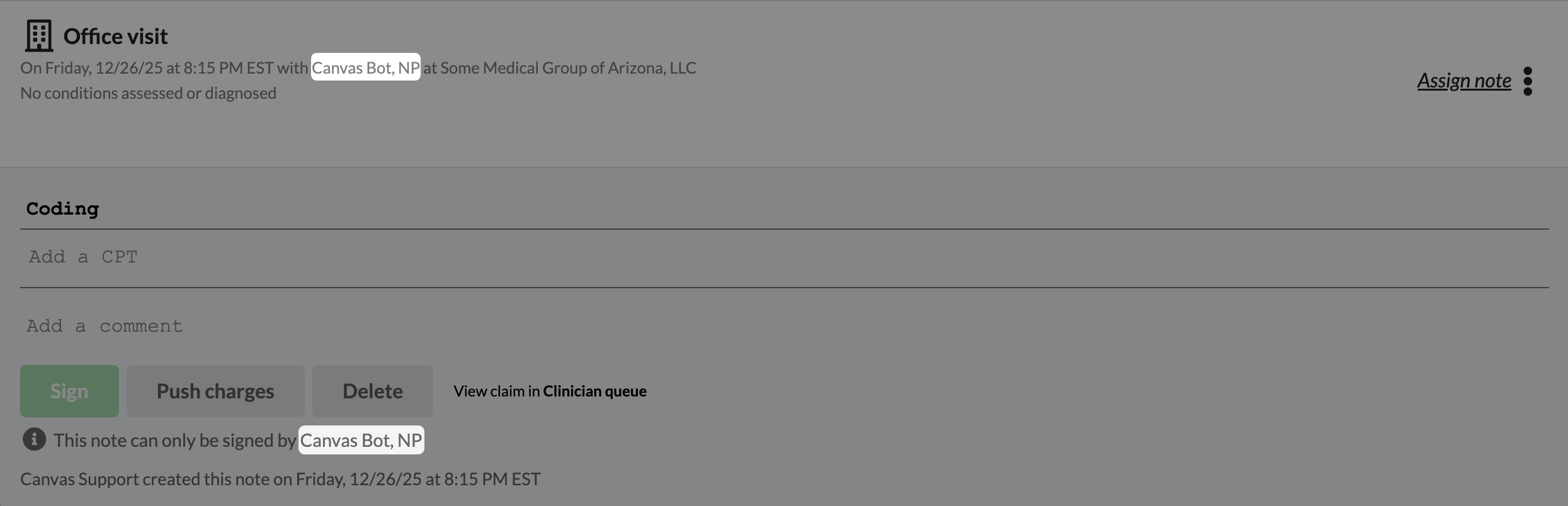
The Sign button is grayed out
Some required fields might be missing or you may be restricted from signing the note. Look above the note log for message on why you cannot sign the note.

I need to make changes but don't see an Amend button
Your note might not require signatures (look for Unlock instead). You may not be the user allocated to the note. If the signature restrictions are enabled, only the assigned user can amend the note
Frequently Asked Questions
Can I sign multiple notes at once?
No, each note gets signed individually. This ensures you're giving proper attention to each clinical document before finalizing it.
Do I need to sign my notes every day?
This depends on your practice workflow and documentation requirements. Many practices encourage daily signing to keep documentation current, but check with your practice manager about what works best for your organization.
What if I'm covering for another provider?
If signature restriction is enabled, you can't sign notes that other providers created. Check with your practice administrator about your specific coverage workflows.
Does the PDF change after I make amendments?
Each time you sign, you get a fresh PDF — the previous ones will remain. You can access all versions through the View PDF links next to each sign event.
How long does signature history stay in the system?
Signature history is part of your legal medical record, so all signing and amendment events stay permanently. This supports compliance and audit requirements.
Keywords: sign notes, amend signed note, signature history, note signing workflow, electronic signature, View PDF
Categories: Clinical Documentation & Commands, Charting & Documentation, Workflows & Operations