Activating EPCS Grants with DrFirst (for EPCS Administrators)
Last updated: October 7, 2026
This article is for your practice's EPCS administrator. If you're a provider enrolling in EPCS, start with Enrolling in EPCS with DrFirst: Step-by-Step Guide for Providers.
Before a provider can prescribe controlled substances in Canvas:
The provider enrolls with DrFirst on their own. That proves who they are and sets up their passphrase and VIP Access app.
The EPCS administrator (someone at the practice with the EPCS Administrator Role in Canvas) then activates the provider's grant. This is the practice confirming that the provider is authorized to prescribe controlled substances for your organization and that their DEA registration is active.
Prefer to click through the screens? Use the arrows in the walkthrough below to step through each screen, then use the steps further down for the details.
Having trouble opening the slides above? Use the direct link here.
Before you start
Confirm you have the EPCS Administrator role on your Canvas staff profile. The EPCS administrator can be any staff member, including office or operations staff; it doesn't have to be a prescriber.
The provider has finished their DrFirst enrollment.
In Settings > EPCS Dashboard, their EPCS Status shows NO_ACTIVE_GRANT.
The provider has their phone with the VIP Access app and knows their passphrase. They'll read you their DrFirst passphrase (created during enrollment) and the current 6-digit code from the VIP Access app. If they aren't sure of their passphrase, have them reset it before the call (📄 Resetting Your DrFirst Passphrase).
Open the DrFirst Logical Access Area
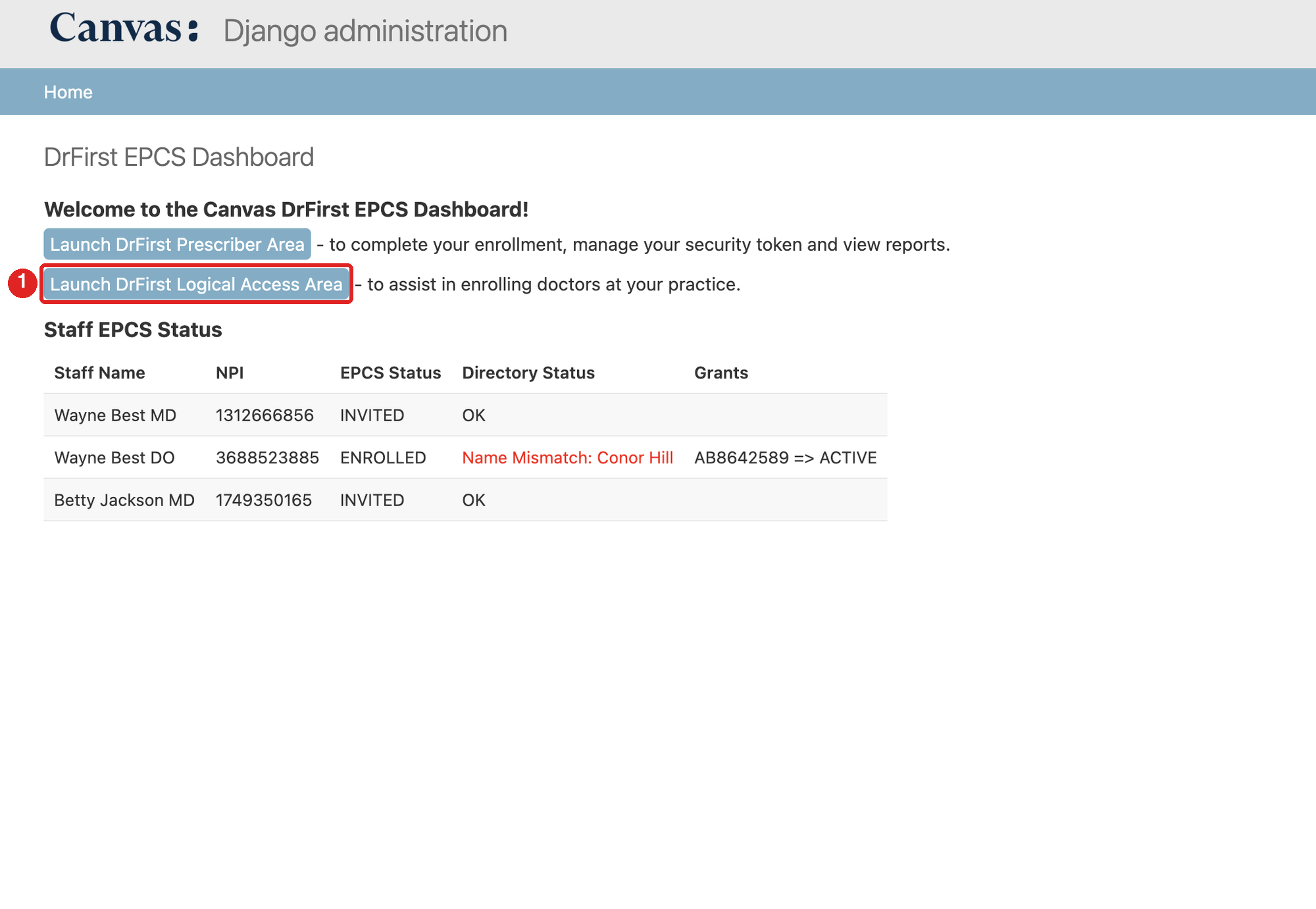
In Canvas, go to Settings > EPCS Dashboard.
Click Launch DrFirst Logical Access Area.
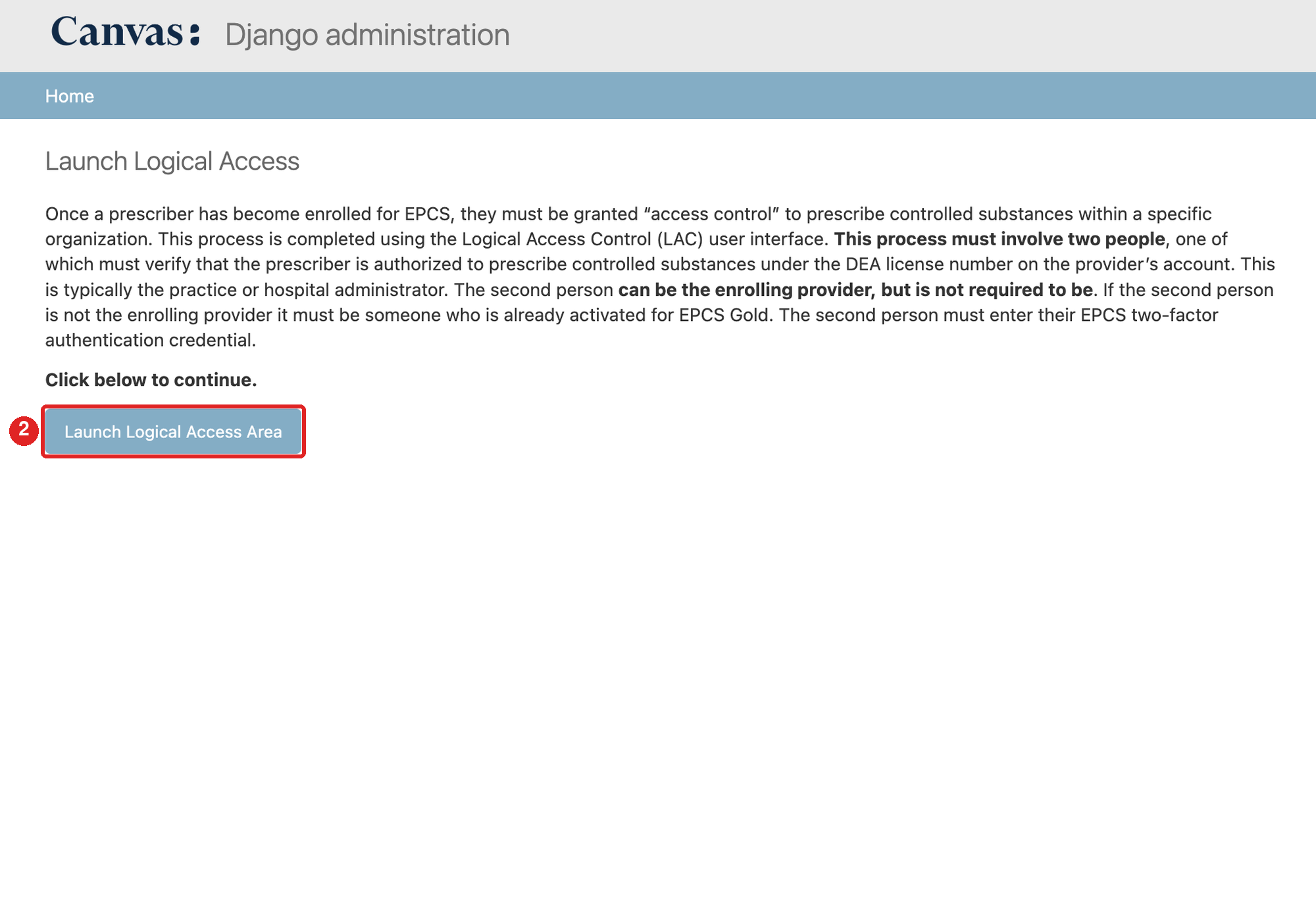
Click Launch Logical Access Area.
Complete the Grant Activation
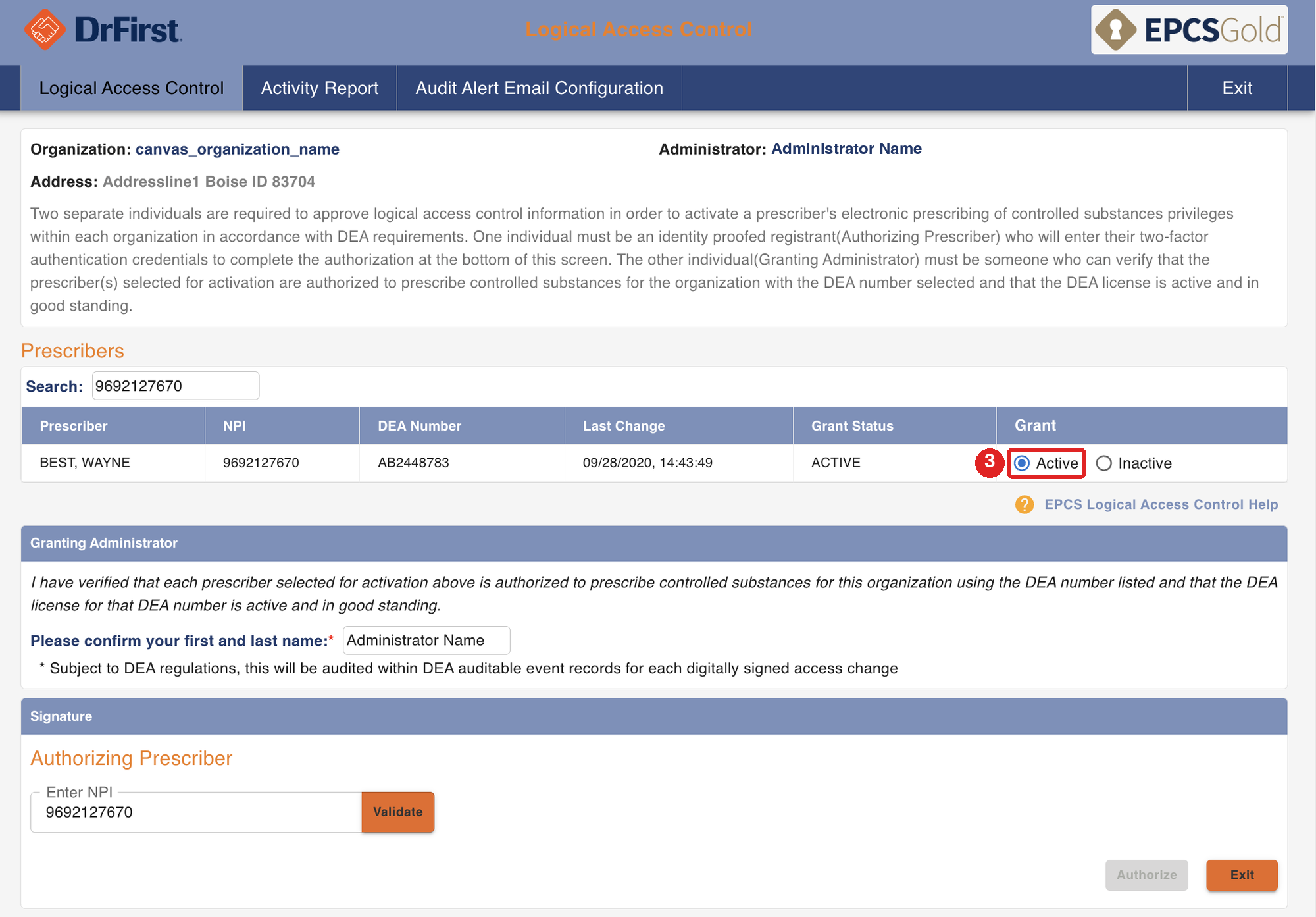
Select select Active next to the provider's name.
"Please confirm your first and last name"
Enter the EPCS administrator's name, typed exactly as it appears next to "Administrator:" at the top of the screen. This is your electronic signature and is recorded in DEA audit records.
Authorizing Prescriber (NPI): Enter the provider's NPI who is enrolling to prescribe controlled substances. It must belong to the same person who enters the passphrase and code.
Device, passphrase, and OTP token: the provider's VIP Access device, DrFirst passphrase, and the current code from their VIP Access app.
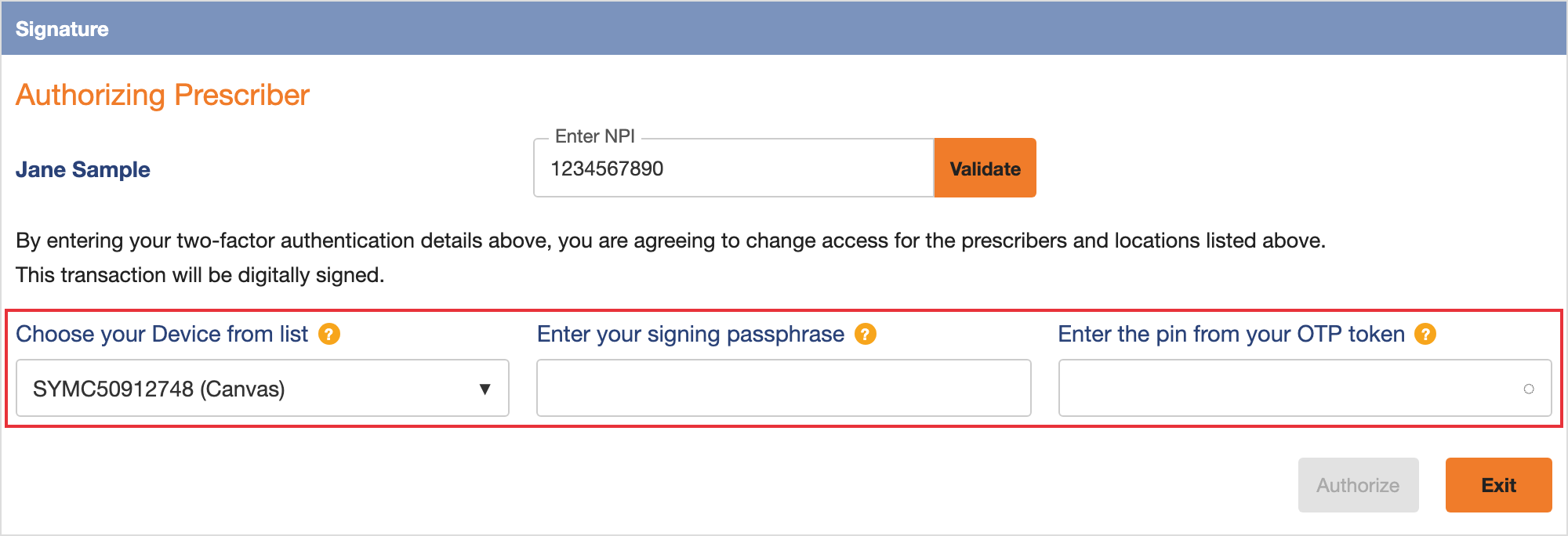
Enter the information from the provider's VIP Access App
Choose the provider's VIP Access device from the list (the one starting with SYMC)
Enter the passphrase the provider reads to you.
Ask the provider for the current code in their VIP Access app, enter it, and click Authorize right away. The code changes every 30 seconds, so if it expires, ask for the new one.
If you see an error after clicking Authorize, check that the SYMC device is selected, the code is the current one, and the passphrase was entered exactly. Don't keep retrying: DrFirst locks the provider out for about 15 minutes after several failed tries. If the provider isn't sure of their passphrase, they can reset it (see EPCS Enrollment FAQ for Providers). If it still fails, send a screenshot of the error to Canvas Support.
After you click Authorize
A confirmation screen shows the provider's NPI with Status: ACTIVE.
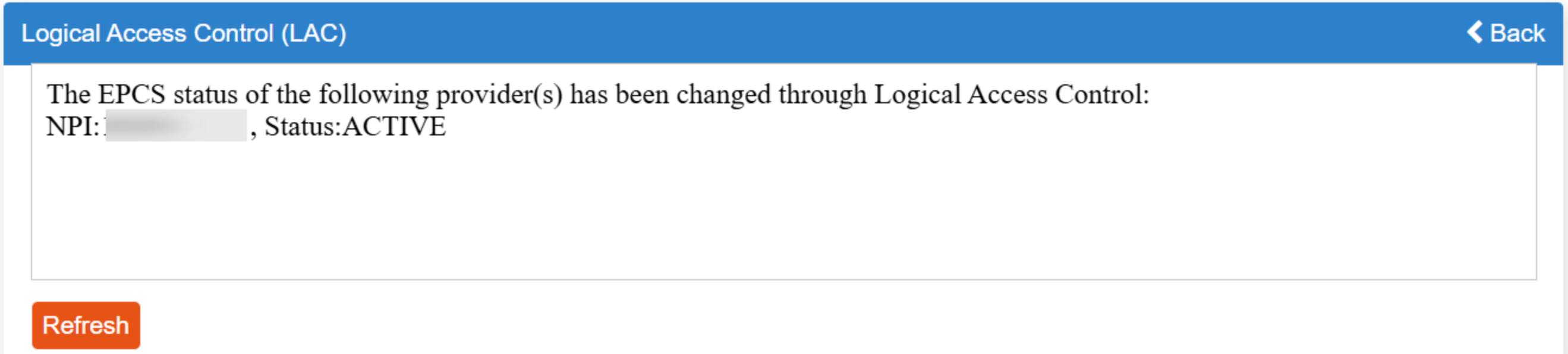
The Canvas EPCS Dashboard won't update right away. Canvas checks a provider's DrFirst status about once a day, so the dashboard can keep showing NO_ACTIVE_GRANT for up to 24 hours after a successful activation. This is expected. Don't repeat the activation.
Update Provider's Enrollment Status with Canvas Support
Let Canvas Support know the grant is activated, in your enrollment ticket or your Canvas support channel.
Canvas Support refreshes the provider's status so it shows ENROLLED and lets you know. Once it shows ENROLLED, the provider can prescribe controlled substances. If nobody refreshes it, it updates on its own within 24 hours.
Reading the EPCS Dashboard
Settings > EPCS Dashboard lists your providers with two status columns.
EPCS Status
INVITED: Canvas sent the DrFirst invite. The provider needs to start enrollment.
IDPVERIFIED: Identity proofing is done, but the provider didn't click Check Status. Within 24 hours, the provider can return to DrFirst and click it. After 24 hours, they need a new invite.
IDPFAILED: The provider didn't pass identity proofing with Experian. They have 3 attempts. After that, ask Canvas Support to send a new invite.
TOKENBOUND: A verification code was sent by postal mail. It can take up to 2 weeks to arrive.
NO_ACTIVE_GRANT: The provider finished enrollment and is ready for you to activate their grant. It also keeps showing for up to 24 hours after you activate, until Canvas refreshes the status.
ENROLLED: The grant is active and Canvas has picked it up. The provider can prescribe controlled substances.
DISABLED: EPCS access has been turned off. The provider must re-enroll from scratch.
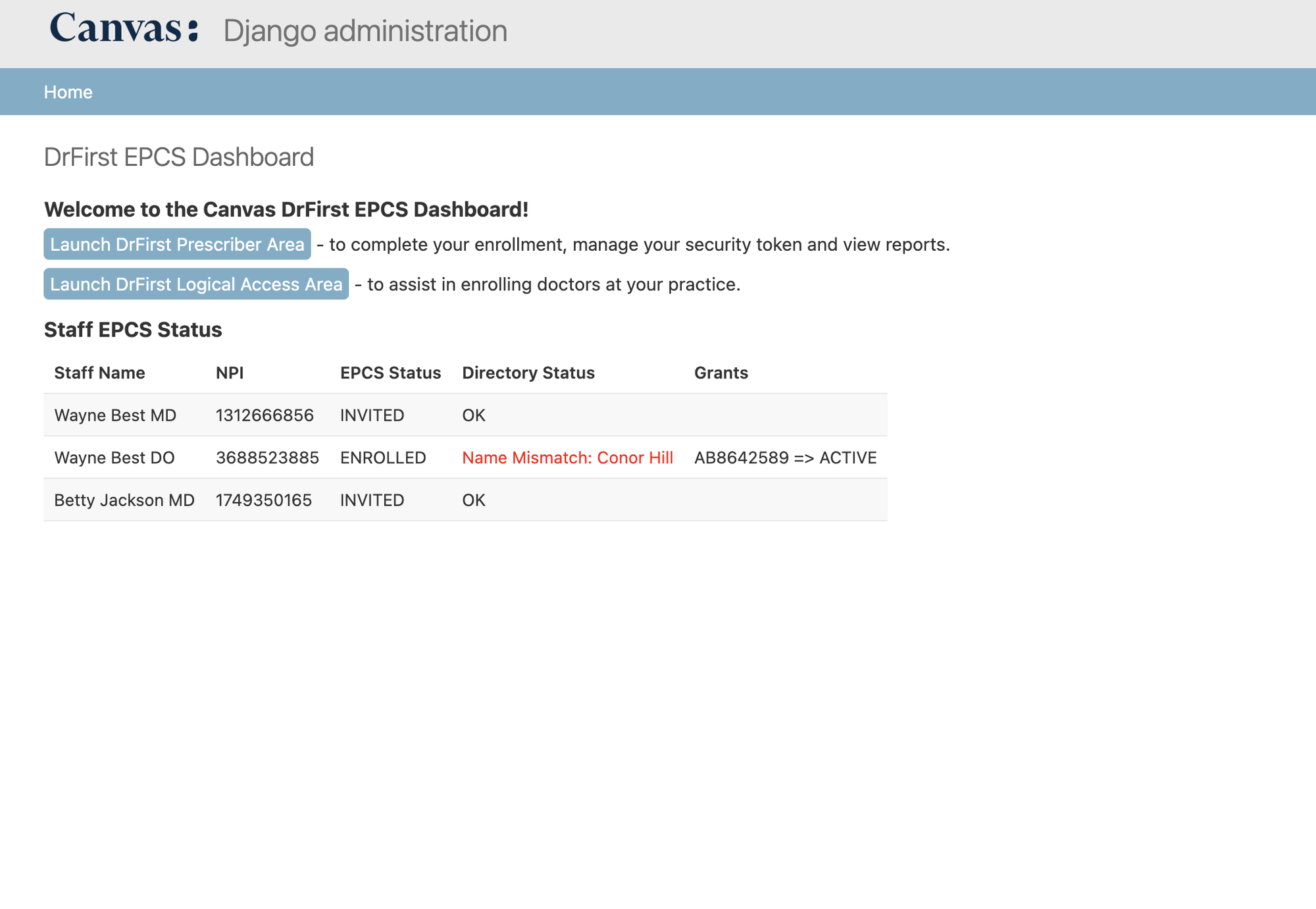
Directory Status
This column compares the provider's name in Canvas with their listing in the Surescripts prescriber directory.
OK: The names match.
Name Mismatch: FIRST LAST: The names differ, and the directory's version is shown. The directory usually stores names in all capitals, so a provider whose name is spelled the same way in both places can still show a mismatch. If the only difference is capitalization, you can ignore it; it doesn't block activation or prescribing. If the spelling itself is different (a typo, a missing or extra name, a name change), contact Canvas Support.
Missing SPI or SPI not found: The provider isn't set up for electronic prescribing yet. See Using the Provider Enrollment Dashboard.
Frequently asked questions
Q: Why does an administrator have to do this if the provider already enrolled?
A: The provider's enrollment proves who they are to DrFirst. Activation is the practice confirming that this provider is authorized to prescribe controlled substances for your organization. DEA rules require both steps, done by two different people.
Q: Which name goes in the name box, mine or the provider's?
A: Yours. It's the administrator's signature. Type it exactly as shown next to "Administrator:" at the top of the screen.
Q: Whose NPI goes in Authorizing Prescriber?
A: The NPI of the person entering the passphrase and code. Usually that's the provider you're activating.
Q: What if the provider being activated isn't available?
A: Another provider at your practice who already has active EPCS can authorize instead. In that case, enter their NPI, device, passphrase, and code.
Q: The DrFirst screen said ACTIVE, but the Canvas dashboard still says NO_ACTIVE_GRANT. Did it fail?
A: No. The Canvas dashboard can take up to 24 hours to reflect the change. Let Canvas Support know and they'll refresh it.
Q: Does one activation cover all of our practice locations?
A: Yes, for every practice location in your Canvas instance. The provider still needs DEA registration that covers the states they prescribe in.
Q: Can I activate multiple providers at once?
A: No. Each provider is activated separately, with their own passphrase and code.
Q: Who can be an EPCS administrator?
A: Any staff member with the EPCS Administrator role, including non-clinical staff. More than one person can have the role, but we recommend keeping the number small.
Q: Can any staff member activate grants?
A: No. Only staff with the EPCS Administrator role can open the Logical Access Area.
Q: The provider has been in TOKENBOUND for 3 weeks. What should I do?
A: The verification letter can take up to 2 weeks. If it's been longer than 3 weeks with no letter, contact DrFirst support.
Q: Can I turn off a provider's EPCS access temporarily?
A: Yes. Follow the deactivation process. To reactivate, you'll need to complete the full activation process again.