Plugin Catalog
Last updated: November 5, 2026
The Plugin Catalog helps you discover, review, and install plugins available to your organization. Everyone can browse the catalog, but installation and instance visibility depend on your assigned roles.
Access and Permissions
Role | What you can do |
|---|---|
Any role | Browse plugins, view details, and read release notes. |
Read-only, Plugin developer, Deploy manager, Organization admin | View which instances have a plugin installed. |
Studio user or Studio admin | Start or continue installations in Studio, once Studio is set up for your organization. |
Deploy manager | Configure plugin settings and install plugins on instances. Through the catalog, this also needs a Studio role. |
Installing takes two roles: a Studio role (Studio user or Studio admin) to open the installation project, and the Deploy manager role to configure and install. If the person who starts an installation isn't a Deploy manager, someone with both a Studio role and the Deploy manager role must finish it in the same Studio project.
Find a Plugin
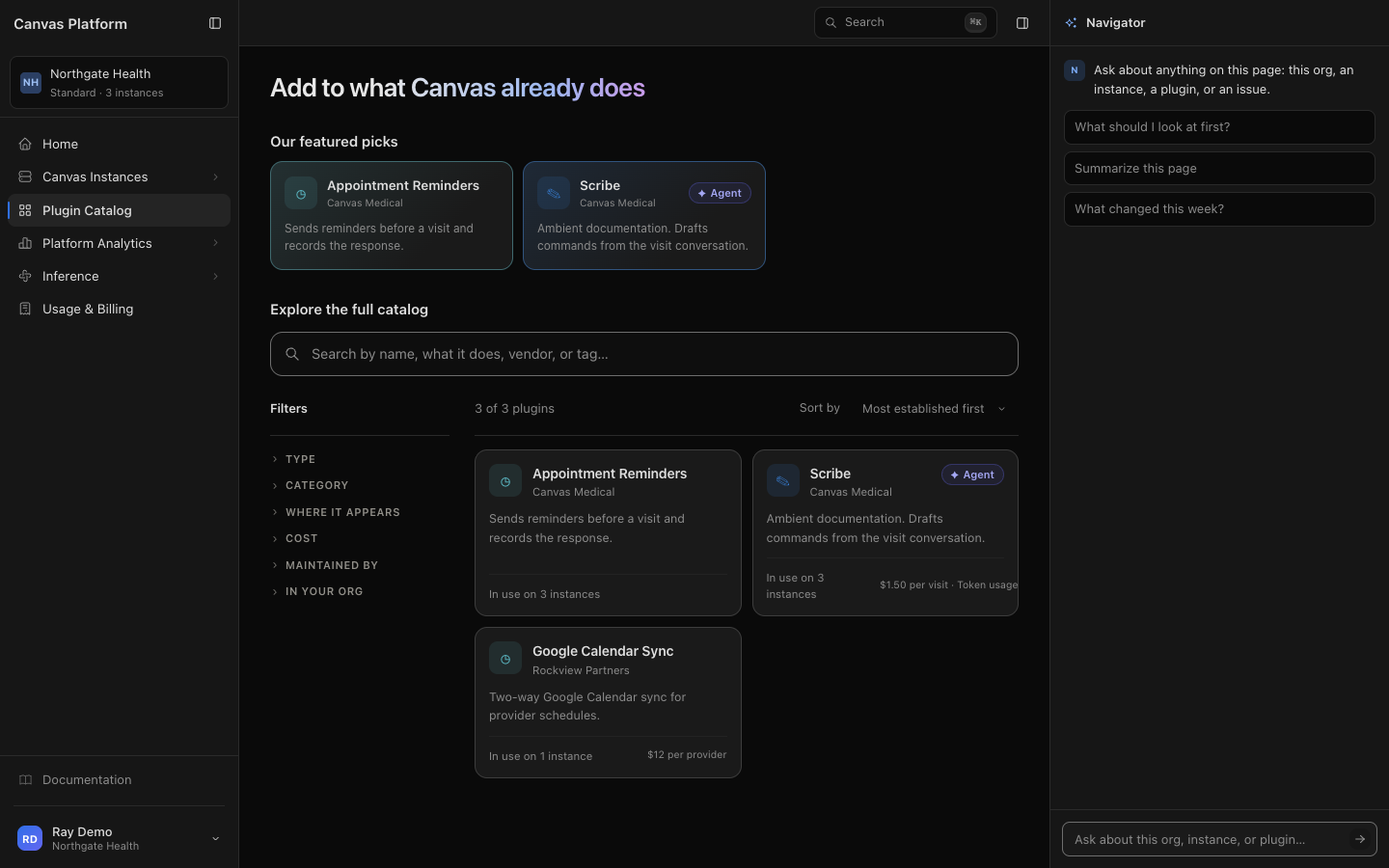
Open Plugin Catalog from the sidebar. Featured plugins appear under Our featured picks.
Search under Explore the full catalog by plugin name, functionality, vendor, or tag.
Filter by Type (Agentic or Deterministic), Category, Where it appears, Cost, or Maintained by. If you can see your organization's instances, you can also filter by In your org. Filter options display the number of matching plugins. Click Clear to reset.
Sort by Most established first, Recently updated, or Name, A to Z.
Select a plugin to view its details.
Each plugin card shows its maintainer and what it does. It also shows any fees, and, if you can see your organization's instances, how many of them use it.
Review Plugin Details
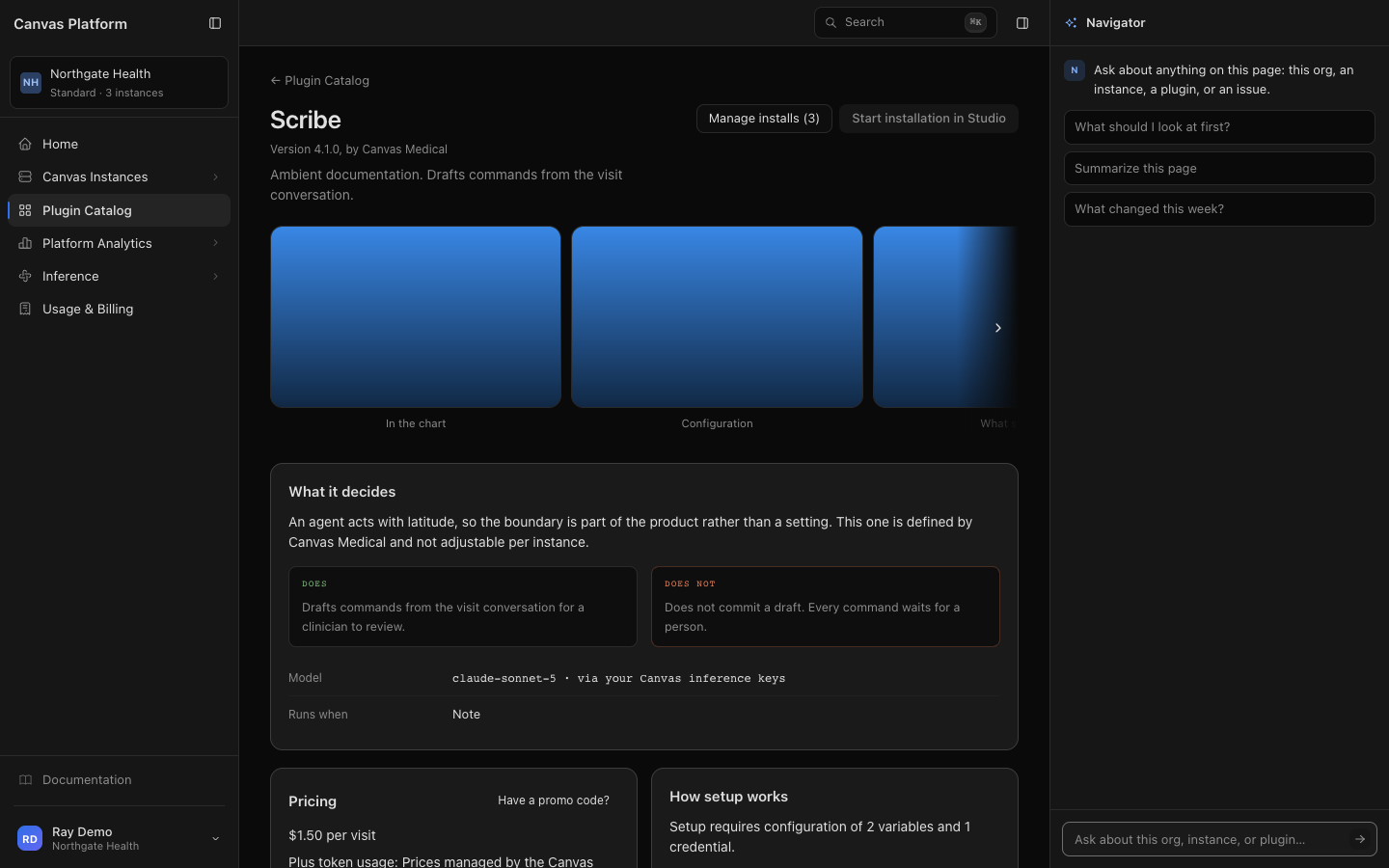
Select a plugin to view its latest version, maintainer, and setup requirements.
Section | What you'll find |
|---|---|
Pricing | Canvas charges, token usage, and any direct vendor fees. Select Have a promo code? to apply one. |
How setup works | Required settings, data storage, and plugin dependencies. Access to another plugin's data requires your organization's approval. |
What it decides (agents only) | What the agent does, its limitations, model, and when it runs. |
Maintenance (Canvas-managed only) | Current version and a link to release notes. |
For more information about plugin ownership, see Understanding Plugin Maintenance in Canvas.
Release Notes
Release notes show Canvas-managed plugin versions released in the past 90 days, labeled Fix, Performance, or Breaking.
If you have instance access, you can also see how many instances are running each version.
Breaking changes are applied as part of releases. Canvas notifies affected organizations before they are released.
Install a Plugin
Plugins are installed through Studio.
Open the plugin from the catalog.
Click Start installation in Studio. Studio opens an installation project with setup instructions.
Complete setup in Studio. The agent guides you through configuration and selecting the instances where the plugin will be installed.
For detailed instructions, see Installing a Plugin Catalog Plugin with Studio.
Note: Your organization can have one open installation project per plugin. Once started, the button changes to Continue installation in Studio, allowing your team to resume the same project.
View Plugin Installations
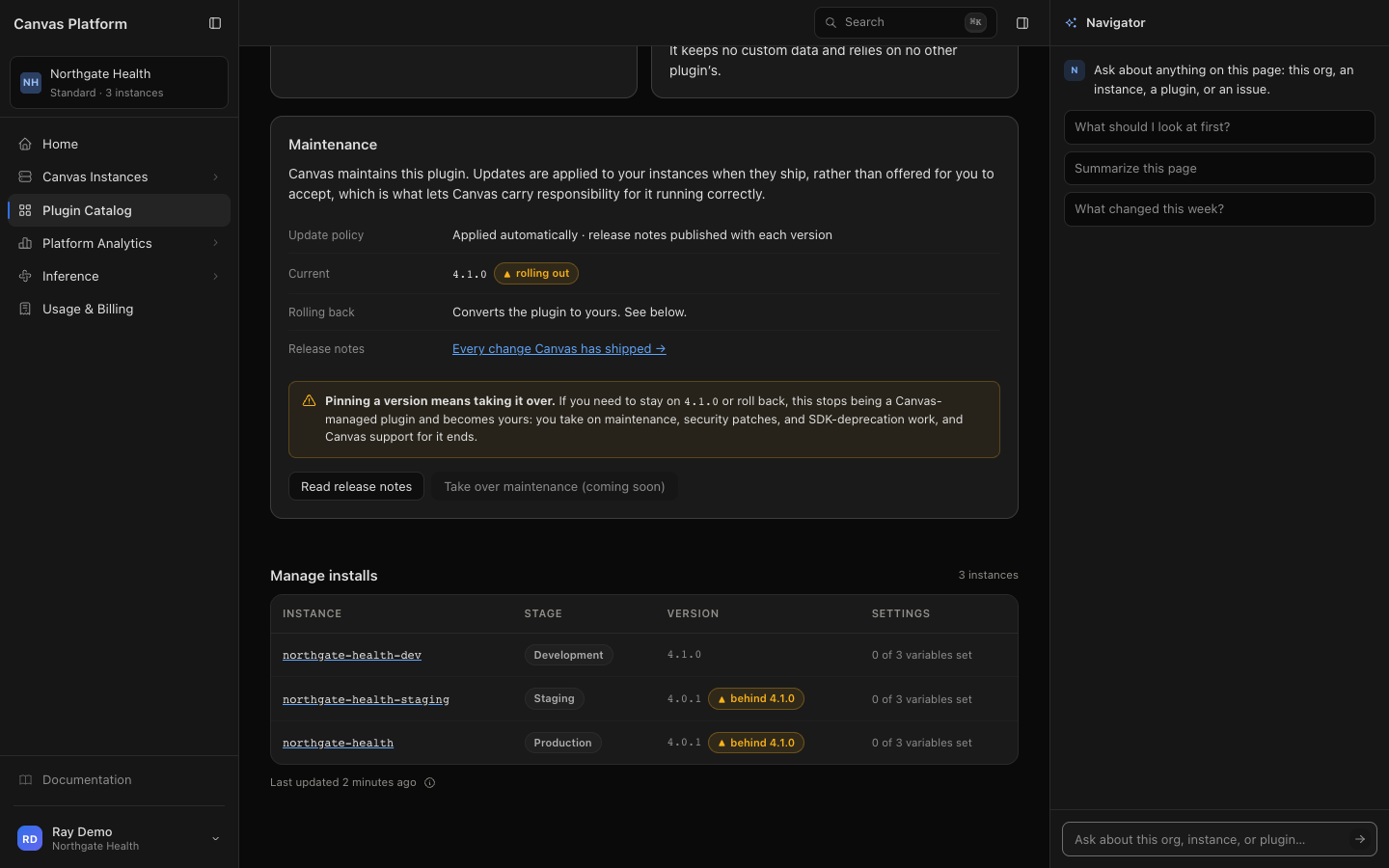
To see where a plugin is installed, open its catalog page and click Manage installs. The number on the button, for example Manage installs (3), shows how many instances use the plugin.
The installation table shows:
Column | What it shows |
|---|---|
Instance | Instance name. Click a row to open it. |
Stage | The instance's environment. |
Version | Installed version. Behind indicates a newer version is available; Disabled means the plugin is installed but turned off. |
Settings | Number of plugin variables configured on the instance. |
If the plugin isn't installed anywhere, Manage installs won't appear as a button, and the section will indicate that no installations exist.
Canvas Platform retrieves installation data from each instance every six hours. Recent changes may take up to six hours to appear.
Frequently Asked Questions
Why is Start installation in Studio disabled?
Hover over the button to see why. Your organization may not have Studio set up, or you may need the Studio user or Studio admin role. Contact your Canvas team for Studio setup or an Organization admin for role access.
Why can't I see Manage installs or In use on?
Viewing installations requires the Read-only, Plugin developer, Deploy manager, or Organization admin role.
Why isn't there an installation button for my organization's plugin?
Plugins your organization maintains (marked Yours) are changed and installed from their own Studio project, not through the catalog.
Why can't I find a particular plugin?
The catalog only shows plugins available to your organization. A partner's plugin appears once its publisher makes it available to you and Canvas has approved its listing.