Managing Medications
Last updated: July 15, 2026
Managing patient medications effectively is vital for quality healthcare documentation and patient safety. This comprehensive guide outlines the processes for document, prescribe, adjust, refill, stop medication. By following these instructions, healthcare providers can streamline medication management, ensure compliance, and maintain thorough patient records. From handling electronic refill requests to adjusting existing prescriptions, this guide covers all essential commands and fields, making it a valuable resource for maximizing Canvas's capabilities and improving patient care workflows.
Looking for help with failed prescriptions, DrFirst signing problems, or pharmacy transmission errors? See Troubleshooting Prescription Errors in Canvas Medical.
User Guides
Medication Statement | Documenting Active Medications
The Medication Statement command is used to document active medications a patient is taking that were not prescribed by the provider. It ensures the patient’s medication record is complete.
Add the Medication Statement command into an empty line of the note
Medication Statement Heading: Enter the name of the medication the patient is taking.
Medications are sourced from First Databank (FDB). If unavailable, medications can be added as free text. Free-text entries appear in gray on the patient summary.

SIG: Specify the frequency and route of administration
Interaction checks are performed against all previously recorded medications and allergies. If the selected medication has an interaction, the interaction severity and warning will display.

Once the command is committed, the medication will display under Medications list in the patient summary. Medications added via free text will appear in gray on the patient summary.
Prescribe | Prescribing a Medication
The Prescribe command allows healthcare providers to issue new prescriptions for both controlled and non-controlled substances.
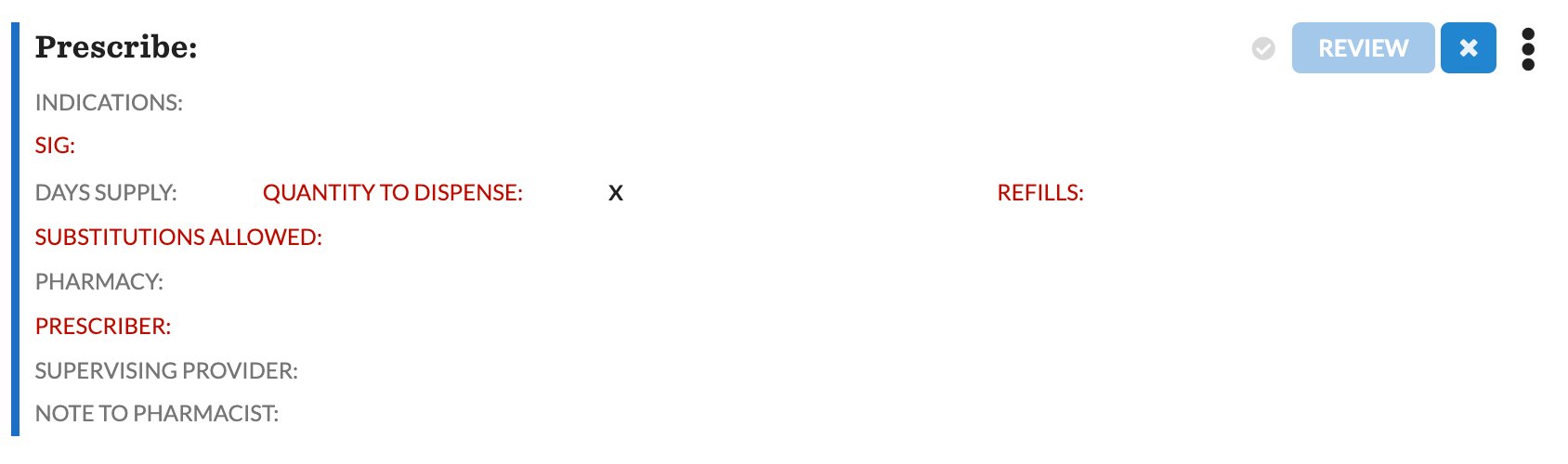
Add the Prescribe command into an empty line of the note and complete the fields. Red text fields are required.
Prescribe Heading: Name of medication
Indications: Reason for prescribing
SIG: Special characters and line breaks are not supported
Days Supply: Number of days prescription should cover
Quantity to Dispense: Specify the quantity X form (tablet, capsule, box, etc)
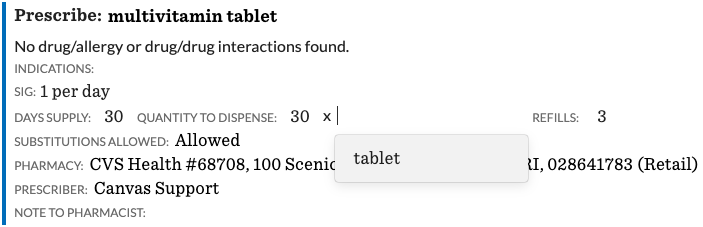
Refills: Number of refills authorized
Controlled substance restrictions based on their schedule badge
Schedule II controlled substance prescriptions cannot be refilled and expire after 6 months.
Review will be available if refills are set above 0
Schedule III or IV prescriptions may not be filled or refilled more than 6 months after the written date OR refilled more than 5 times, whichever comes first.
Schedule V controlled substances may be refilled as authorized. Laws may vary by state.
Substitutions Allowed: Indicate if substitutions are permissible
Pharmacy: Where the prescription should be sent. This will auto-populate to patient's preferred pharmacy if it is set in the patient's profile
Prescriber: Provider ordering the medication
Supervising Provider: Physician the prescribing provider works under
If the supervising provider is set in the staff profile, it will default in the prescribe command.
If a supervising provider is not set in the staff profile or needs to be changed, the supervising provider can be selected from the dropdown
Prescriber address on electronic prescriptions
By default, the prescriber address transmitted on an electronic prescription — the business name, phone, fax, and street address — is taken from the prescriber's primary practice location.
If your providers work across multiple locations, Canvas can instead use the practice location on the note as the prescriber address on outgoing prescriptions. This is helpful for workflows like white bagging, where the medication should ship to the office where the patient is being seen rather than the provider's default location.
This behavior is turned off by default. To enable it for your instance, reach out to Canvas support.
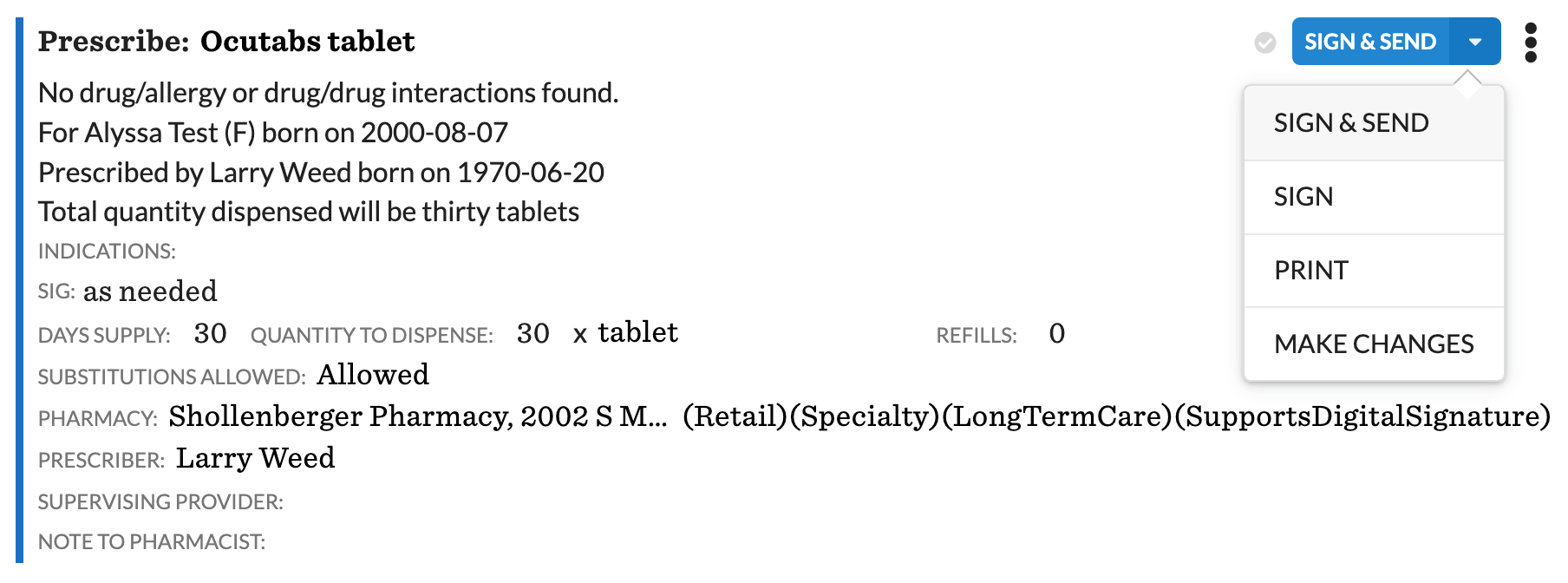
Complete the command by clicking Review and selecting the necessary action
Sign & Send: Prescription will be sent to the selected pharmacy
This will be the default if a pharmacy is added to the command
Sign: Will commit the command but will not send the order to the pharmacy
This will be the default if a pharmacy is not listed in the command
Available in the dropdown when Sign & Send is the default
Print: Print a copy of the prescription
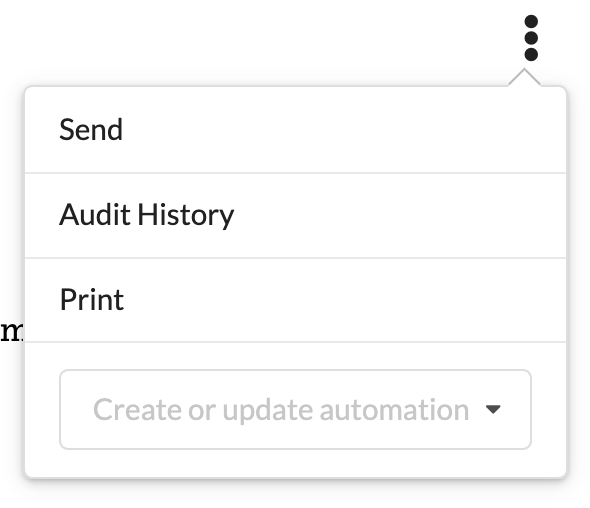
If Sign or Print are used to commit the command, the prescription can still be sent from the triple dot menu. Once the command is sent, it cannot be resent — a new command will need to be created.
Make Changes: Correct any errors in the prescription before sending
Drug and Allergy Interaction Checks
When prescribing or documenting a medication, Canvas performs drug to drug and drug to allergy checks and displays within the command. Interaction warnings can also be controlled in admin
By default Canvas shows all Drug/Drug Interaction Warnings as well as all Allergy Warnings. However, this setting can be adjusted at the organizational level in settings.
EPCS + DrFirst | Prescribing a Controlled Substance
Controlled substances are prescribed in Canvas through the DrFirst integration
DrFirst Signing Screen
After completing the prescription in Canvas, click Send. The prescription status will change to Pending.
The DrFirst Signing Screen opens automatically. Review:
Patient Information: Name, gender, birth date, and address.
Prescriber Information: Name, DEA number, NPI, and address.
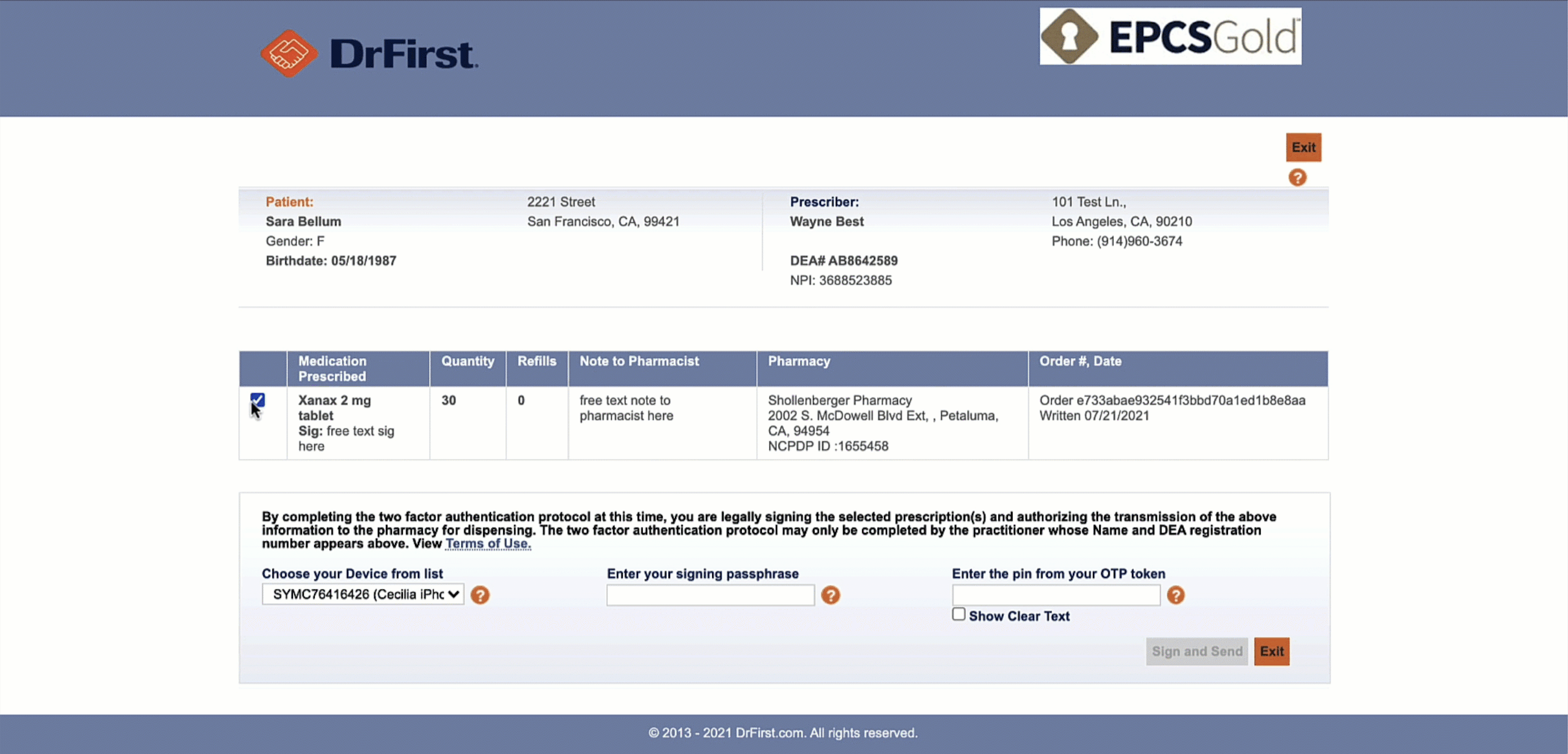
Complete the two-factor authentication:
Enter the Signing Passphrase.
Provide the One-Time Password (OTP) generated by the prescriber’s authentication device.
Verify prescription details and select the prescription by checking the box in the first column.
Click Sign and Send at the bottom right to finalize.
Click this button rather than using the enter key. Pressing ENTER after adding the OTP token may cause the window to exit, leaving the prescription unsent.
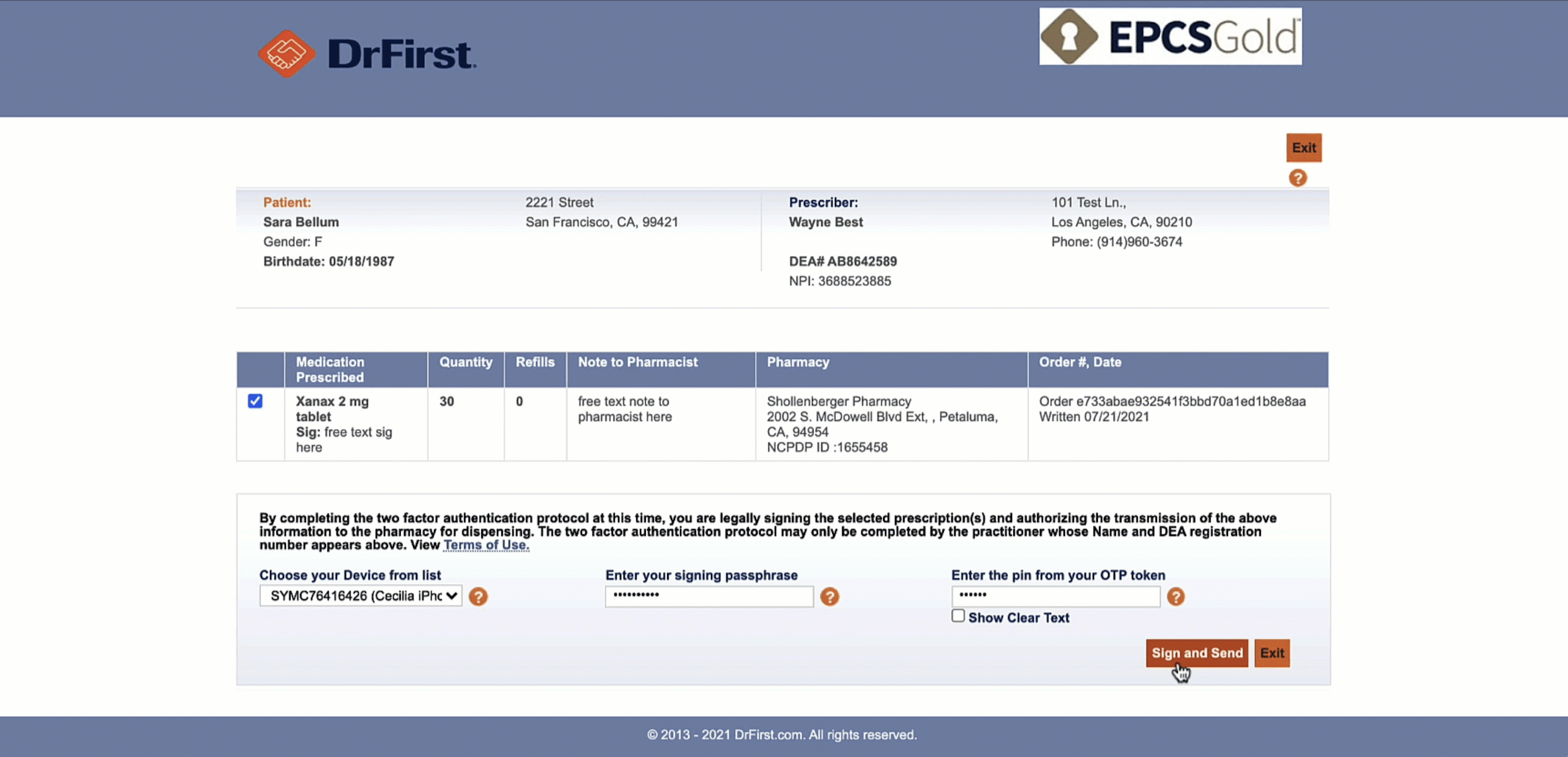
If several scheduled medications are being submitted in the same note, a new validation window will show for each medication.
Important: When you click Sign & Send, the prescription status immediately changes to Pending and the DrFirst signing window opens. If you exit the DrFirst window without completing the passphrase and OTP signing process, the prescription will remain in Pending status but cannot be transmitted or resent. You must create a new command to prescribe the medication.
Ordering DMEs
DMEs Using a Letter
The Letter feature is ideal for ordering durable medical equipment (DMEs), providing flexibility and comprehensive documentation.
Steps:
Open the patient’s chart and create a new Letter.
Include detailed information:
Equipment name (e.g., wheelchair).
Quantity (e.g., one unit).
Specific instructions or additional requirements.
Include patient and insurance details as needed.
Print or fax the letter to the supplier for processing.
Frequent DME orders can be simplified by creating a letter template to use for DME orders. This will reduce errors and save time.
Key Benefits:
Comprehensive Documentation: Includes all necessary details for compliance.
Provider Signature: Ensures regulatory requirements are met.
Customization: Allows for complex or non-standard orders.
DMEs Using the Prescribe Command
For simple orders like syringes or lancets, use the Prescribe Command for quick electronic submission.
Refill | Refilling a Medication
This command provides the ability to easily issue a prescription refill for any medication on the current Medication List. This process is possible both manually through a chart note and electronically with requests from the pharmacy
Manual Medication Refill
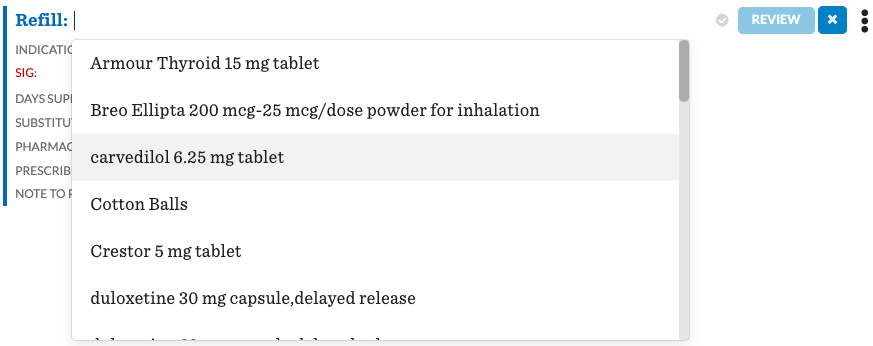
Add the Refill command to the note and select the medication being refilled from the dropdown.
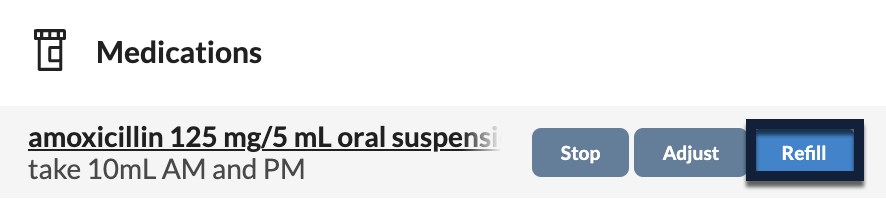
Alternatively, hover over the medication in the patient’s Medications list and click Refill. If no note is open, a Chart Review note will be created.
The Refill command retrieves all the details from the previous order of the medication. Make any necessary adjustments if required.
Complete the command by clicking Review and selecting the necessary action
Sign & Send: Prescription will be sent to the selected pharmacy
This will be the default if a pharmacy is added to the command
Sign: Will commit the command but will not send the order to the pharmacy
This will be the default if a pharmacy is not listed in the command
Available in the dropdown when Sign & Send is the default
Print: Print a copy of the prescription
If Sign or Print are used to commit the command, the prescription can still be sent from the triple dot menu. Once the command is sent, it cannot be resent — a new command will need to be created.
Make Changes: Correct any errors in the prescription before sending
Important: When you click Sign & Send for controlled substances, the prescription status immediately changes to Pending and opens the DrFirst signing window. If you exit DrFirst without completing the signing process, the prescription remains Pending but cannot be resent – you must create a new Refill command.
Electronic Medication Refill
Pharmacies have the ability to electronically request a refill for a patient's medication.
Electronic refill requests can be approved, denied, or ignored depending on the request and whether a pharmacy response should be sent.
Approve: Approves the refill request and sends an approval response back to the pharmacy.
Deny: Denies the refill request and sends a denial response back to the pharmacy.
Ignore: Dismisses the refill request from the queue without sending a response back to the pharmacy.
For step-by-step guidance, including how to handle duplicate refill requests, see 📄 Electronic Refill Requests: Approve, Deny, and Ignore.
Adjust Prescription | Adjusting a Current Medication
The Adjust Prescription command allows the user to adjust existing medications
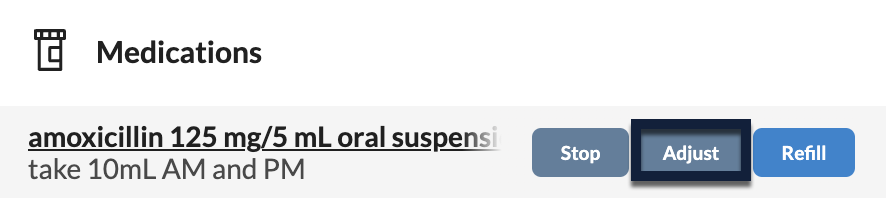
Add the Adjust Prescription command by adding the command to a note or from the patient summary by hovering over the medication and clicking Adjust. If no note is open, a Chart Review note will be created.

Adjustments can also be made from the patient summary by hovering over the name of the medication and clicking Adjust. If no note is open, a Chart Review note will be created.
Update necessary fields:
SIG: Will automatically fill with SIG on previously sent prescription. Adjustments can be made, if needed
Click here to change medication or RX: This will expand to the command to update additional fields. Previously prescribed information will populate, but they can be updated as needed. The medication can also be changed in this view as well.
Complete the command by clicking Review and selecting the necessary action
Sign & Send: Prescription will be sent to the selected pharmacy
This will be the default if a pharmacy is added to the command
Sign: Will commit the command but will not send the order to the pharmacy
This will be the default if a pharmacy is not listed in the command
Available in the dropdown when Sign & Send is the default
Print: Print a copy of the prescription
If Sign or Print are used to commit the command, the prescription can still be sent from the triple dot menu. Once the command is sent, it cannot be resent — a new command will need to be created.
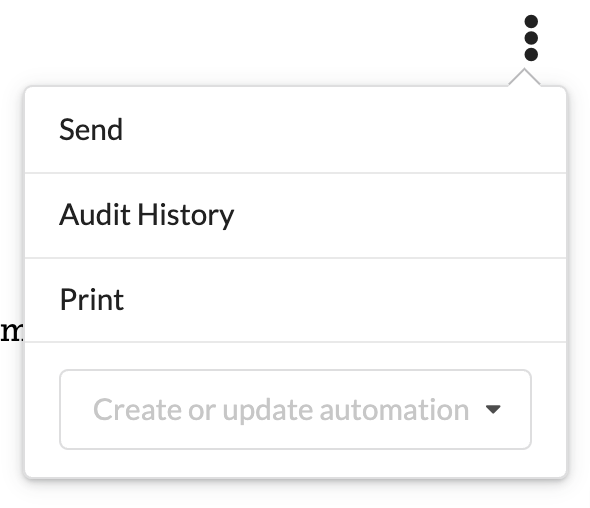
Make Changes: Correct any errors in the prescription before sending
Important: When you click Sign & Send for controlled substances, the prescription status immediately changes to Pending and opens the DrFirst signing window. If you exit DrFirst without completing the signing process, the prescription remains Pending but cannot be resent – you must create a new Adjust Prescription command.
Stop Medication | Discontinuing a Medication
Documenting the completion or cessation of historical medications is an important part of high quality charting.
Add the Stop Medication command to a note and select the medication or hover over the medication in the patient summary Medications list and click Stop.
Provide a Rationale or reason for stopping medication
Click RECORD to finalize and the medication will be removed from the patient summary
Compound Medications
Creating a new compound medication in Canvas Medical involves defining its composition, dosage, and usage parameters in the settings. This process ensures that compound medications are accurately represented and managed for both clinical and pharmacy workflows. This guide walks you through the steps to create and configure compound medications in the system.
Adding a Compound Medication
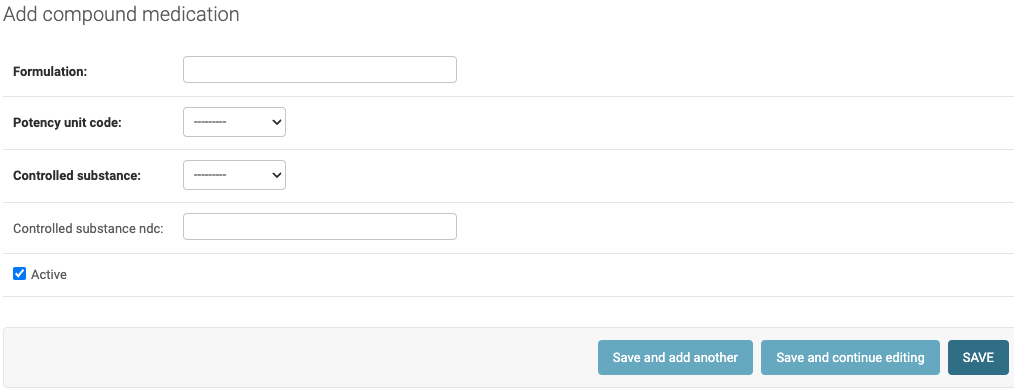
Navigate to Settings and select Practice: Compound Medications.
On the setup page, click ADD COMPOUND MEDICATION + to create a new compound.
Fill in the required fields to define the compound medication:
Formulation: Specifies the ingredients, concentration, and form. This formulation is what will display in the command and be sent to the pharmacy.
Ketoprofen 15%, Baclofen 5%, Orphenadrine 5%
Magic Mouthwash (1 part viscous lidocaine 2%, 1 part Maalox, 1 part diphenhydramine 12.5mg per 5mL elixir)
Potency Unit Code: Defines the measurement unit (mg, mcg) to ensure precise dosing.
Units without a specific measurement cannot be selected. Ex:
vialis not a supported unit because it does not contain a specific measurement. Instead, a measurable unit like "mL" should be selected to reflect expected volume or dosage accurately.Controlled Substances: Select the appropriate schedule for controlled substances, classified from Schedule I (high potential for abuse) to Schedule V (lowest potential for abuse).
Controlled Substance NDC: When using a controlled substance in a compound med, the NDC of the medication with the highest schedule should be used.
Prescribing a Compound Medication
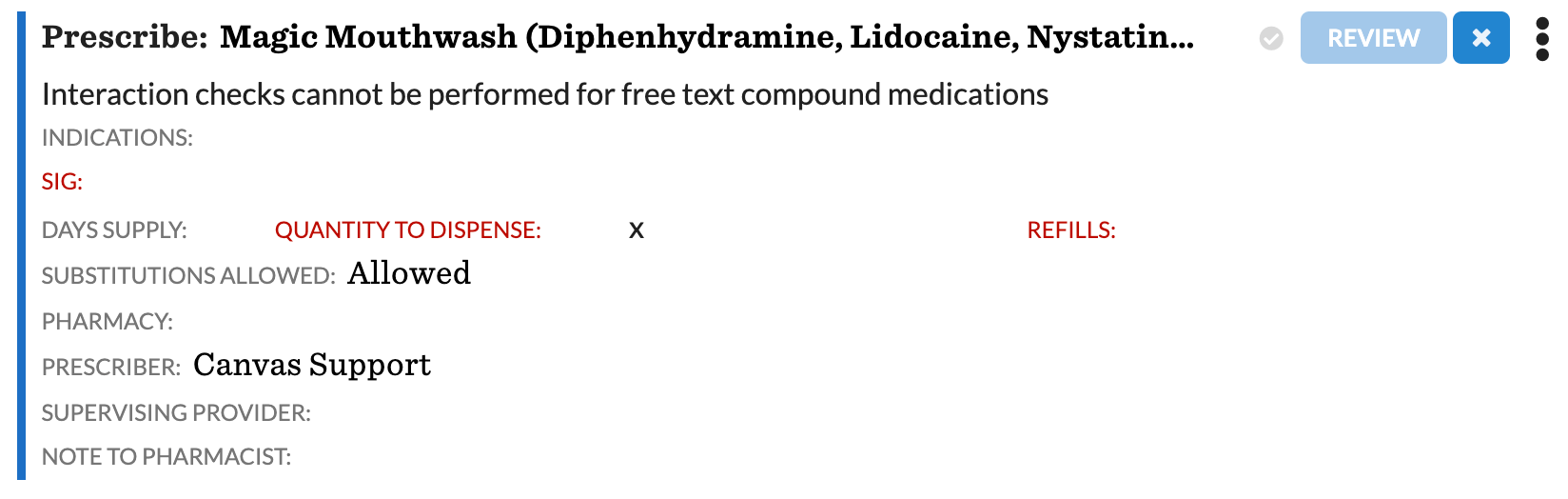
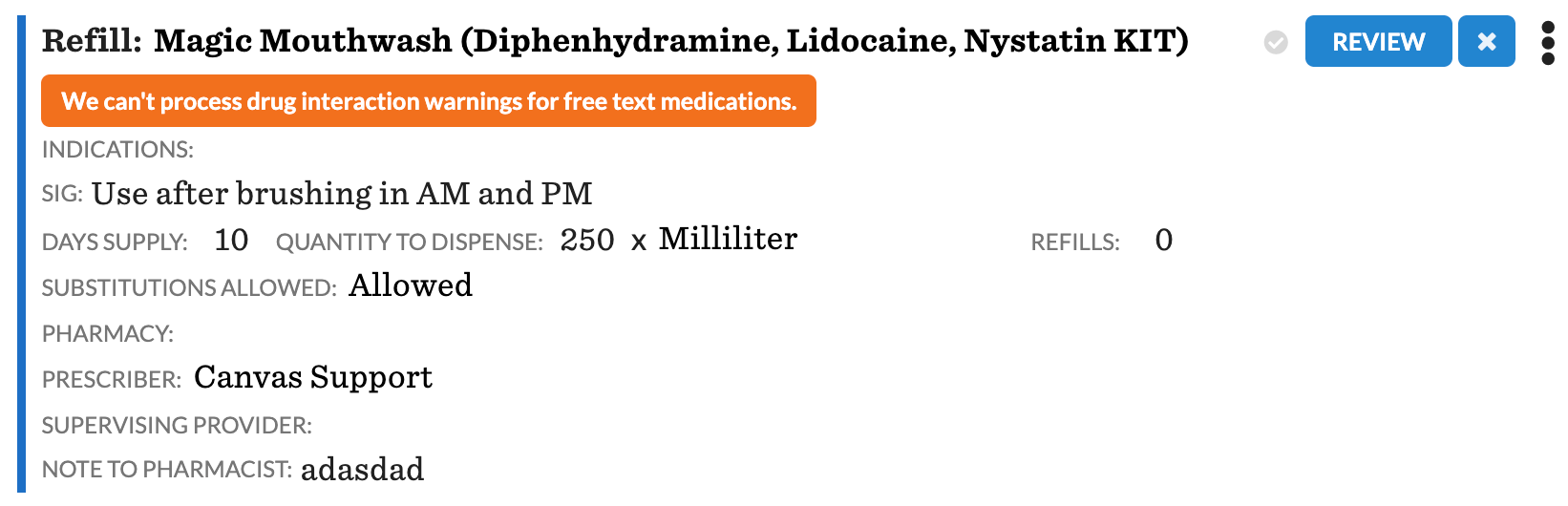
Compound medications are prescribed the same as standard medications through the Prescribe command. However since this is a compound medication, there will not be any interaction checks due to the custom nature of the ingredients. There will be a prompt under the medication stating Interaction checks cannot be performed for free-text compound medications.
Refilling a Compound Medication
Refills for compound medications are completed the same as standard refills. Compound medication refills will also include the Interaction checks cannot be performed for free-text compound medications beneath the selected medication.
Updating a Compound Medication
Adjustments to a compound medication are also managed in the Practice: Compound Medications settings. To update a medication, mark the existing compound as inactive and create a new entry with the necessary changes.
Prescription Statuses
Once a medication is sent a badge of the prescription status will display next to the command's triple dot menu.
ERx | Non-controlled Substances
🟢 Accepted | The prescription has been sent and accepted by the pharmacy |
🟠 Pending | The prescription is currently being transmitted to the pharmacy and is expected to be accepted. This status typically updates to Accepted almost immediately, but in some cases, it may take several hours. |
🔴 Error | Transmission encountered an error or was rejected by Surescripts or the pharmacy. Hover over the error badge on the Prescribe command for detailed information about the issue. |
EPCS | Controlled Substances
🟠 Pending | The prescription is transmitting from Canvas to DrFirst, which opens the DrFirst window. |
🟠 Received | The prescription was received by DrFirst. The DrFirst window opened displaying the medication order, but it has not yet been signed by the provider. If an error occurs in the DrFirst window, this badge will remain visible in Canvas. The badge will not update to Error. A new order must be placed after resolving the issue causing the error. |
🟠 Transmitted | The provider signed the order in the DrFirst window, and the prescription has been transmitted to the pharmacy. |
🟢 Delivered | Final confirmation that the prescription was accepted by the pharmacy. |
🔴 Error | The transmission resulted in an error or was rejected by Surescripts or the pharmacy. Hover over the error badge on the Prescribe command for detailed information about the error. |
🔴 Canceled | The prescriber exited the signing window without signing the prescription. |
If a prescription needs to be reissued, create a new command. For resend guidance and common error scenarios, see Troubleshooting Prescription Errors in Canvas Medical.
References
Due to the ever evolving nature of our product, recorded videos may be slightly out of date.