Adding Studio users
Last updated: October 24, 2026
Organization Admins manage Studio access by assigning user roles in Canvas Platform.
Understanding Studio Roles
Studio roles are granted when inviting users. An Organization Admin can invite users and manage their roles with in Platform. Learn more in Platform: Users and Access.
Role | Permissions |
|---|---|
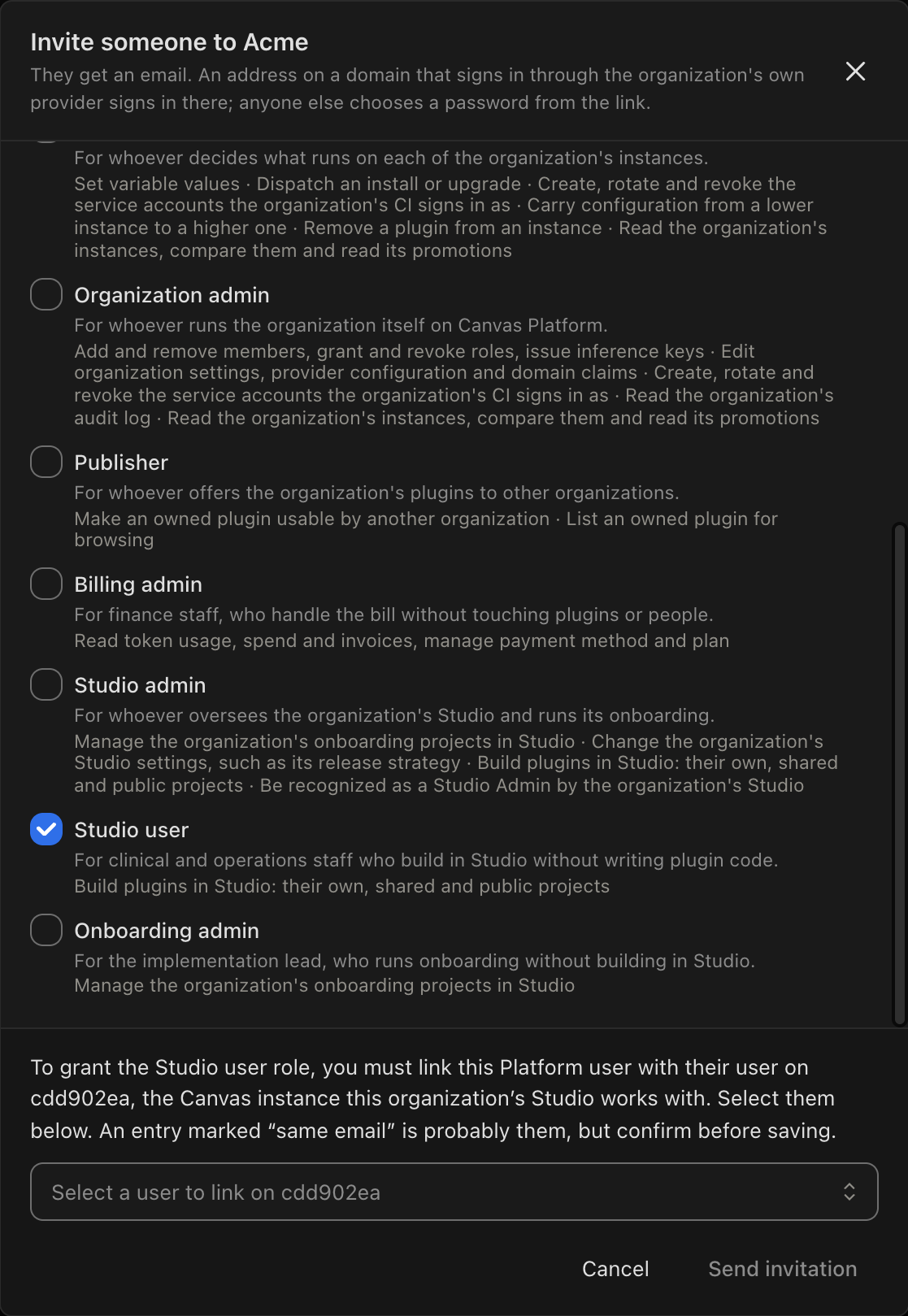
Studio User | Create, build, test, and publish plugins in Studio, subject to release permissions. |
Studio Admin | Access all Studio projects and manage organization-wide Studio settings. |
Onboarding Admin | Manage implementation activities without building plugins in Studio. |
Inviting a User
Only Organization Admins can invite users and manage their roles. Studio Admins cannot grant access to other users.
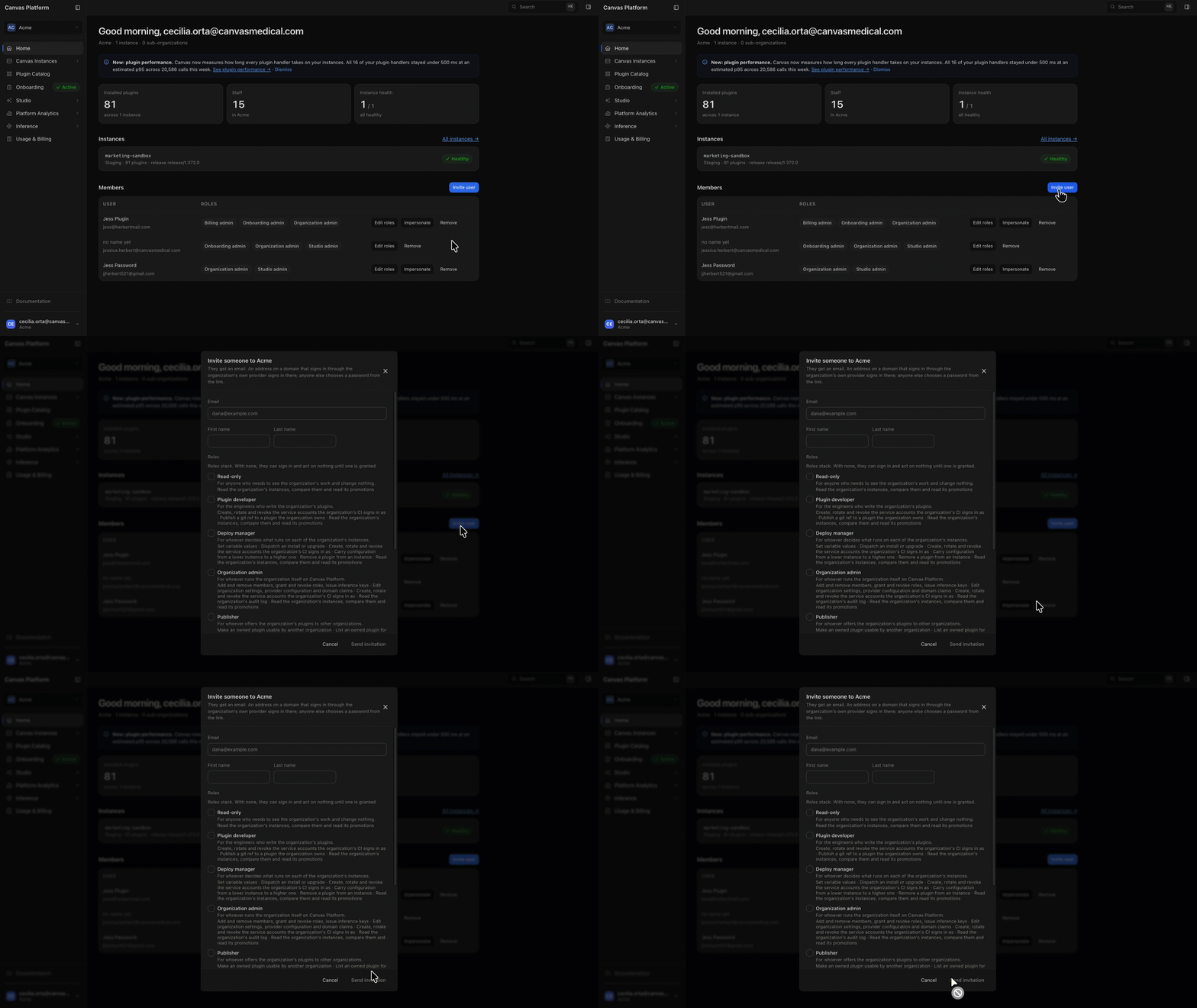
Sign in to Canvas Platform.
Open the profile menu in the bottom-left corner and select Users.
Click Invite User.
Enter the user's name and email address, then select the appropriate role.
Link their Canvas user record. Select the corresponding user from the list at the bottom of the form. Records marked Same Email are potential matches; confirm you've selected the correct person.
Click Send Invitation.
The user receives an email invitation to set a password or sign in using your organization's single sign-on (SSO).
Updating User Roles
To change an existing user's access:
Go to Users in Canvas Platform.
Find the user and click Edit Roles.
Update their permissions.
Click Save Roles.
Troubleshooting Access
Issue | Explanation |
Studio roles are grayed out. | Studio may not be enabled for your organization. Contact your Canvas team for assistance. |
Your organization manages users through SCIM. | If your organization provisions users through an identity provider using SCIM, manage user access through that system. |
You can't invite users or change roles. | Only users with the Organization Admin role can manage access. Contact your Organization Admin for assistance. |