Ordering Labs
Last updated: July 22, 2026
Health Gorilla integration allows Canvas Medical to connect with various laboratory vendors for seamless lab test ordering and result management. The Lab Order command electronically transmits lab orders to connected labs and allows for the printing of requisition forms as well as lab specimen labels. This article explains how to use the Lab Order command and configure lab tests from Health Gorilla-integrated vendors within Canvas settings.
User's Guide
Using the Lab Order Command
The Lab Order command provides electronic transmission of lab orders to connected labs and enables printing of requisition forms and specimen labels. This streamlined process eliminates manual paperwork and reduces ordering errors.
Creating Lab Orders
To place a lab order in Canvas:
In the patient's chart, add a Lab Order command within a new or existing note
Select the appropriate lab vendor from the dropdown
Complete all necessary fields for the command
Tests: Select all lab tests needed for the order
Any tests that require additional information such as the site of the collection will automatically generate any extra field(s).
Some labs may restrict which tests can be ordered together. See Understanding Order Splitting below.
Ordering Provider: Select ordering provider from the dropdown. Command will default the provider to the current user.
Indications: Select condition(s) for which the lab test is being ordered.
Fasting Required?: Toggle to indicate if fasting is required
Comment: Add any additional information as deemed necessary
Commit the command by one of the following:
Sign & Send
When the lab is integrated with Health Gorilla, the button will default to Sign & Send
Committing via Sign & Send will send the order electronically to the lab
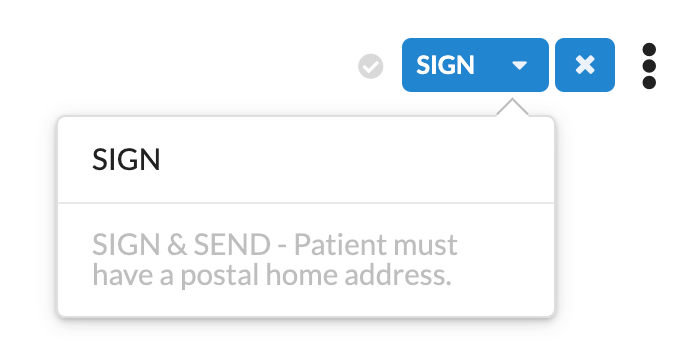
The patient must have a valid address for this button to populate
Clicking the dropdown on the button will allow the user to Sign which will commit the command, but it will not send.
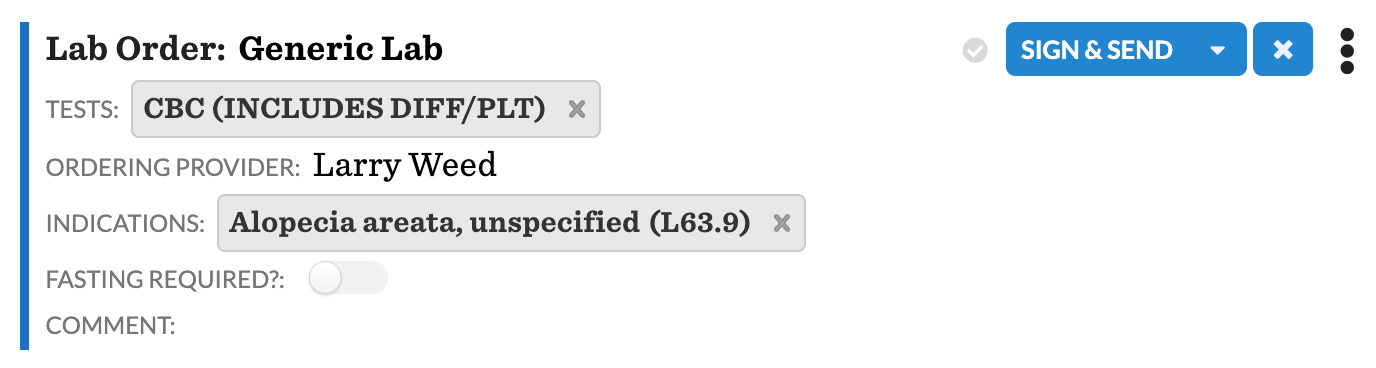
If the order is being sent to a lab integrated with Health Gorilla (e.g., Quest, Labcorp) and the commit button only displays Sign, this indicates that there is missing or incorrect information in the patient profile, which is preventing the order from being sent. By clicking the dropdown arrow on the commit button, you will see a message explaining why the order cannot be sent. Once the issue is resolved, the button will update to Sign & Send.
Sign
If the lab selected is not integrated with Health Gorilla (Generic Labs), the commit button will default to Sign which will commit the command but will not send.
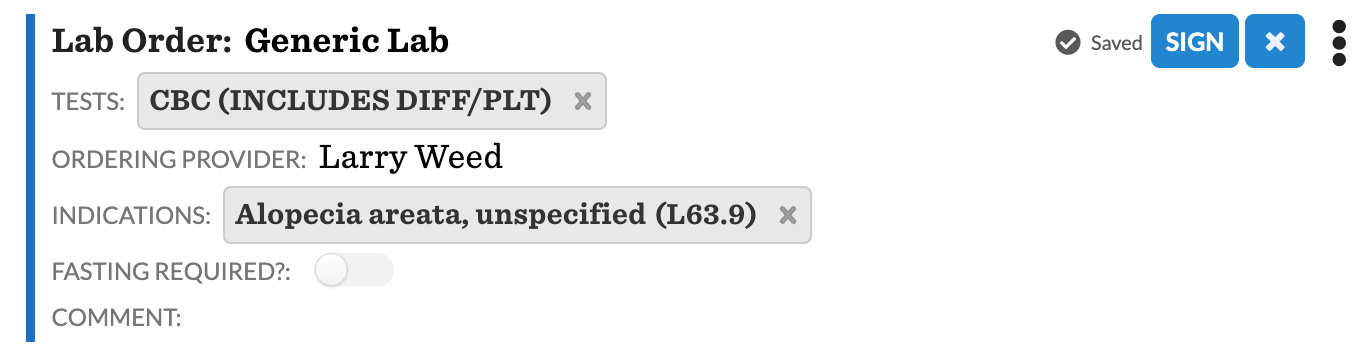
Lab Order Menu
Once the Lab Order command is committed, the triple dot menu of the command offers additional options
Print Requisition Form: Prints the lab order so the patients can have a copy to take to the lab, if needed.
Print Specimen Label: Used for in house lab labels
Fax Requisition Form: Send lab order to a lab the practice is not directly integrated with through Health Gorilla
In the fax modal window, add the lab name and fax number
Search the lab from the Saved Directory dropdown (lab needs to be saved to the referral database)
Manually enter the fax number and recipient information.
Check Include cover sheet, if needed
Click Next to open the fax preview
Click Send to complete and send the order
Understanding Order Splitting
Certain labs place limitations on which lab tests can be ordered together. Labcorp is the most notable example. In these cases, if you electronically order lab tests together that the lab does not allow to be placed together, you will receive an error.
Labcorp Order Splitting Requirements:
Cytology (Proc class = 'CY') - must be split to a separate requisition number
Histology (Proc class = 'HI') - must be split to a separate requisition number
Microbiology (Proc class in MI, MP, MQ, MZ, VI, VX) - must be split to separate requisitions grouped by the source. Micro tests can be ordered with other chemistry tests, but only micros with the same source can be ordered on a single requisition number
AFP (AOE Code = AFAFP, MSONLY, MSSNT, SERIN) - are split to a separate requisition number
Managing Lab Order Errors
An error badge is displayed if any errors are encountered when sending electronic lab orders. Hovering over the error badge allows users to see more details regarding the error. When errors are encountered, users should make necessary corrections and recreate the lab order. The previous lab order should NOT be entered in error.
Common Lab Order Errors
Unable to send the lab order because the patient does not have an address: The patient must have their address in their patient profile with a Use of Home and a Type of Postal or Both. If the patient's address is correct, check if another individual is listed as the subscriber on the patient's insurance coverage. To locate the subscriber's address, navigate to the patient's insurance/coverage section and access the subscriber's profile from there - the subscriber must also have a valid address listed. Note that if multiple profiles exist with the same name, ensure you're updating the correct subscriber profile linked to the patient's coverage.
Payor [Payor's name] must have at least one address to be created on Health Gorilla: Patient's coverage is missing an address. The payer's address and phone are required to send lab orders to Health Gorilla.
Supplied Author is unknown or Code 422 error: The provider is not registered on the practice's Health Gorilla account. Contact Canvas Support for assistance.
Electronic ordering is not possible due to a communication error talking to a third party infrastructure: A temporary communication error with Health Gorilla. Wait a few minutes and send a new order.
Order on hold, completion task has been sent to staff: A task is assigned to the designated team for lab orders that have missing details. The lab order will NOT electronically send without a documented patient or payer insurance address.
[Test Order #] cannot contain AOEs: The lab updated their compendium with AOEs that Canvas was not expecting. Contact Canvas Support to correct the lab test.
Electronic ordering is not possible: The subscriber of the patient's insurance does not have a valid address. The address will need to be added for the subscriber and the order will need to be resent.
Patient coverages must be sequential: This error occurs when there are multiple insurance coverages with overlapping issues—either the same order/rank number (e.g., multiple coverages listed as position 5) creating overlapping primary insurance coverages, or overlapping coverage periods with conflicting effective dates. To resolve:
Review the patient's coverages in their profile to identify overlaps
If coverages share the same rank/position number, click the six dots next to a coverage to reorder it and ensure each coverage has a unique sequential order number
If coverages have overlapping dates, adjust the coverage order by moving the primary coverage into the secondary position, then shift them back to the correct order to eliminate date conflicts
Remove any coverages that do not apply
After correcting the coverage sequence and setting the correct coverage as primary, resend the lab order
The system attempted to send this order automatically, but failed with an error message: Unable to find the patient's insurance (PAYER NAME). Please ensure coverage address is accurate and formatted correctly: There is an issue with the payer's address. If the address is a PO box, it should be
PObox and notP.O.. The.will throw this error if included in the address.
Configuration & Set Up
Creating New Lab Tests
To configure lab tests integrated via Health Gorilla:
Go to Settings and select Lab Tests under the Health Gorilla heading
Select + Add Lab Test in the top right
Complete Form Details:
Lab: Choose the lab where the order should be processed
(e.g. Quest, LabCorp, Generic Lab)
Health Gorilla order code: Search for the test on the lab's website (e.g. Quest or LabCorp) and enter the associated code
Order name: Name displayed in the Tests field of the Lab Order command
Keywords: Used to search for the test within the Lab Order command
Separate the keywords by comma
If left blank the field will auto-populate the order name and CPT code, if applicable
CPT code: CPT code associated to the test
If CPT is not added then NONE will be one of the keywords
Charge description: Fee associated to the CPT code. CPT code will drop to the billing footer if this field is completed.
Charge is based on the fee schedule
Save Configuration: Click Save to add the new lab test
Once added, the new lab test will be available for ordering in Canvas.
FAQ & Troubleshooting
Q: Does the lab order command include all tests from my selected lab vendor?
A: Yes - if your selected lab vendor is connected for electronic ordering, the compendium for the lab will be updated once a week to ensure it stays up to date.
Q: Do I need a specific label printer to print label specimens?
A: We recommend the Dymo LabelWriter 450 for the easiest configuration.
Q: What do I do if I do not have a specific lab vendor?
A: Process the order using Generic Lab and use Fax Requistion Form in the command's triple dot menu to send to the lab.
Q: I made a mistake, how do I remove this command?
A: Commands can be entered in error, but not deleted. Please review the Entering a Command in Error document for directions.
Q: What do I do if I need to send to a lab I do not have a Health Gorilla account with?
A: Order using Generic lab. You can either print the lab requisition for the patient to take to the lab, or click fax to send to the lab either using our directory or manually.
Q: What happens if I don't enter a CPT code?
A: If no CPT is entered, then NONE will be one of the keywords used for searching the test.
Q: Can certain lab tests not be ordered together?
A: Yes, certain labs like Labcorp place restrictions on which tests can be ordered together. The system will return an error if incompatible tests are ordered together, requiring them to be split into separate orders.
Related Resources
Keywords: Health Gorilla, lab vendors, laboratory integration, CPT codes, lab orders, billing, requisition forms, specimen labels, order splitting, generic lab, lab errors
Categories: Commands, Laboratory, Integrations, Health Gorilla
Roles: Clinical