Verifying Your Identity with ID.me: Step-by-Step Guide for Prescribers
Last updated: October 26, 2026
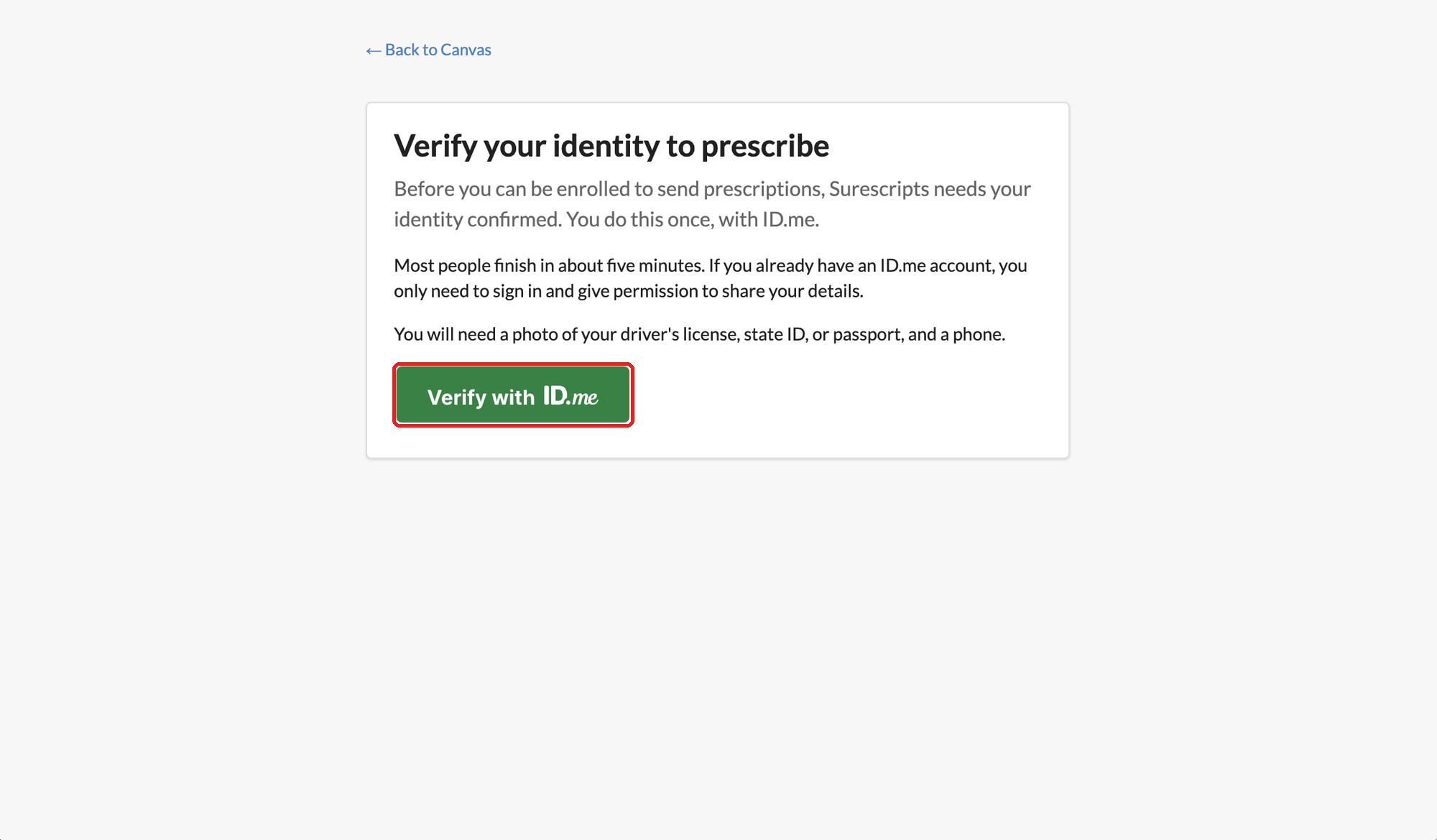
Canvas uses ID.me to confirm your identity before you are enrolled to send prescriptions. You can verify your identity within Canvas in about five minutes.
Before you begin
A photo of your driver's license, state ID, passport, or passport card.
A smartphone with a camera and a web browser. ID.me texts you a link to take the photos.
The first name, last name, and date of birth on your Canvas staff record must match your ID.
If you already have an ID.me account, you may only need to sign in and give permission to share your details.
Step 1: Open Identity verification
In Canvas, click the menu icon in the top left corner.
Click Identity verification. It opens in a new browser tab.
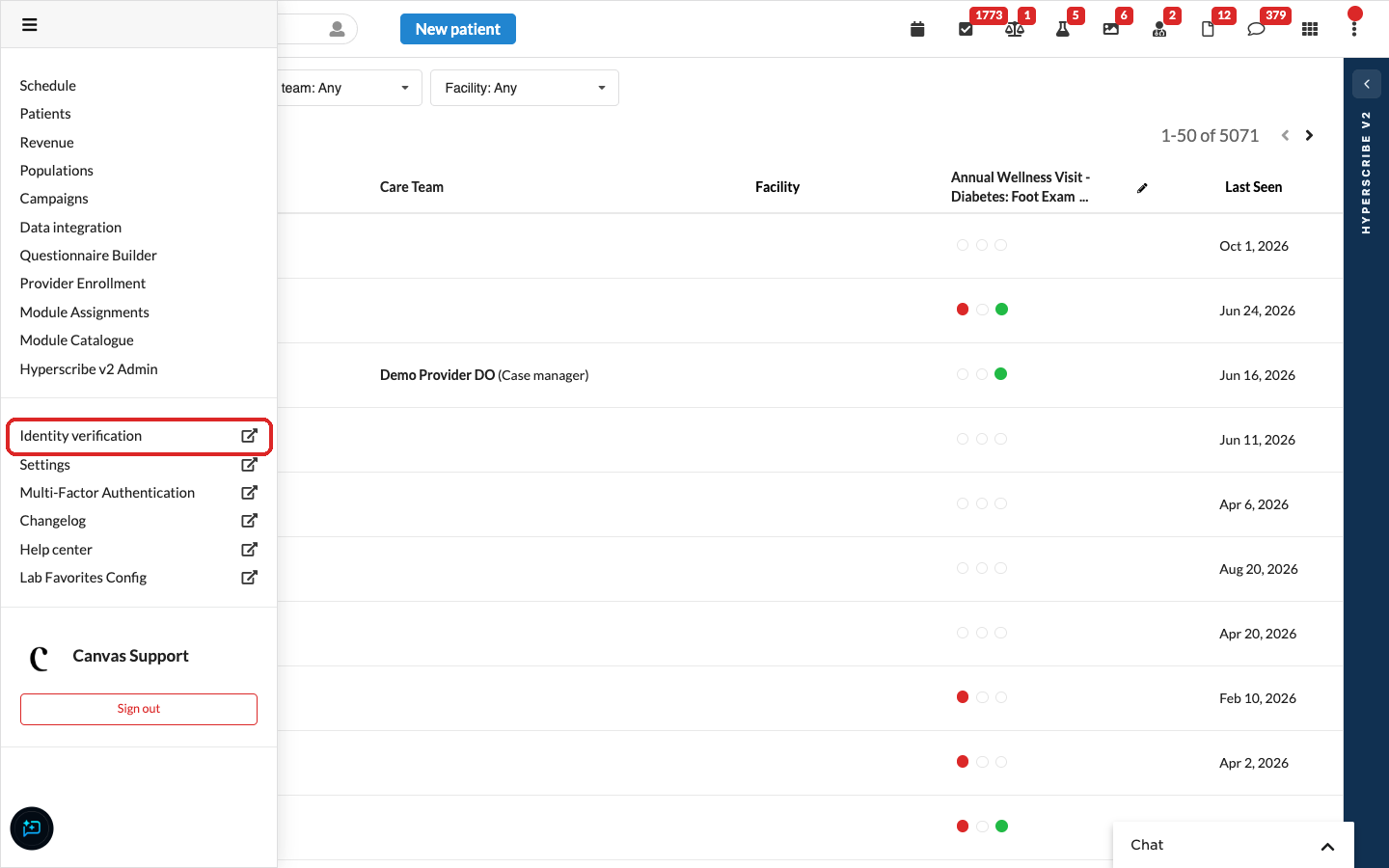
If you don't see Identity verification in the menu, ID.me isn't turned on for your practice yet. Ask your practice administrator.
Step 2: Start the verification
Click Verify with ID.me.
Step 3: Sign in to ID.me or create an account
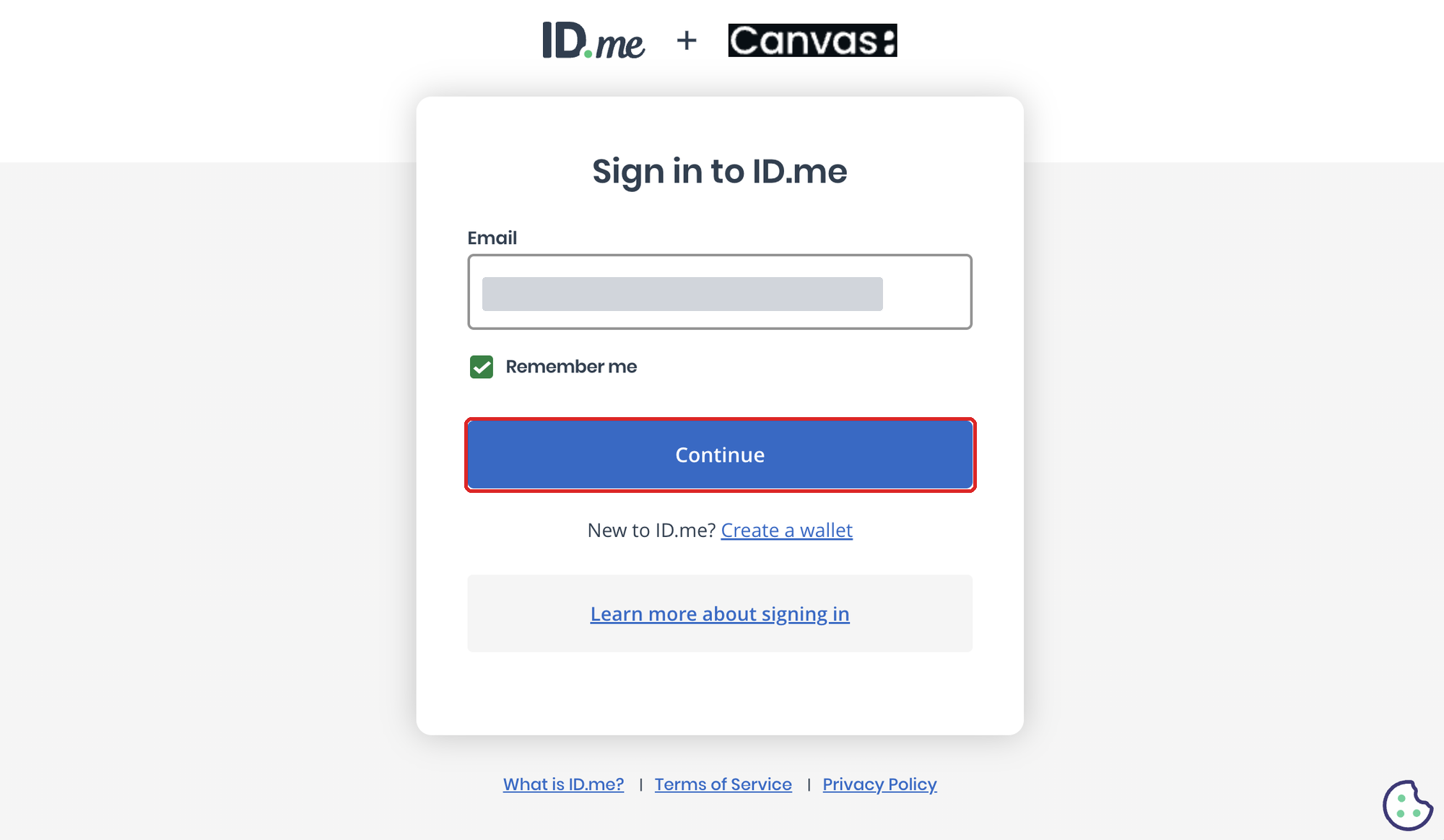
Enter your email and click Continue. If you're new to ID.me, click Create a wallet instead.
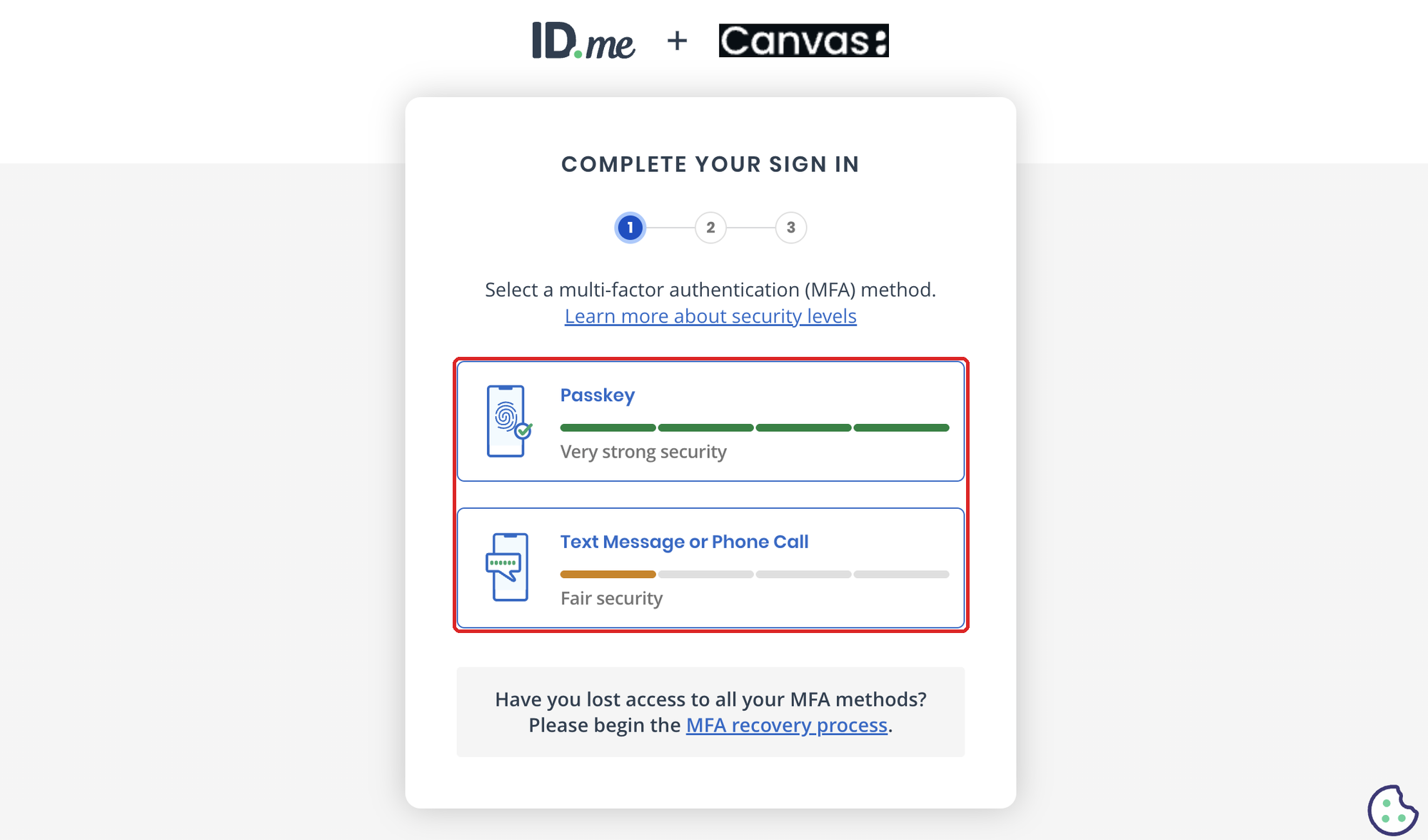
Choose how ID.me should send you sign-in codes. Passkey and Text Message or Phone Call both work.
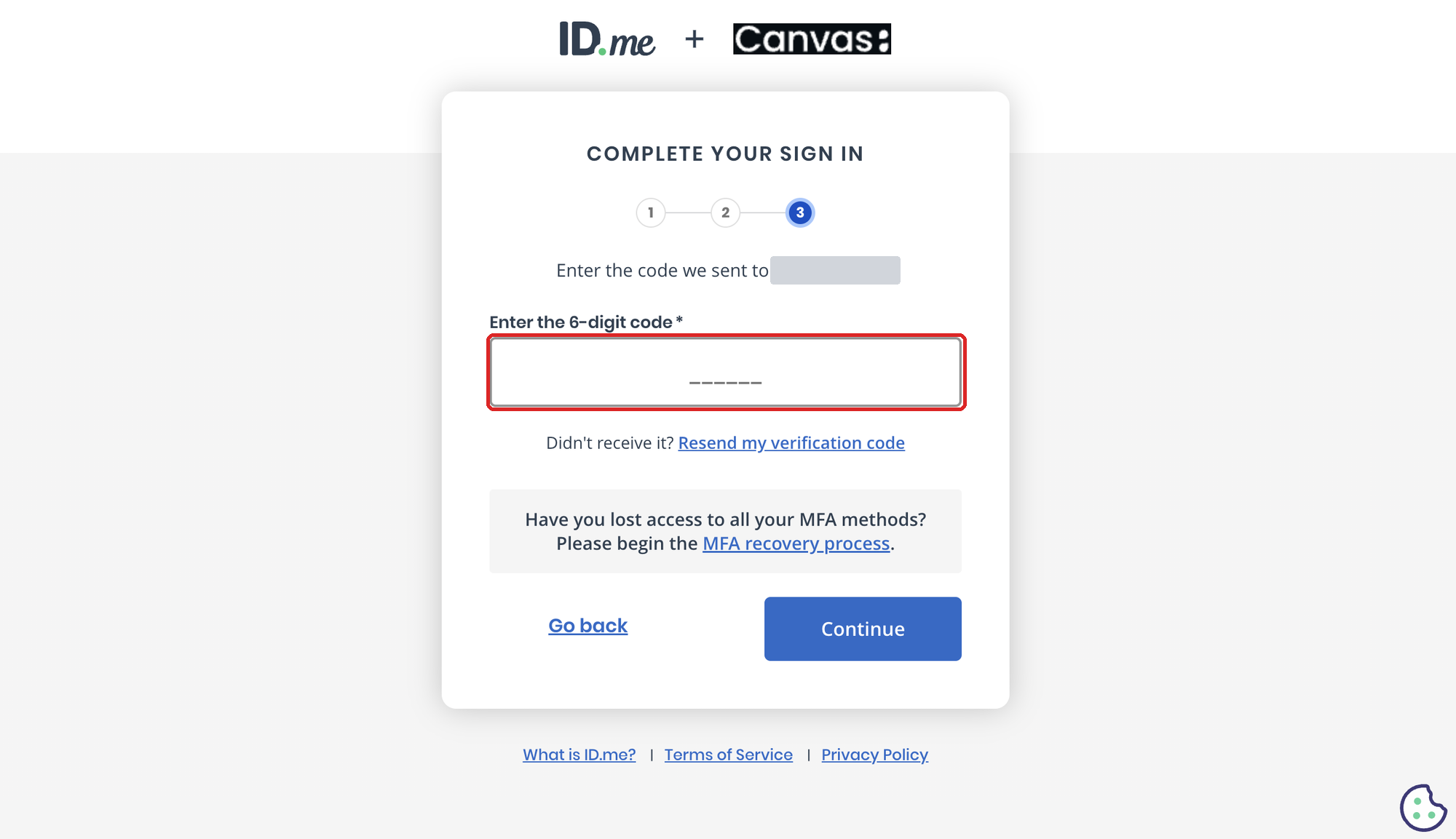
Enter the 6-digit code ID.me sends you and click Continue.
Step 4: Photograph your ID on your phone
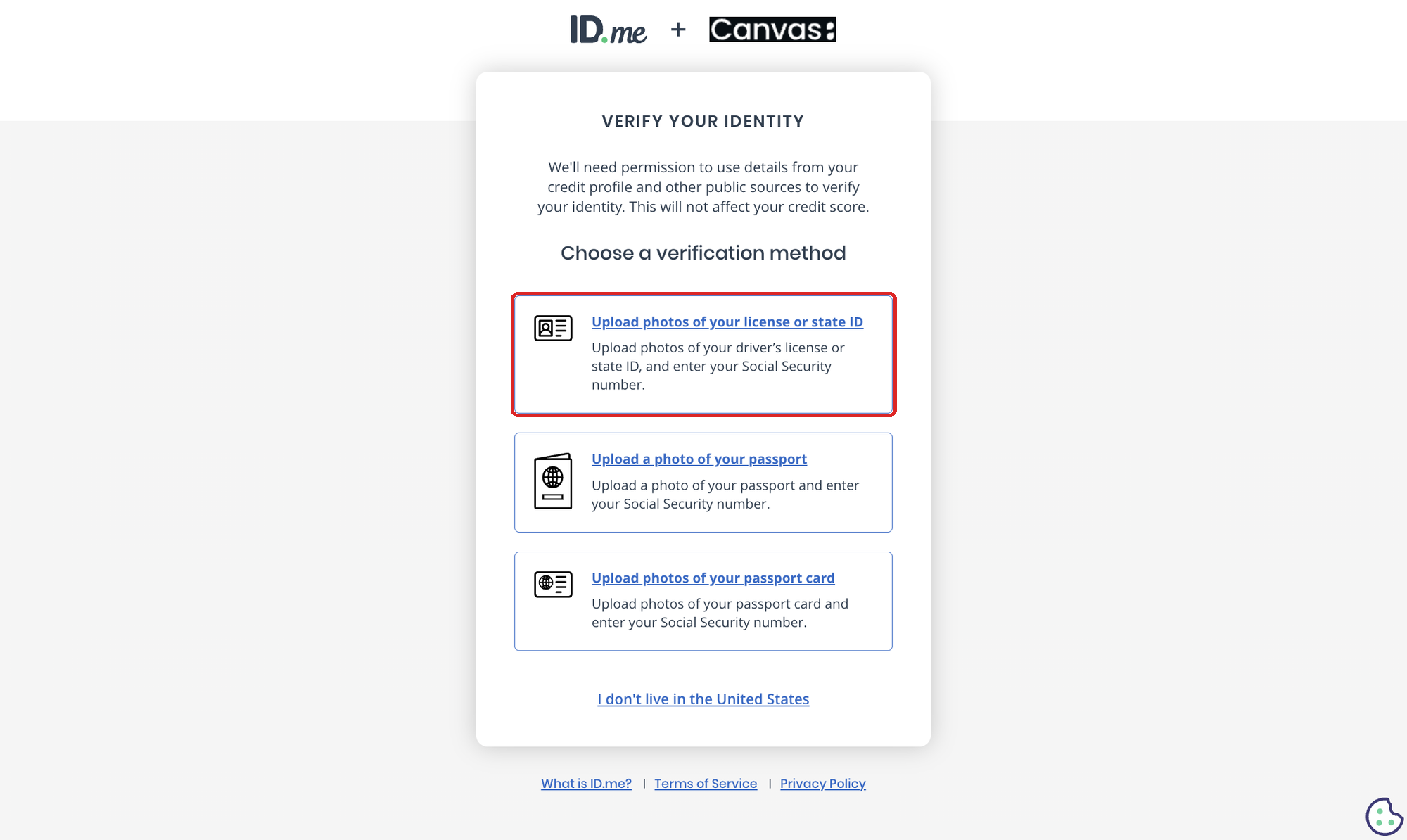
Choose your type of ID.
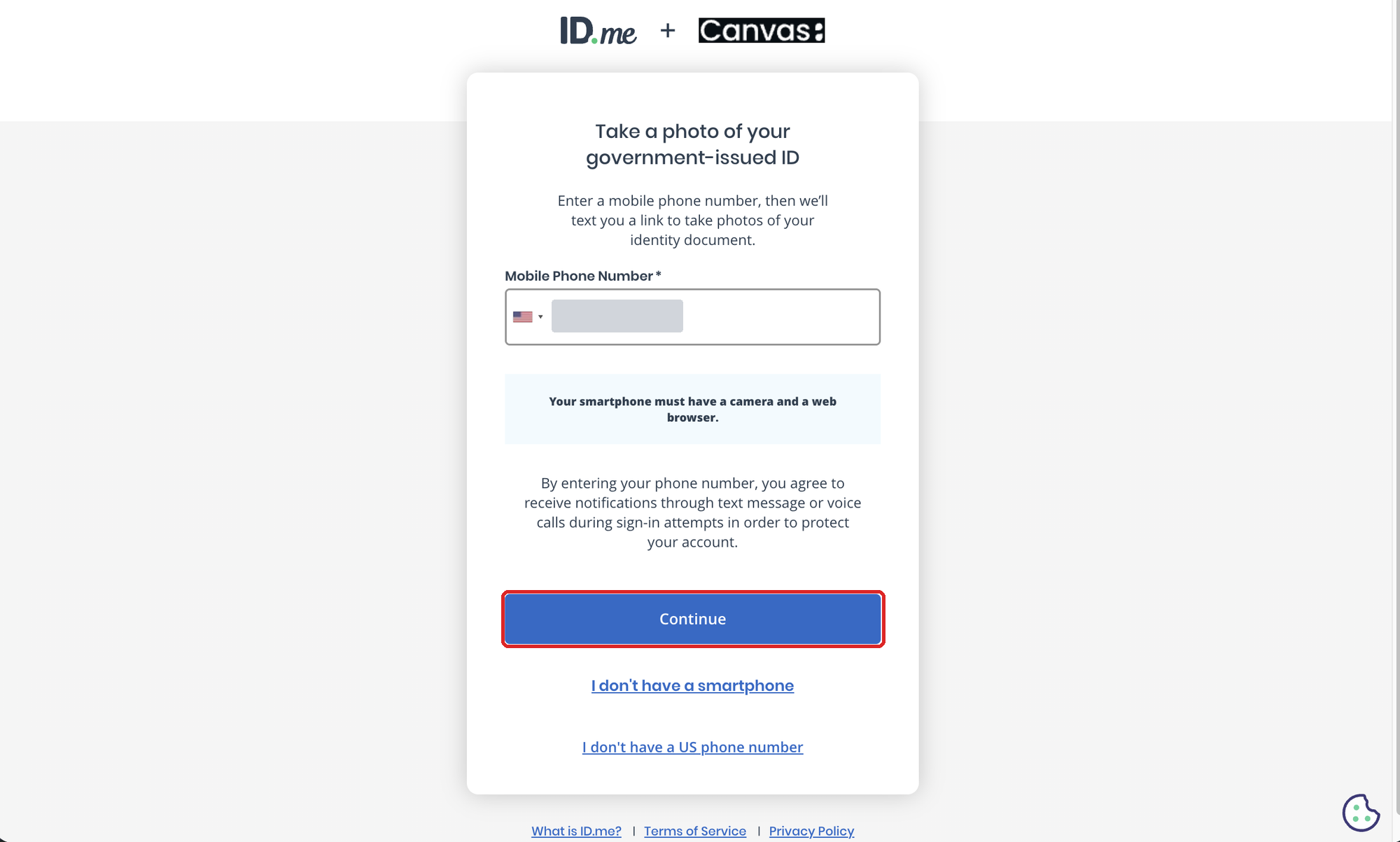
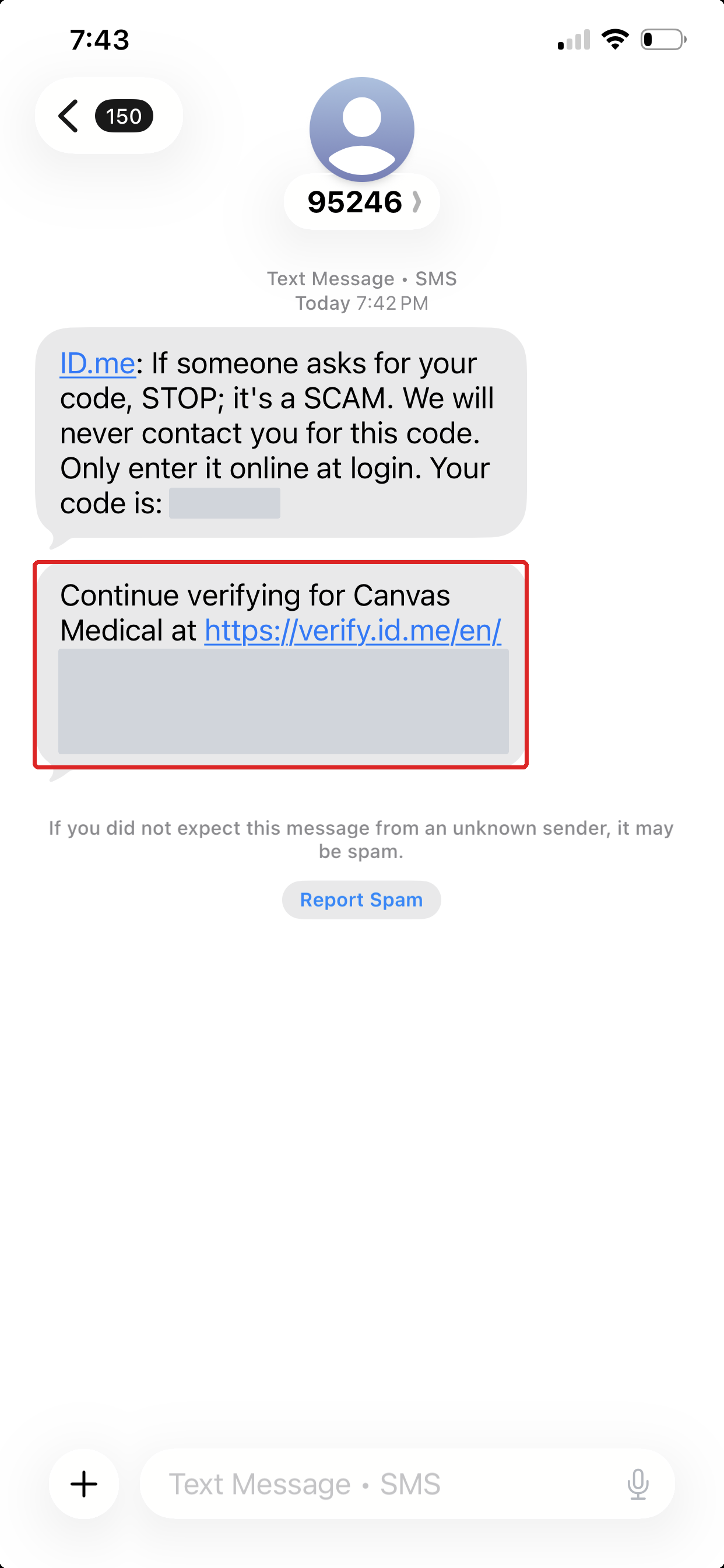
Enter your mobile number and click Continue. ID.me texts you a link that says Continue verifying for Canvas Medical.
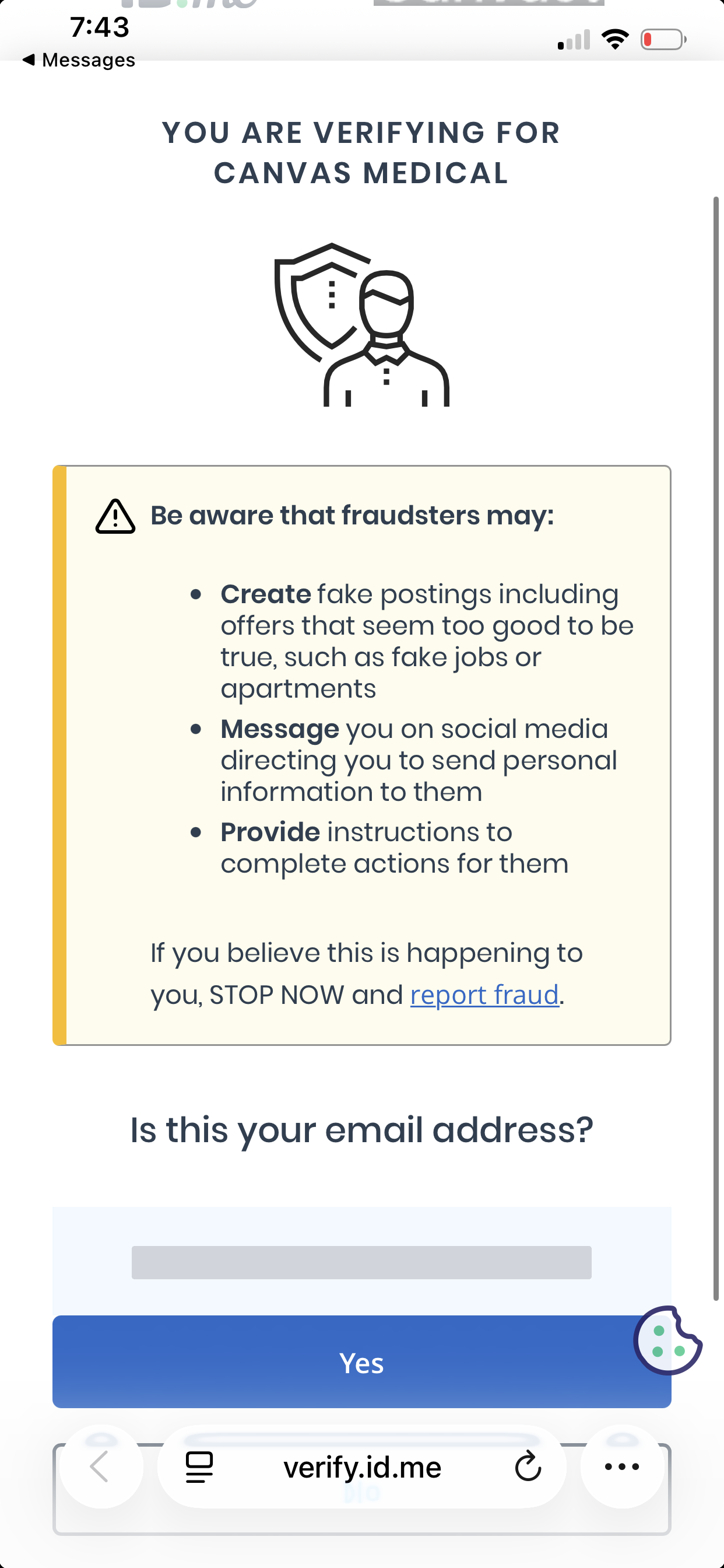
Open the link on your phone, confirm your email, and take photos of your ID.
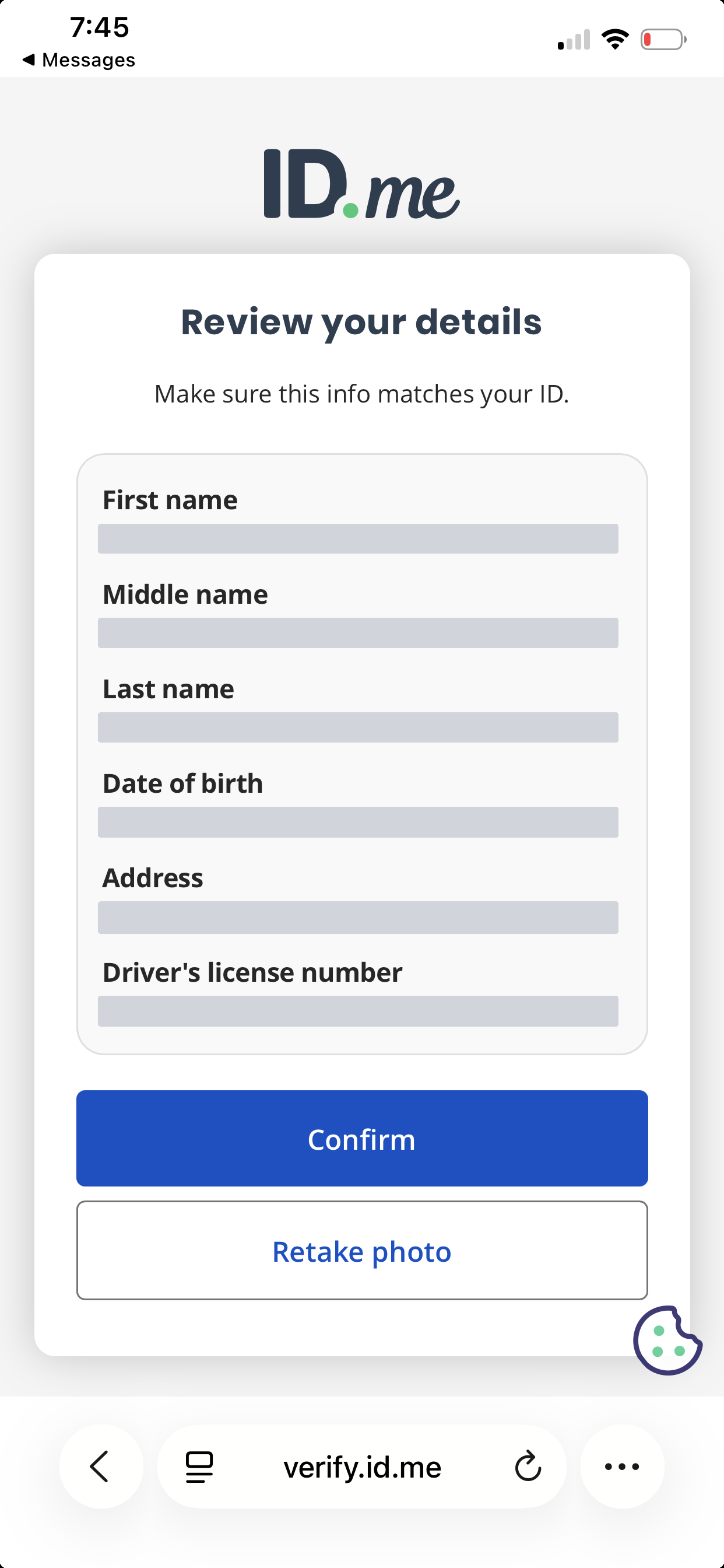
Check the details ID.me read from your ID, then click Confirm, or Retake photo if anything is wrong.
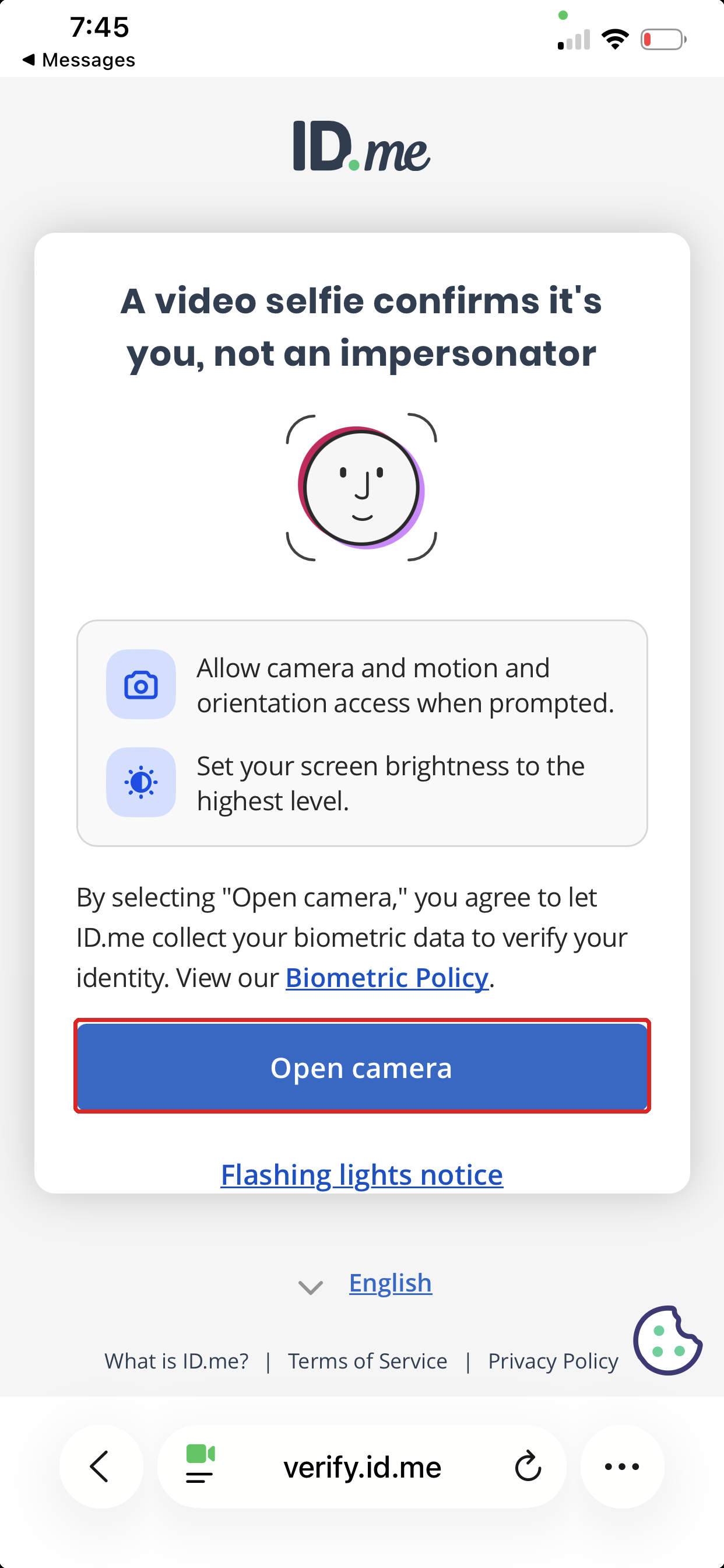
Click Open camera and take the video selfie. Keep your computer's browser tab open while you do this; it moves on by itself when your phone is done.
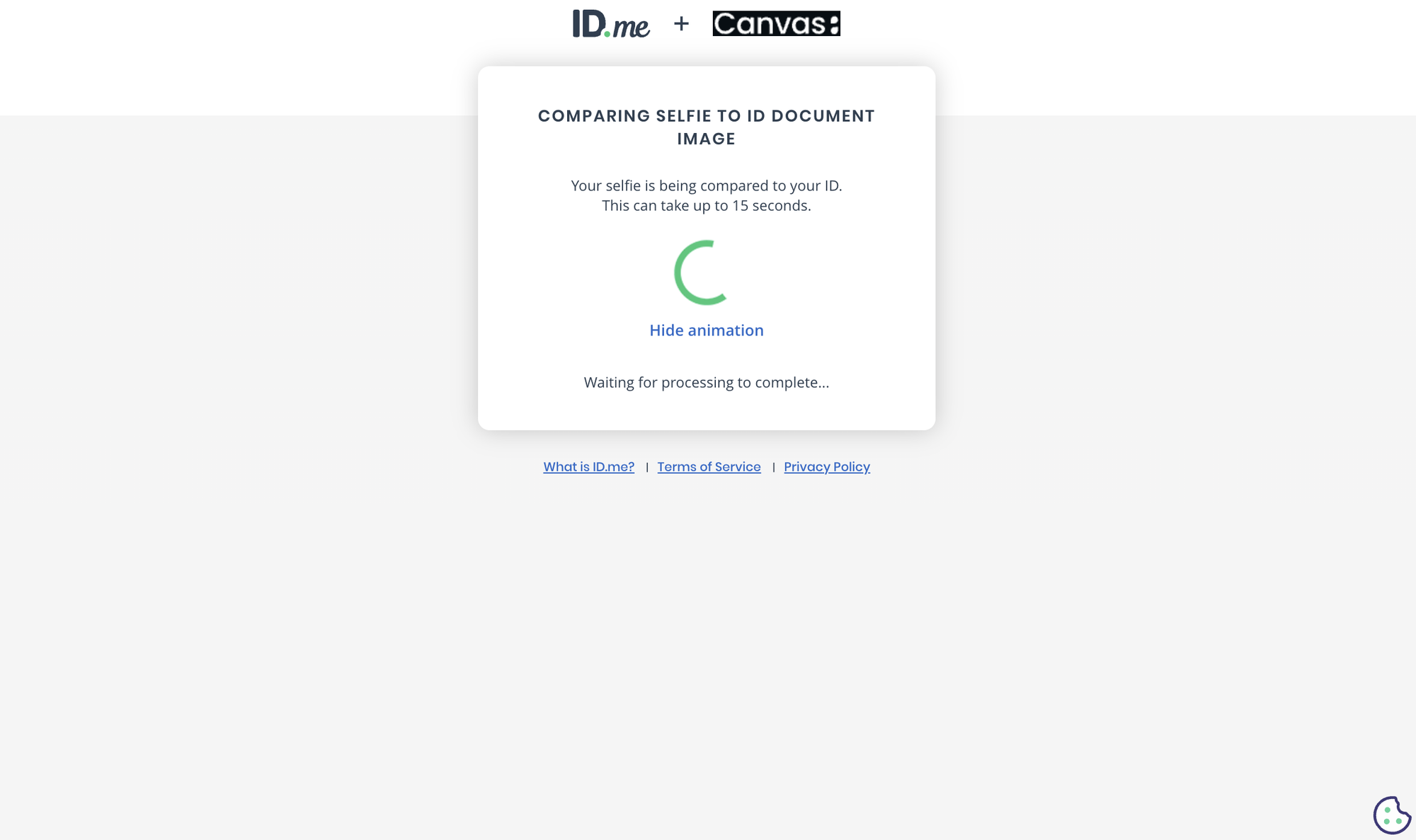
Back on your computer, ID.me compares your selfie to your ID. This takes a few seconds.
Step 5: Finish the ID.me checks
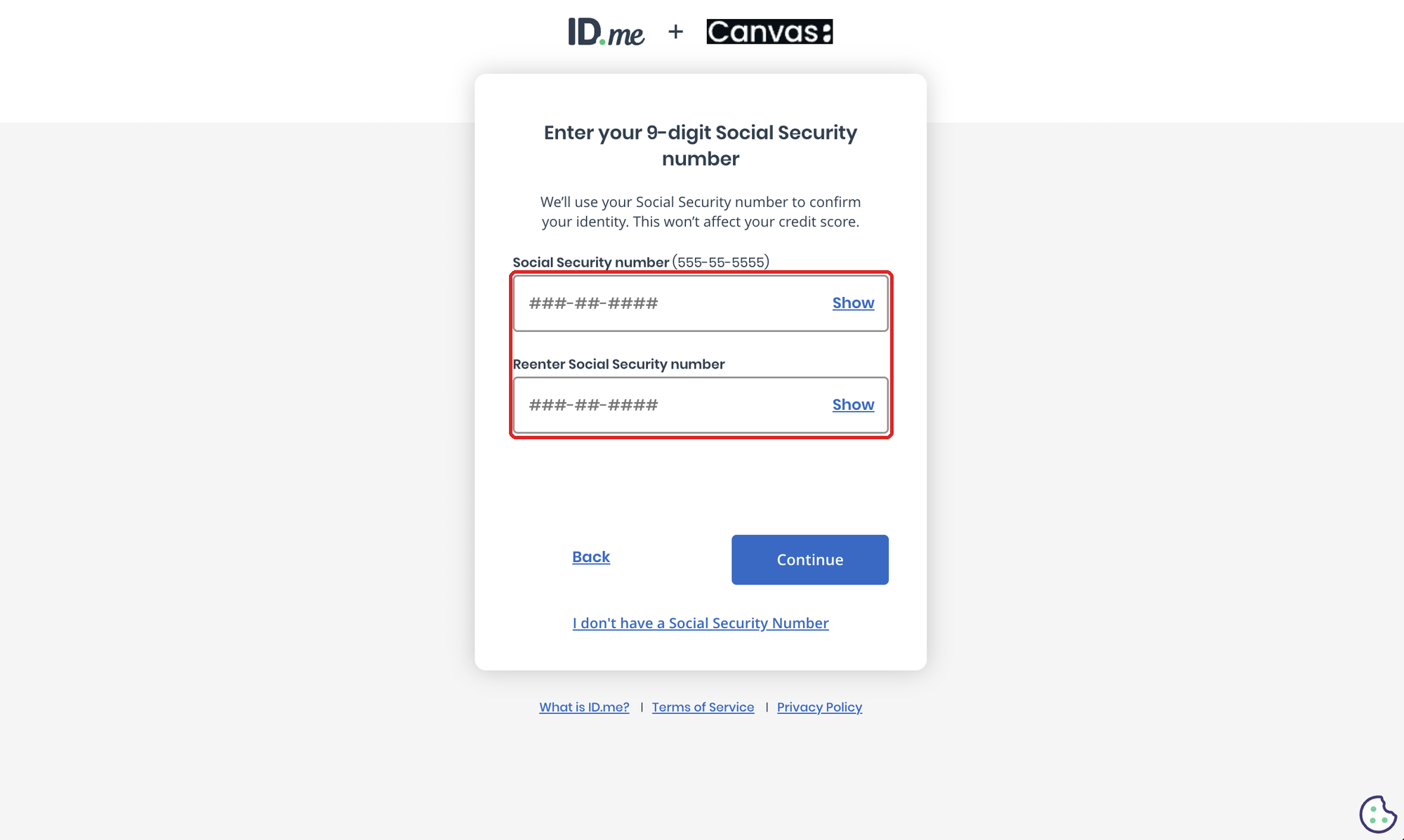
Enter your Social Security number twice and click Continue.
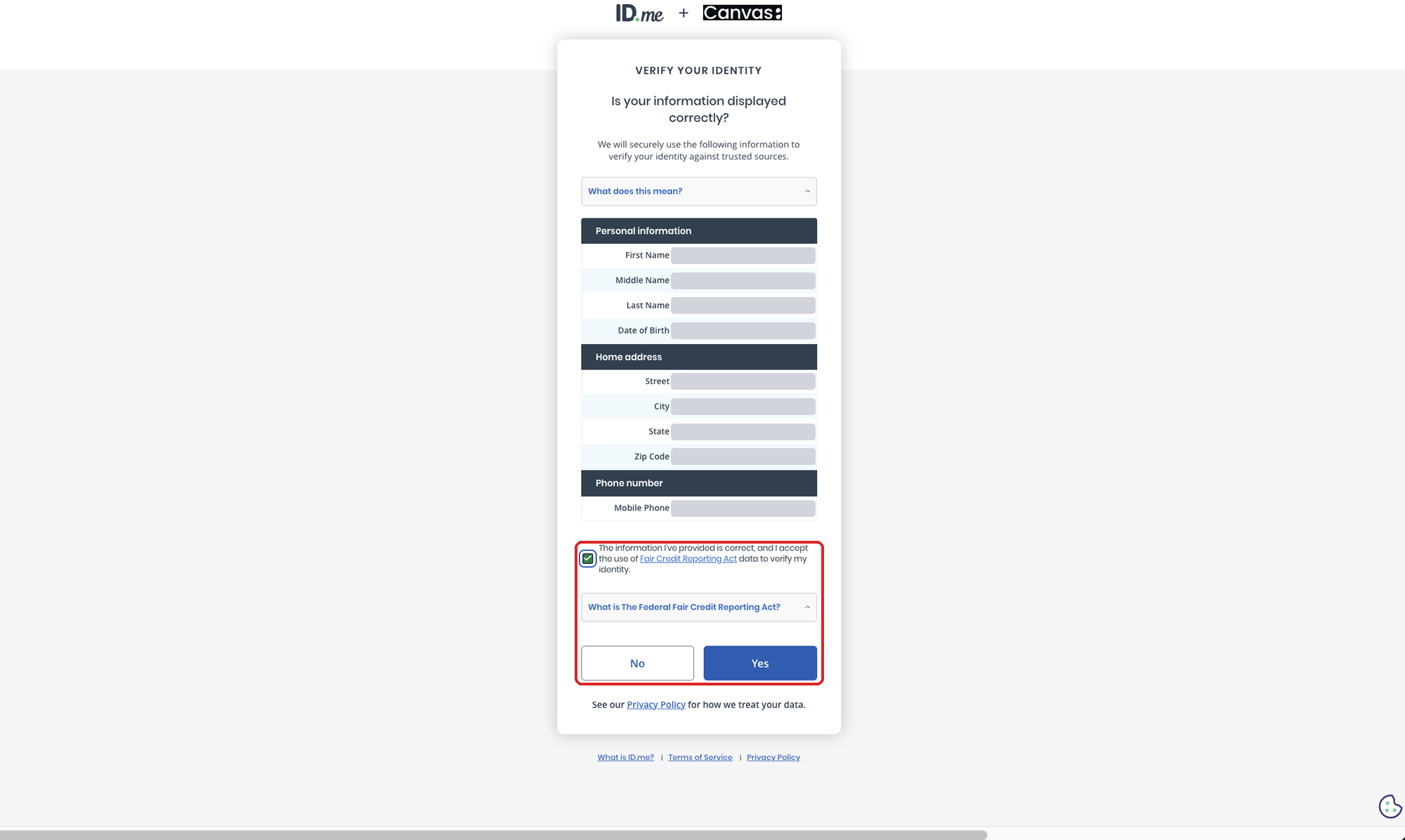
Check that your name, date of birth, address, and phone are correct. Check the box agreeing to the Fair Credit Reporting Act check and click Yes. ID.me states this does not affect your credit score.
Step 6: Allow ID.me to share your details with Canvas
ID.me shows We've verified your identity! and lists what Canvas Medical will receive: email, first name, last name, birth date, and addresses. Click Allow.
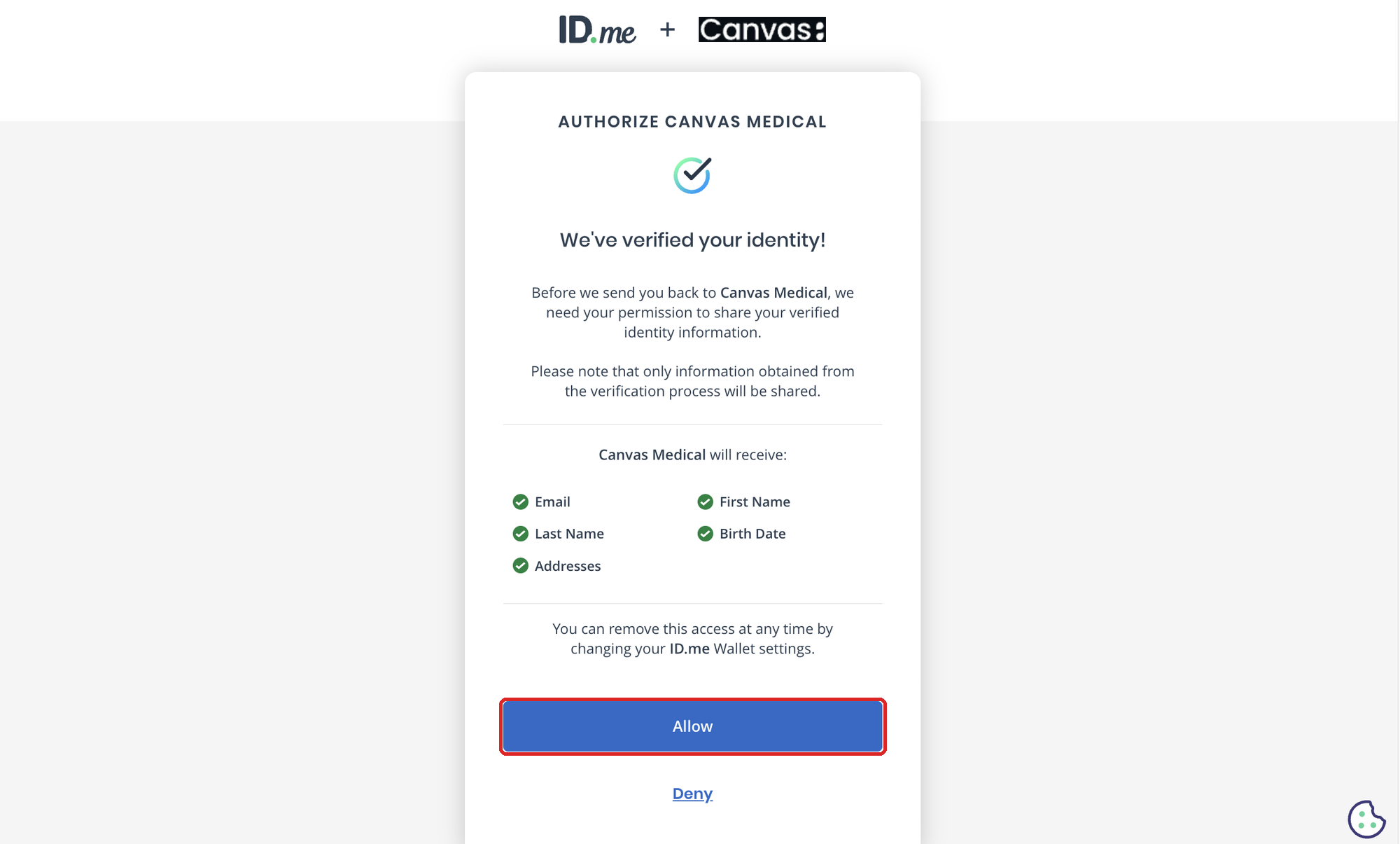
If you click Deny, ID.me does not send your verification to Canvas and nothing is recorded. Canvas shows You chose not to share your details with a Try again button.
Step 7: Confirm you're verified
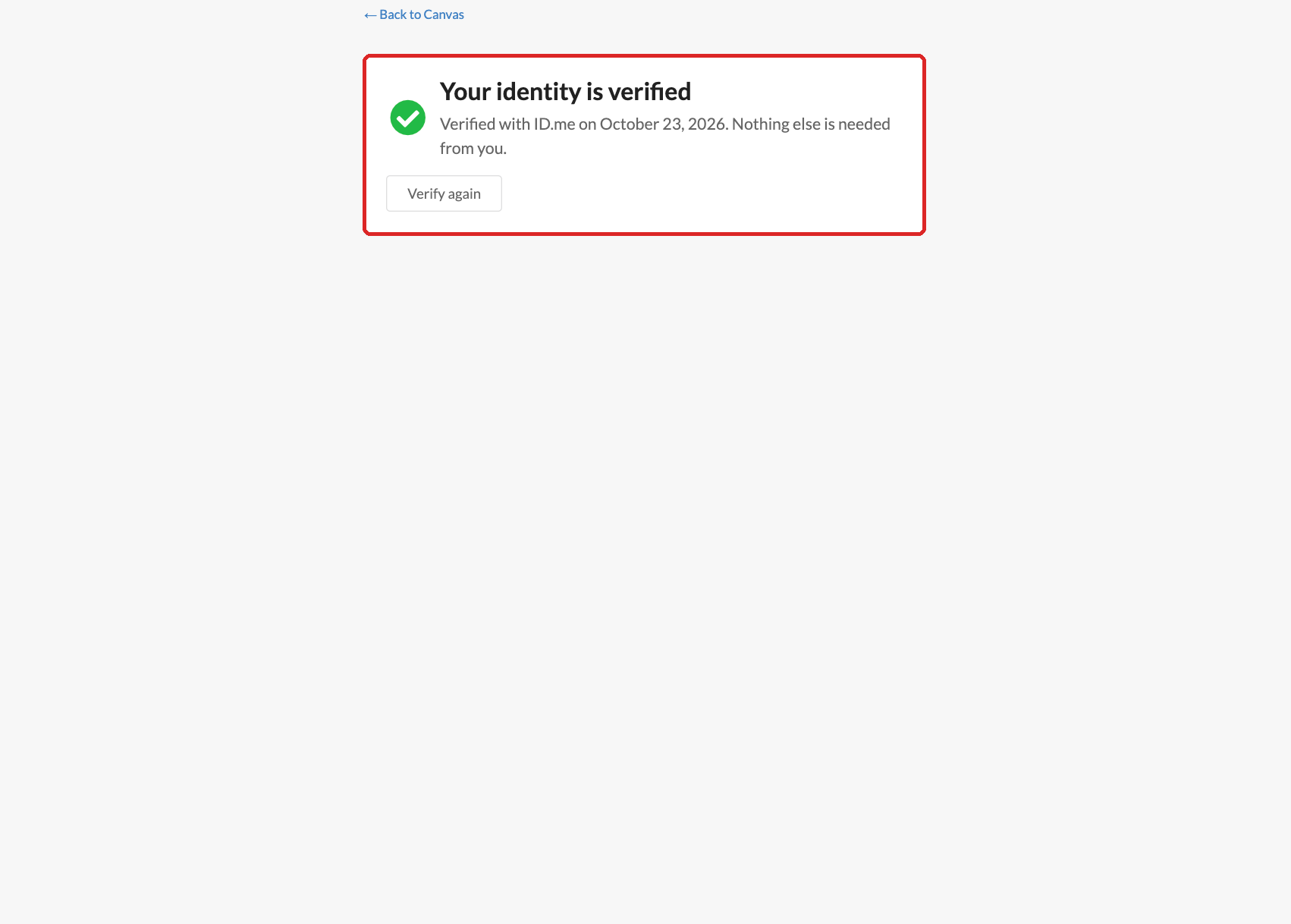
Canvas shows You're verified. Click Done to return to the Identity verification page, which now shows Your identity is verified with the date. Nothing else is needed from you. You can return to this page from Identity verification in the menu at any time.
If verification did not finish
If Canvas shows Verification did not finish, click Error details to see why.
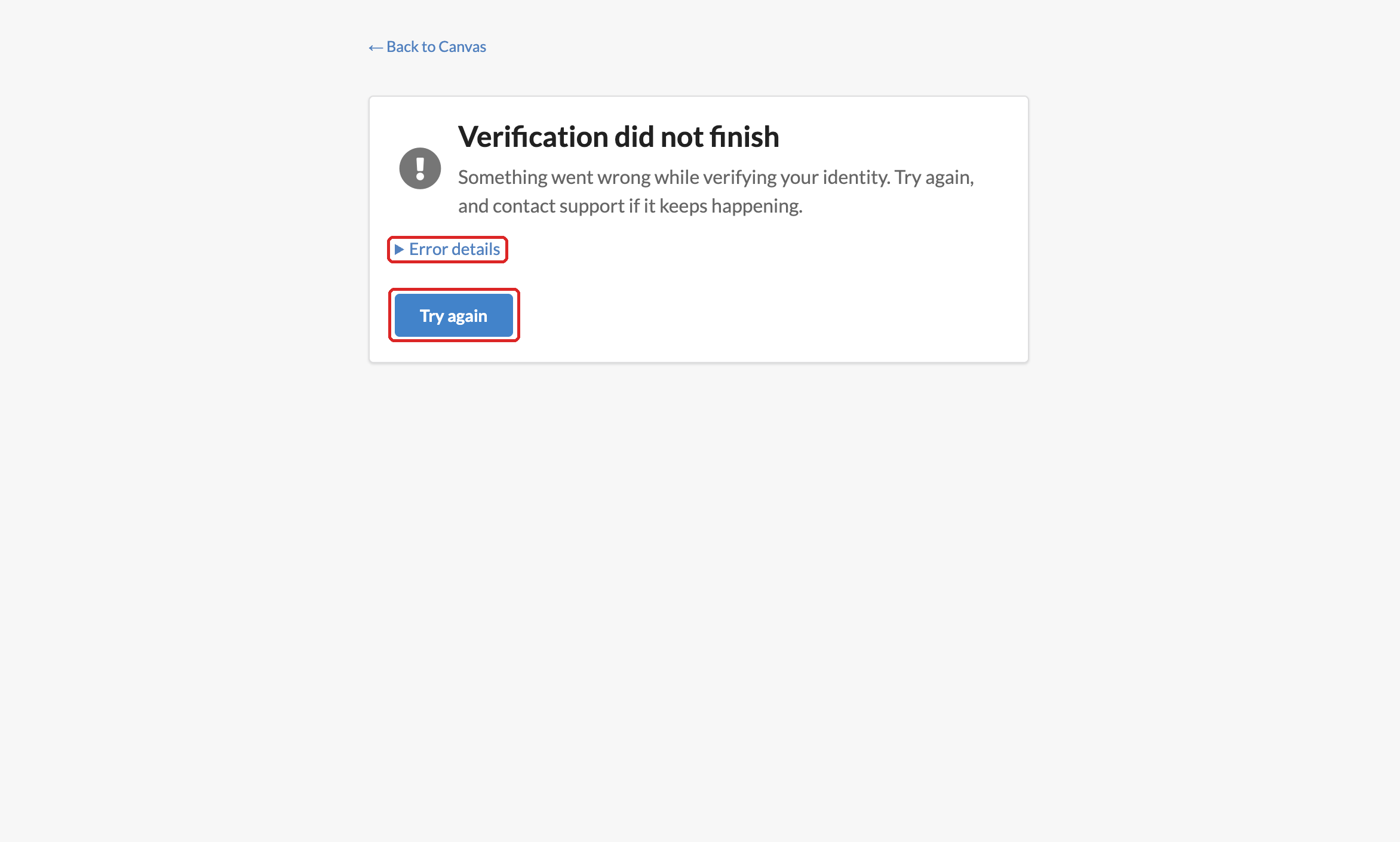
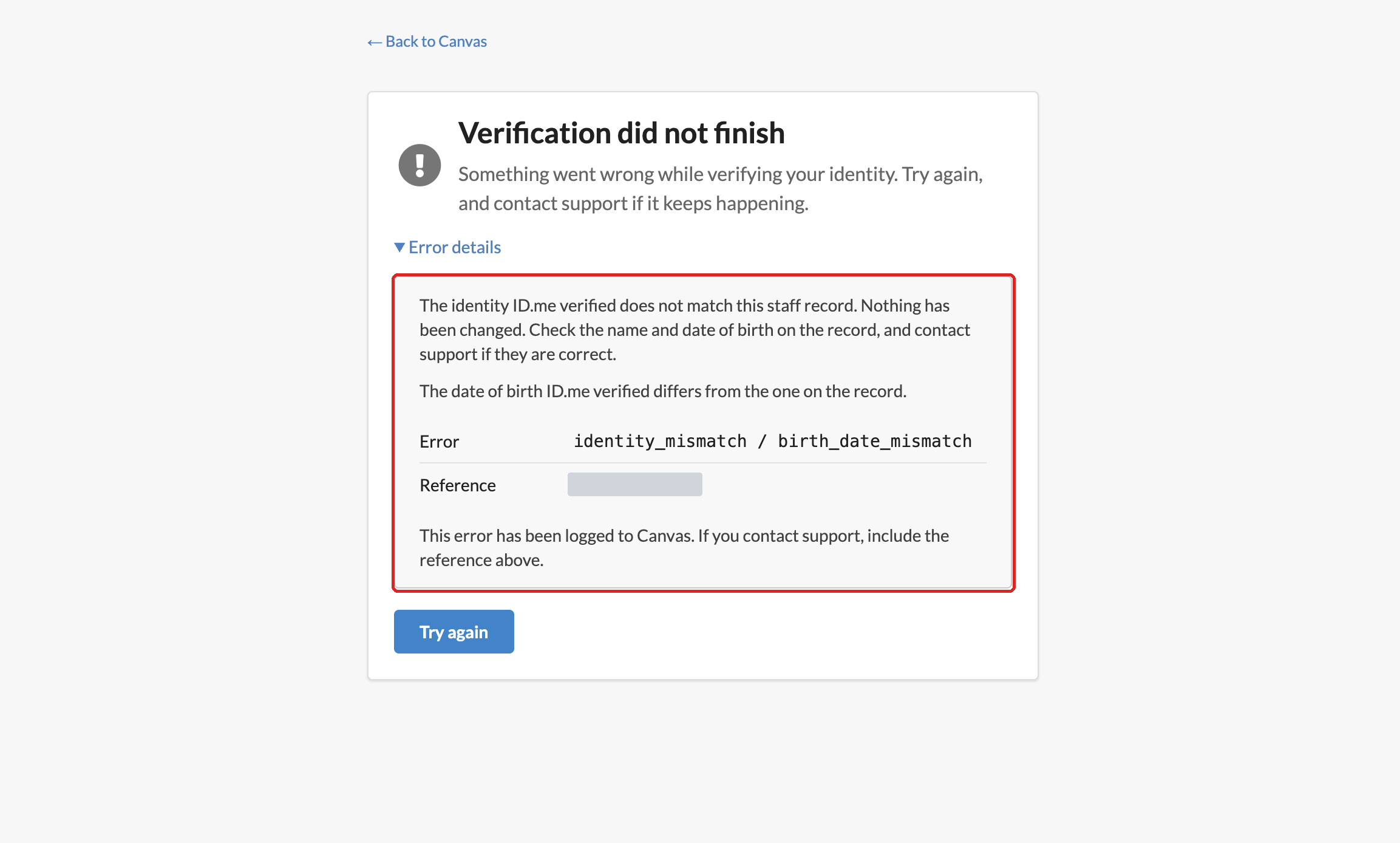
The identity ID.me verified does not match this staff record. ID.me verified you, but your name or date of birth differs from your Canvas staff record, so Canvas did not record it. The details below that message say which one: date of birth, first name, or last name. Ask your practice administrator to correct your staff record, then click Try again.
A date of birth is required on both sides (or a first or last name). Your staff record is missing that detail. Ask your administrator to add it, then try again.
ID.me could not be reached. Wait a few minutes and try again.
That verification link has already been used or has expired. Start again from Identity verification.
ID.me verified your identity, but Canvas could not record it. Contact Canvas support before trying again.
If you contact Canvas support, include the Reference shown under Error details.