Canvas Platform for MSOs
Last updated: November 5, 2026
If your organization is an MSO (management services organization), you manage each of your practices from Canvas Platform. Each practice stays its own organization, with its own instances, members, single sign-on and audit log, and your MSO's people open every one of them.
Who Reaches What
Who | What they see |
|---|---|
People with a role at the MSO | The MSO and every practice, with the same roles in each |
People at the MSO with no role yet | The MSO only |
A practice's own members | Their practice only, never the MSO or another practice |
How to Switch Between the MSO and a Practice
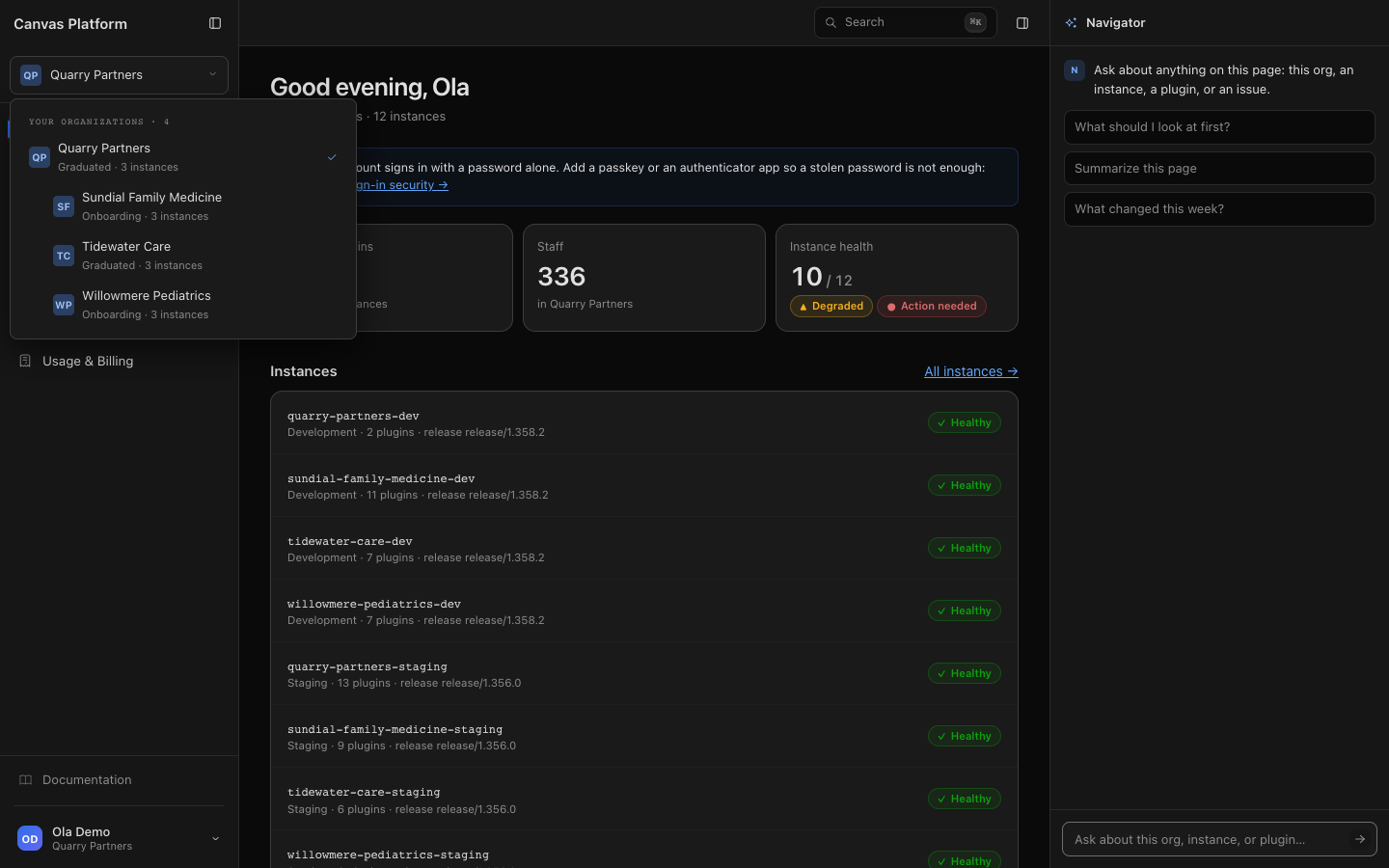
Open the organization menu. Click your organization's name at the top of the sidebar.
Pick an organization. Your MSO is listed first, with its practices under it.
What You See From the MSO
Where | On the MSO | On a practice |
|---|---|---|
Canvas Instances → All instances | The MSO's instances and every practice's, with an Organization column | That practice's instances only |
What is installed where | Plugin versions compared across the MSO and all its practices | Compared within that practice |
Promotions | Every practice's promotions | That practice's own |
Studio → Overview | The MSO's Studio, then each practice's Studio with its projects, messages and deploys counted (project names stay private) | Not shown |
Onboarding | Practice implementations, each practice's onboarding progress | That practice's own |
Usage & Billing | The total across the MSO and every practice | That practice's spend, marked Billed to your MSO |
Promoting From One Practice to Another
On the MSO, Compare two instances (on Canvas Instances → All instances) lets you promote changes from one of your organizations to another, at the same stage or a higher one. You need the Deploy manager role on both sides. The promotion belongs to the practice that receives it, and each step is recorded in the receiving practice's audit log, the sending practice's and the MSO's.
What Reaches Your Practices
What | How it reaches the practices |
|---|---|
Plugins your MSO publishes | They run on every practice's instances and show in each practice's Plugin Catalog, as if granted to each. A practice's own plugins stay with that practice. |
Studio roles | Each practice has its own Studio. Someone with a Studio role at the MSO opens a practice's Studio with that role once Canvas links them to a staff member in that practice's Studio. |
The AI Agreement | Your MSO's agreement covers every practice. See below. |
Admin emails | A practice's single sign-on and domain notices, and its budget alerts, go to its own Organization admins and the MSO's. |
Second sign-in step | If you sign in with a password and any organization you reach requires a second sign-in step, you need one. |
How to Send the AI Agreement for Your Practices
The MSO signs the AI Agreement once for itself and all its practices. A practice can't send its own: its people see that the MSO must complete it.
Switch to the MSO. Use the organization menu at the top of the sidebar.
Open Studio or Onboarding. While the agreement is outstanding, a note across the top says so.
Start sending. Click Send AI Agreement for Review.
Name your signer. Enter their First name, Last name and Email, then click Send agreement. They get a link to review and sign.
Once your MSO's agreement is signed, Studio, Navigator and Onboarding open for every practice.
How Budgets Work
Each practice keeps its own budget, and your MSO's Billing admins set it. Your MSO's own budget covers the MSO and every practice together. A practice's requests count against its own budget first, then the MSO's, so a practice can reach the MSO's limit with room left in its own.
To set a practice's budget (Billing admin at the MSO):
Switch to the practice.
Open Keys & limits. Click Inference → Keys & limits.
Set the amount. Under Organization budget, enter the Monthly budget, up to the ceiling Canvas set, and click Save.
Choose what happens. Turn on Stop requests to refuse new requests once the budget is reached, and pick the percentages under Notify at.
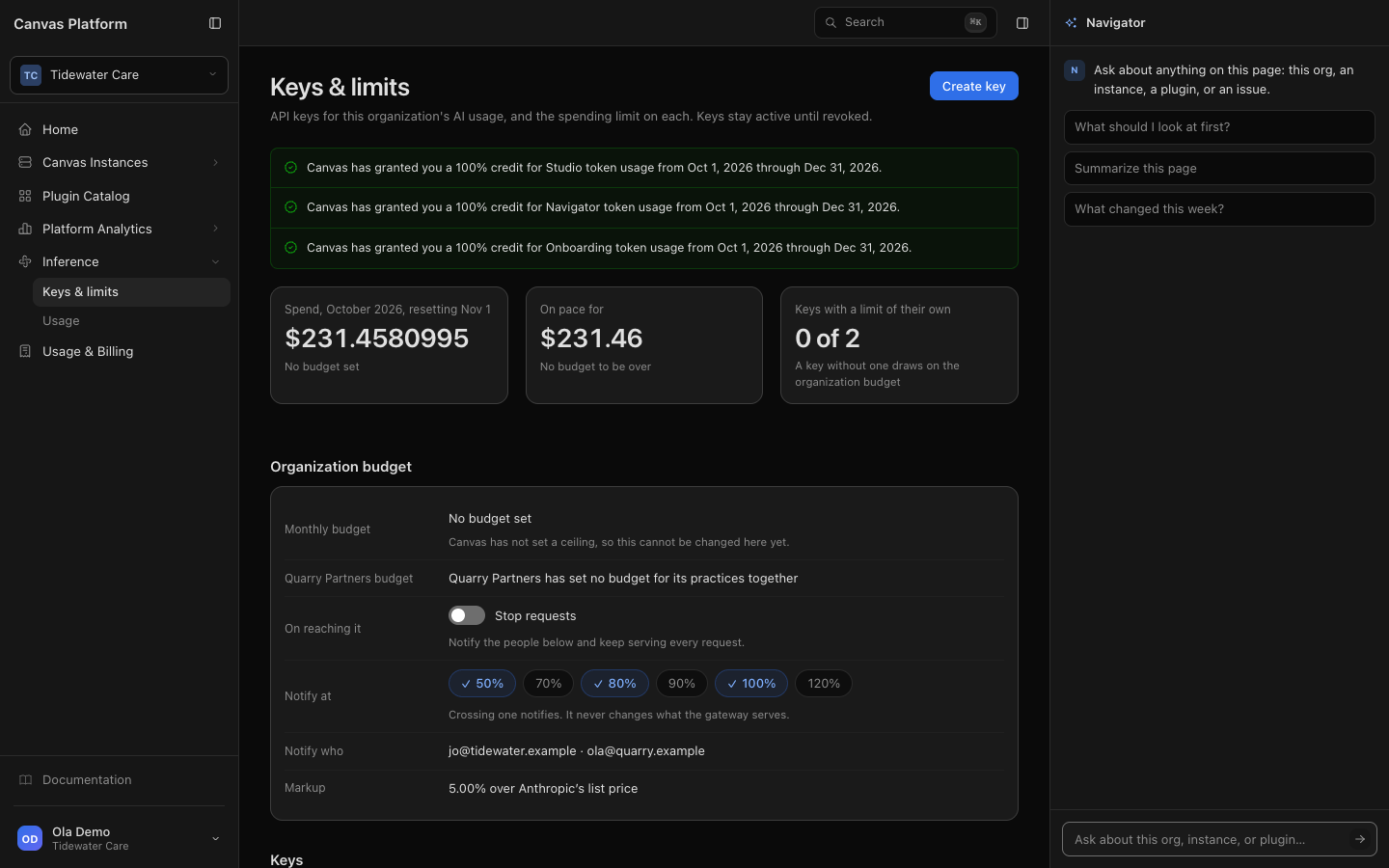
The same page shows your MSO's budget and what the MSO and its practices have spent against it. A practice's own Billing admin sees the practice's budget with a line saying your MSO sets it, and still sets each key's own limit. They never see the MSO's budget or spend.
Credits and Billing
Every practice's usage is billed to your MSO. On the MSO's Usage & Billing, Total token spend month to date covers the MSO and all its practices, and the Practices section lists each one's Spend this month and After credits, ending with the total billed to the MSO.
Canvas grants credits. Your MSO's credits apply on the MSO's bill:
Percent and unlimited credits apply to each practice's line as well as the MSO's.
A dollar credit is one pool, drawn down once across the MSO's and every practice's usage.
A credit on Studio, Navigator or Onboarding reaches the practices' usage of that product. A credit on one of the MSO's own keys stays with that key.
A practice's own pages show only the credits granted to that practice, and its Billing settings say it is covered by your MSO's agreement and billed to your MSO.
FAQ
How do we add a practice to our MSO, or remove one?
Contact your Canvas team. Only Canvas links and unlinks practices, and each change is recorded in the practice's audit log and the MSO's.
What happens to our plugins when a practice leaves the MSO?
Plugins your MSO publishes stay installed on the practice's instances and can still be uninstalled, but they can no longer be updated, deployed or configured there. The Organization admins of both the practice and the MSO get an email listing them.
Can a practice see our other practices?
No. A practice's members reach their own practice only, and its pages show only its own instances and spend.
Why does the MSO's Instances page say a plugin is behind when the instance's page doesn't?
The MSO's page compares versions across the MSO and all its practices. An instance's own page compares within its practice only, so a version can be the newest in one practice and still behind another.
Why can't I open a practice's Studio?
You need a Studio role at the MSO, and Canvas has to link you to a staff member in that practice's Studio. Contact your Canvas team. If the practice's row on Studio → Overview says Studio is not set up, Canvas sets that up too.