Family Portal Access
Last updated: November 11, 2026
Family portal access lets your staff give a family member or another representative portal access to a patient's chart. A parent can open their child's records, a guardian can manage appointments for someone in their care, and an adult child can follow a parent's lab results. Each person signs in with their own login, sees only the parts of the chart your staff give them, and everything they do is recorded as them, acting for the patient.
One login can open several charts: a parent who is also your patient sees their own record and each child's record they were given, and switches between them in the portal.
Before you begin
Canvas turns family portal access on for your instance. The setting is
FAMILY_PORTAL_ACCESS, in the Patient Portal Beta Features section that Canvas configures for you. Ask your Canvas team when you're ready to use it.Who can manage access. Staff who can change patients, and who can see the patient, can give, change, and remove family access. Removing a contact who has access also takes permission to delete contacts.
The family member must be one of the patient's contacts. Access is always given from a contact on the patient's chart, so add them in Contacts first.
Step 1: Add the family member as a contact
Open the patient's chart and go to Profile.
In Contacts, click Add.
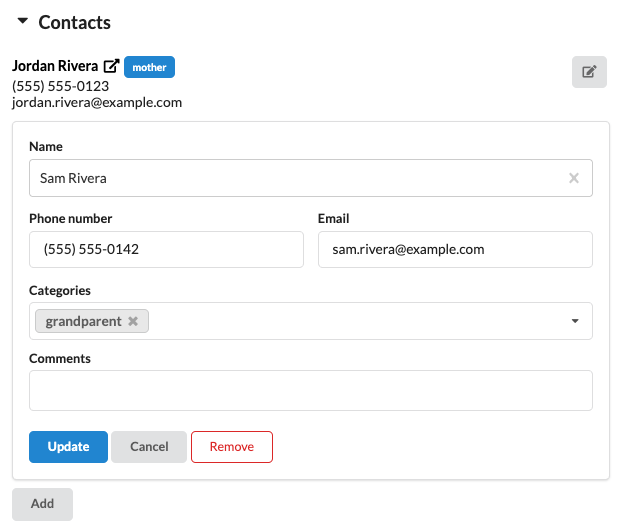
In Name, either search for the family member's own chart, if they are also your patient, or type their name and enter their email address and phone number.
In Categories, choose how they're related to the patient, such as mother, father, grandparent, or spouse. Family portal access shows it on the family member's access row, in the list of contacts to give access, and to the patient under Who can see my record.
Click Save.
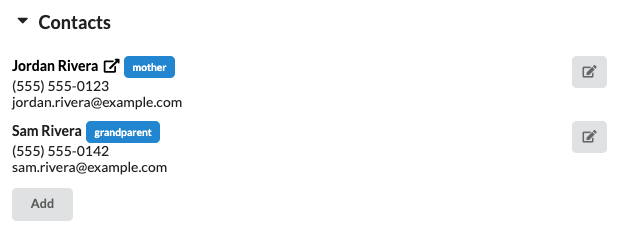
Only relationship categories show as the relationship: the categories that use the HL7 relationship codes (http://terminology.hl7.org/CodeSystem/v3-RoleCode), which Canvas provides for relationships such as mother, father, parent, step parent, grandparent, foster parent, spouse, sibling, and child. Other categories, such as Emergency Contact or Power of Attorney, describe the contact's role and don't show as the relationship. A category your team adds shows as the relationship only when it uses that same code system.
Step 2: Give the family member access
In the patient's Profile, open Portal and click Add.
In Contact, choose the family member. Only contacts without access are listed.
Choose their access. Full access and View only set every area at once, or set each area separately.
Click Add.
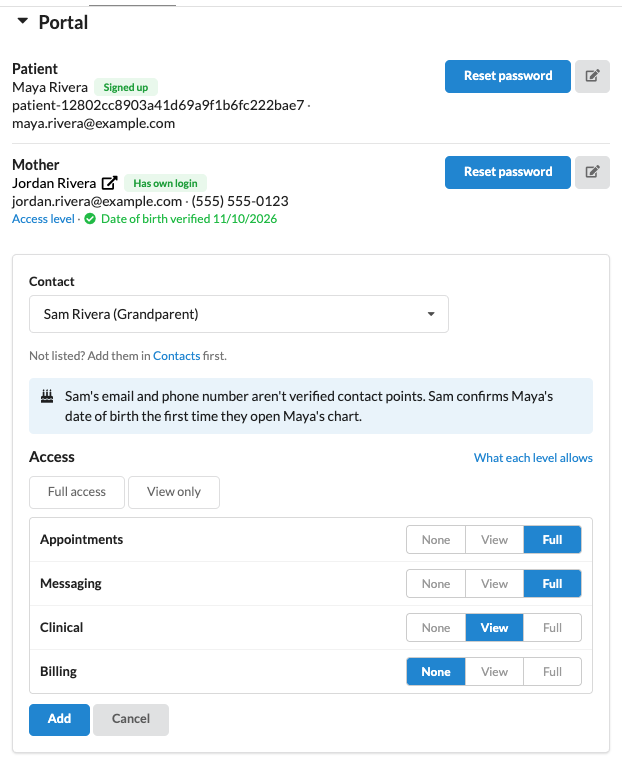
Access is set separately for four areas of the patient's portal:
Area | Portal pages | View | Full |
|---|---|---|---|
Appointments | Appointments | Upcoming and past appointments, and joining a telehealth visit | Also book, reschedule, and cancel appointments |
Messaging | Messaging | The patient's messages with the care team | Also send messages to the care team |
Clinical | My Health, Labs, Health Records | Conditions, medications, allergies, lab results, and health records to view and download | Also generate and transmit health records, and upload records when document uploads are on |
Billing | Payments | Balance, installment plan, and statements | Also pay with a card and manage saved cards |
With None, the area's pages don't appear in the family member's menu. With View, the pages show the patient's information with a note that the access is view-only, and their action buttons are turned off.
A few things the form tells you as you go:
When the contact isn't your patient, the note says their email and phone number aren't verified contact points. The first time they open the patient's records, they confirm the patient's date of birth (see Step 4).
When the contact may already have a login, for example because they were given access to another patient's chart, the form asks Is this the same person? Choose their existing login so they use one login for every chart, or No, a different person to create a new one.
When the contact is linked to a patient who already has a portal login, there's no invite: adding the access links it to their login right away, and Canvas sends them a notice at the email and phone number on their chart that have consent for messages. The next time they sign in, the patient is in their records switcher.
Step 3: Send the invite
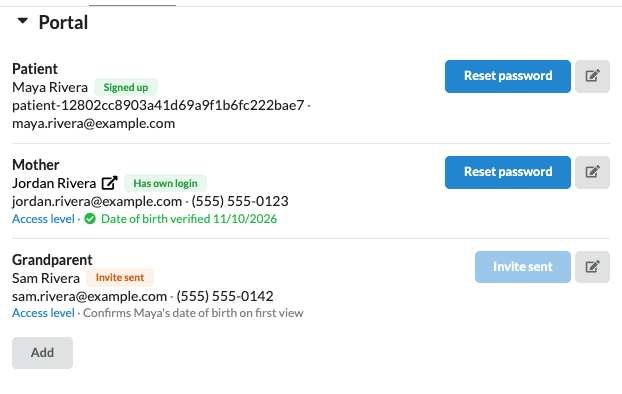
New access appears in Portal with Not invited. Click Send invite to send the family member their invite.
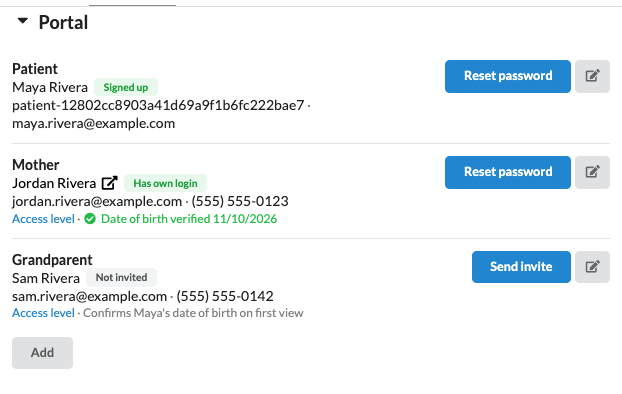
The invite goes to every address on file for them, the contact's email and phone number, with one link that works from either. Hover over Send invite to see where it will go. Once it's sent, the row shows Invite sent. After they sign up, the button becomes Reset password.
The invite uses Canvas's standard wording. Wording you set for patients' invite emails in Patient Communications applies to patients only.
Step 4: What the family member sees
The family member follows the link, sets a password, and signs in to the portal.
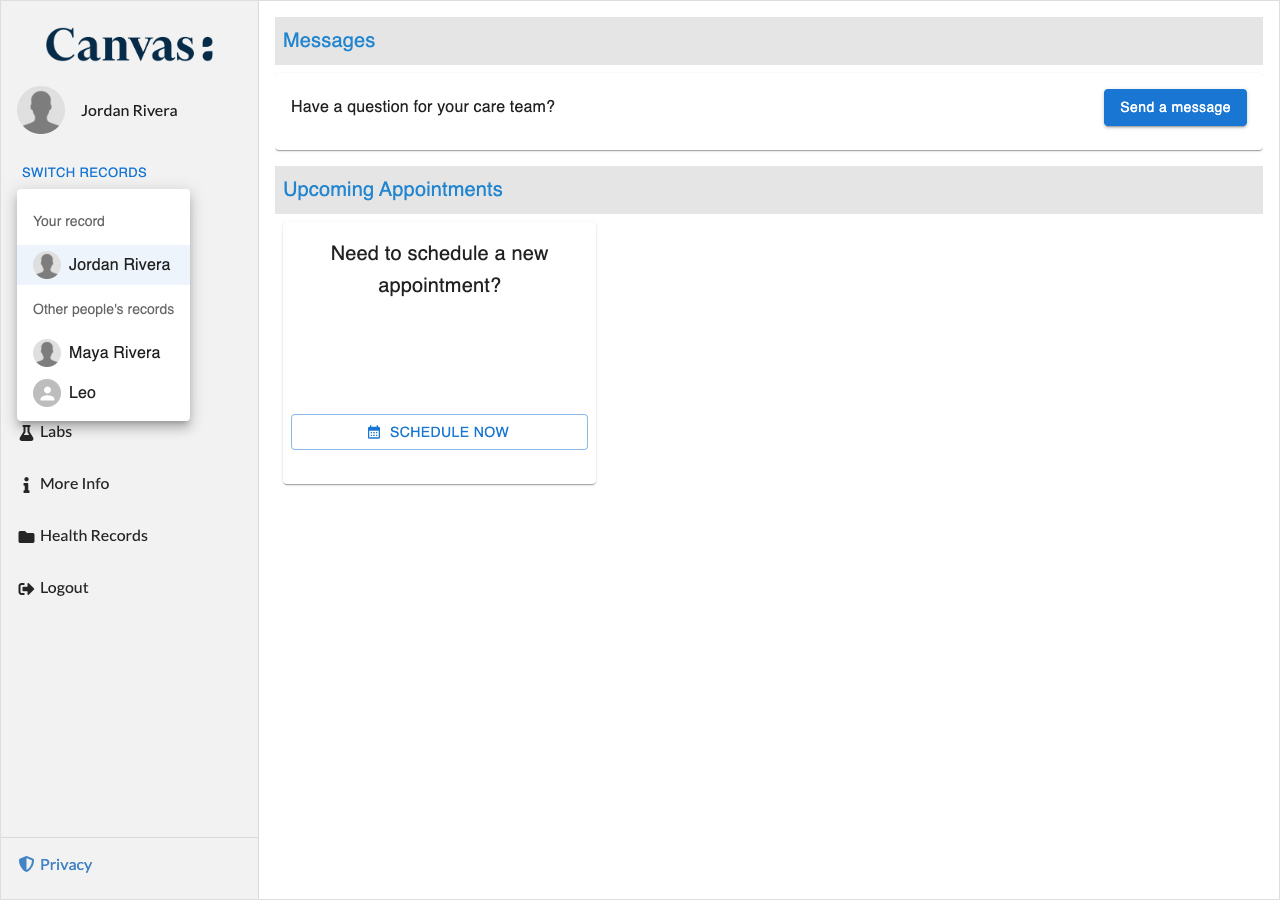
Switching records. A family member who can open more than one chart uses Switch records to move between them. Your record is their own chart, if they have one, and Other people's records lists the charts they were given.
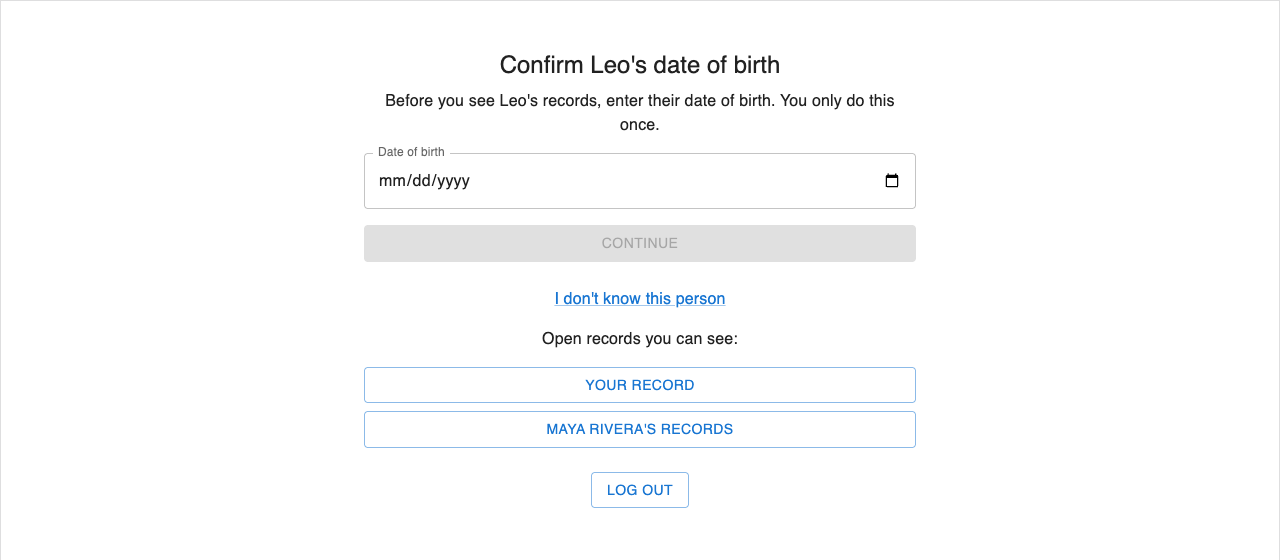
Confirming the patient's date of birth. The first time they open a patient's records, they enter the patient's date of birth. Until they do, the patient appears by first name only. After 3 wrong dates of birth, that access is locked: the patient's Portal section shows Locked after 3 wrong dates of birth, and staff click Unlock after confirming who the person is.
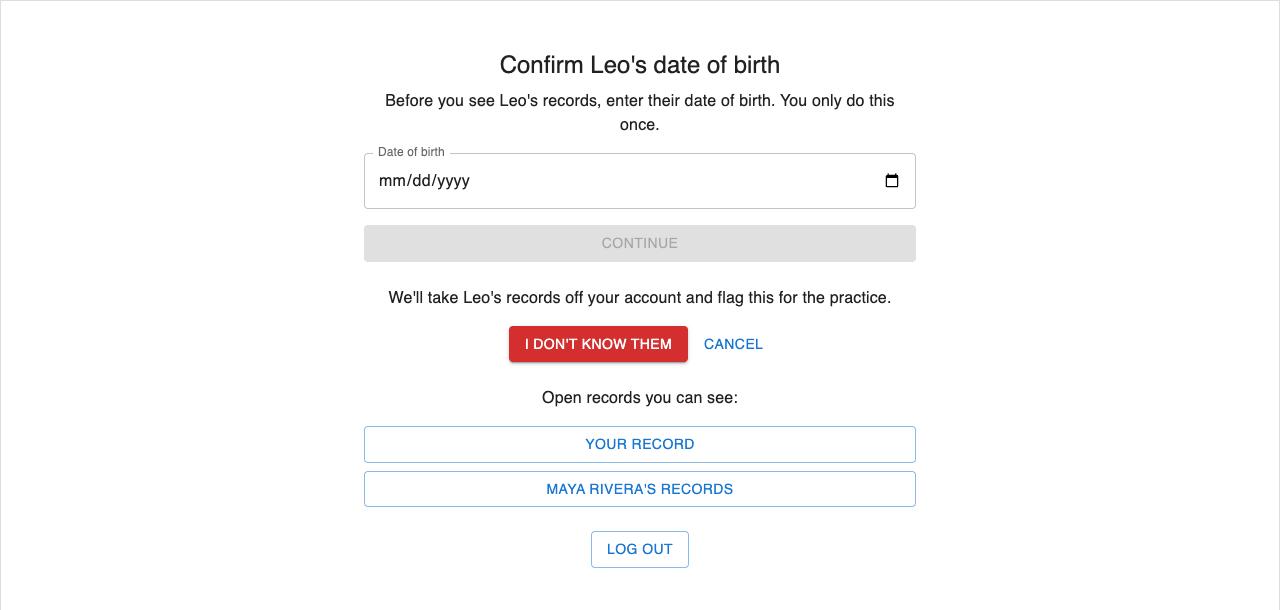
"I don't know this person." If the invite reached the wrong person, they click I don't know this person. The patient's records are taken off their account, and your team is told (see Flagged access below).
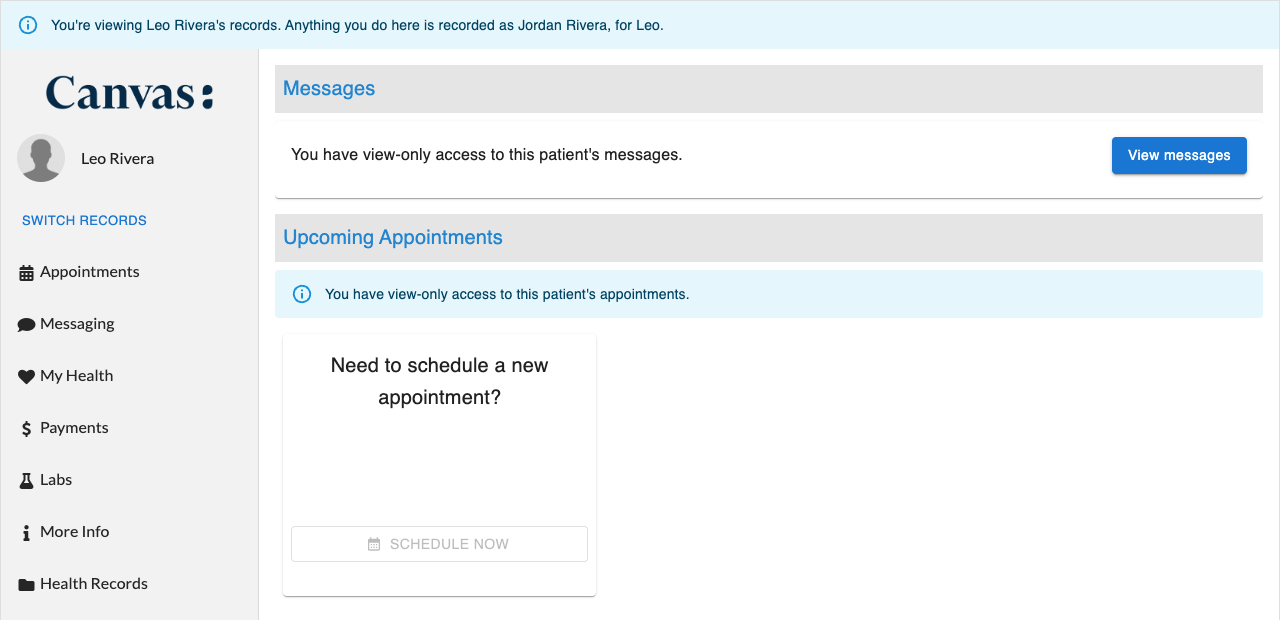
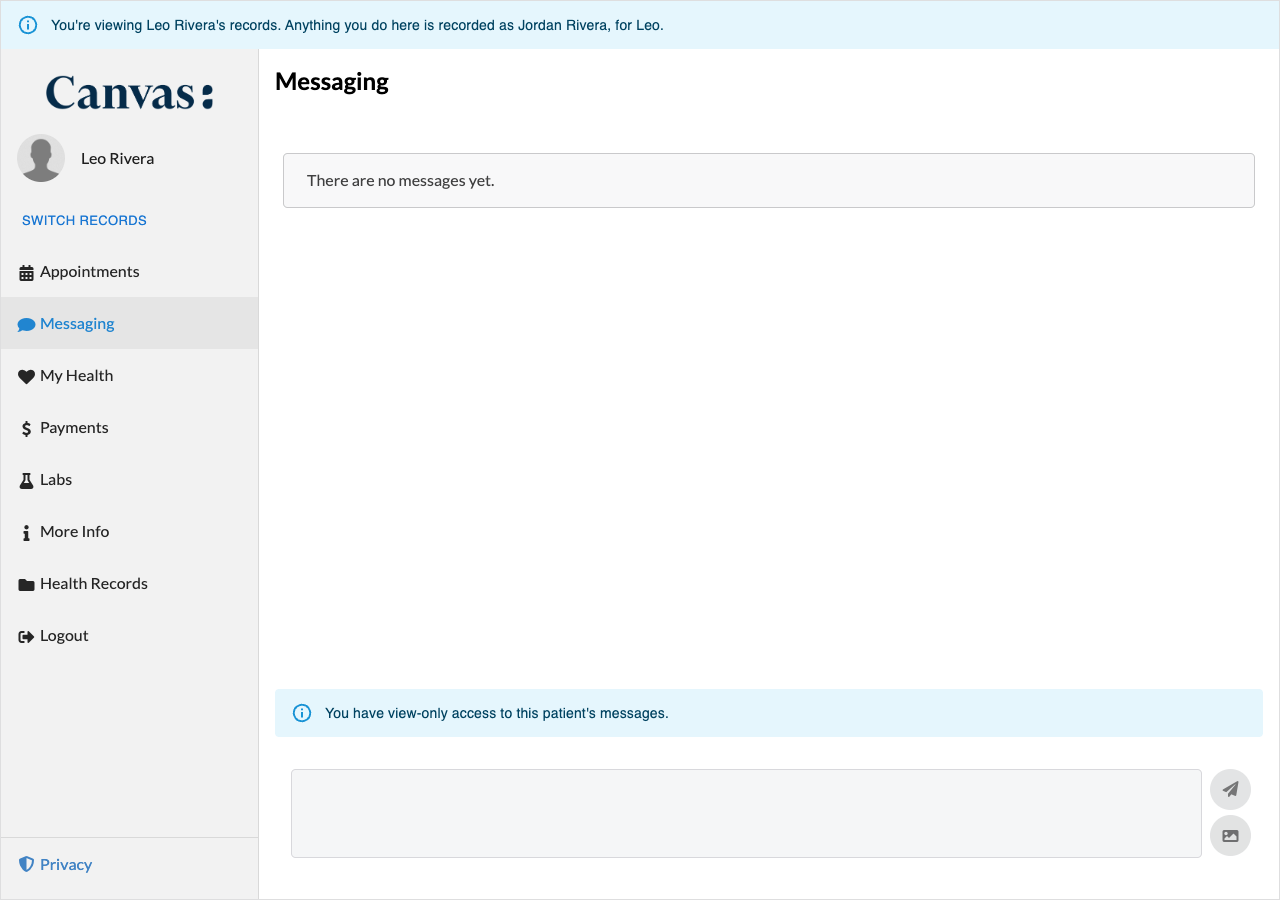
Using the patient's records. A banner shows whose records are open and that anything they do is recorded as them, for the patient. Areas they can only view say so, and their action buttons are turned off.
What the patient sees
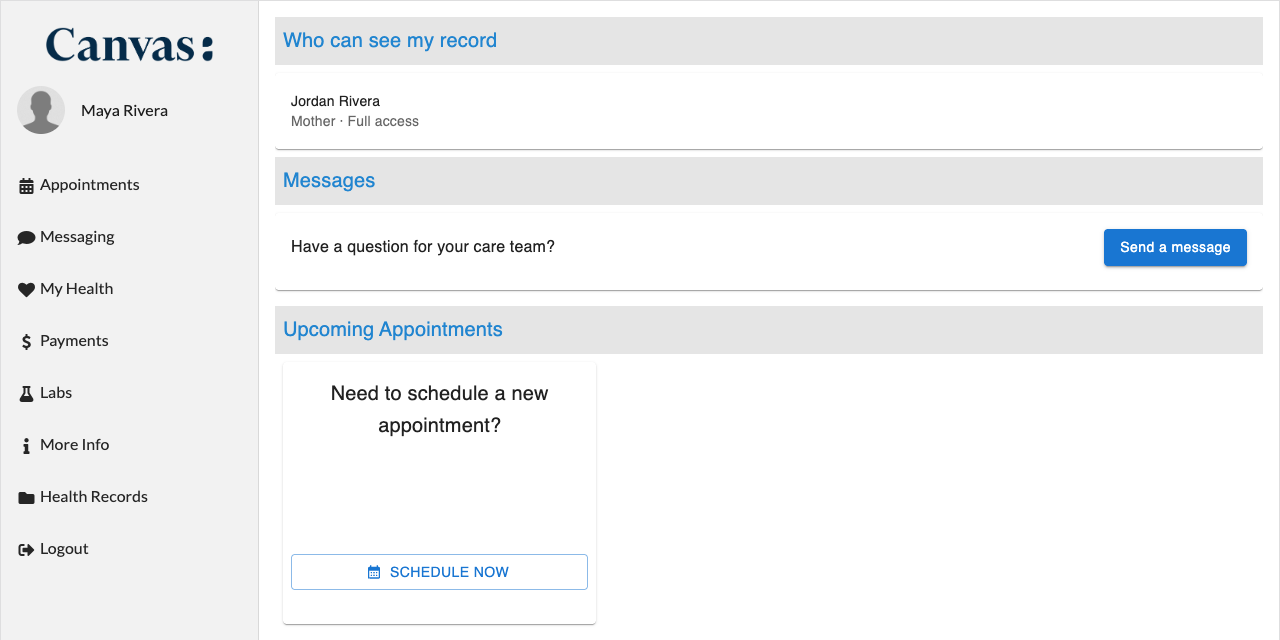
A patient with their own portal login sees Who can see my record on their portal home, with each person who has access, their relationship, and their access.
Managing access
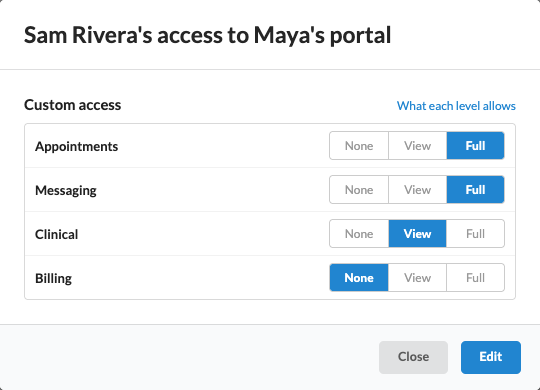
See or change access. Click Access level on a row to see the access, or the edit button to change it. The editor also shows who gave the access and the access history: each grant, change, invite, and removal, with who did it and when.
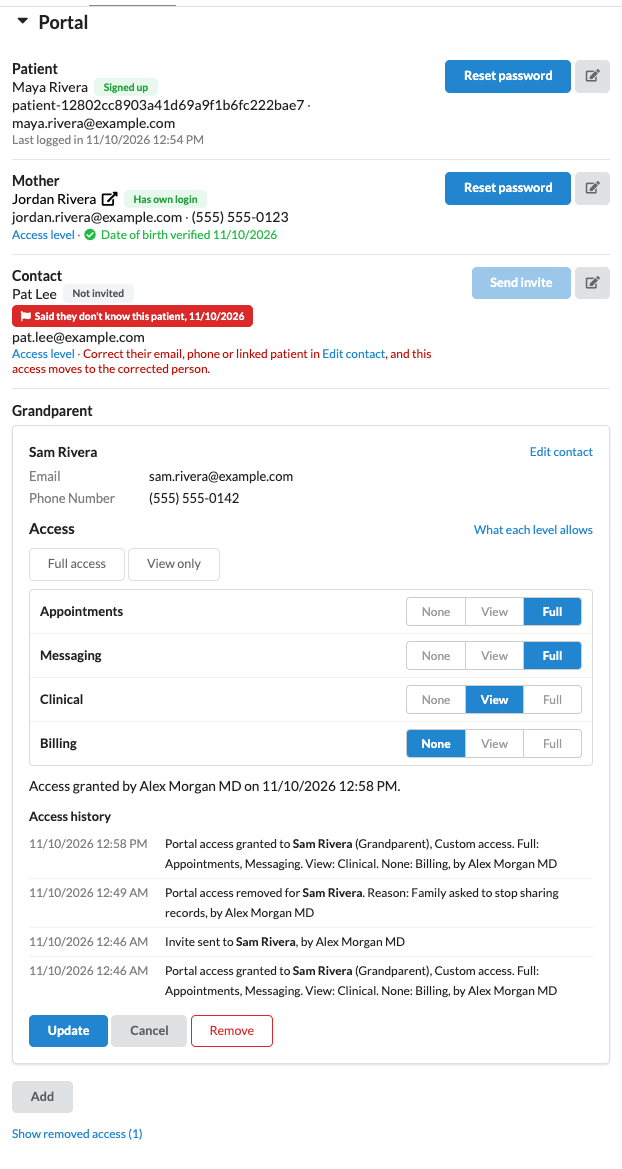
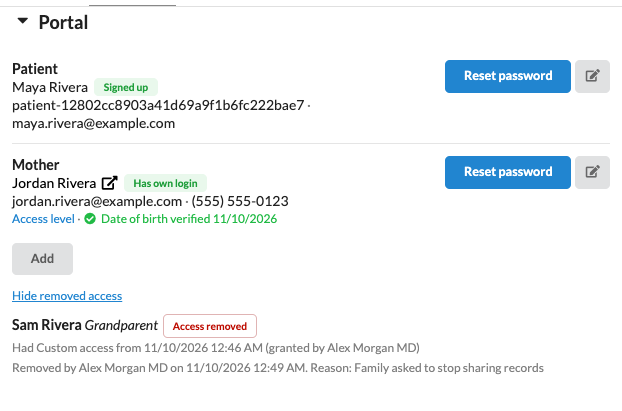
Remove access. In the editor, click Remove, give a reason, and click Remove access. The family member stays on the patient's contacts, and if they're signed in, the patient disappears from their records switcher right away. Their access to anyone else isn't affected.
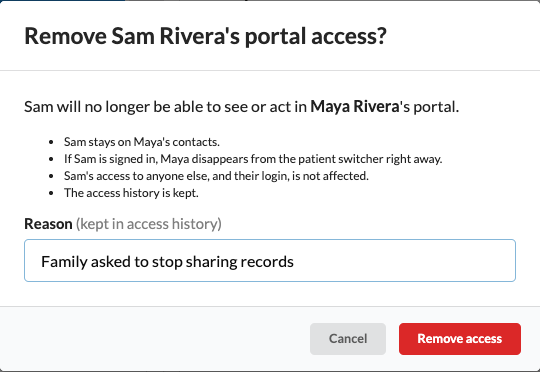
Removed access stays on the chart as history. Click Show removed access to see it, with who gave it, who removed it, and the reason.
Removing a contact who has access. In Contacts, removing a contact with active access offers Remove contact and access, which removes both. A removed contact leaves the patient's contact list, but Canvas keeps its name and relationship with the access history and with anything the family member did on the chart.
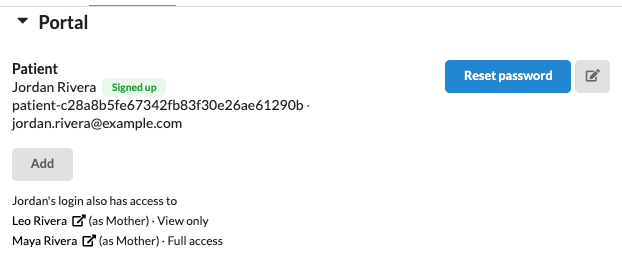
Charts a patient's login can open. When a family member is also your patient, their own Portal section lists the charts their login can open, with their relationship and access on each.
Flagged access
When a family member clicks I don't know this person, Canvas pauses their access, marks it in the patient's Portal section, and opens a task for the patient's care team lead, or for the staff member who gave the access when the patient has no care team lead. The task reads, for example, "Pat Lee said they don't know Maya Rivera. Their portal access is paused: correct the contact or remove the access in Profile → Portal."
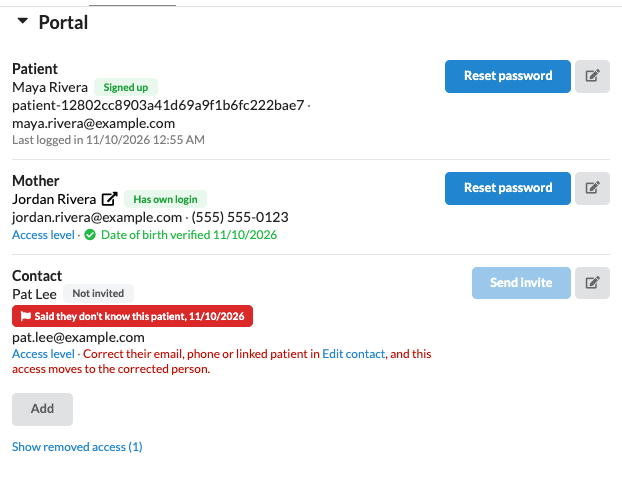
To resolve it, either correct the contact's email, phone number, or linked patient in Contacts, and the access moves to the corrected person, or remove the access. Either one completes the task.
Notifications family members receive
When family portal access is on, family members are told when there's something new on a patient's chart that their access lets them see:
a new message from the care team (with Messaging access)
lab results released to the patient (with Clinical access)
a new statement, when the portal shows statements (with Billing access)
an appointment reminder (with Appointments access)
The notice says there's something new for a person whose records they can see and links to the portal's sign-in page. It doesn't name the patient. Only family members who have signed up and confirmed the patient's date of birth get notices.
Where notices go:
A family member without their own chart gets an email, at the contact's email address.
A family member who is also your patient gets an email, and a text at the phone number on their chart that has consent for messages.
Statement notices are email only.
An address that already got the patient's own notice, such as a parent's phone number listed on the child's chart, isn't notified again.
How family members' actions are recorded
Everything a family member does on a patient's chart is recorded as them, acting for the patient. Staff see them as, for example, "Jordan Rivera, for Leo" on messages and in the chart's history, and Canvas's FHIR API and plugins identify them as the patient's contact. Developers can read more in the Canvas developer documentation on family portal access.
Turning family portal access off
If Canvas turns family portal access off for your instance, family members' access is paused, not removed:
Family members can't open the charts they were given. A family member who is also your patient can still use their own record.
Family members stop getting notices, and the family access controls leave the patient's Portal section.
Every family member's access, with its levels and history, is kept. When family portal access is turned back on, family members can open those charts again.
There's one exception. A family member whose own patient record is inactive keeps a working login only while they have access to someone else's chart, so turning family portal access off turns their login off. Turning it back on doesn't turn that login back on. To reactivate it, open the patient's Portal section, remove the family member's access while keeping them as a contact, and then give them access again. You can also ask your Canvas team.
Troubleshooting
What you see | What to check |
|---|---|
There's no Portal section or Add button for family access | Family portal access isn't on for your instance, or you don't have permission to change this patient. Ask your Canvas team. |
The family member isn't listed in Contact | Add them in Contacts first. Contacts who already have access aren't listed. |
Send invite is turned off | The contact has no email address or phone number. Add one in Contacts. |
The family member never got the invite | Hover over Send invite to check the addresses, correct them in Contacts, and send it again. |
The family member can't open the patient's records | Check whether the access is locked after 3 wrong dates of birth (click Unlock), flagged, or removed, and whether the patient is active. |
The family member sees fewer pages than expected | Their access to that area is None. Change it in the editor. |
A family member without their own chart doesn't get texts | Notices to family members who aren't your patients go by email only, because their phone number has no consent on record for automated texts. Invites still go to their phone. |