Command | Order DME
Last updated: October 15, 2026
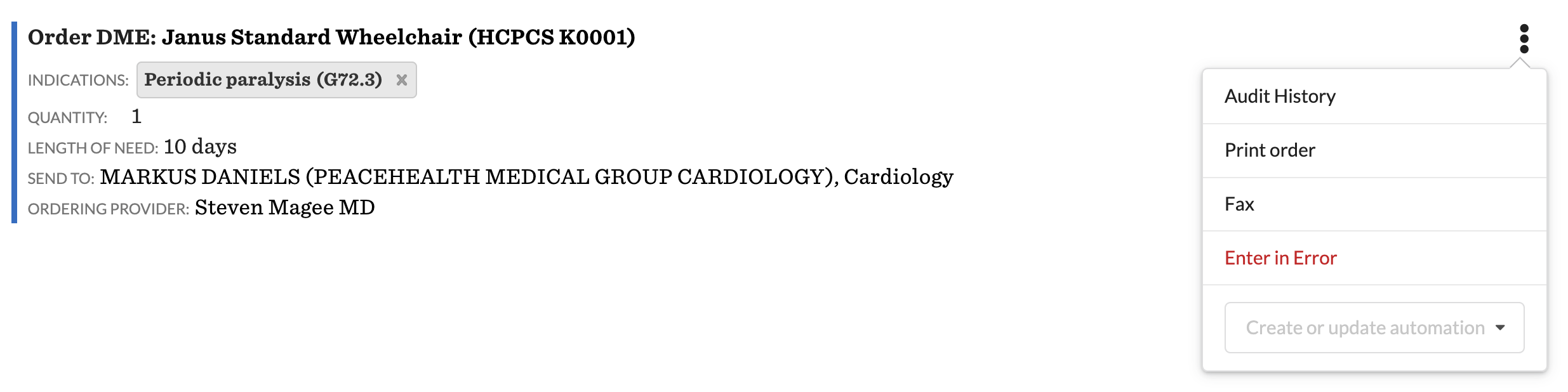
Use the Order DME command to order durable medical equipment, such as a wheelchair, walker, CPAP machine, or shower chair, from a note. You can pick an item from your practice's DME formulary or type one in, send the order to a supplier, sign it, then print or fax it.
Add an Order DME command
Open a note in the patient's chart.
In the command search, type Order DME (or DME). The command is added to the Plan section of the note.
Fill in the fields below, then click Sign.
Fields
Field | Required | What to enter |
|---|---|---|
Item | Yes | Search your DME formulary by item name or code and select the item. If the item isn't on your formulary, type it in as free text (up to 255 characters). |
Indications | Yes | One or more diagnoses that justify the order. Pick from the patient's coded conditions or search ICD-10. |
Quantity | Yes | How many to order, at least 1. |
Length of Need | No | How long the patient needs the equipment, in your own words, for example "6 months" or "Lifetime". |
Send to | No | The supplier to send the order to. Search the same contact directory the Refer command uses. The supplier you pick is saved with the order, and its fax number fills in when you fax the order. |
Ordering provider | Yes | The provider ordering the equipment. Must be an active prescriber. If you can prescribe, it fills in with your name. |
The patient's most recent height and weight appear under Item, or "Not recorded" if they have none. Record vitals first if the supplier needs them.
Signing the order
When you sign, Canvas saves the order exactly as the supplier will see it:
For a formulary item, the item's name and code are taken from your formulary.
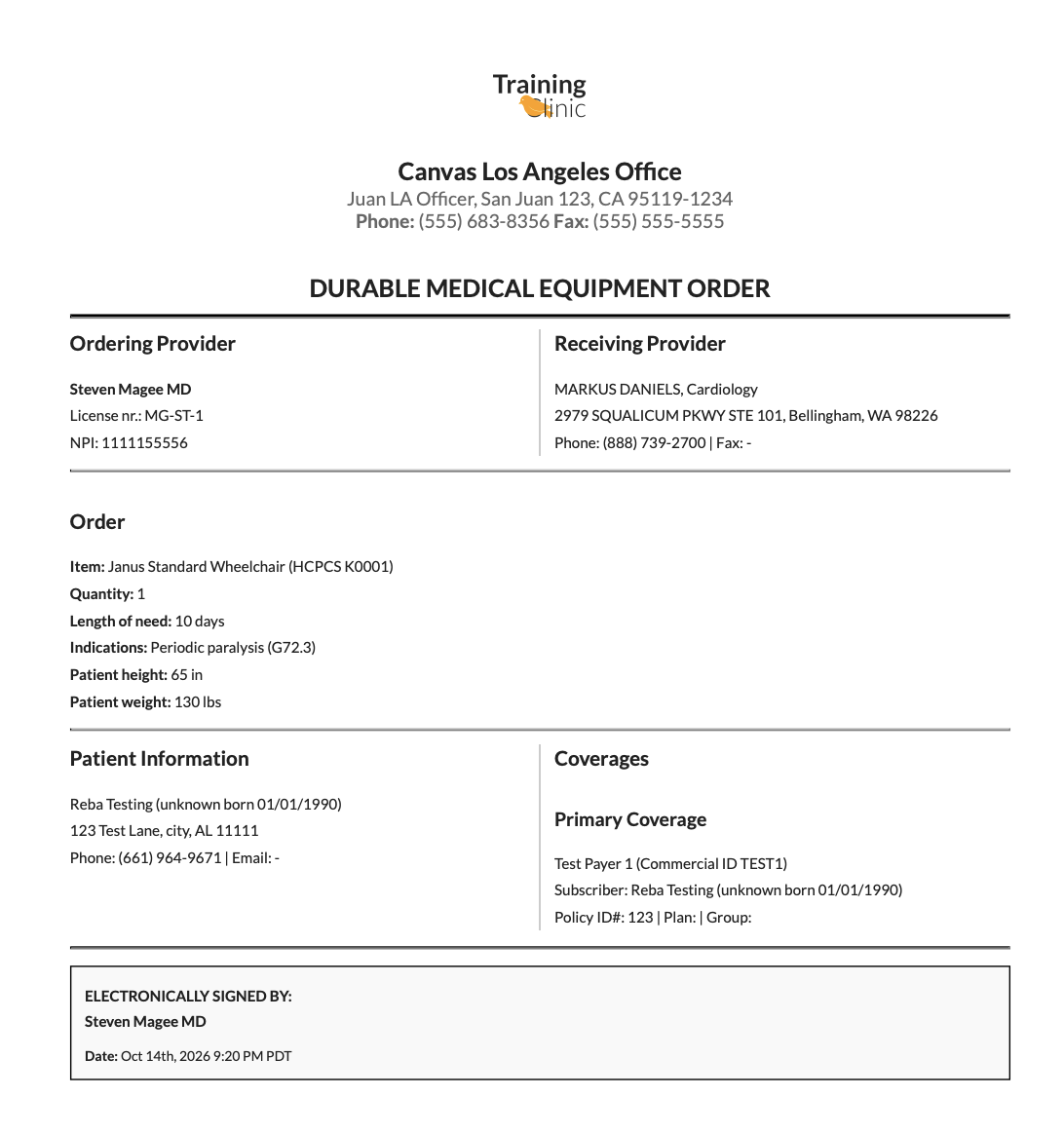
The patient's height and weight at the time of signing are saved with the order, so later vitals don't change it.
The ordering provider is shown as the electronic signer on the printed order.
If the ordering provider isn't an active prescriber, signing stops with "The ordering provider must be an active prescriber". Choose a prescriber and sign again.
Print or fax the order
After the order is signed, open the command's menu:
Print order opens the order as a PDF. It lists the item, quantity, length of need, indications, the patient's height and weight, and the ordering provider's electronic signature with the date.
Fax sends the order. If the supplier you chose in Send to has a fax number on file, it is filled in for you; otherwise, enter the number.
Both actions require permission to print.
Manage your DME formulary
Your formulary is the list of items staff can search in the Item field. Staff with access to Settings can manage it:
Open Settings and go to DME Products.
Add a product with its Name and, optionally, a Code and Code system (HCPCS or Internal).
To remove an item from search without deleting it, select it and choose the Deactivate action. Choose Activate to bring it back.
You can also import and export the formulary as a spreadsheet from the same page, which is the quickest way to load a large list.