Usage & Billing
Last updated: November 5, 2026
Usage & Billing helps you monitor your organization's monthly AI token and usage-based plugin spend. View spending trends, identify what's driving costs, and review your organization's pricing terms. Only the Billing admin has access to this section of Platform.
Usage & Billing does not replace your monthly Canvas invoice, which also includes subscription fees, MAP charges, additional environment fees, pass-through costs, and token usage fees.
View This Month's Spend
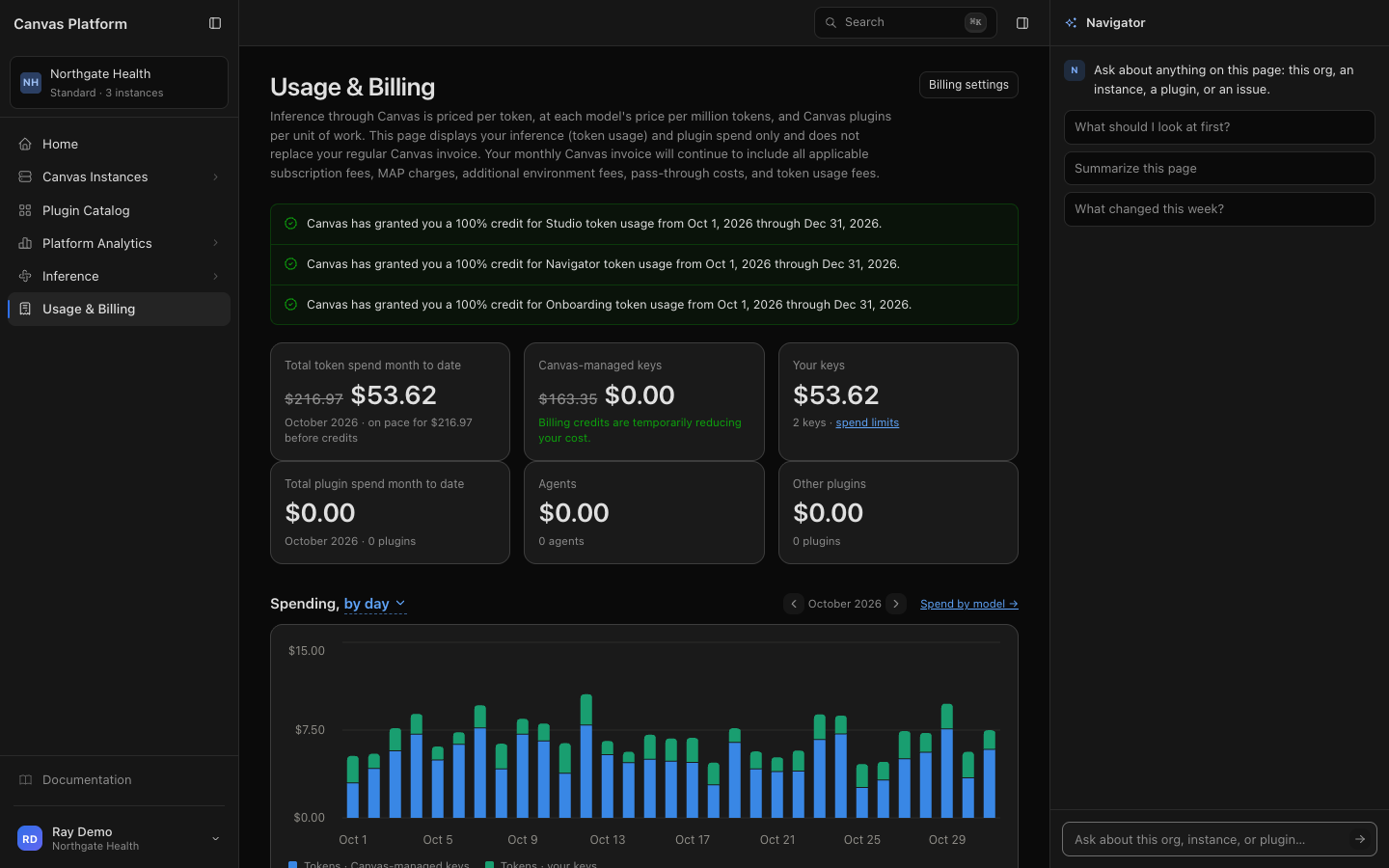
Go to Usage & Billing in the sidebar to see your month-to-date spending.
The summary tiles show:
Category | What it includes |
|---|---|
Total token spend | Total AI token spend, broken down into Canvas-managed keys (Studio, Navigator, and Onboarding) and Your keys (keys created by your organization). |
Total plugin spend | Usage-based plugin charges, split into Agents and Other plugins, including how many plugins generated charges. |
Starting on the 6th of each month, the total tile also displays projected month-end spend based on your current usage.
Analyze Spending Trends
Use the Spending chart to see how costs change over time and which products contribute most.
Choose a time range: Select by day, by week (last 8 weeks), or by month (six months, starting with your first month of usage).
Review previous months: In the daily view, use the arrows beside the month to navigate.
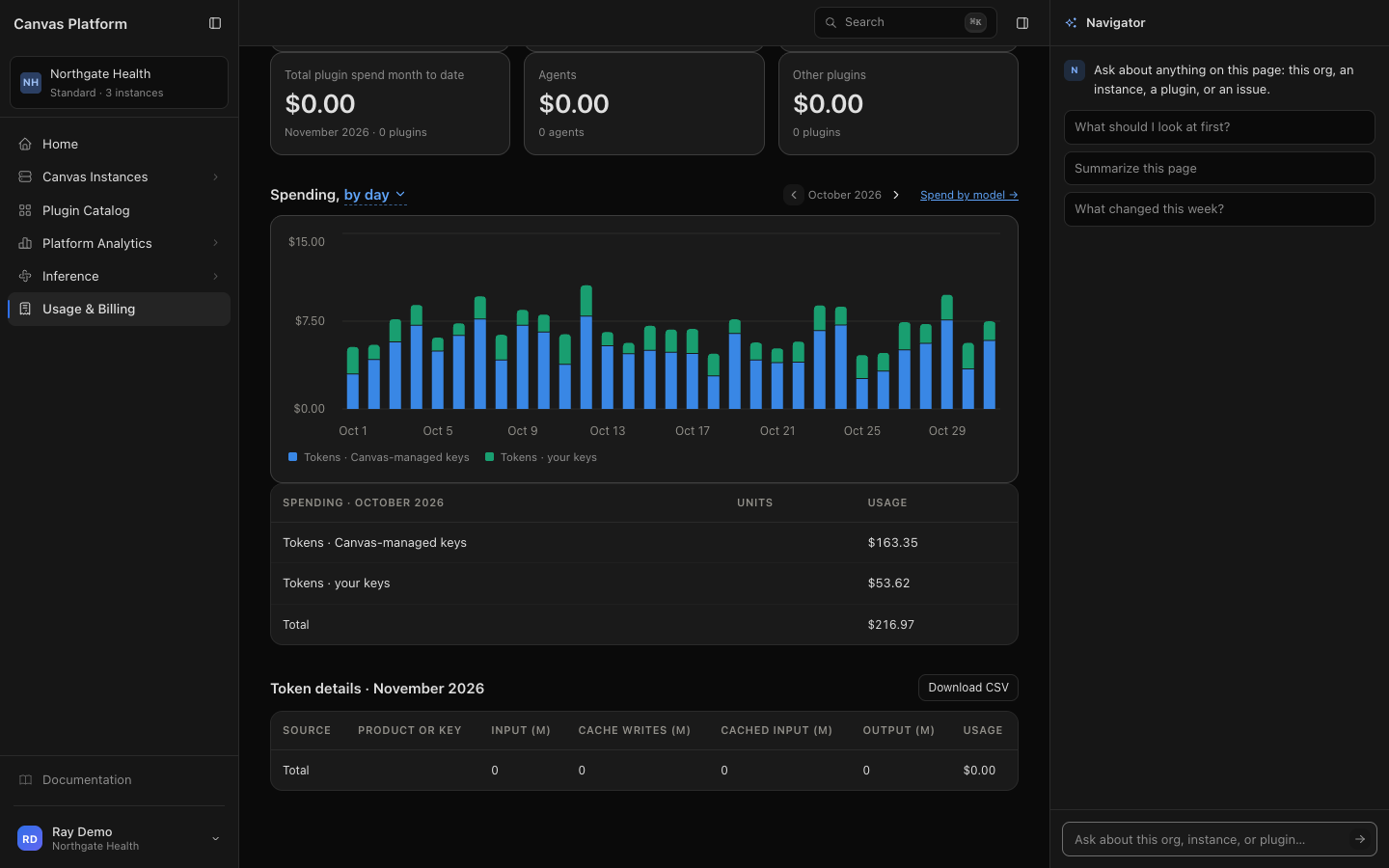
Review spending details: The table below the chart totals the period shown, split into:
Tokens used by Canvas-managed keys
Tokens used by your organization's keys
Your three highest-spending plugins, including billable units
Remaining plugin spend, grouped together
View token spend by model: Click Spend by model → to open Inference → Usage for a breakdown by model and day.
Download Token Usage Details
The Token details table shows this month's usage by product or key, including:
Source: Canvas-managed, Your key, or No key recorded
Token usage: Input, cache writes, cached input, and output, measured in millions of tokens
Usage: Total cost in dollars
Click Download CSV to export the same data with exact token counts.
Understand Credits and Discounts
Credits and discounts appear throughout Usage & Billing.
What you see | What it means |
|---|---|
"Canvas has granted you…" | An active billing credit. Each credit shows what it covers and its effective dates. |
Strikethrough amount | Original price before credits, alongside the remaining amount after credits. |
"Covered through [date]" | Canvas covers token usage for the indicated Canvas-managed products through that date. |
"On pace for … before credits" | Projected spend excludes credits because they may expire before month-end. |
"Promo code [code] gives you…" or "Promo code [code] caps…" | A plugin promo code applies. The plugin tiles show your cost after the discount, with the original amount struck through. The Spending chart and its table show plugin spend before the discount. |
"Billed to [organization]" | Your MSO is responsible for billing. |
Review Billing Settings
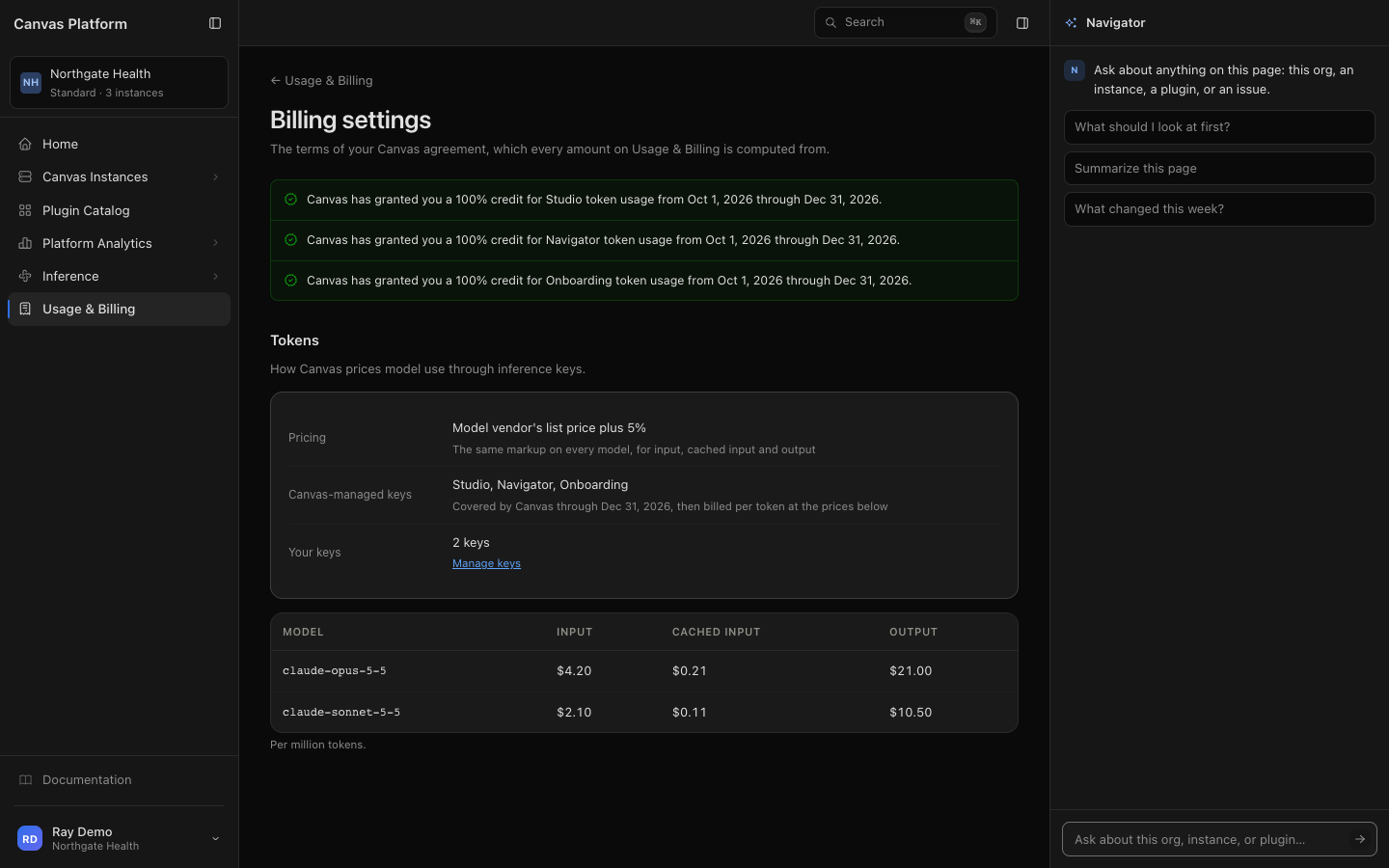
Click Billing settings at the top of Usage & Billing to review the pricing terms from your Canvas agreement.
Section | What it shows |
|---|---|
Pricing | How model usage through inference keys is priced. |
Canvas-managed keys | Products using Canvas-managed keys and whether credits apply. |
Your keys | Number of organization-created keys and a Manage keys link. |
Token prices | Input, cached input, and output pricing per million tokens for each model. |
These settings reflect your agreement and are view-only.
To manage budgets, per-key spending limits, and alerts, go to Inference → Keys & limits. See Inference Gateway.
Frequently Asked Questions
Why can't I see Usage & Billing?
You need the Billing admin role. Organization admin access does not automatically include billing permissions. Ask an Organization admin to assign the role.
What does "No inference account" mean?
Your organization doesn't have an inference account yet, so there is no usage data to display. Contact your Canvas team for assistance.
When does a new billing month begin?
At 00:00 UTC on the first day of each month. Daily and weekly reporting also uses UTC, with weeks starting on Monday.
Which plugins are included in plugin spend?
Canvas-published plugins that charge per unit of work and run on your production instances.
Where can I find my Canvas invoice?
Usage & Billing displays token and plugin usage costs, not your complete invoice. Token usage fees appear on your monthly Canvas invoice alongside other Canvas charges. Contact your Canvas team with invoice questions.