Patient Message Inbox
Last updated: November 10, 2025
The Patient Message Inbox provides a centralized location for managing patient communications sent through the Canvas Patient App. This article explains how to access, filter, read, and respond to patient messages while ensuring timely communication and effective care coordination.
User's Guide
Accessing Patient Messages
Patient messages can be accessed directly from the Schedule View in the user panel.
Navigate to the schedule view
Click the speech bubble in the user panel
The red badge icon indicates the number of unread messages for the user.

The message view will open to show all unread messages for the logged in user.
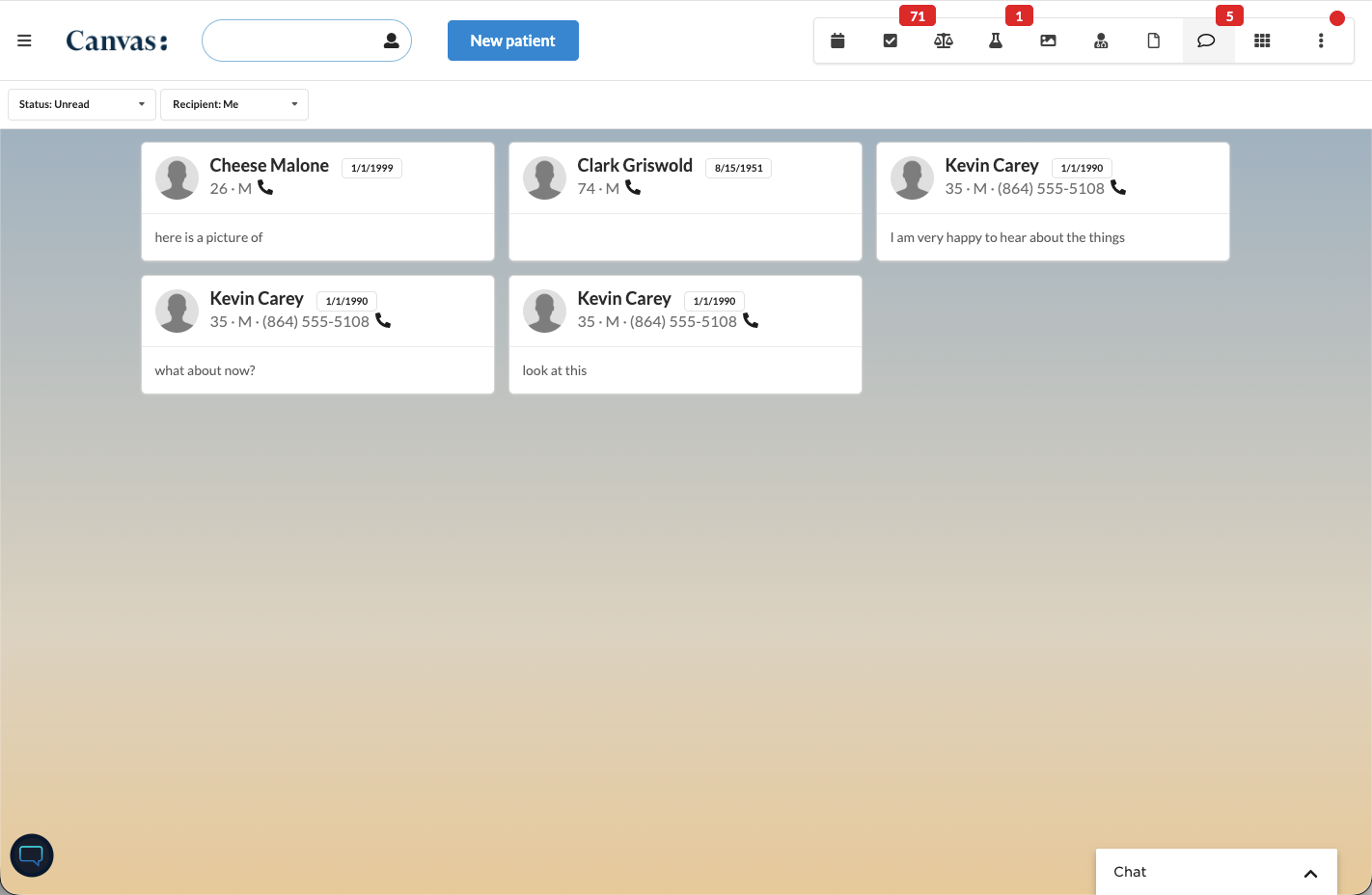
Click the message to be brought to the patient's chart
Reading Patient Messages
To view and mark messages as read:
Navigate to the desired patient chart
Locate new messages by finding the speech bubble icon with down arrow and blue dot
Click on the desired message to expand it
Click the image within the
Select "Mark as Read"
Click on the patient name within the message to navigate to their chart if needed
Filtering Messages
The Message header provides filtering options to help you organize and prioritize your inbox. By default the message view will default to the unread messages for the logged in user. The view can be changed by modifying the filters.
Select the drop-down menu of the desired filter
Status: Filter by read or unread messages
Unread
Read
Recipient: Filter by specific users
Me: logged in user
Any: all users
Other staff: all staff excluding the user
Individual: select the name of an individual staff member to view only their messages
Understanding Message Types and Icons
Messages are visually distinguished by icons and indicators:
New incoming messages: Speech bubble icon with down arrow and blue dot, with "New Message" text displayed in the title. The recipient's profile picture and name appear to the right of the message.
Outgoing messages: Speech bubble with up arrow icon displayed before the message
API-received messages: Display a "Received" timestamp to the right of the message. Hover over the "Received" text to view the full date. The timestamp becomes visible when the message note is expanded.
Incoming messages: Speech bubble with down arrow icon displayed before the message
Reading Patient Messages
To view and mark messages as read:
Navigate to the desired patient chart
Locate new messages by finding the speech bubble icon with down arrow and blue dot
Click on the desired message to expand it
Select "Mark as Read"
Click on the patient name within the message to navigate to their chart if needed
NOTE: The default recipient of an incoming patient message is the patient's assigned care team lead. For more information, see the Care Teams knowledge center article.
Sending Messages to Patients
To send a message to a patient:
Navigate to the patient chart
Select "Message" under the New Note dropdown
Type your message or select a template in the appropriate field
If needed, select the correct location
Click "Send"
Configuration & Set Up
Care Team Assignment
Patient messages automatically route to the designated care team lead for each patient. To ensure proper message delivery:
Prerequisites: Patients must have a Team Lead assigned in their Care Team
Admin permissions: Care team assignments are managed through the Care Team settings
Important: If a patient does not have a Team Lead assigned, messages sent from that patient will not automatically assign to any individual user.
Patient App Link Expiration
Patient app access links have built-in security features:
Links expire after being clicked
Links expire 3 hours after being sent if not opened
Expiration time can be configured in Organization Settings under
accessTokenExpirationInSeconds
FAQ & Troubleshooting
Q: How can I manage messages for my provider?
A: Use the filters to filter by your provider to see incoming messages. Once the panel is filtered as desired, create a bookmark in Chrome as an easy link back to this view.
Q: What happens if the patient does not have a Team Lead in the Care Team?
A: A message sent from the patient will not automatically assign to an individual user. Ensure all patients have a designated Team Lead for proper message routing.
Q: Do patient app links expire?
A: Yes, links expire after being clicked and also expire 3 hours after being sent if not opened. This can be configured in Organization Settings under accessTokenExpirationInSeconds.
Related Resources
Care Teams – Learn how to assign and manage care team leads for proper message routing
Patient App Overview – Understanding patient communication capabilities
Organization Settings – Configure patient app link expiration settings
Keywords: patient messages, inbox, patient app, care team, message filtering, patient communication, unread messages
Categories: Patient Communication, Patient App, Care Team Management